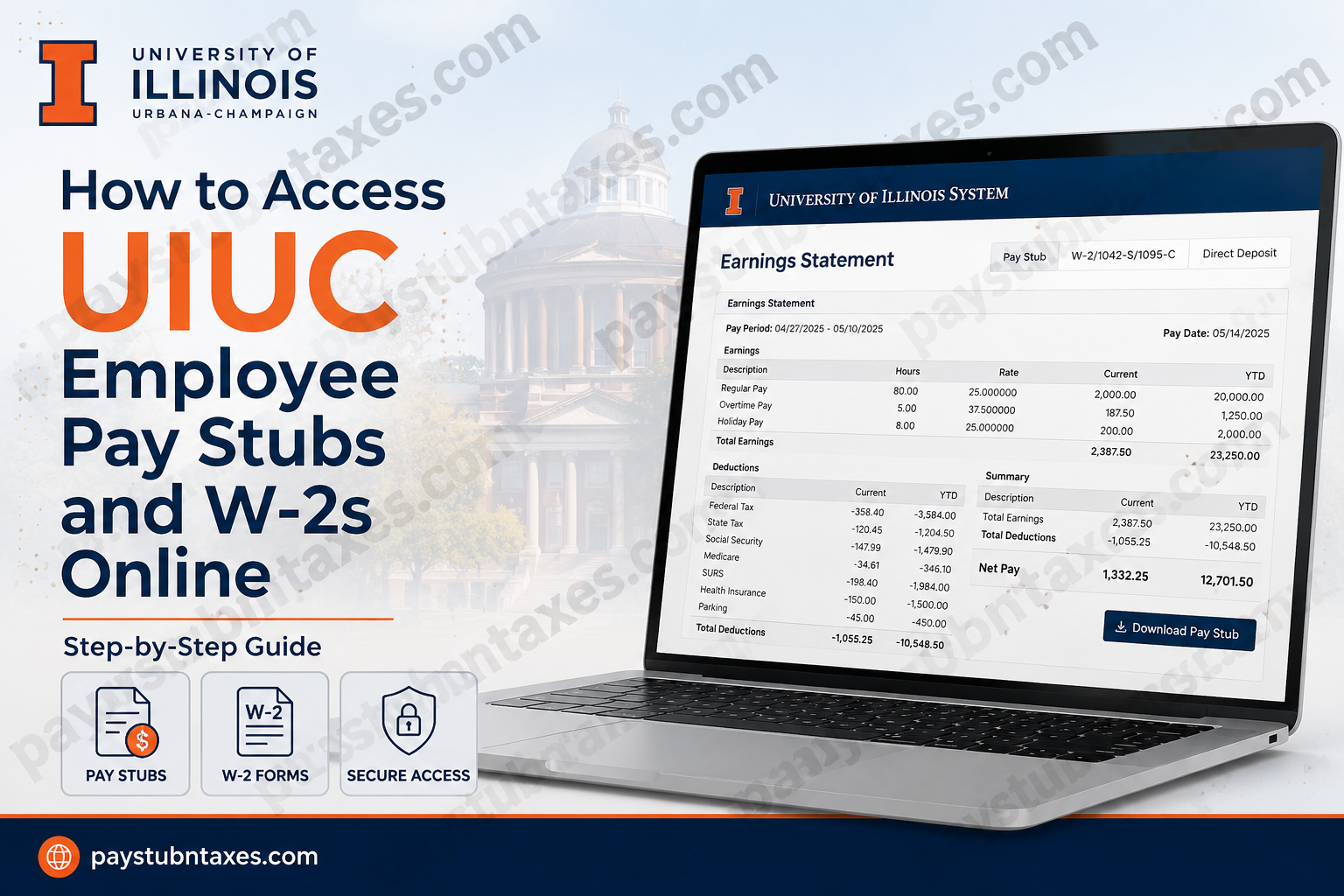
The University of Illinois System is one of the most prestigious public university systems in the United States, serving tens of thousands of employees across the University of Illinois Urbana-Champaign, University of Illinois Chicago, University of Illinois Springfield, and UI Health. Employees throughout the system can conveniently access pay stubs, earnings statements, tax forms, and employment information online through the My UI Info and Earnings Statement portals. Whether you are a current faculty member, staff employee, healthcare professional, graduate assistant, or administrative worker, the University provides secure digital access to payroll and tax documents using your NetID credentials and two-factor authentication (2FA).
UIUC Payroll Schedule
The University of Illinois System pays employees according to their employment classification:
- Biweekly employees are paid every other Wednesday, approximately 10 days after the pay period ends.
- Monthly employees are paid on the 15th of each month.
- If payday falls on a holiday or weekend, payment is typically issued on the previous business day.
- Online earnings statements become available approximately three days before payday.
UIUC Employee Payroll Portal
Employees can access their payroll information through the University’s Earnings Statement system and My UI Info portal.
UIUC Earnings Statement Login
Portal Link: https://nessie.uihr.uillinois.edu/apps/earnstmt/login.cfm
Employees must sign in using their:
- Bluestem/Campus NetID
- Password
- Two-factor authentication (2FA)
The official University of Illinois System login page uses secure NetID authentication.
What You Can Access Online
Through the My UI Info and Earnings Statement systems, employees can securely access:
- Current and previous pay stubs
- Earnings statements
- W-2 tax forms
- 1042-S tax forms
- 1095-C healthcare tax forms
- Direct deposit information
- W-4 tax withholding forms
- Employment verification records
- Benefits information
- Leave balances and deductions
The My UI Info dashboard centralizes these payroll and HR tools in one secure location.
How to Access UIUC Pay Stubs Online
Follow these steps to retrieve your earnings statements online:
Step 1: Visit the Earnings Statement Portal
Go to: https://nessie.uihr.uillinois.edu/apps/earnstmt/login.cfm
Or access the Earnings Statement feature through the My UI Info portal.
Step 2: Log In with Your NetID
Enter your:
- University NetID
- Password
If you are accessing the portal off campus, you may be prompted to complete two-factor authentication (2FA).
Step 3: Open Your Earnings Statement
After logging in:
- Select the desired pay period
- Open your earnings statement
- Review your:
- Gross earnings
- Taxes
- Retirement deductions
- Leave balances
- Net pay
Step 4: Download or Print Your Pay Stub
Employees can download or print earnings statements for payroll verification, loan applications, budgeting, or personal records.
How to Access UIUC W-2 Forms Online
The University of Illinois System provides electronic access to W-2, 1042-S, and 1095-C tax statements.
Step 1: Set Up Two-Factor Authentication
Before accessing tax documents, employees must configure 2FA through the university identity system. Once done-
Go to: https://nessie.uihr.uillinois.edu/apps/W2/Login.cfm
Electronic access to tax forms requires active two-factor authentication.
Step 2: Access the Tax Statement Portal
Navigate to the University Payroll & Benefits tax statement section.
Employees can retrieve:
- W-2 Wage and Tax Statements
- 1042-S Forms
- 1095-C Health Coverage Statements
Step 3: Consent to Electronic Delivery
Employees who wish to receive tax forms electronically must submit online consent before the annual deadline.
The University communicates deadlines through:
- Employee email notices
- Department newsletters
- Business & Finance announcements
Step 4: Download Your W-2
Once forms become available in January:
- Log in to the portal
- Select the applicable tax year
- Open your W-2
- Download or print the form
Employees can also retrieve duplicate copies of tax forms electronically for up to seven years.
Important Information About UIUC Tax Forms
Employees should keep the following important policies in mind:
- Electronic tax form access may not be available outside the United States.
- Employees who recently obtained a Social Security Number may experience delays if records were not updated before December 31.
- Tax statements are usually released in January each year.
- Employees can withdraw electronic consent at any time online.
My UI Info Features
The My UI Info portal offers far more than payroll access. Employees can also manage:
- Personal profile information
- Mailing addresses
- Direct deposit setup
- Benefits enrollment
- Retirement plans
- Employment verification
- Education and certification records
- Tuition waivers
Mobile Access to Earnings Statements
The University of Illinois System also supports mobile-friendly access for earnings statements.
Employees using smartphones or tablets can create a home-screen shortcut for quicker access to payroll records.
The mobile shortcut feature works with:
- iPhone
- iPad
- Android devices
- Other mobile browsers
Troubleshooting UIUC Payroll Access
If you cannot access your earnings statement or W-2, try the following:
Reset Your Password
Use the University password recovery tools if your password has expired or been forgotten.
Verify 2FA Enrollment
Ensure your two-factor authentication setup is active.
Confirm Your NetID Status
Former employees may need to verify continued account access eligibility.
Contact University Payroll & Benefits
Employees with payroll issues may contact University Payroll & Benefits for assistance:
- Urbana: 217-265-6363
- Chicago: 312-996-7200
- Springfield: 217-206-7144
Frequently Asked Questions
1. How do I log in to UIUC Earnings Statement?
Visit the official earnings statement portal and log in using your University NetID and password.
2. When are UIUC pay stubs available online?
Earnings statements are typically available online three days before payday.
3. Can former employees access W-2 forms?
Yes. Duplicate W-2 forms may remain available electronically for up to seven years.
4. Does UIUC require 2FA for payroll access?
Yes. Two-factor authentication is required for accessing earnings statements and tax forms.
5. Where can I update direct deposit information?
Employees can manage direct deposit through the My UI Info portal.
6. Are W-2 forms available electronically?
Yes. Employees who consent to electronic delivery can access W-2 forms online.
7. Can I access UIUC payroll records on my phone?
Yes. The payroll system supports mobile devices and allows users to create home-screen shortcuts.
8. What if I cannot access my W-2 outside the United States?
Electronic tax form access may be restricted outside the U.S.
9. What is My UI Info?
My UI Info is the University’s secure employee self-service platform for payroll, benefits, and employment records.
10. How do I retrieve older W-2 forms?
Employees may retrieve duplicate tax forms online for up to seven years.
11. Can I print my earnings statements?
Yes. Employees can download and print their pay stubs anytime.
12. What information appears on an earnings statement?
Pay stubs include gross pay, deductions, taxes, leave balances, and net pay.
13. Do biweekly employees receive three paychecks in some months?
Yes. Certain months include three biweekly payroll dates.
14. What happens if payday falls on a holiday?
Employees are typically paid on the previous business day.
15. Who should I contact for payroll problems?
Contact University Payroll & Benefits or your department supervisor for assistance.
