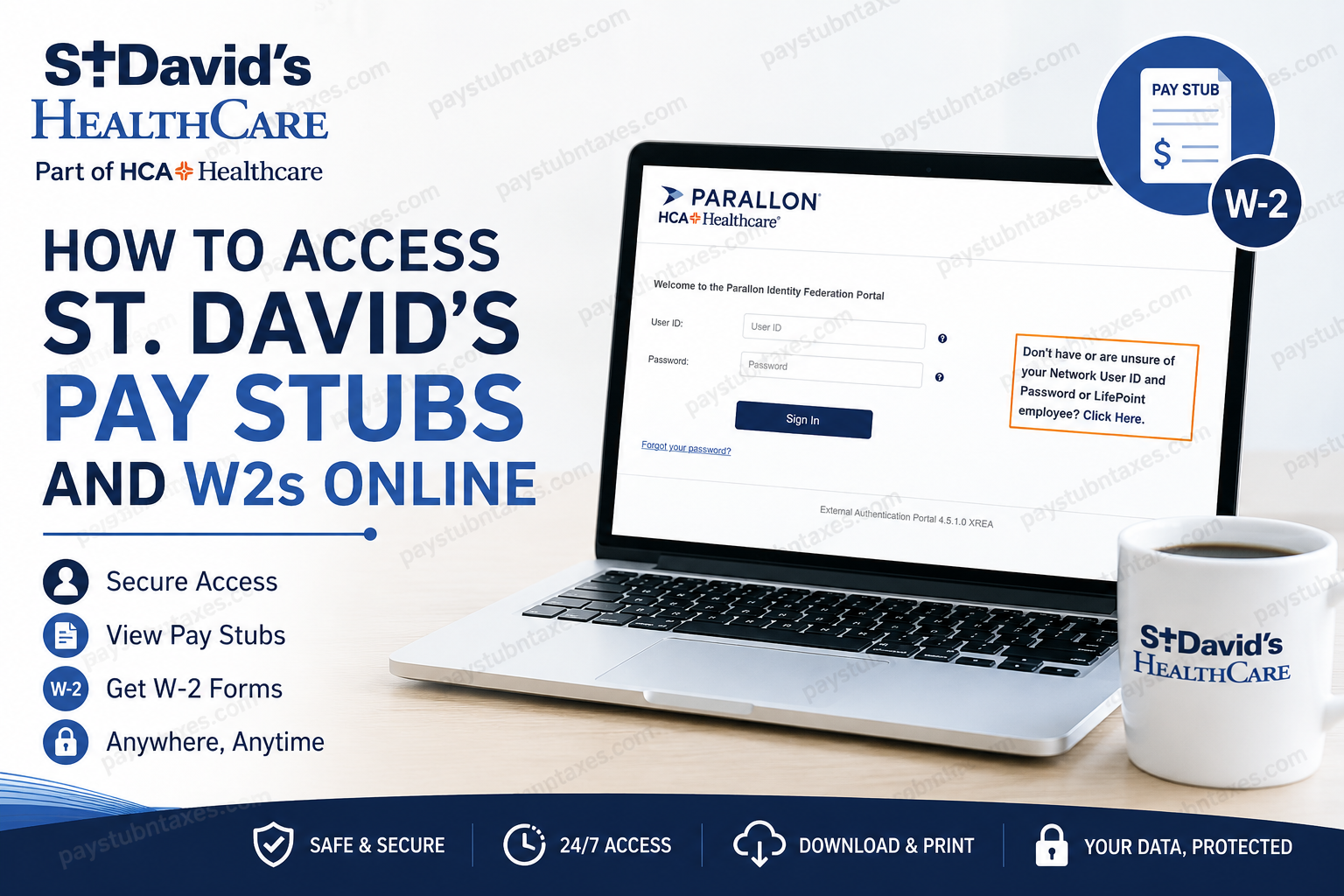
St. David’s HealthCare, a prominent member of HCA Healthcare, operates one of the largest healthcare systems in Central Texas, encompassing multiple hospitals, specialty centers, and more than 160 healthcare sites. The organization is widely recognized for delivering exceptional patient care, advancing medical innovation, and investing millions of dollars back into local communities. For employees and associates, St. David’s HealthCare provides convenient digital payroll access through the Parallon E-Stub portal. This secure self-service platform enables users to review current and historical pay stubs, access W-2 tax forms electronically, update notification settings, and manage payroll-related documents from virtually anywhere.
What Is the St. David’s E-Stub Portal?
The St. David’s E-Stub system is an online payroll platform operated through Parallon, a division affiliated with HCA Healthcare. Employees can securely access:
- Current pay stubs
- Previous wage statements
- Electronic W-2 tax forms
- Payroll notifications
- Account profile settings
- Multi-factor authentication preferences
The portal utilizes Single Sign-On (SSO) technology for enhanced security and streamlined authentication.
St. David’s Pay Stub Portal Login
Official Payroll Portal
St. David’s E-Stub Login Portal
Employees accessing the portal from within the HCA network generally benefit from automatic Single Sign-On authentication. However, when logging in remotely from home or another external location, users must enter their credentials manually.
How to Access St. David’s Pay Stubs Online
Follow these steps to retrieve your electronic wage statements securely.
Step 1: Visit the E-Stub Website
Open your preferred browser and navigate to:
https://onlinewagestatements.com/parallon
Step 2: Enter Your Login Credentials
When accessing outside the HCA network, enter:
- Your 3-4 ID in the User ID field
- Your Network/Active Directory (AD) Password in the Password field
Then click Sign In.
Step 3: Complete Multi-Factor Authentication (If Prompted)
Some users may be required to configure Multi-Factor Authentication (MFA) for additional account protection.
You can choose to receive verification codes through:
- Text Message
- Phone Call
After receiving the code:
- Enter the verification code
- Click Continue
- Optionally configure a backup authentication method
The system may request a new MFA verification every 45 days when accessing externally.
Step 4: Set Up Electronic W-2 Delivery
During your first login, the system may prompt you to choose whether you wish to receive W-2 forms electronically.
To enroll:
- Read the electronic consent agreement
- Enter your preferred email address
- Select Accept
Employees who decline electronic W-2 delivery will continue receiving paper tax forms and may not be able to view W-2s online.
Step 5: Configure Your Employee Profile
You may then be prompted to complete your payroll profile by:
- Setting security questions
- Adding notification preferences
- Enabling wage statement email alerts
- Updating your preferred email address
These settings help improve account recovery and payroll notificatio
How to View Current Pay Stubs
Once logged in:
- Select Current Pay Period from the left navigation menu
- Your latest wage statement will appear instantly
- Review earnings, deductions, taxes, and direct deposit details
Employees can revisit profile settings anytime through the My Profile section.
How to Access Previous Pay Statements
The E-Stub portal also stores historical wage statements.
To access older pay stubs:
- Click Wage Statements
- Select one or multiple pay periods
- Choose View Selected Wage Statements
- Print or save statements as PDF files
The system allows users to maintain secure digital payroll records without relying on paper copies.
How to Access W-2 Forms Online
Employees who elected electronic W-2 delivery can retrieve tax forms directly from the portal.
Steps to View W-2 Forms
- Log into E-Stub
- Select Tax Documents
- Choose the desired tax year
- Click W2 or W2-C if a corrected form is available
The W-2 document can then be viewed, downloaded, or printed securely.
Benefits of Using the St. David’s E-Stub System
The Parallon E-Stub platform offers numerous advantages, including:
- 24/7 online payroll access
- Secure digital document storage
- Immediate access to historical pay statements
- Faster W-2 delivery
- Printable PDF records
- Reduced dependence on paper payroll documents
- Remote accessibility from any internet-connected device
Electronic pay stubs are considered safer than paper statements because they eliminate the risks associated with physical document handling and distribution.
Common E-Stub Login Problems and Solutions
Forgotten Password
If you forget your password:
- Click Forgot Your Password?
- Answer your configured security questions
- Follow the password reset instructions
Account Locked
Accounts may become locked after prolonged inactivity or repeated failed login attempts.
Employees should contact their local IT helpdesk or HR support for assistance.
MFA Verification Issues
If you are unable to receive authentication codes:
- Verify your phone number or email address
- Configure a backup MFA option
- Contact HR or technical support if problems persist
How Long Are Pay Stubs Available?
Electronic pay stub history generally remains available for up to three years from the transition or E-Stub start date.
HR and Technical Support
If you experience login difficulties or payroll-related issues, contact HCA HR support:
HR Answers Support Center
Phone: 1-844-HR-ANSWR (1-844-472-6797)
Employees may also access additional HR learning resources and payroll tools through: https://hcaghr.com
Security Tips for Using the E-Stub Portal
To protect sensitive payroll and tax information:
- Always log out after each session
- Close your browser after viewing payroll documents
- Avoid accessing payroll records on public computers
- Never share your network password or MFA codes
- Store printed pay stubs securely
The E-Stub system emphasizes strict payroll confidentiality and secure authentication standards.
Final Thoughts
St. David’s HealthCare employees can efficiently manage payroll and tax documentation through the secure Parallon E-Stub platform. Whether you need your latest pay stub, historical wage statements, or electronic W-2 tax forms, the system provides fast, convenient, and highly secure access from virtually any location. By leveraging Single Sign-On authentication, multi-factor security, and electronic document delivery, St. David’s HealthCare continues to modernize payroll access while maintaining the highest standards of employee data protection.
Frequently Asked Questions (FAQ)
1. How do I log in to the St. David’s E-Stub portal?
Visit Parallon E-Stub and enter your 3-4 ID along with your HCA network password.
2. What is the official website for St. David’s pay stubs?
The official payroll portal is: https://onlinewagestatements.com/parallon
3. Can I access my St. David’s pay stubs from home?
Yes. Employees can securely access E-Stub remotely using their 3-4 ID and Active Directory password.
4. What information do I need to access E-Stub?
You will typically need:
- Your 3-4 ID
- Network/AD password
- Multi-Factor Authentication code (if prompted)
5. How do I view my current pay stub?
After logging in:
- Select Current Pay Period
- Your latest wage statement will appear immediately
6. How can I download previous pay stubs?
Navigate to Wage Statements, select the desired pay periods, then choose View Selected Wage Statements to print or save them as PDFs.
7. How do I access my W-2 online?
Log into E-Stub and click Tax Documents to access available W-2 or W-2C forms.
8. Do I need to enroll for electronic W-2 access?
Yes. During your first login, the system may ask whether you want to receive W-2 forms electronically.
9. What happens if I decline electronic W-2 delivery?
If you decline, you will continue receiving paper W-2 forms and may lose online W-2 viewing access.
10. How often does MFA verification occur?
Employees accessing the system externally may need to complete MFA verification approximately every 45 days.
11. Can former employees access E-Stub?
Yes. Former employees may continue accessing E-Stub provided they log in periodically to keep their account active.
12. How long are payroll records available online?
E-Stub wage statements are generally available for up to three years.
13. What should I do if I forget my password?
Click Forgot Your Password? on the login page and follow the account recovery instructions.
14. Who do I contact for payroll or login support?
Employees can contact HR Answers at:
1-844-HR-ANSWR (1-844-472-6797)
15. Is the St. David’s E-Stub portal secure?
Yes. The portal uses Single Sign-On authentication, encrypted payroll access, and Multi-Factor Authentication to protect employee payroll information.
