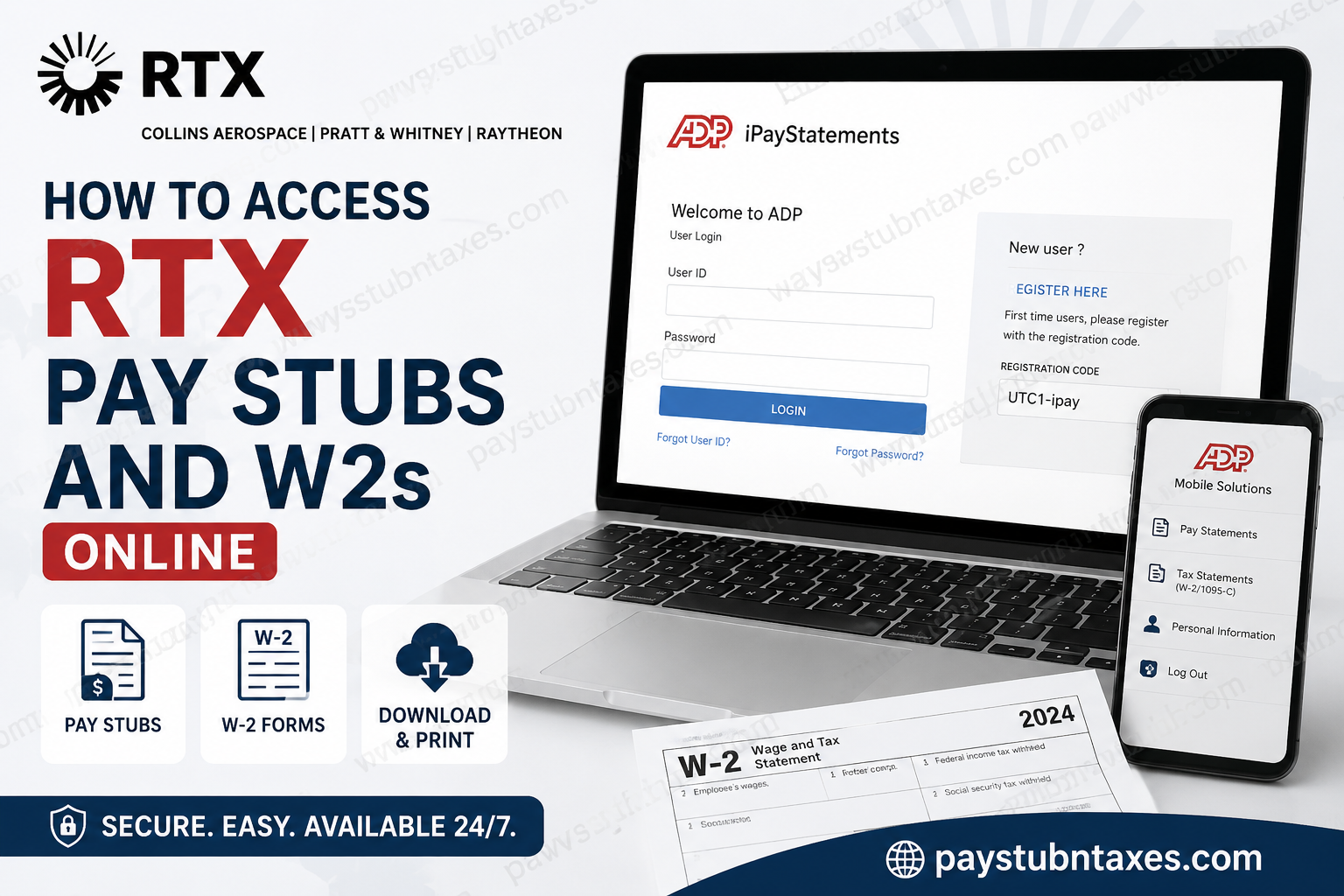
RTX Corporation, formerly known as Raytheon Technologies, stands among the world’s most influential aerospace and defense organizations. Through its three industry-leading businesses—Collins Aerospace, Pratt & Whitney, and Raytheon—RTX employs more than 185,000 professionals who are united by a shared commitment to innovation, safety, accountability, collaboration, and technological advancement. RTX’s mission is not merely to build products but to solve some of humanity’s most complex engineering challenges, from next-generation aviation systems to advanced defense technologies. To ensure employees have convenient access to payroll and tax information, RTX utilizes ADP iPayStatements and the ADP Mobile Solutions application. Through these secure platforms, employees can view, download, and print pay statements and annual tax documents at any time, from virtually anywhere.
RTX Payroll Portal Overview
RTX employees can access their payroll records electronically through ADP, one of the most trusted payroll service providers in the United States.
Payroll Portal Information
| Item | Details |
| Payroll Provider | ADP iPayStatements |
| Employee Login | https://my.adp.com |
| Mobile App | ADP Mobile Solutions |
| Registration Code | UTC1-ipay |
| Documents Available | Pay Stubs, W-2 Forms, Tax Documents |
| Access Period | Up to 3 Years |
| Former Employee Access | Available |
| Payroll Support Email | payrollcustomerservice@rtx.com |
| Payroll Support Phone | (866) 295-4747 |
RTX employees can access historical pay statements and tax forms securely through ADP’s self-service portal. Collins Aerospace employee resources also identify ADP iPayStatements as the primary platform for accessing payroll information and note that first-time users should register using the code UTC1-ipay.
How to Register for ADP iPayStatements
If you are a first-time user, you must create an ADP account before accessing your payroll records.
Step 1: Visit the ADP Website
Navigate to: https://my.adp.com
Alternatively, download the ADP Mobile Solutions app from the Apple App Store or Google Play Store. ADP registration instructions indicate that employees may register through either the website or the mobile application.
Step 2: Create an Account
Select: Get Started link next to New user?
Then choose:
I Have a Registration Code
Enter the RTX registration code:
UTC1-ipay
Step 3: Verify Your Identity
Provide the requested personal information exactly as it appears in company payroll records, including:
- Full legal name
- Social Security Number (SSN)
- Date of birth
- Contact information
Step 4: Complete Security Verification
ADP will send a verification code via email, phone call, or text message.
Enter the code to verify your identity and continue account setup.
Step 5: Create Login Credentials
Create:
- Username
- Strong password
- Security questions
Once registration is complete, you can immediately access your payroll and tax documents.
How to View RTX Pay Stubs Online
RTX employees can conveniently access current and historical pay statements through ADP Workforce Now.
Follow These Steps:
- Log in to your ADP account.
- Select the Myself tab.
- Under Pay, choose Pay & Tax Statements.
- Locate the desired pay date.
- Click View Statement.
- Select View Current Statement.
Your pay stub will display:
- Gross earnings
- Net pay
- Federal tax withholding
- State tax withholding
- Retirement deductions
- Healthcare deductions
- Year-to-date totals
How to Download Multiple RTX Pay Stubs
If you need several payroll records for mortgage applications, visa processing, employment verification, or financial documentation:
- Log in to ADP.
- Navigate to Pay & Tax Statements.
- Select View Statement.
- Choose Export Multiple Statements.
- Select the required pay periods.
- Download the statements in PDF format.
This feature streamlines record keeping and eliminates the need to retrieve statements individually.
How to Access RTX W-2 Forms Online
RTX generally makes electronic W-2 forms available by the end of January each year. Employees who have not opted for electronic delivery typically receive paper copies by mail on or before January 31.
To Download Your W-2:
- Sign in to ADP.
- Select the Myself tab.
- Choose Pay & Tax Statements.
- Locate the Tax Statements section.
- Select the applicable tax year.
- Click View Statement.
- Complete identity verification.
- Download or print your W-2.
The same section also provides access to other tax-related forms, including Form 1095-C when applicable.
How to Download Form 1095-C
Employees who participate in employer-sponsored healthcare coverage may also need Form 1095-C for tax filing purposes.
Steps:
- Log in to ADP.
- Navigate to Pay & Tax Statements.
- Locate Tax Statements.
- Select the appropriate year.
- Open and download Form 1095-C.
Can Former RTX Employees Access Pay Stubs and W-2s?
Yes. One of the significant advantages of ADP iPayStatements is that access typically remains available even after employment ends. Former RTX employees can continue using the portal to retrieve payroll records and tax forms without needing active company network credentials.
This makes ADP an invaluable resource during tax season, particularly for individuals who have changed employers or relocated.
Accessing RTX Payroll Information Through the ADP Mobile App
Employees who prefer mobile access can manage payroll information using the ADP Mobile Solutions application.
Available Features
- View current pay stubs
- Download historical pay statements
- Access W-2 forms
- View tax documents
- Update contact information
- Enable security notifications
The mobile application offers a seamless experience while maintaining enterprise-grade security standards.
Common Login Issues and Solutions
Forgot Username or Password
Use the Forgot User ID or Forgot Password link on the ADP login page.
Registration Code Not Working
Verify that you entered:
UTC1-ipay
exactly as provided.
Identity Verification Failure
Ensure your personal information matches company payroll records precisely.
Account Locked
Wait for the lockout period to expire or contact ADP support for assistance.
RTX Payroll Support Contact Information
If you require assistance with payroll access, W-2 retrieval, or account registration, contact RTX Payroll Services.
Payroll Customer Service
Email: payrollcustomerservice@rtx.com
Phone: (866) 295-4747
Representatives can assist with:
- Pay stub access
- W-2 retrieval
- Tax document corrections
- ADP registration issues
- Account recovery
Why RTX Uses ADP
RTX operates one of the largest aerospace and defense workforces in the world, encompassing Collins Aerospace, Pratt & Whitney, and Raytheon. The company emphasizes safety, trust, accountability, collaboration, and innovation across all business operations.
By leveraging ADP’s secure payroll infrastructure, RTX enables employees to access vital payroll information efficiently while maintaining rigorous data protection standards.
Related Questions
Q. How do I register for RTX ADP access?
A. Visit my.adp.com, select Get Started, choose I Have a Registration Code, enter UTC1-ipay, verify your identity, and create login credentials.
Q. Does RTX use ADP for payroll?
A. Yes. RTX employees use ADP iPayStatements and ADP Mobile Solutions to access payroll and tax documents online.
Q. Can terminated RTX employees still access ADP?
A. Yes. ADP access generally remains available to former employees for retrieving pay stubs and W-2 forms.
Q. How do I get a copy of an old RTX pay stub?
A. Log in to ADP and navigate to Pay & Tax Statements to access historical payroll records available in your account.
Q. Is my W-2 available electronically through ADP?
A. Yes. Electronic W-2 forms are typically available through ADP by the end of January each year.
Final Thoughts
Accessing RTX pay stubs and W-2 forms online is a straightforward process thanks to ADP iPayStatements and the ADP Mobile Solutions app. Whether you are a current employee reviewing recent earnings or a former employee retrieving tax documents, the platform provides secure, around-the-clock access to essential payroll records. By registering at my.adp.com using the registration code UTC1-ipay, employees can effortlessly manage pay statements, W-2s, and other tax-related documents from any device, ensuring that important financial information is always within reach.
RTX Pay Stubs and W-2 FAQs
1. How do I access my RTX pay stubs online?
Log in to ADP at my.adp.com, select Myself, then choose Pay & Tax Statements to view current and past pay stubs.
2. What is the RTX ADP registration code?
The RTX ADP registration code is UTC1-ipay.
3. Where can I find my RTX W-2 form?
Your W-2 is available in the Tax Statements section within ADP under Pay & Tax Statements.
4. When does RTX release W-2 forms?
RTX typically makes electronic W-2 forms available by the end of January and mails paper copies by January 31.
5. Can former RTX employees access their W-2 forms?
Yes. Former employees can continue accessing W-2s and payroll records through ADP iPayStatements after separation.
6. How many years of pay stubs can I access through ADP?
RTX employees can generally access up to three years of pay statements online.
7. Can I download multiple RTX pay stubs at once?
Yes. ADP provides an Export Multiple Statements feature that allows you to download several pay statements simultaneously.
8. Is there a mobile app for RTX payroll access?
Yes. Employees can use the ADP Mobile Solutions app to access pay stubs, W-2s, and tax documents.
9. What should I do if I forgot my ADP password?
Use the Forgot User ID or Forgot Password option on the ADP login page to recover your account.
10. Can I print my RTX pay stubs and W-2 forms?
Yes. ADP allows employees to download and print payroll and tax documents in PDF format.
11. How do I download Form 1095-C from ADP?
Log in to ADP, open Pay & Tax Statements, select the applicable tax year, and download Form 1095-C from the Tax Statements section.
12. Why is my ADP registration not working?
Ensure that you entered the registration code UTC1-ipay correctly and that your personal information matches company payroll records.
13. Is ADP secure for accessing RTX payroll information?
Yes. ADP uses identity verification, encrypted connections, and multi-factor authentication to protect employee information.
14. Who should I contact for RTX payroll assistance?
Employees can contact RTX Payroll Customer Service at payrollcustomerservice@rtx.com or call (866) 295-4747.
15. Can I access RTX payroll documents from outside the United States?
Yes. ADP is web-based and can be accessed securely from most locations worldwide using an internet connection.
