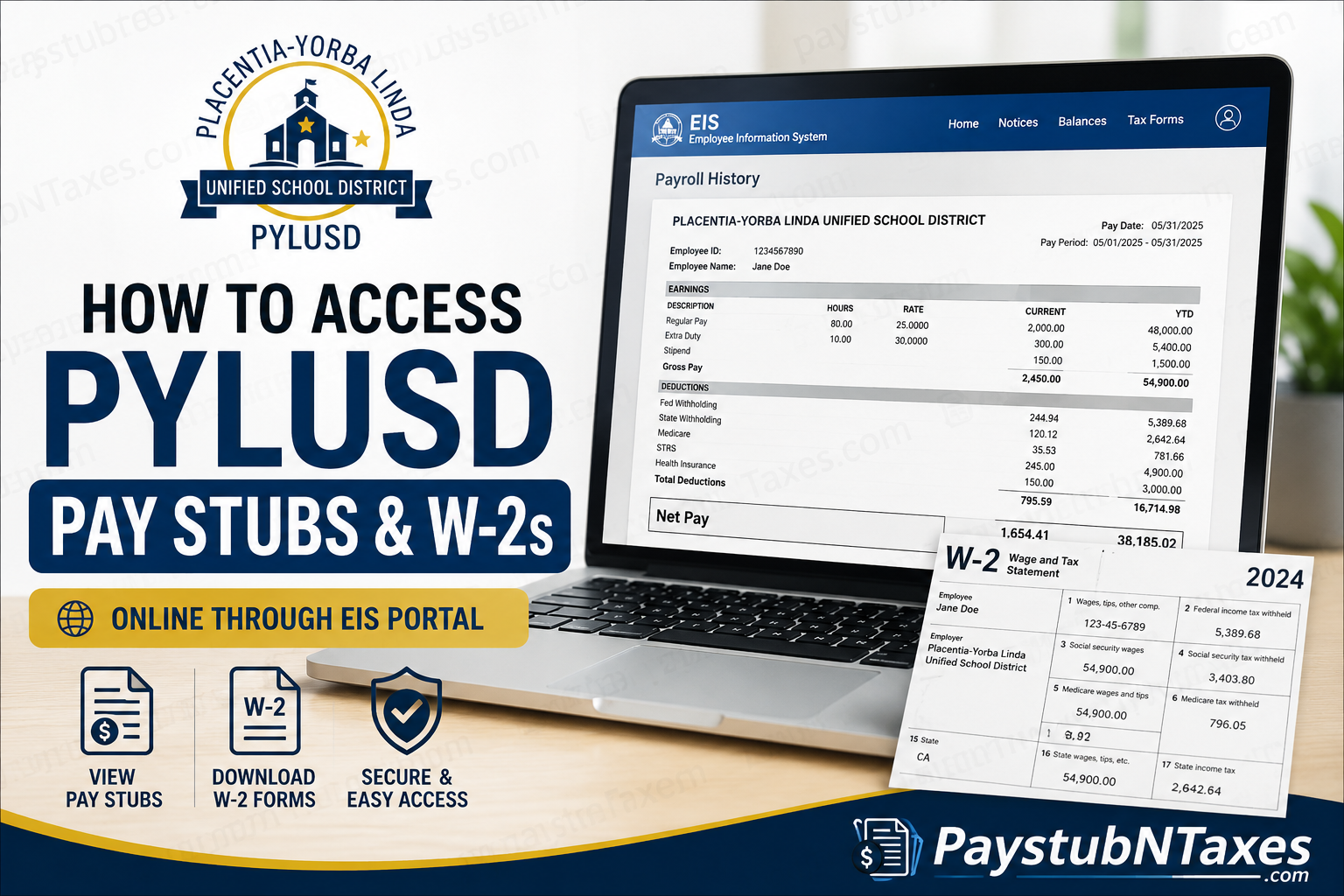
The Placentia-Yorba Linda Unified School District (PYLUSD) has streamlined payroll and tax document access through the Employee Information System (EIS), a secure self-service platform administered through the Orange County Department of Education. Whether you need a recent pay stub, a prior-year earnings statement, or your annual W-2 tax form, EIS provides convenient 24/7 access from any computer, tablet, or smartphone. This comprehensive guide explains how current and former employees can register, log in, retrieve pay statements, download W-2 forms, manage account settings, and resolve common login issues.
What Is the PYLUSD Employee Information System (EIS)?
The Employee Information System (EIS) is a secure online portal that enables PYLUSD employees to:
- View and download pay stubs
- Access annual W-2 wage and tax statements
- Review payroll history
- Check leave and absence balances
- View district notices and documents
- Update contact information (where permitted)
- Manage multi-factor authentication (MFA) settings
The system is accessible through a web browser and mobile devices, allowing employees to manage payroll information anytime and anywhere.
PYLUSD EIS Login Information
Employee Information System (EIS) Portal:
Website: https://my.ocdeapps.us/
Employees can also download the OCDE EIS mobile app from their device’s app store for convenient mobile access.
How to Access PYLUSD Pay Stubs Online
Follow these steps to view or download your payroll statements.
Step 1: Sign In to EIS
Visit the EIS portal and enter:
- Registered email address
- Password
Complete the required two-factor authentication verification.
Step 2: Navigate to Balances
After logging in:
- Select Balances from the top navigation menu.
- Choose Payroll History from the left-hand menu.
Step 3: Review Payroll History
The Payroll History page displays:
- Pay cycle information
- Issue dates
- Gross pay
- Federal tax withholding
- State tax withholding
- Net pay
Step 4: Download Your Pay Stub
To open a pay statement:
- Locate the desired payroll record.
- Click the Issue Date.
- A PDF version of the pay stub will open.
- Download or print the document as needed.
Step 5: Access Previous Years
The Payroll History page defaults to the current calendar year.
To view older pay stubs:
- Select the year dropdown menu.
- Choose the desired calendar year.
- Open and download available pay statements.
How to Access PYLUSD W-2 Forms Online
Annual tax documents are stored within the Tax Forms section of EIS.
Step 1: Log In to EIS
Access your EIS account using your credentials and MFA verification.
Step 2: Open Tax Forms
From the navigation menu:
Tax Forms → W-2
Step 3: Select the Appropriate Tax Year
Available W-2 statements are organized by year.
Choose the desired tax year to view:
- Federal wages
- State wages
- Federal withholding
- State withholding
- Corrections, if applicable
Step 4: Download Your W-2
Click the applicable year to open the PDF file.
You can:
- Save the W-2 to your device
- Print a paper copy
- Submit it to your tax preparer
Additional Tax Documents Available in EIS
Besides W-2 forms, EIS may also provide access to:
Form 1095-C
The Affordable Care Act (ACA) form detailing employer-provided health coverage.
Total Compensation Statement
A comprehensive summary of:
- Salary
- Employer-paid benefits
- Retirement contributions
- Additional compensation details
Availability varies by employee classification and district policies.
First-Time Registration for EIS
New users must create an account before accessing payroll records.
Information Required
Before beginning registration, have the following available:
- 10-digit Employee ID
- Last four digits of your Social Security Number
- Date of birth
- Valid personal email address
Using a personal email address rather than a district email is highly recommended.
Registration Process
- Visit the EIS login page.
- Click Register.
- Complete all required fields.
- Create a secure password.
- Accept the Terms of Service.
- Submit your registration.
EIS Password Requirements
Your password must:
- Contain at least 14 characters
- Include at least three of the following:
- Uppercase letters
- Lowercase letters
- Numbers
- Special characters
- Not contain spaces
- Not contain apostrophes or commas
Using a strong password helps safeguard sensitive payroll and tax information.
Two-Factor Authentication (MFA)
EIS uses Multi-Factor Authentication (MFA) to enhance account security.
During setup:
- Select a verification device.
- Verify the device using a security code.
- Save all recovery codes provided.
Each login requires an additional verification code sent via:
- Text message
- Phone call
If you lose access to your MFA device, recovery codes can be used to regain account access.
How to Recover a Forgotten Password
If you cannot remember your password:
- Select Forgot Password?
- Enter your registered email address.
- Click Reset Password.
- Follow the instructions sent to your email.
A password reset link will be delivered to your registered email account.
How to Recover a Forgotten Email Address
If you’ve forgotten the email associated with your EIS account:
- Click Forgot Email Address?
- Enter:
- Employee ID
- Last four digits of your Social Security Number
- Date of birth
- Click Continue
The system will display the email address currently associated with your account.
What Happens If Your Account Is Locked?
For security reasons, EIS temporarily locks accounts after multiple unsuccessful login attempts.
Account Lockout Details
- Four incorrect password attempts trigger a lockout.
- Lockout duration: 30 minutes.
After the waiting period:
- Verify your registered email.
- Reset your password if necessary.
- Attempt to log in again.
How to Request a Complete EIS Account Reset
A full account reset may be necessary when:
- You no longer have access to your MFA device.
- Recovery codes have been lost or exhausted.
Steps
- Click Account Reset on the EIS login page.
- Open the EIS Account Reset Form.
- Complete all required fields.
- Upload a government-issued photo ID.
- Submit the request.
District staff generally contact employees within several business days to verify identity and restore account access.
After the reset is completed, employees must register for EIS again.
Benefits of Using EIS for Payroll and Tax Records
The EIS platform offers numerous advantages:
- Secure online access 24/7
- Instant retrieval of pay stubs
- Convenient access to W-2 forms
- Mobile-friendly functionality
- Multi-factor authentication protection
- Historical payroll records
- Paperless document management
- Easy tax season preparation
Rather than waiting for printed copies, employees can retrieve payroll and tax information whenever needed.
Contact Information for Payroll Assistance
If you need help accessing EIS, retrieving pay stubs, or downloading W-2 forms, contact PYLUSD payroll support:
Phone: 714-985-8476
Email: vrodriguez@pylusd.org
Payroll staff can assist with registration issues, account recovery, login difficulties, and employee identification verification.
Final Thoughts
The PYLUSD Employee Information System (EIS) provides a secure, efficient, and user-friendly solution for managing payroll and tax records online. Whether you need a current pay stub, a prior-year payroll statement, or your annual W-2 tax form, the portal makes accessing essential employment documents quick and straightforward. By registering your account, enabling multi-factor authentication, and keeping your contact information current, you can ensure uninterrupted access to your payroll records throughout the year.
Frequently Asked Questions
1. How do I access my PYLUSD pay stubs online?
Log in to the EIS portal, select Balances, then choose Payroll History. Click the issue date of any pay period to view or download your pay stub.
2. Where can I find my PYLUSD W-2 form?
After logging into EIS, navigate to Tax Forms and select the appropriate tax year to download your W-2 statement.
3. What is the PYLUSD EIS portal?
The Employee Information System (EIS) is the online payroll and employee self-service platform used by PYLUSD employees to access pay and tax documents.
4. What website should I use to access EIS?
Employees can log in at https://my.ocdeapps.us/ using their registered credentials.
5. Can I access my pay stubs from a mobile device?
Yes. Employees can use the EIS portal through a mobile browser or download the OCDE EIS mobile app.
6. What information do I need to register for EIS?
You will need your:
- 10-digit Employee ID
- Last four digits of your Social Security Number
- Date of birth
- Valid email address
7. Does EIS require multi-factor authentication?
Yes. EIS uses two-factor authentication (2FA) to protect employee payroll and tax information.
8. How do I reset my EIS password?
Click Forgot Password? on the login page, enter your registered email address, and follow the instructions sent to your inbox.
9. What should I do if I forget my registered email address?
Select Forgot Email Address? and verify your identity using your Employee ID, date of birth, and the last four digits of your Social Security Number.
10. How long does an account lockout last?
Accounts are temporarily locked after four consecutive incorrect password attempts and generally unlock after 30 minutes.
11. Can I access previous years’ pay stubs?
Yes. In Payroll History, use the year dropdown menu to view and download pay stubs from prior calendar years.
12. What other tax forms are available in EIS?
Depending on eligibility, employees may access:
- W-2 Wage and Tax Statements
- Form 1095-C
- Total Compensation Statements
13. Can I update my contact information in EIS?
Yes. Employees whose districts enable self-service features can update contact information, email addresses, and emergency contacts within EIS.
14. What should I do if I lose access to my MFA device?
Use one of your saved recovery codes. If recovery codes are unavailable, complete the EIS Account Reset process.
15. Who can I contact for help with EIS access issues?
For assistance with registration, login problems, payroll records, or W-2 access, contact PYLUSD Payroll Support at 714-985-8476 or vrodriguez@pylusd.org.
