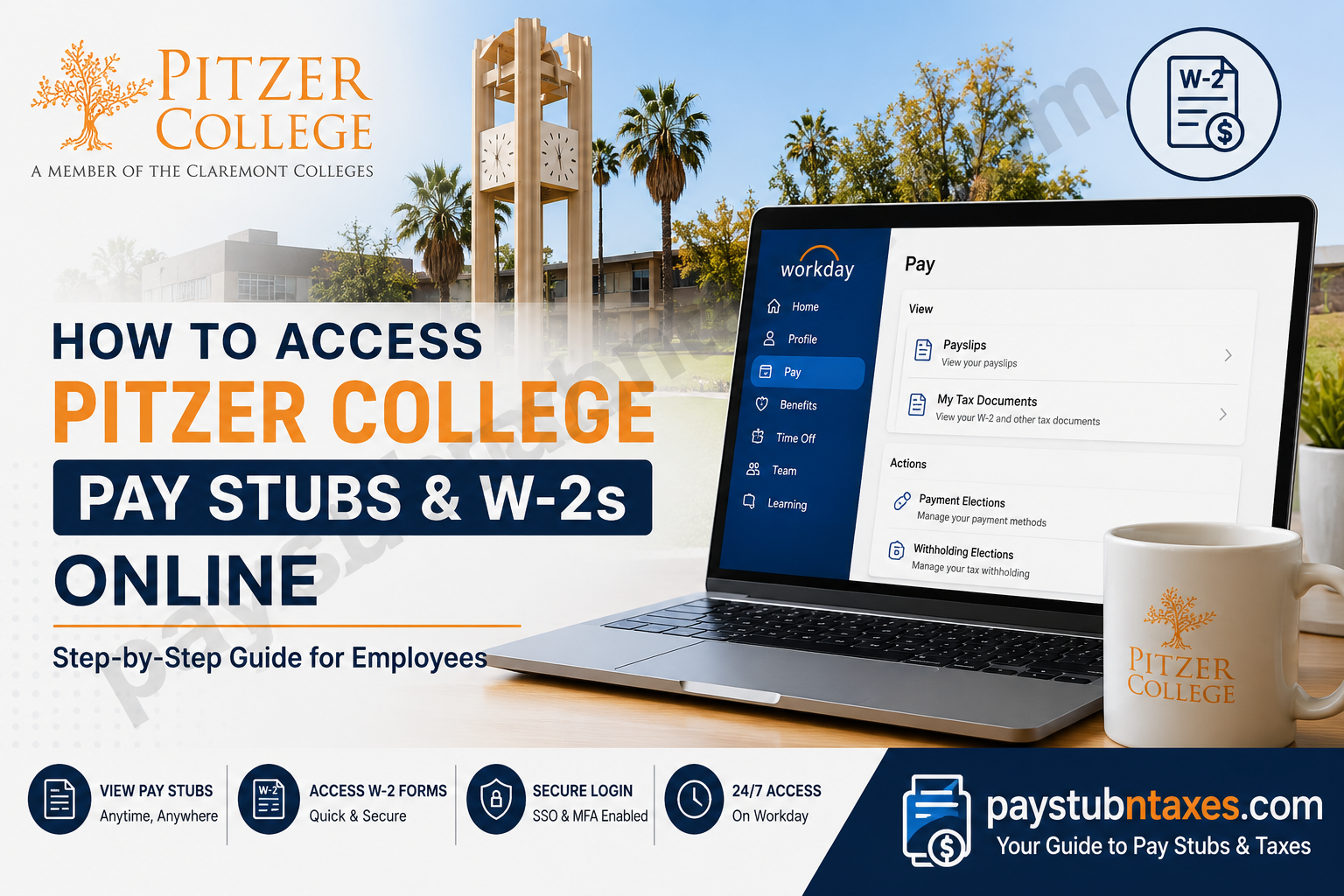
Pitzer College, a nationally recognized liberal arts institution located in Claremont, California, is a proud member of The Claremont Colleges consortium and serves approximately 1,200 students through a highly personalized educational experience. The college is renowned for its interdisciplinary approach, commitment to social justice, and collaborative learning environment. To enhance administrative efficiency and simplify human resources processes, Pitzer College utilizes the Workday Human Capital Management (HCM) platform. Through Workday, employees can conveniently access payroll records, tax documents, personal information, benefits, and numerous self-service HR functions from virtually anywhere. If you are a current or former employee wondering how to retrieve your pay statements or annual tax forms, this comprehensive guide will walk you through the process step by step.
What Is the Pitzer College Workday Portal?
The Pitzer College Workday portal serves as the institution’s centralized digital hub for employment-related information. Through Workday, employees can:
- View and download pay stubs
- Access W-2 tax forms
- Update direct deposit information
- Manage personal information
- Request and schedule time off
- Access learning and development resources
- Manage team information and recruiting activities
The system is available 24 hours a day, allowing employees to access important payroll documents whenever needed.
Pitzer College Workday Login Information
Workday Portal:
https://wd1.myworkday.com/theclaremontcolleges/
Because Pitzer College is part of The Claremont Colleges consortium, employees must first authenticate through the Central Authentication Service (CAS).
How to Log in to Pitzer College Workday
Follow these steps carefully:
Step 1: Visit the Workday Website
Open your browser and go to: https://wd1.myworkday.com/theclaremontcolleges/
Step 2: Select Your Institution
You will be redirected to the Central Authentication Service (CAS) page.
From the drop-down menu:
- Select Pitzer College
- Click LOGIN
Step 3: Sign In Using Your SSO Credentials
You will then be redirected to the Pitzer College Single Sign-On (SSO) page.
Enter:
- Your Pitzer username
- Your password
- Complete Multi-Factor Authentication (MFA) if prompted.
Once authenticated, you will arrive at your Workday dashboard.
How to View Pitzer College Pay Stubs Online
After logging into Workday:
Method 1
- Click your Profile icon.
- Select Pay.
- Choose Payslips.
- A list of available pay periods will appear.
- Click the PDF icon beside the desired pay period.
- Your pay stub will open in a new window.
- Download or print the document if necessary.
Method 2
Some employees may have the Pay application directly on their Workday homepage.
- Open the Pay application.
- Select Payslips under the View section.
- Choose the appropriate pay period.
- Open, print, or download your pay statement.
Information Available on Your Pay Stub
Your payslip generally contains:
- Employee name and ID
- Pay period dates
- Gross earnings
- Net pay
- Federal and state tax withholdings
- Benefit deductions
- Retirement contributions
- Direct deposit information
- Paid time off balances (if applicable)
Review your pay statement regularly to ensure all information is accurate.
How to Access Your Pitzer College W-2 Online
Each year, Workday publishes electronic W-2 forms for eligible employees.
To access your W-2:
Step 1: Log into Workday.
Step 2: Navigate to the Pay application.
Step 3: Click My Tax Documents.
Step 4: Locate the appropriate tax year.
Step 5: Select View/Print.
Step 6: Your W-2 form will open in PDF format.
You may then:
- Print the document
- Download a copy
- Save it for future tax filing purposes
When Are W-2 Forms Available?
Employers are generally required to issue W-2 forms by January 31 of each year. Employees should monitor their Workday notifications and email communications for announcements regarding tax document availability.
How to Download or Print Your W-2
After opening the document:
- Click the Download icon to save the file.
- Click the Printer icon to print a hard copy.
- Store your document securely for future reference.
Forgot Your Password?
If you cannot access your account:
- Visit the Pitzer SSO login page.
- Click Can’t access your account?
- Follow the password recovery instructions.
- If necessary, contact the IT department for assistance.
Troubleshooting Workday Login Issues
You may experience login issues due to:
- Incorrect username or password
- Expired passwords
- Browser compatibility issues
- Multi-Factor Authentication problems
- Network connectivity issues
Try:
- Clearing your browser cache
- Using Chrome, Edge, Firefox, or Safari
- Disabling pop-up blockers
- Attempting login from another device
Former Employees and Access to Payroll Documents
Former employees may retain limited access to Workday depending on institutional policy. If you are unable to log in after separation from employment, contact Human Resources for assistance in obtaining:
- Final pay stubs
- Historical payroll records
- W-2 tax forms
Benefits of Using Workday at Pitzer College
The Workday platform provides numerous advantages:
✅ Secure cloud-based access
✅ 24/7 availability
✅ Paperless payroll management
✅ Faster access to tax forms
✅ Easy updating of personal information
✅ Simplified HR processes
By consolidating payroll and human resources functions into one system, Workday significantly reduces administrative burdens and improves the employee experience.
Contact Information
If you need additional assistance regarding your payroll information or Workday access, contact:
Pitzer College
Phone: (909) 621-8000
Website: https://www.pitzer.edu
Workday Portal: https://wd1.myworkday.com/theclaremontcolleges/
Final Thoughts
Pitzer College’s implementation of Workday has made accessing payroll information remarkably straightforward. Whether you need to review your latest paycheck, download a previous pay statement, or obtain your W-2 for tax season, the Workday self-service portal places these essential documents at your fingertips. By familiarizing yourself with the portal and keeping your login credentials secure, you can manage your employment information efficiently and avoid the last-minute scramble that often accompanies payroll and tax-related tasks.
Frequently Asked Questions
1. How do I access my Pitzer College pay stubs online?
Log in to Workday, select Pay, and then click Payslips to view and download your pay statements.
2. What is the Pitzer College Workday login URL?
The official Workday portal is: https://wd1.myworkday.com/theclaremontcolleges/
3. Do I need to select Pitzer College before logging in?
Yes. On the Central Authentication Service page, choose Pitzer College from the dropdown menu and click LOGIN.
4. What credentials do I need to sign in?
You need your Pitzer College Single Sign-On (SSO) username and password, along with Multi-Factor Authentication if enabled.
5. Where can I find my W-2 form in Workday?
Navigate to Pay → My Tax Documents and select the appropriate tax year.
6. Can I download and print my pay stubs?
Yes. Workday allows you to download and print your payslips in PDF format.
7. When are W-2 forms available?
W-2 forms are typically available by January 31 each year.
8. Can former employees access their W-2 forms online?
Former employees may retain limited access. If you cannot log in, contact Human Resources for assistance.
9. What information appears on my pay stub?
Your pay stub includes gross pay, net pay, taxes withheld, deductions, direct deposit information, and pay period details.
10. How do I reset my Workday password?
Click “Can’t access your account?” on the SSO login page and follow the password recovery instructions.
11. Why can’t I log into Workday?
Common reasons include incorrect credentials, expired passwords, browser issues, or MFA problems.
12. Can I access Workday from my mobile device?
Yes. Workday is accessible through mobile browsers and the Workday mobile application.
13. Is Workday available 24/7?
Yes. The Workday self-service portal is available around the clock, except during scheduled maintenance periods.
14. How do I update my direct deposit information?
After logging in, go to the Pay section and select Payment Elections to update your banking information.
15. Who should I contact if I need help accessing payroll documents?
Contact Pitzer College Human Resources or IT Support at (909) 621-8000 for assistance with Workday access and payroll questions.
