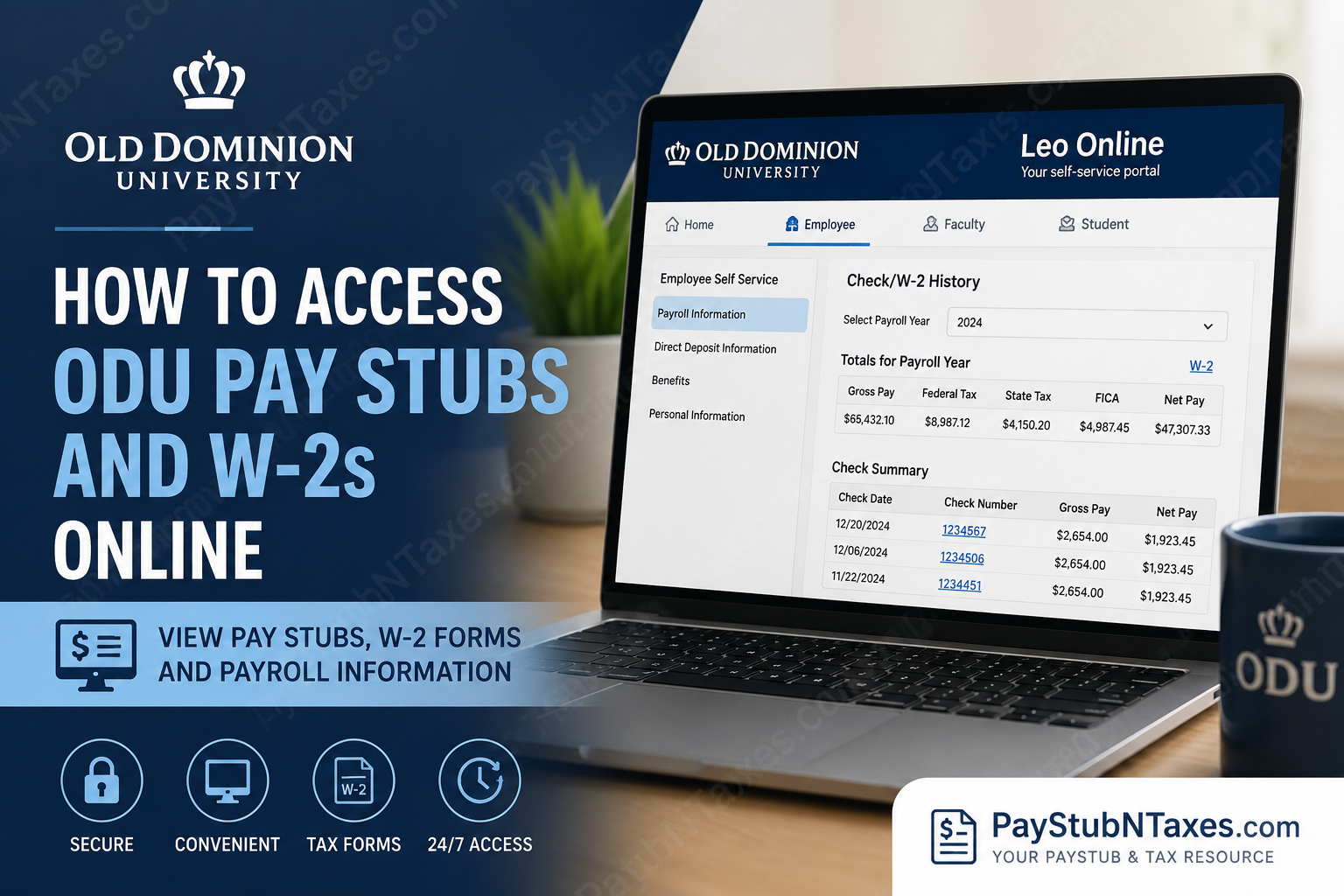
Old Dominion University (ODU) is one of Virginia’s leading public research institutions, renowned for its forward-thinking approach to education, innovation, and student success. Located in Norfolk, Virginia, ODU serves nearly 24,000 students and thousands of faculty and staff members through a dynamic academic and administrative environment. To simplify administrative tasks, the university provides employees with secure online access to payroll records, direct deposit information, and tax documents through Leo Online, ODU’s self-service portal. Whether you need to download your latest paycheck, print an old pay stub, or retrieve your annual Form W-2, the entire process can be completed online in just a few minutes. This guide explains everything you need to know about accessing your ODU pay stubs and W-2 forms electronically.
What Is Leo Online?
Leo Online is Old Dominion University’s secure online information system that provides employees, faculty, staff, and students with access to official academic and administrative records. The portal offers role-based access to a wide range of services, including:
- Payroll information
- Employee benefits
- Web-Time entry
- Direct deposit management
- Academic records
- Registration services
- Personal information management
Users can access Leo Online either directly through the Leo Online website or via the myODU portal using their MIDAS ID and password.
How to Access ODU Pay Stubs Online
Retrieving your paycheck information is straightforward and can be completed entirely online.
Step 1: Visit Leo Online
Go to: https://leoonline.odu.edu
You may also access the system through: https://my.odu.edu
Step 2: Sign In
Log in using your:
- MIDAS ID
- MIDAS Password
If you have forgotten your credentials, use the password recovery tools available on the login page.
Step 3: Navigate to Employee Services
After logging in:
- Select Employee
- Click Employee Self Service
- Open your Employee Dashboard
The dashboard contains your payroll, benefits, and direct deposit information.
Step 4: Access Payroll Information
Within Employee Self Service:
- Select Payroll Information
- Choose Check/W-2 History
- Review your payroll records.
The Check/W-2 History section displays:
- Pay dates
- Gross earnings
- Taxes withheld
- Deductions
- Net pay
- Direct deposit details
- Payroll year summaries
Employees may also print copies of their electronic paychecks directly from this page.
How to Print ODU Pay Stubs
To print a pay stub:
- Open Check/W-2 History.
- Select the desired payroll year.
- Locate the specific paycheck.
- Click the Check Number or Direct Deposit Number link.
- Open the electronic pay statement.
- Select the Printer icon to print or save a PDF copy.
ODU’s payroll reporting system allows employees to keep digital records without relying on paper statements.
How to Access Your ODU W-2 Online
Your annual Form W-2 can also be accessed through Leo Online.
Step 1: Sign in to Leo Online
Visit: https://leoonline.odu.edu
Log in using your MIDAS credentials.
Step 2: Open Employee Self Service
Navigate to: Employee → Employee Self Service → Payroll Information
Step 3: Select Check/W-2 History
Within the payroll section:
- Click Check/W-2 History.
- Locate the Totals for Payroll Year table.
- Select the W-2 link corresponding to the tax year you need.
The system will display payroll totals and tax information for the selected year.
Information Available on ODU W-2 Forms
Your electronic W-2 generally includes:
- Total wages earned
- Federal income tax withheld
- Social Security wages and taxes
- Medicare wages and taxes
- State and local tax information
- Retirement contributions
- Employer identification information
Always retain copies of your W-2 forms for tax filing and personal recordkeeping purposes.
How to Update Direct Deposit Information
ODU’s payroll direct deposit process is entirely electronic. Employees can update banking information at any time through Employee Self Service.
Steps to Update Direct Deposit
- Sign into Leo Online.
- Open Employee Self Service.
- Select Direct Deposit Information.
- Add, modify, or remove bank accounts.
- Save your changes.
Employees can:
- Add new accounts
- Allocate specific dollar amounts
- Allocate percentages
- Deposit remaining pay into a designated account
- Modify account priority order
Changes are generally updated in real time within the system.
How to Add a New Direct Deposit Account
Within the Proposed Pay Distribution section:
- Click Add New.
- Enter:
- Bank routing number
- Account number
- Account type
- Select:
- Specific amount
- Percentage
- Remaining balance
- Authorize the account.
- Click Save New Deposit.
ODU employees can also establish direct deposit for Accounts Payable reimbursements through the same portal.
What Information Can You View in Check/W-2 History?
The Check/W-2 History report provides a comprehensive overview of payroll activity, including:
Payroll Year Totals
- Hours worked
- Salary earned
- Taxes paid
- Deductions
- W-2 information
Check Summary
- Check date
- Earnings
- Taxes withheld
- Deductions
- Net pay
- Direct deposit status
Leave Balances
- Vacation leave
- Sick leave
- Compensatory time
- Military leave
- Jury duty balances
This report serves as a complete historical payroll archive for employees.
Troubleshooting Leo Online Access Issues
If you cannot access your payroll information:
Verify Your MIDAS Credentials
Ensure your username and password are correct.
Reset Your Password
Use the password recovery tools available through MIDAS.
Clear Browser Cache
An outdated browser cache can occasionally interfere with login sessions.
Try Another Browser
Leo Online functions best with updated browsers.
Contact ODU IT Help Desk
If problems persist, contact:
Email: ithelpdesk@odu.edu
Payroll Contact Information
For questions regarding:
- Direct deposit
- Payroll deductions
- Missing pay stubs
- W-2 forms
Contact ODU Payroll:
Phone: (757) 683-5266
Phone: (757) 683-4337
Final Thoughts
Old Dominion University’s Leo Online system makes payroll administration remarkably convenient by allowing employees to access pay stubs, W-2 forms, and direct deposit information from virtually anywhere. Instead of waiting for paper documents or contacting payroll for routine requests, employees can retrieve years of payroll history in a matter of minutes. By familiarizing yourself with the Employee Self Service and Check/W-2 History features, you can efficiently manage your payroll records, maintain accurate tax documentation, and ensure that your banking information remains current throughout your employment at ODU.
Frequently Asked Questions
1. How do I log in to ODU Leo Online?
Go to leoonline.odu.edu and sign in using your MIDAS ID and password.
2. Can I access ODU pay stubs from home?
Yes. Leo Online is available 24/7 and can be accessed from any internet-connected device.
3. Where can I find my ODU pay stubs?
Navigate to Employee Self Service → Payroll Information → Check/W-2 History.
4. How do I print my ODU pay stub?
Open the desired paycheck, then click the printer icon to print or save it as a PDF.
5. How do I access my ODU W-2 online?
Go to Check/W-2 History, select the appropriate tax year, and open your W-2 form.
6. When are ODU W-2 forms available?
W-2 forms are generally available by the end of January each year for the previous tax year.
7. What if I forgot my MIDAS password?
Use the password recovery options on the MIDAS login page to reset your password.
8. Can former ODU employees access their W-2 forms online?
Former employees may retain limited access to payroll records. If access has expired, contact ODU Payroll for assistance.
9. What information appears on an ODU pay stub?
Your pay stub includes gross pay, taxes withheld, deductions, net pay, and direct deposit information.
10. Does Leo Online show leave balances?
Yes. Employees can view vacation, sick leave, and other leave balances through Check/W-2 History.
11. How do I update my direct deposit information at ODU?
Log in to Leo Online and select Direct Deposit Information under Employee Self Service.
12. Can I have multiple direct deposit accounts?
Yes. ODU allows employees to distribute their pay among multiple bank accounts.
13. How long are payroll records available in Leo Online?
Employees can typically access several years of payroll history through the portal.
14. Who should I contact if my pay stub is incorrect?
Contact ODU Payroll at (757) 683-5266 or (757) 683-4337.
15. What should I do if Leo Online is not working?
Clear your browser cache, try another browser, or contact the ODU IT Help Desk at ithelpdesk@odu.edu for assistance.
