
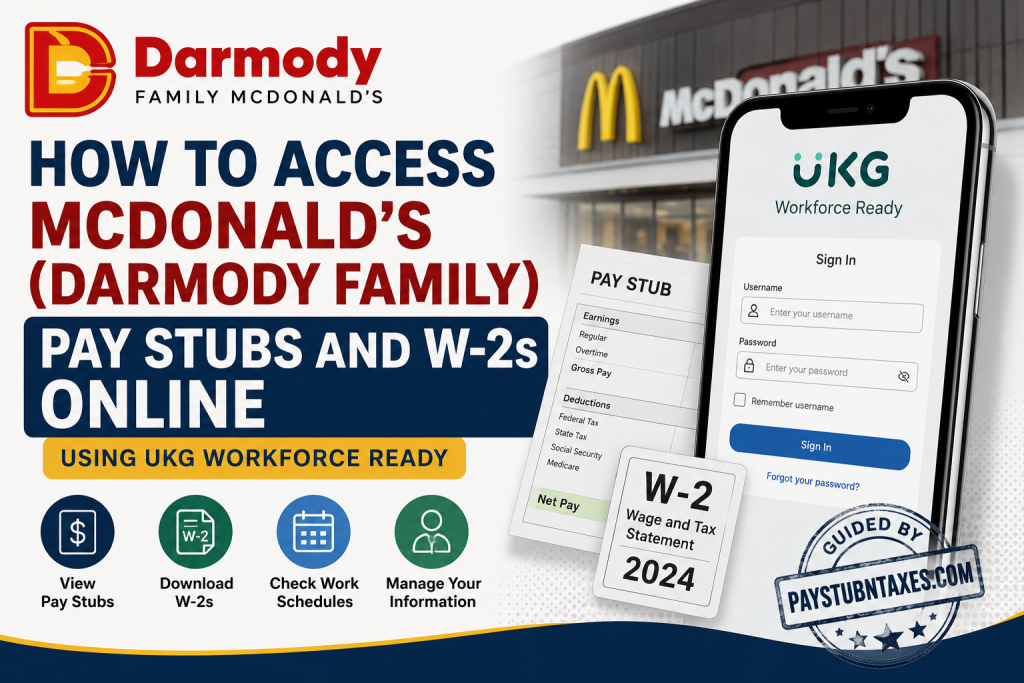
If you work for a Darmody Family McDonald’s restaurant in Nebraska (NE) or Iowa (IA), accessing your payroll documents is both straightforward and secure. The company uses UKG Workforce Ready (formerly Kronos Workforce Ready) as its employee self-service platform, enabling eligible employees to view pay stubs, download W-2 tax forms, check work schedules, review accrued balances, and manage other employment-related information from virtually anywhere. Whether you are a newly hired crew member, a shift manager, or a long-term employee, this comprehensive guide explains everything you need to know about logging in, registering your account, accessing payroll records, and resolving common login issues.
What Is the Darmody Family Employee Portal?
Darmody Family McDonald’s operates more than 26 McDonald’s restaurants throughout Nebraska and Iowa. To simplify payroll administration and employee self-service, the organization uses the UKG Workforce Ready platform.
Through the secure portal, employees can:
- View current and previous pay stubs
- Download and print W-2 tax forms
- Review work schedules
- Monitor paid time off and accrual balances
- Access employment information
- Update payroll-related preferences when authorized
Because the portal is cloud-based, employees can securely access their information using either a computer or the UKG mobile application.
Darmody Family Payroll Login Information
Employee Portal
https://secure.entertimeonline.com/ta/73461GOL.login
Mobile Application
Download:
- Kronos Workforce Ready Mobile (UKG Workforce Ready)
Company Short Name: 73461GOL
How to Access Your Pay Stubs Online
Follow these simple steps to retrieve your pay statements.
Step 1: Open the Employee Portal
Visit the official Workforce Ready login page:
https://secure.entertimeonline.com/ta/73461GOL.login
Alternatively, open the Kronos Workforce Ready Mobile app.
Step 2: Enter Your Credentials
Input:
- Username
- Password
Select Sign In.
If you are using a personal device, you may optionally enable Remember Username.
Step 3: Open Your Employee Dashboard
After successful authentication, you’ll arrive at your Workforce Ready dashboard.
From here, you can access:
- Payroll
- Schedule
- Benefits
- Timekeeping
- Employee information
Step 4: View Your Pay Stub
Navigate to: My Pay → Pay History
Choose the desired payroll period.
Your pay stub will display information such as:
- Gross earnings
- Net pay
- Hours worked
- Overtime
- Taxes withheld
- Deductions
- Employer contributions
- Year-to-date totals
You may also download or print the statement for your personal records.
How to Access Your W-2 Tax Form
When W-2 forms become available:
- Sign in to Workforce Ready.
- Open the Payroll or Tax Documents section.
- Select W-2 Forms.
- Choose the appropriate tax year.
- Download or print your W-2.
Employees who use electronic access can print additional copies whenever necessary.
Paper W-2 forms are generally mailed by January 31 each year for employees who require a mailed copy.
How New Employees Register for Workforce Ready
If you have never used the employee portal before, your account must first be activated.
Step 1: Complete the Employee Assistance Form available on the Darmody Family website and request an Employee Login registration email.
Step 2: Watch for an email from Golden Moments LLC
Subject: Employee Registration for Golden Moments LLC
If you cannot find it, check your Spam or Junk folder.
Step 3: Open the email and click the User Registration link.
The registration link expires 21 days after it is sent.
Step 4: Verify your identity by entering:
- First Name
- Last Name
- Social Security Number
Click Continue.
Step 5: Choose three security questions.
These questions will help verify your identity if you ever need to reset your password.
Step 6: Create a secure password.
Your password must include:
- Minimum eight characters
- At least one uppercase letter
- At least one lowercase letter
- At least one number
Once registration is complete, you can immediately sign into Workforce Ready.
Accessing Pay Stubs Using the Mobile App
The Workforce Ready mobile application provides convenient access to payroll records while you’re away from a computer.
Installation
- Download Kronos Workforce Ready Mobile from Google Play or the Apple App Store.
- Open the application.
- Enter the Company Short Name: 73461GOL
- Sign in using your employee credentials.
After logging in, open the navigation menu and select: Pay History
to access your pay statements.
You can also navigate to:
- Schedule
- W-2
- Accruals
- Employee information
What If You Forget Your Password?
If you cannot remember your password:
- Select Forgot your password? on the login page.
- Complete the verification process.
If you continue experiencing login issues, contact your restaurant manager or the Darmody Family support team.
Need Payroll or Direct Deposit Assistance?
For questions regarding:
- Pay discrepancies
- Direct deposit changes
- Address updates
- W-2 mailing
- Payroll assistance
- Employee Login support
Speak with your restaurant manager first.
You may also contact the support office.
Phone: (402) 431-1558
Email: support@dfmcd.com
Final Thoughts
Darmody Family McDonald’s has streamlined payroll administration by providing employees with secure online access through the UKG Workforce Ready platform. Whether you need to review your latest earnings, download tax documents, monitor your work schedule, or update payroll-related information, the employee portal offers a convenient, reliable, and secure solution. Keeping your login credentials secure, maintaining an up-to-date email address, and promptly updating your mailing information will help ensure uninterrupted access to important payroll records throughout the year.
Frequently Asked Questions
1. How do I log in to the Darmody Family McDonald’s employee portal?
Visit the UKG Workforce Ready login page, enter your username and password, and click Sign In. You can also log in through the Kronos Workforce Ready Mobile app using the company short name 73461GOL.
2. What payroll system does Darmody Family McDonald’s use?
Darmody Family McDonald’s uses UKG Workforce Ready (formerly Kronos Workforce Ready) to manage employee payroll, pay stubs, W-2 forms, schedules, and other HR information.
3. Where can I view my pay stubs?
After logging into Workforce Ready, navigate to My Pay or Pay History to view, download, or print your current and previous pay stubs.
4. How do I download my W-2 online?
Log into Workforce Ready, open the W-2 or Tax Documents section, select the appropriate tax year, and download or print your W-2 form.
5. What is the Company Short Name for the Workforce Ready mobile app?
When using the Kronos Workforce Ready Mobile app, enter 73461GOL as the Company Short Name.
6. How do new employees create a Workforce Ready account?
New employees must complete the Employee Assistance form and request an Employee Registration email. Once received, follow the registration link to verify your identity, create security questions, and set a password.
7. What should I do if I never receive my registration email?
Check your Spam or Junk folder first. If the email is still missing, submit another Employee Assistance request or contact the support office.
8. How long is the employee registration link valid?
The User Registration link expires 21 days after the registration email is sent.
9. What are the password requirements?
Your password must contain:
- At least 8 characters
- One uppercase letter
- One lowercase letter
- One number
Using additional special characters is recommended for stronger security.
10. Can I access my pay stubs from my smartphone?
Yes. Download the Kronos Workforce Ready Mobile app, enter the company short name 73461GOL, and log in using your employee credentials.
11. When are W-2 forms available?
Paper W-2 forms are generally mailed by January 31 each year. Electronic copies are also available through Workforce Ready for eligible employees.
12. Can I print multiple copies of my W-2?
Yes. Once your electronic W-2 is available in Workforce Ready, you may print as many copies as needed.
13. What should I do if my address has changed?
Submit an Employee Assistance request as soon as possible to update your mailing address before W-2 forms are issued.
14. Who should I contact if there is a problem with my paycheck?
First, speak with your restaurant manager. If additional assistance is needed, contact Darmody Family McDonald’s support by phone at (402) 431-1558 or email support@dfmcd.com.
15. Can former employees still access their W-2 forms?
Former employees who previously registered for Workforce Ready may still be able to access electronic W-2 forms if their account remains active. If online access is unavailable, contact the Darmody Family support office for assistance with obtaining tax documents.

