
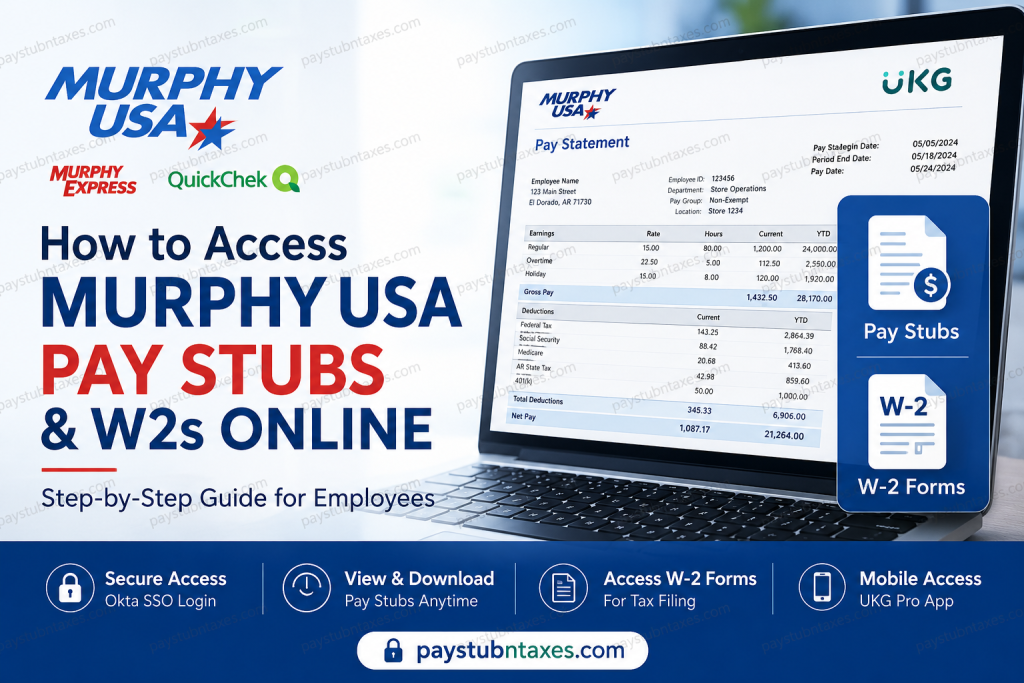
Murphy USA is one of the largest independent fuel and convenience retailers in the United States, operating more than 1,700 Murphy USA, Murphy Express, and QuickChek locations across 27 states. With a workforce exceeding 17,000 employees and approximately two million customers served every day, the company relies on secure digital platforms to simplify payroll and employment management. Current Murphy USA employees can conveniently access their pay stubs, W-2 tax forms, direct deposit information, and payroll history through the company’s UKG (formerly UltiPro) employee self-service portal. Whether you work at a Murphy USA store, Murphy Express, QuickChek, or a corporate location, the online portal allows you to retrieve payroll documents anytime without contacting the payroll department. This comprehensive guide explains how to log in, view, download, and print your Murphy USA pay statements and W-2 forms, as well as troubleshoot common login issues.
Murphy USA Payroll Portal Overview
Murphy USA uses UKG (formerly UltiPro) as its Human Capital Management (HCM) platform for payroll and employee self-service.
Through the secure employee portal, eligible employees can:
- View current pay statements
- Access historical pay stubs
- Download and print W-2 tax forms
- Review direct deposit information
- Update payroll preferences (where permitted)
- Access payroll records from virtually anywhere
Murphy USA Employee Login Information
Employee Portal (UKG):
https://murphyusa.ultipro.com
UKG Mobile App
- Download UKG Pro from the Apple App Store or Google Play.
- Company/Workspace Access Code:
murphyusa
How to Sign in to Murphy USA Payroll
Murphy USA employees authenticate through the company’s Okta Single Sign-On (SSO) system.
Step 1: Open the Murphy USA employee login page or the UKG portal.
Step 2: Enter your:
- Username
- Password
Step 3: Complete any required multi-factor authentication (MFA).
Step 4: After successful authentication, you will automatically be redirected to your UKG employee dashboard.
If You Start from the Okta Dashboard
Some employees begin by signing into the Murphy USA Okta portal.
After logging in:
- Open your Okta dashboard.
- Click the UKG application tile.
- You will be redirected directly to the UKG employee homepage, where payroll services are available.
How to View Your Murphy USA Pay Stubs
Once signed in:
- Select Myself.
- Click Current Pay Statements.
- Your latest paycheck will appear automatically.
- Review earnings, deductions, taxes, and net pay.
- Select Print or Download to save a copy.
The current statement normally reflects the most recently processed payroll. If payroll has been processed but payday has not yet arrived, the pay statement may still be visible in advance.
How to View Historical Pay Statements
If you need an older paycheck:
- Navigate to Myself.
- Select Pay History.
- Search using the desired pay date or date range.
- Select the paycheck you wish to open.
- Download or print the statement.
Employees can also browse multiple historical pay statements directly from the Pay History page.
How to Print Murphy USA Pay Statements
After opening any pay statement:
- Click the Print icon.
- Choose whether to display or hide your Social Security Number.
- Select Finish.
- Print or save the PDF.
The printer-friendly version opens in a separate window for easy downloading or printing.
Understanding Your Pay Statement
Your Murphy USA pay statement contains detailed payroll information, including:
- Employee information
- Earnings
- Hourly wages
- Overtime
- Holiday pay
- Taxes withheld
- Benefit deductions
- Paid time off balances
- Direct deposit distribution
- Net pay summary
Reviewing each pay statement regularly helps ensure that your personal information, tax withholding, and payroll calculations remain accurate.
How to Access Murphy USA W-2 Forms
During tax season:
- Log in to UKG.
- Open the Myself menu.
- Select W-2.
- Choose the desired tax year.
- View your electronic W-2.
- Download or print the form for tax filing.
Electronic W-2 access is generally available for eligible current employees through the UKG portal.
Accessing Payroll Information on the UKG Mobile App
Murphy USA employees can also manage payroll through the UKG Pro mobile application.
After signing in with the Murphy USA workspace code:
- Open Pay Overview.
- View recent pay statements.
- Review direct deposit information.
- Manage eligible direct deposit accounts directly within the app.
The mobile application provides functionality similar to the desktop version, making payroll access convenient while away from work.
Forgot Your Username or Password?
If you’re unable to sign in:
- Select Help or Unlock Account on the login page.
- Follow the password recovery instructions.
- Verify your identity using your registered email address.
- Complete any required security verification.
If your credentials still do not work, contact your Murphy USA system administrator or Human Resources for assistance. The Okta help page also explains that employees who successfully authenticate can access all assigned applications from a single dashboard.
Murphy USA Payroll Support
If you need additional assistance regarding payroll, W-2 forms, or employee access:
Murphy USA Customer Support
Phone:
1-800-843-4298
Email:
customercare@murphyusa.com
If the issue relates specifically to your employee account, your local Human Resources representative or payroll administrator may also be able to assist.
Benefits of Using the UKG Employee Portal
Using Murphy USA’s online payroll system allows employees to:
- Access pay information 24/7
- Download payroll documents instantly
- Retrieve historical pay statements
- View W-2 tax forms electronically
- Monitor direct deposit information
- Reduce paperwork
- Access payroll securely from desktop or mobile devices
Conclusion
Murphy USA has streamlined payroll management by providing employees with secure online access to their earnings and tax records through the UKG employee self-service platform. Whether you need to review your latest paycheck, retrieve historical pay statements, download your W-2, or manage payroll information from your smartphone, the system delivers fast, secure, and convenient access around the clock. By familiarizing yourself with both the UKG web portal and mobile application, you can efficiently manage your employment documents while reducing the need for manual assistance from payroll or Human Resources.
Frequently Asked Questions
1. How do I access my Murphy USA pay stubs online?
Log in to the Murphy USA UKG (UltiPro) employee portal through Okta SSO, then go to Myself > Current Pay Statements to view, download, or print your latest pay stub.
2. What payroll system does Murphy USA use?
Murphy USA uses UKG Pro (formerly UltiPro) as its payroll and human resources management platform.
3. What is the Murphy USA employee portal?
The Murphy USA employee payroll portal is the UKG (UltiPro) self-service website, where employees can access pay statements, W-2 forms, and direct deposit information.
4. Can I access my Murphy USA W-2 online?
Yes. After logging into UKG, select Myself > W-2, choose the appropriate tax year, and download or print your W-2 form.
5. How do I view previous pay stubs?
Navigate to Myself > Pay History, search by pay date or date range, and select the paycheck you want to view or print.
6. Can former Murphy USA employees access UKG?
Generally, online access is intended for current employees. Former employees should contact the Murphy USA Payroll or Human Resources department for assistance with W-2s or payroll records.
7. Is there a Murphy USA payroll mobile app?
Yes. Employees can use the UKG Pro mobile app available for Android and iOS devices.
8. What is the UKG company access code for Murphy USA?
The Murphy USA UKG workspace/company access code is murphyusa.
9. Can I download my pay statements as PDF files?
Yes. UKG allows employees to download and print pay statements directly from the payroll portal.
10. How do I reset my Murphy USA employee password?
Use the Unlock Account or Help option on the Okta login page. If you cannot reset your password, contact your system administrator or Human Resources.
11. Can I view my direct deposit information online?
Yes. UKG allows employees to review their direct deposit details and, where permitted, update banking information.
12. Why can’t I log in to the Murphy USA payroll portal?
Login problems are usually caused by incorrect credentials, expired passwords, account lockouts, or multi-factor authentication issues. Contact your HR department if the problem persists.
13. What information appears on a Murphy USA pay stub?
Your pay statement typically includes gross earnings, taxes withheld, deductions, overtime, direct deposit information, year-to-date totals, and net pay.
14. Who should I contact for Murphy USA payroll support?
For payroll or employee account assistance, contact Murphy USA Customer Support at 1-800-843-4298 or email customercare@murphyusa.com.
15. Is my payroll information secure on UKG?
Yes. Murphy USA secures employee payroll information through Okta Single Sign-On (SSO), encrypted connections, and multi-factor authentication (MFA) to help protect sensitive personal and financial data.

