
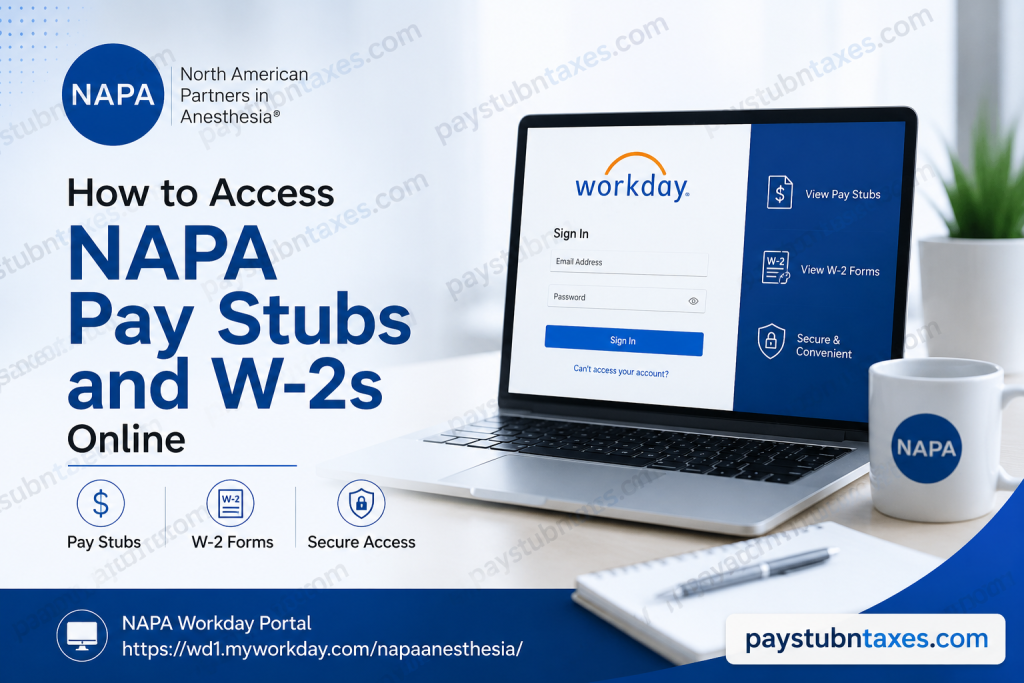
North American Partners in Anesthesia (NAPA) has spent more than three decades establishing itself as one of the nation’s foremost anesthesia and perioperative care organizations. As a clinician-led, single-specialty healthcare company, NAPA places equal emphasis on exceptional patient outcomes and employee development, fostering a workplace where collaboration, transparency, innovation, and work-life balance remain central to its culture. The organization serves healthcare facilities nationwide while empowering thousands of clinicians and corporate professionals through robust career development opportunities, comprehensive benefits, and cutting-edge technology that simplifies everyday HR and payroll tasks. To support its workforce, NAPA utilizes Workday Human Capital Management (HCM) as its centralized employee self-service platform. Through Workday, active employees can securely access payroll information, download pay stubs, retrieve annual W-2 tax forms, update personal information, manage direct deposit details, and complete numerous HR-related tasks from virtually anywhere. This guide explains everything current and former NAPA employees need to know about accessing their pay statements and W-2 forms online.
NAPA Workday Login Portal
Workday Employee Portal
https://wd1.myworkday.com/napaanesthesia
Employees must sign in using:
- Their NAPA email address
- Active Directory (AD) password
If login assistance is required, employees should contact the NAPA IT Help Desk at 516-945-3178.
Why NAPA Uses Workday
Workday serves as NAPA’s enterprise Human Capital Management platform, integrating payroll, human resources, benefits administration, talent management, and employee self-service into one secure cloud-based system.
Through Workday, employees can:
- View current and historical pay stubs
- Access W-2 tax forms
- Update tax withholding elections
- Modify direct deposit information
- Review compensation details
- Update personal contact information
- Manage benefit elections
- Access employment documents
- Request time off (where applicable)
Because Workday stores payroll information electronically, employees no longer need to wait for printed payroll records for routine income verification.
How to View Your NAPA Pay Stubs
After signing into Workday:
Step 1: Log into the NAPA Workday portal using your company credentials.
Step 2: From the Workday homepage, open the Pay application.
Step 3: Select Payslips.
Step 4: A complete list of available payroll periods will appear.
Step 5: Choose the desired pay period.
Step 6: Open the PDF version of the payslip.
Step 7: Download or print the document for your records whenever necessary.
Your electronic pay stub typically includes:
- Gross earnings
- Net pay
- Federal tax withholding
- State and local taxes
- Retirement contributions
- Insurance deductions
- Paid time off balances (if applicable)
- Direct deposit information
- Year-to-date earnings
How to Download Your NAPA W-2 Online
Each January, NAPA publishes annual W-2 tax forms within Workday for active employees.
To access your W-2:
Step 1: Log into Workday.
Step 2: Navigate to the Pay application.
Step 3: Select My Tax Documents.
Step 4: Locate the current tax year.
Step 5: Choose View/Print.
Step 6: Download the PDF copy.
Step 7: Print the form if a paper copy is needed for tax filing.
Once published, employees can access their W-2 electronically at any time throughout the tax season.
Former Employees and W-2 Forms
Former NAPA employees who no longer have access to Workday should not expect to retrieve their W-2 electronically.
Instead:
- Human Resources prints terminated employees’ W-2 forms.
- Paper copies are mailed directly to the employee’s home address on file.
- Active employees continue to access and print their own W-2 forms through Workday when they become available in late January.
To avoid delays, departing employees should ensure that their mailing address is current before leaving the organization.
What Information Appears on Your Pay Stub?
Your NAPA pay statement generally includes:
- Employee identification
- Pay period dates
- Payment date
- Regular earnings
- Overtime earnings (if applicable)
- Bonuses or incentive pay
- Taxes withheld
- Benefit deductions
- Retirement deductions
- Employer contributions
- Net pay
- Year-to-date totals
These records are frequently required when applying for mortgages, loans, rental agreements, or government assistance programs.
Benefits of Electronic Payroll Access
Using Workday offers numerous advantages over traditional paper payroll records.
Faster access
Employees can retrieve payroll information immediately after payroll processing.
Enhanced security
Sensitive payroll information remains protected behind encrypted authentication.
Anytime availability
Employees can access payroll documents from any authorized device with an internet connection.
Reduced paperwork
Digital records eliminate the need to store printed payroll documents.
Easier tax preparation
Historical pay statements and W-2 forms remain readily available for reference.
Troubleshooting Workday Login Issues
If you experience difficulty accessing Workday:
Forgot your password
Reset your Active Directory password or contact the IT Help Desk.
Account locked
Multiple unsuccessful login attempts may temporarily lock your account.
Browser issues
Clear your browser cache or try another supported browser.
Incorrect username
Always use your NAPA company email address.
Multi-factor authentication
Complete any required security verification prompts before signing in.
If problems persist, contact the NAPA IT Help Desk at 516-945-3178 for technical assistance.
Protect Your Payroll Information
To safeguard your financial information:
- Never share your Workday password.
- Enable multi-factor authentication whenever available.
- Sign out after each session.
- Avoid accessing payroll records on public computers.
- Review your pay statements regularly for accuracy.
- Immediately report suspicious account activity to IT.
Conclusion
NAPA’s adoption of Workday streamlines payroll administration by providing employees with secure, self-service access to essential employment records. Whether you need to review a recent payslip, download your annual W-2, update payroll preferences, or verify your earnings, Workday offers a convenient and reliable platform that places these resources at your fingertips. Active employees can retrieve their payroll documents in just a few clicks, while former employees continue to receive printed W-2 forms by mail after separation. By understanding how to navigate the Workday portal and maintaining up-to-date account information, you can ensure uninterrupted access to the payroll and tax documents you need throughout the year.
Frequently Asked Questions
1. How do I access my NAPA pay stubs online?
Log in to the NAPA Workday portal using your company email and Active Directory password. From the homepage, select Pay and then Payslips to view, download, or print your pay statements.
2. What is the NAPA Workday login URL?
The official Workday login portal for North American Partners in Anesthesia employees is:
https://wd1.myworkday.com/napaanesthesia/
3. What login credentials do I need for Workday?
You must sign in using your NAPA email address and Active Directory (AD) password.
4. Where can I find my W-2 form in Workday?
After logging into Workday, navigate to Pay → My Tax Documents and select the appropriate tax year to view or print your W-2.
5. When are NAPA W-2 forms available?
W-2 forms are generally available in late January each year after Payroll publishes them in Workday.
6. Can former NAPA employees access their W-2 online?
No. Former employees who no longer have Workday access receive printed W-2 forms mailed to their home address by Human Resources.
7. How do I print my pay stub?
Open the desired payslip in Workday and use the Print option within the PDF viewer or download the PDF and print it later.
8. Can I download previous pay stubs?
Yes. Active employees can access historical pay statements stored in Workday by selecting the desired payroll period.
9. Can I access Workday from home?
Yes. Workday is a cloud-based platform that can be accessed securely from any internet-connected computer or mobile device.
10. What should I do if I forget my Workday password?
Reset your Active Directory password or contact the NAPA IT Help Desk for assistance.
11. How do I update my direct deposit information?
Log into Workday and navigate to the Pay section, where you can manage your payment elections and banking information.
12. Can I update my tax withholding in Workday?
Yes. Employees can review and update their federal and state tax withholding elections through the Workday Self-Service portal.
13. What information is included on a NAPA pay stub?
Your pay stub typically includes gross pay, net pay, taxes withheld, benefit deductions, retirement contributions, pay period dates, and year-to-date earnings.
14. Who do I contact if I cannot log in to Workday?
For login or technical issues, contact the NAPA IT Help Desk at 516-945-3178.
15. Is my payroll information secure in Workday?
Yes. Workday uses enterprise-grade security features, including encrypted connections and secure authentication, to protect employee payroll and personal information.

