
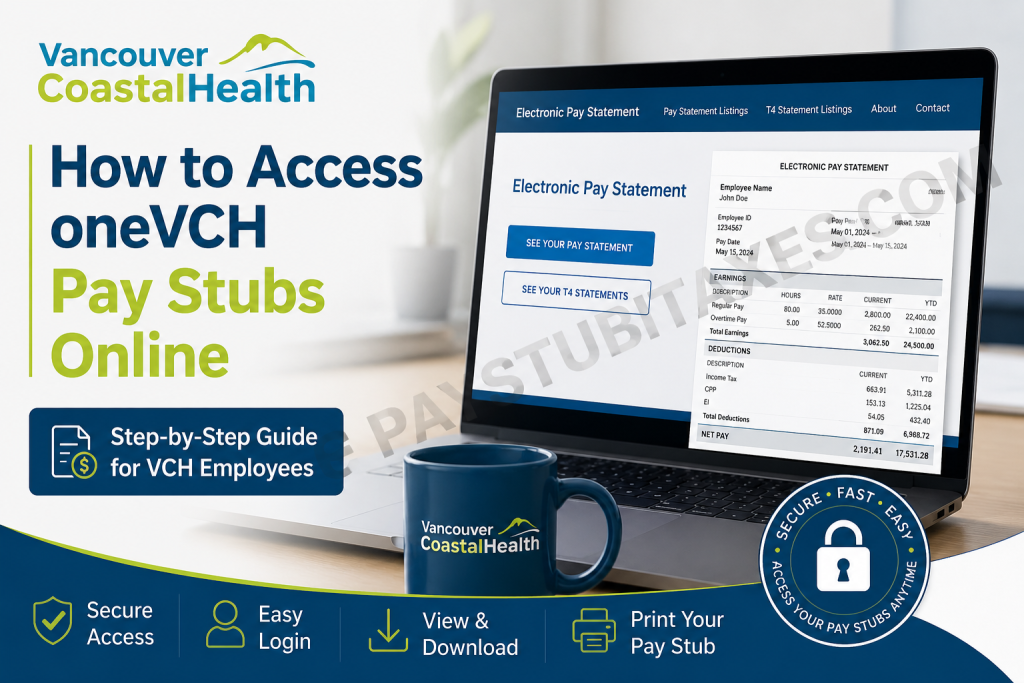
Vancouver Coastal Health (VCH) is one of British Columbia’s five regional health authorities, providing essential health-care services to more than 1.25 million residents across Vancouver, Richmond, the North Shore, the Sea-to-Sky Corridor, Sunshine Coast, Powell River, Bella Bella, and Bella Coola. With more than 29,000 staff members and medical professionals, VCH has embraced digital solutions that make employment-related information, including payroll records, easily accessible to employees. Among these digital services is the Electronic Pay Statement Portal, which allows employees to view and download their pay stubs securely from virtually anywhere. Whether you need a recent pay statement for personal records, loan applications, or tax purposes, the process is straightforward once your account is properly configured.
What Is oneVCH?
oneVCH is Vancouver Coastal Health’s centralized staff intranet that provides employees with quick access to workplace resources, internal news, schedules, directories, policies, and payroll services. Employees can access oneVCH using their VCH or VRHB email credentials together with Microsoft Authenticator verification.
The portal includes:
- Staff news and announcements
- Quick links to workplace applications
- Learning and development resources
- Employee directories
- Payroll and pay statement services
- Internal job postings
- Work-related tools and documentation
Requirements Before Accessing VCH Pay Stubs
Before attempting to access your electronic pay statements, ensure you have:
✅ A valid VCH Network Account
✅ Your VCH Employee ID
✅ Microsoft Authenticator App installed and activated
✅ MyID registration completed (if required)
✅ Internet access and a supported web browser
How to Access oneVCH Pay Stubs Online
Follow these simple steps to view your electronic pay statements.
Step 1: Visit the Electronic Pay Statement Portal
Open your web browser and navigate to: https://myinfo.vch.ca/
This is the official portal used by Vancouver Coastal Health employees to access payroll information.
Step 2: Sign In Using Your Network Credentials
You may be prompted to enter:
- Health Authority Domain Username
- Password
Once your credentials are entered, you will receive a notification through your Microsoft Authenticator App.
Select: Approve to complete the multi-factor authentication process.
Step 3: Open Your Pay Statement
After signing in:
- Locate the SEE YOUR PAY STATEMENT button.
- Click the button.
- Your current electronic pay statement will appear on the screen.
You can then:
- View your earnings information
- Review deductions and taxes
- Download your pay stub
- Print a copy for your records
The portal also allows users to access historical pay statements and T4 statement listings.
How to Access VCH Pay Stubs from Home
One of the advantages of the VCH payroll system is that employees can access their pay statements remotely.
To log in from home:
- Complete your MyID registration beforehand.
- Visit https://myinfo.vch.ca/ using your personal computer or mobile device.
- Enter your network credentials.
- Approve the Microsoft Authenticator notification.
- Access your electronic pay statements securely.
Employees who have not completed MyID registration may encounter an error message preventing access to payroll information.
Setting Up MyID Registration
Some employees, residents, and medical staff may need to connect their VCH Employee ID to their Health Authority Network Account.
To register:
- Visit: http://myid.healthbc.org/
- Sign in while connected to the HealthBC network.
- Verify that Vancouver Coastal Health is selected as your health authority.
- Enter the required information:
- First Name
- Last Name
- Employee ID
- Date of Birth
- Submit the registration.
Once completed, your employee ID will be linked to your network credentials, enabling access to online pay statements.
Common Problems and Solutions
Problem 1: Microsoft Authenticator Not Working
Solution:
- Ensure notifications are enabled.
- Verify that the app is correctly registered.
- Contact the Service Desk if you recently changed your phone.
Problem 2: Cannot Access Pay Statements
Solution:
- Confirm that MyID registration has been completed.
- Verify your username and password.
- Clear your browser cache and try again.
Problem 3: Forgotten Password
Solution: Use the HealthBC password reset tool or contact the Service Desk for assistance.
Problem 4: Incorrect Employee Information
Solution: Contact Payroll Customer Service immediately to correct your employee records.
VCH Payroll Support Contacts
IT Service Desk
Phone: 604-875-4334
Toll-Free: 1-888-875-4334
Email: vchServiceDesk@hssbc.ca
Payroll Customer Service
Phone: 604-297-8683 (Option 2)
Toll-Free: 1-866-875-5306 (Option 2)
Email: PayrollVCH@phsa.ca
These support teams can assist with login issues, payroll inquiries, and account registration concerns.
Benefits of Electronic Pay Statements
Using VCH’s online payroll portal offers several advantages:
- 24/7 access from any location
- Faster access to payroll information
- Secure multi-factor authentication
- Reduced paper usage
- Easy downloading and printing
- Convenient access to historical pay records
Final Thoughts
Vancouver Coastal Health has invested heavily in digital technologies that simplify the employee experience, and the oneVCH Electronic Pay Statement Portal is a prime example. By combining secure network credentials with Microsoft Authenticator verification, employees can conveniently access their payroll information anytime and from virtually anywhere. If you have not yet registered your account or enabled remote access, completing your MyID registration today will ensure uninterrupted access to your electronic pay statements whenever you need them.
Frequently Asked Questions
1. How do I access my VCH pay stubs online?
Visit https://myinfo.vch.ca, sign in with your VCH network credentials, approve the Microsoft Authenticator request, and click “SEE YOUR PAY STATEMENT.”
2. What login credentials do I need to access my VCH pay statement?
You need your VCH Network Account username and password along with Microsoft Authenticator verification.
3. Can I view my VCH pay stubs from home?
Yes. Once your MyID registration is complete, you can access your pay statements from any personal computer or mobile device.
4. What is oneVCH?
oneVCH is Vancouver Coastal Health’s staff intranet that provides access to payroll information, work resources, news, schedules, and internal tools.
5. What is the VCH Electronic Pay Statement Portal?
It is an online self-service system that allows employees to view, download, and print their pay statements electronically.
6. Why am I unable to access my VCH pay statement?
The issue may be caused by incomplete MyID registration, incorrect login credentials, or problems with Microsoft Authenticator.
7. What is MyID registration?
MyID links your VCH Employee ID with your Health Authority Network Account, enabling access to electronic pay statements.
8. How do I register for MyID?
Visit http://myid.healthbc.org, verify Vancouver Coastal Health as your health authority, and complete the required identity verification steps.
9. Can I download and print my pay stubs?
Yes. The portal allows you to download and print both current and previous pay statements.
10. Does VCH provide access to previous pay statements?
Yes. Employees can access historical pay statements and tax statement listings through the online portal.
11. Is Microsoft Authenticator required?
Yes. Microsoft Authenticator is mandatory for remote access to VCH systems and payroll information.
12. What should I do if I forget my password?
Use the HealthBC password reset tool or contact the VCH Service Desk for assistance.
13. Who do I contact for technical support?
Contact the VCH IT Service Desk at 604-875-4334 or 1-888-875-4334.
14. Who should I contact about payroll questions?
For payroll inquiries, contact Payroll Customer Service at 604-297-8683 (Option 2) or 1-866-875-5306 (Option 2).
15. Is the VCH pay stub portal secure?
Yes. The portal uses secure network credentials and multi-factor authentication through Microsoft Authenticator to protect employee information.

