
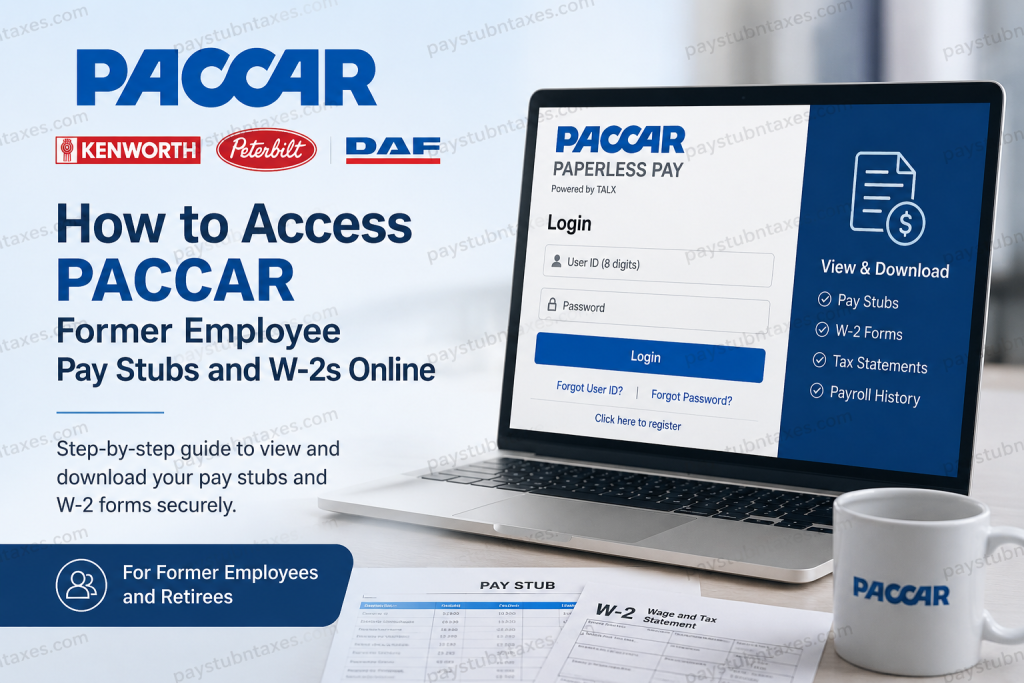
PACCAR is one of the world’s foremost manufacturers of premium commercial vehicles and transportation technologies, operating globally through renowned brands such as Kenworth, Peterbilt, and DAF. Beyond truck manufacturing, PACCAR provides financial services, aftermarket parts distribution, advanced diesel engine technologies, and information technology solutions to customers in more than 100 countries. For former employees and retirees, obtaining payroll records and tax documents remains a straightforward process. PACCAR provides secure online access to historical pay stubs and annual W-2 tax forms through the TALX Paperless Pay platform, enabling former team members to retrieve important employment records whenever needed.
Why You May Need Your PACCAR Pay Stubs or W-2 Forms
Former employees often require payroll and tax records for a variety of purposes, including:
- Filing federal and state income taxes
- Verifying previous employment
- Applying for mortgages or loans
- Completing government benefit applications
- Providing proof of income
- Maintaining personal financial records
- Resolving tax discrepancies
Fortunately, PACCAR’s online payroll portal allows eligible former employees to access these documents without visiting an HR office or submitting paper requests.
PACCAR Former Employee Payroll Portal
Former PACCAR employees can access their pay statements and tax forms through the secure TALX Paperless Pay system.
Portal URL: paperlesspay.talx.com/paccar
The portal stores historical payroll information, including:
- Pay stubs
- Wage statements
- W-2 tax forms
- Year-end tax documents
- Payroll history
Former employees can access these records from any internet-connected computer or mobile device after completing account verification.
How Returning Users Can Access PACCAR Pay Stubs Online
If you have previously registered for the PACCAR Paperless Pay system, follow these steps:
Step 1: Visit the PACCAR Paperless Pay Website
Navigate to: paperlesspay.talx.com/paccar
Step 2: Select Login
Click the “Click Here to Login” option on the homepage.
Step 3: Enter Your User ID
PACCAR requires an 8-digit User ID.
For many former employees, the User ID consists of their SAP Employee ID with leading zeros added to create an eight-digit number.
Example:
- Employee ID: 12345
- User ID: 00012345
This format applies to U.S. employees, including former employees.
Step 4: Enter Your Password
Input your previously established password and complete the login process to access your payroll records.
First-Time Registration for Former PACCAR Employees
If you have never used the PACCAR Paperless Pay portal, you must create an account before accessing your documents.
Step 1: Begin Registration
Select “Click here to register” on the login screen.
Step 2: Verify Your Identity
Provide the following information:
- First Name
- Last Name
- Social Security Number (SSN)
- Date of Birth
Then select Continue.
Step 3: Enter Your Home Address
Provide:
- Street Address
- City
- State
- ZIP Code
Select Continue to proceed.
Step 4: Add Contact Information
Enter:
- Personal phone number
- Personal email address
This information will be used for identity verification and account recovery purposes.
Step 5: Receive a One-Time Passcode
Choose whether to receive the verification code via:
- Phone
If using a phone number, you may choose either:
- Text message
- Voice call
A one-time passcode will be sent to verify your identity.
Step 6: Verify the Passcode
Enter the code you receive and continue with the registration process.
Step 7: Create a Password
Set a secure password and confirm it.
Step 8: Choose Device Recognition Preferences
You may choose to:
- Remember the device for future logins
- Decline device recognition if using a public computer
After completing this step, registration is finalized and your account becomes active.
How to View and Download W-2 Forms
Once logged into the Paperless Pay portal:
- Navigate to the Tax Statements section.
- Select the desired tax year.
- Open your W-2 form.
- Download or print a copy for your records.
Maintaining electronic copies of your tax documents can simplify future financial and tax-related transactions.
How to Download Historical Pay Stubs
To access previous earnings statements:
- Sign in to your Paperless Pay account.
- Open the Pay Statements section.
- Select the desired pay period.
- View, download, or print the pay stub.
Many former employees use these records as proof of employment or income verification when applying for housing, financing, or government programs.
Forgot Your Password?
If you cannot remember your login credentials:
- Visit the PACCAR Paperless Pay login page.
- Select Forgot Password.
- Complete the identity verification process.
- Follow the instructions sent to your registered phone number or email address.
If additional assistance is required, PACCAR support representatives can help restore account access.
PACCAR Payroll and HR Support
If you experience technical difficulties or have questions regarding your payroll records, contact PACCAR directly.
PACCAR Login Support Representative
Phone: 1-855-722-2271
Hours: Monday through Friday, 8:00 AM to 5:00 PM Pacific Time
HR Service Center
Phone: 1-855-722-2271
For employment-specific questions, former employees should also contact their local Human Resources department for guidance and support.
About PACCAR
Headquartered in Bellevue, Washington, PACCAR is a global technology leader specializing in the design, manufacture, and support of premium commercial vehicles. Through iconic brands including Kenworth, Peterbilt, and DAF, the company serves customers across more than 100 countries and maintains an extensive dealer network exceeding 2,200 locations worldwide. PACCAR also operates significant financial services, parts distribution, and leasing businesses, while continuing to invest heavily in environmental sustainability, fuel efficiency, and advanced transportation technologies.
Final Thoughts
Accessing PACCAR’s former employee pay stubs and W-2 forms online is a seamless process thanks to the TALX Paperless Pay platform. Whether you need tax documentation, income verification, or archived payroll records, the system provides secure, convenient, and around-the-clock access to essential employment information. By completing a quick registration process and maintaining updated contact information, former employees can retrieve their records whenever the need arises.
Frequently Asked Questions
1. How do I access my PACCAR former employee pay stubs online?
Visit the PACCAR Paperless Pay portal at paperlesspay.talx.com/paccar and sign in using your registered User ID and password to access your pay statements.
2. Where can former PACCAR employees get their W-2 forms?
Former employees can retrieve W-2 tax forms through the PACCAR TALX Paperless Pay portal by navigating to the Tax Statements section after logging in.
3. What is the PACCAR Paperless Pay website?
The official portal for former employees is paperlesspay.talx.com/paccar.
4. How do I register for PACCAR Paperless Pay for the first time?
Select “Click Here to Register” on the login page and verify your identity using your name, Social Security Number, date of birth, address, email, and phone number.
5. What is my PACCAR User ID?
For most U.S. employees, the User ID is an 8-digit number created by adding leading zeros to the SAP Employee ID. For example, employee ID 12345 becomes 00012345.
6. Can retirees access PACCAR pay stubs and tax forms online?
Yes. PACCAR retirees and former employees can access eligible payroll and tax records through the Paperless Pay portal.
7. How do I download my PACCAR W-2 form?
After logging in, go to the Tax Statements section, select the tax year you need, and download or print the W-2 form.
8. Can I access old PACCAR pay stubs after leaving the company?
Yes. Former employees can view and download historical pay statements that remain available within the Paperless Pay system.
9. What should I do if I forgot my PACCAR Paperless Pay password?
Use the “Forgot Password” option on the login page and complete the identity verification process to reset your password.
10. How do I recover my PACCAR User ID?
Select the “Forgot User ID” option on the Paperless Pay login page and follow the recovery instructions.
11. Is the PACCAR payroll portal available on mobile devices?
Yes. The Paperless Pay portal can be accessed from smartphones, tablets, laptops, and desktop computers with internet access.
12. Why am I not receiving the verification code during registration?
Ensure your email address and phone number are entered correctly. Also check spam or junk folders if the code is sent by email.
13. Can I print my PACCAR pay stubs and W-2 forms?
Yes. Both pay statements and W-2 forms can be downloaded as PDF files and printed for personal or financial purposes.
14. Who should I contact for PACCAR payroll portal support?
For technical assistance, contact the PACCAR Login Support Representative at 1-855-722-2271, Monday through Friday, from 8:00 AM to 5:00 PM Pacific Time.
15. Can local HR help with PACCAR payroll or tax document questions?
Yes. If your question requires direct assistance regarding employment records, benefits, or payroll matters, contact your local Human Resources department.

