
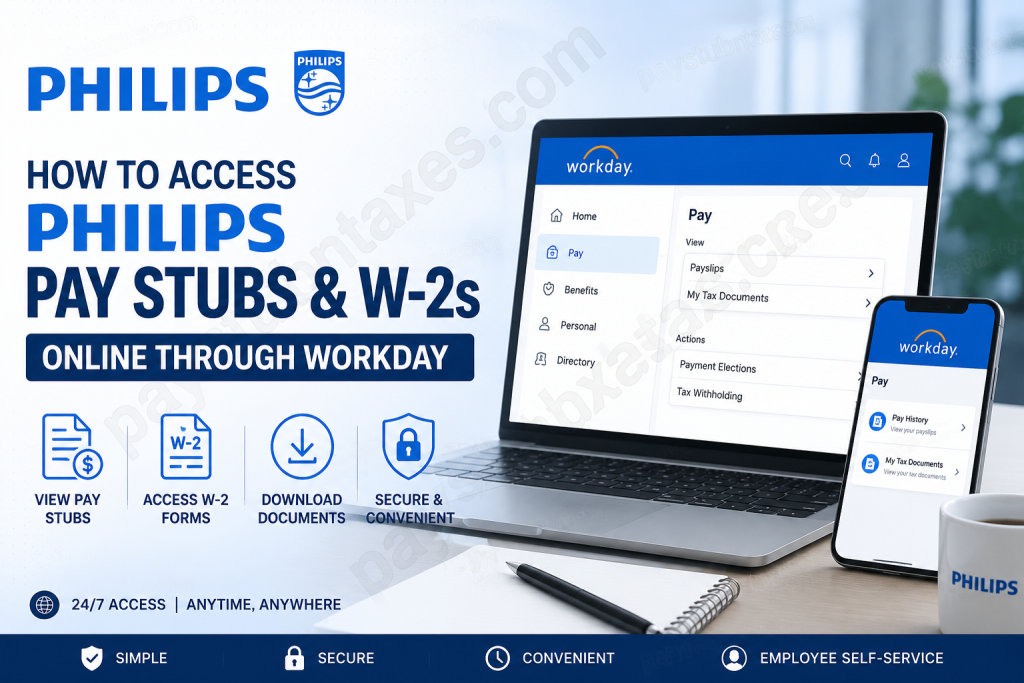
Philips is one of the world’s most recognized health technology companies, dedicated to improving lives through meaningful innovation. Headquartered in the Netherlands and operating in more than 100 countries, Philips empowers healthcare professionals and consumers alike with cutting-edge solutions in precision diagnosis, connected care, image-guided therapy, personal health, and enterprise informatics. With a legacy spanning more than 130 years, the company continues to place people at the heart of everything it does. For Philips employees, accessing payroll and tax documents has become remarkably convenient thanks to the Workday Self-Service platform. Whether you need a recent pay stub, a prior year’s earnings statement, or your annual W-2 form for tax filing purposes, Workday provides secure, around-the-clock access from virtually any internet-connected device. This guide explains exactly how current Philips employees can access, download, and print their pay stubs and W-2 forms online.
Philips Workday Login Information
Employees can access their payroll and tax information through the Philips Workday Self-Service Portal.
Workday Login Portal:
https://wd3.myworkday.com/philips/login.flex
Workday Mobile App Organization Code:
philips
Authentication Method:
Philips Microsoft Single Sign-On (SSO)
Once authenticated through Microsoft SSO, employees gain access to payroll records, tax forms, benefits information, and various employment-related resources.
What Payroll Documents Are Available in Workday?
The Philips Workday platform provides access to:
- Current pay stubs
- Historical pay stubs
- Current-year earnings statements
- W-2 tax forms
- Form 1095-C
- Tax withholding information
- Payroll payment history
- Direct deposit information
Employees can conveniently review, download, save, or print these documents whenever needed.
How to Access Philips Pay Stubs Online
Follow these steps to view your pay statements through Workday:
Method 1: Using a Web Browser
- Visit the Philips Workday login portal.
- Sign in using your Philips Microsoft SSO credentials.
- Open the Menu.
- Navigate to the Pay application.
- Select Payslips under the View section.
- Choose the desired pay period.
- Open the payslip to review detailed earnings information.
- Download or print the document for your records.
Method 2: Using the Workday Mobile App
Employees who prefer mobile access can retrieve pay stubs directly from the Workday app.
Step 1: Open the Pay Application
After signing into Workday Mobile:
- Tap Pay on the home screen.
- If Pay is not immediately visible, select View All to locate it.
Step 2: Select a Pay Statement
- Navigate to the Pay History section.
- Tap the payslip you wish to view.
Step 3: Download a PDF Copy
- Review the pay details.
- Select Get PDF.
- Workday will generate a downloadable copy for your mobile device.
This feature allows employees to securely store or print payroll records whenever necessary.
How to Access Philips W-2 Forms Online
Philips distributes annual W-2 forms electronically through Workday.
Step-by-Step Instructions
- Log in to Workday using your Philips credentials.
- Open the global navigation menu.
- Select the Pay application.
- Under the View section, choose My Tax Documents.
- Locate the applicable tax year.
- Select View to open the W-2 form.
- Download and print the document for tax filing purposes.
When Are Philips W-2 Forms Available?
Philips employees generally receive an email notification no later than January 31 indicating that their W-2 forms are available online.
Important points to remember:
- Electronic copies are typically available before paper copies.
- In many cases, electronic delivery may replace mailed copies.
- Employees are encouraged to print their W-2 forms directly from Workday.
- W-2 documents remain accessible online through December 31 of the applicable year.
Because online access is significantly faster than waiting for postal delivery, employees are strongly encouraged to retrieve their forms electronically.
Benefits of Accessing Payroll Documents Through Workday
Workday offers several advantages:
24/7 Availability
Employees can access payroll information anytime and from anywhere.
Enhanced Security
Microsoft Single Sign-On and Workday security controls help safeguard sensitive personal information.
Instant Document Retrieval
Pay stubs and tax forms can be downloaded immediately without contacting payroll personnel.
Mobile Accessibility
The Workday mobile application enables convenient access from smartphones and tablets.
Paperless Convenience
Electronic access reduces paperwork while ensuring important records remain readily available.
Troubleshooting Philips Workday Access Issues
If you experience login difficulties:
Verify Your Credentials
Ensure you are using your active Philips Microsoft SSO username and password.
Check Internet Connectivity
A stable internet connection is required for secure access.
Clear Browser Cache
Outdated browser data can occasionally interfere with authentication.
Update the Workday App
Ensure you are using the latest version of the Workday mobile application.
Contact Philips PPS
For unresolved issues involving payroll access, tax forms, or Workday functionality, contact Philips PPS for assistance.
Final Thoughts
Philips has streamlined payroll and tax document management through the Workday Self-Service platform, enabling employees to access critical financial records with ease. Whether you’re reviewing a recent paycheck, downloading a historical payslip, or preparing your annual tax return using your W-2 form, Workday provides a secure, efficient, and user-friendly solution. By taking advantage of both the Workday web portal and mobile application, Philips employees can keep their payroll information at their fingertips while enjoying the convenience of instant, paperless access to important employment records.
Philips Pay Stubs and W-2 FAQs
1. How do I access my Philips pay stubs online?
You can access your pay stubs through the Philips Workday Self-Service Portal using your Microsoft SSO login credentials.
2. What is the Philips Workday login URL?
The Philips Workday login portal is: https://wd3.myworkday.com/philips/login.flex
3. Can I view Philips pay stubs on my phone?
Yes. You can use the Workday mobile app and enter the organization code philips to access payroll information.
4. How do I download a Philips pay stub?
Open the desired payslip in Workday and select the download or PDF option to save a copy to your device.
5. Where can I find my Philips W-2 form?
Your W-2 is available in Workday under Pay > My Tax Documents.
6. When are Philips W-2 forms available?
Employees are typically notified by email by January 31 when W-2 forms become available online.
7. Can I print my Philips W-2 online?
Yes. Workday allows employees to view, download, and print W-2 forms directly.
8. How long are Philips W-2 forms available online?
W-2 documents generally remain available in Workday through December 31 of the applicable year.
9. What is the organization code for the Workday mobile app?
The Philips Workday mobile app organization code is philips.
10. Can I access previous pay stubs in Workday?
Yes. Workday provides access to both current and historical pay statements.
11. What other tax documents are available in Workday?
Employees may also access forms such as 1095-C and other payroll-related tax documents.
12. What should I do if I forget my Philips login credentials?
Use Philips’ Microsoft SSO password recovery tools or contact your IT support team for assistance.
13. Can I access Workday from home?
Yes. Workday is accessible from any internet-connected device using secure login credentials.
14. Why can’t I see my W-2 in Workday?
Ensure you are checking under My Tax Documents, verify the correct tax year, and contact Philips PPS if the form is unavailable.
15. Who should I contact for Philips payroll assistance?
Employees should contact Philips PPS or their Human Resources department for payroll and Workday support.

