
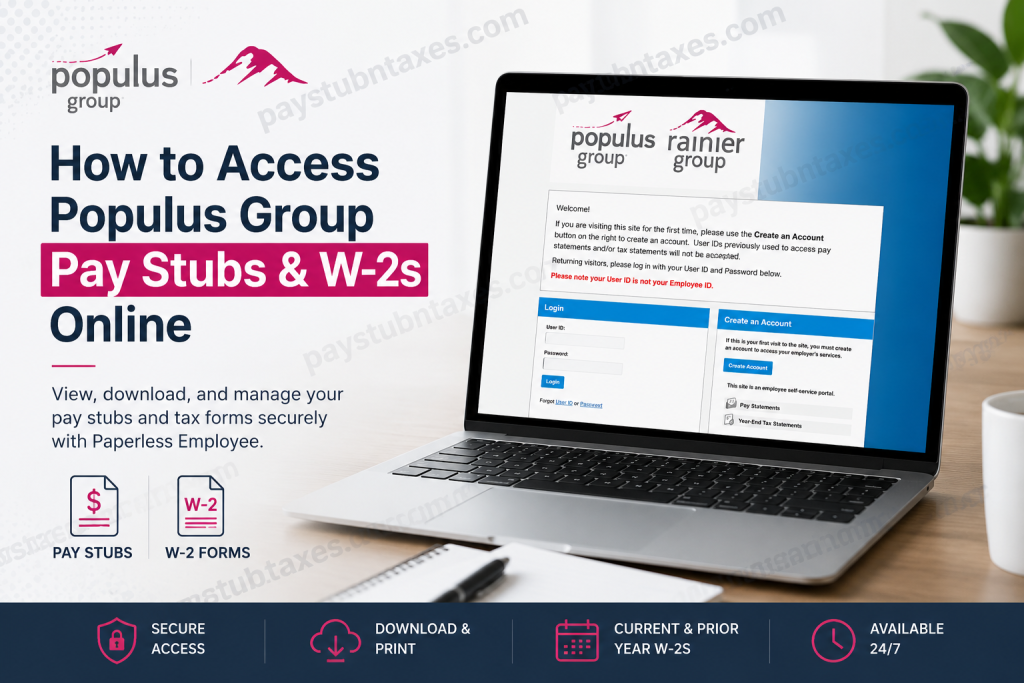
Managing payroll documents should be straightforward, secure, and available whenever you need them. For employees and contractors working through Populus Group, the Paperless Employee Self-Service Portal provides a convenient digital solution for accessing weekly pay statements, year-end tax forms, and other important employment records. Whether you need to download a recent pay stub for income verification, retrieve a previous year’s W-2 for tax filing purposes, or set up electronic tax form delivery, this guide walks you through the entire process from account creation to document retrieval.
About Populus Group
Populus Group is a leading workforce solutions provider specializing in payroll services, Employer of Record (EOR) solutions, contingent workforce management, staffing and recruiting, foreign national talent management, and IT project services. As a certified Minority Business Enterprise (MBE) and Veteran-Owned Business (VOB), the company supports organizations across the United States while helping professionals find meaningful career opportunities.
To streamline employee payroll administration, Populus Group uses the Paperless Employee platform, a secure online portal where workers can access:
- Weekly pay stubs
- Current and prior-year W-2 forms
- Electronic tax statement options
- Payroll notifications
- Account management settings
Populus Group Pay Stub and W-2 Portal
Employee Portal: https://www.paperlessemployee.com/populus
The Paperless Employee portal allows employees to view, download, print, and manage payroll-related documents from virtually any internet-connected device.
How to Create a Paperless Employee Account
If you are logging in for the first time, you must create an account before accessing payroll records.
Step 1: Visit the Portal
Navigate to:
https://www.paperlessemployee.com/populus
Step 2: Select “Create Account”
On the login page, click the Create Account button.
Step 3: Verify Your Identity
You will need:
- Employee ID
- Social Security Number (SSN)
- Date of Birth
Your Employee ID is typically provided in the account-access email sent by Populus Group.
Step 4: Create Login Credentials
After identity verification:
- Create a User ID
- Create a secure password
- Complete account authentication
Step 5: Set Security Questions
Choose and answer security questions that will help recover your account if you forget your login credentials.
Step 6: Add Contact Information
Provide:
- Personal email address
- Optional alternate email
- Optional mobile phone number
Verify your email address when prompted.
Step 7: Configure Notification Preferences
Choose how you would like to receive notifications regarding:
- Pay statements
- Tax statements
- Security alerts
Step 8: Complete Registration
Once registration is complete, a confirmation email will be sent from Paperless Employee.
How to View and Download Populus Group Pay Stubs
Paperless Employee stores weekly pay statements electronically, making them accessible 24/7.
Method 1: Access Full Pay Statements
- Log in to Paperless Employee.
- Select Pay Statements from the navigation menu.
- Choose the desired pay period.
- Check the box beside the statement you wish to access.
- Click View/Print Selected Pay Statements.
- The statement will open as a PDF document.
You may then:
- View the pay stub
- Download it
- Save it to your device
- Print a copy for your records
Method 2: View Pay Statement Summaries
If you only need a quick payroll overview:
- Navigate to Pay Statements.
- Locate the desired pay date.
- Click Show Summary.
A condensed version of the pay statement will appear directly on the page, displaying key payroll information without opening a PDF.
How to Access Populus Group W-2 Forms Online
The portal allows employees to obtain both current and prior-year W-2 forms electronically.
Register for Electronic W-2 Delivery
Before accessing electronic tax forms, you should opt in to electronic delivery.
Steps
- Log in to Paperless Employee.
- Select Manage Electronic Tax Statement Options.
- Locate the Electronic Statement Notification section.
- Choose Yes to receive tax statements electronically.
- Select your preferred notification method.
- Click Save Notification Option Settings.
Once enrolled, the preference remains active for future tax years unless changed.
How to Download the Current Year’s W-2
- Log in to Paperless Employee.
- Select Year-End Tax Statements.
- Click Access Current Year-End Statements.
- Choose the desired W-2.
- Check the selection box.
- Click Review & Complete Order.
- Download and save the document.
How to Retrieve Prior-Year W-2 Forms
Need an older tax document?
- Log in to Paperless Employee.
- Navigate to Year-End Tax Statements.
- Select Access Prior Year-End Statements.
- Choose the appropriate tax year.
- Check the desired form.
- Click Review & Complete Order.
- Download or print the W-2.
This feature is particularly valuable when filing amended returns, applying for loans, or replacing misplaced tax documents.
Forgot Your Employee ID?
If you do not know your Employee ID, contact Populus Group support for assistance.
Email: pgsupport@populusgroup.com
The support team can help verify your identity and provide the information needed to activate your account.
Troubleshooting Login Issues
Forgot Your User ID?
Use the Forgot User ID link on the login page and follow the verification process.
Forgot Your Password?
Select Forgot Password and answer your security questions or complete account verification.
New User Unable to Register?
Verify that:
- Your Employee ID is entered correctly.
- Your Social Security Number matches company records.
- Your Date of Birth is accurate.
If problems persist, contact Populus Group support.
Benefits of Using Paperless Employee
Using the Paperless Employee portal offers several advantages:
- Secure online access to payroll documents
- Immediate availability of weekly pay stubs
- Electronic W-2 delivery
- Access to historical tax records
- Reduced paper clutter
- Convenient document downloads for lenders and government agencies
- Faster retrieval during tax season
Rather than hunting through filing cabinets or waiting for mailed documents, employees can access critical payroll records in a matter of minutes.
Populus Group Contact Information
Populus Group Headquarters
3001 West Big Beaver Road, Suite 608
Troy, MI 48084
Phone: 248-712-7900
Email: pgsupport@populusgroup.com
Final Thoughts
Populus Group’s Paperless Employee portal provides a secure and efficient way to manage payroll information online. From weekly pay statements to current and historical W-2 forms, employees can access essential tax and payroll records whenever needed. By registering for electronic delivery and maintaining updated account information, workers can ensure uninterrupted access to important employment documents throughout the year.
Frequently Asked Questions
1. How do I access my Populus Group pay stubs online?
You can access your pay stubs by logging into the Paperless Employee portal and selecting the Pay Statements section.
2. What website does Populus Group use for payroll documents?
Populus Group uses the Paperless Employee Self-Service portal located at https://www.paperlessemployee.com/populus.
3. How do I create a Paperless Employee account?
Click Create Account on the login page and verify your identity using your Employee ID, Social Security Number, and Date of Birth.
4. Where can I find my Employee ID?
Your Employee ID is typically included in the account access email sent by Populus Group. If you cannot locate it, contact support for assistance.
5. Can I download and print my pay stubs?
Yes. Pay statements are available as PDF files that can be viewed, downloaded, saved, and printed.
6. How often are pay stubs available in Paperless Employee?
Employees generally receive access to weekly pay statements as they become available in the portal.
7. How do I view a pay stub summary without downloading the full statement?
Navigate to Pay Statements and click Show Summary beside the desired pay period.
8. How do I access my current-year W-2?
Log in to Paperless Employee, select Year-End Tax Statements, choose the current year, and download the form.
9. Can I access prior-year W-2 forms?
Yes. The portal allows eligible employees to view and download previous years’ W-2 forms.
10. Do I need to enroll in electronic W-2 delivery?
Yes. To receive W-2 forms electronically, you must opt into electronic tax statement delivery within your account settings.
11. What happens if I forget my User ID or password?
Use the Forgot User ID or Forgot Password links on the login page to recover your account credentials.
12. Can former employees access their W-2 forms online?
In many cases, former employees can continue accessing available tax documents through their Paperless Employee account. If access issues arise, contact Populus Group support.
13. What information is required to create an account?
You will need your Employee ID, Social Security Number, and Date of Birth for identity verification.
14. Is Paperless Employee secure?
Yes. The platform uses secure authentication methods, account verification, and password protection to safeguard payroll and tax information.
15. How do I contact Populus Group payroll support?
You can contact Populus Group support at pgsupport@populusgroup.com or call 248-712-7900 for assistance with payroll, pay stubs, account access, and W-2 forms.

