
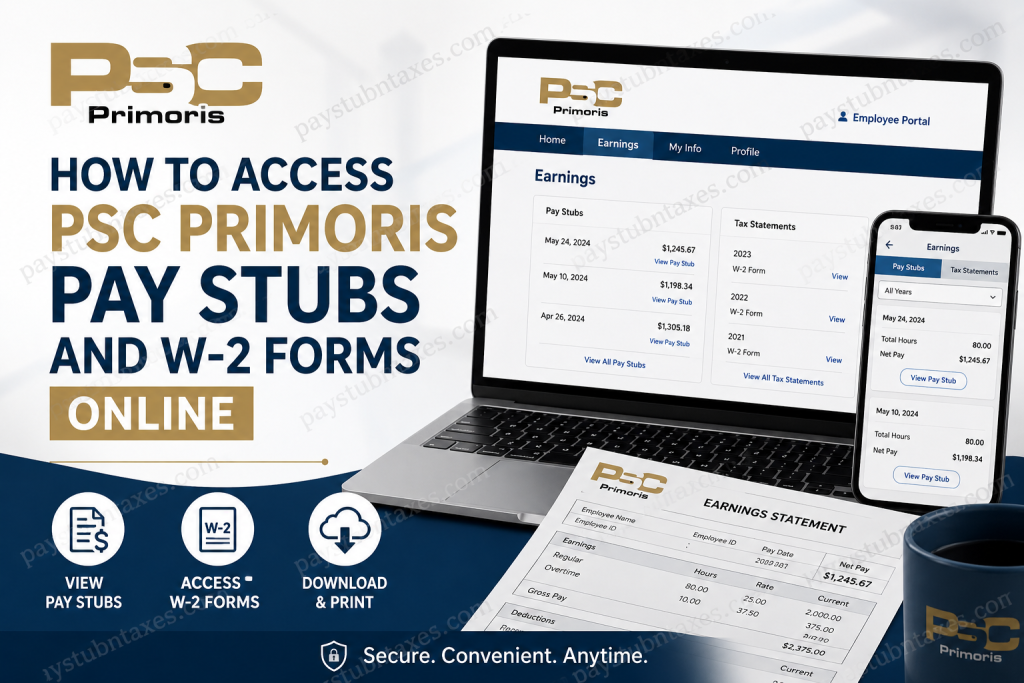
As one of North America’s foremost providers of critical infrastructure services, Primoris Services Corporation (NYSE: PRIM) supports thousands of employees across the United States and Canada. Whether you need to review your latest earnings statement, verify payroll deductions, download historical pay records, or obtain a copy of your annual W-2 tax form, Primoris makes these documents available through its secure Employee Portal. Primoris operates throughout the utility, energy, communications, transportation, and renewable energy sectors, delivering engineering, construction, and maintenance services while maintaining a strong commitment to employee accessibility and digital self-service. This guide explains everything current employees need to know about accessing PSC Primoris pay stubs and W-2 forms online, including enrollment, login procedures, mobile access, troubleshooting, and payroll support options.
Quick Answer: How Do I Access My Primoris Pay Stubs and W-2 Forms?
Current Primoris employees can access pay stubs and W-2 forms through the Primoris Employee Portal.
Login Steps
- Visit the Primoris Employee Portal: https://my.prim.com/
- Select “100 – Primoris Services Corporation” from the company dropdown menu.
- Enter your Employee Number.
- Enter your password.
- Click Sign In.
Once logged in, navigate to the Earnings section to view pay stubs and tax documents.
What Is the Primoris Employee Portal?
The Primoris Employee Portal serves as a centralized self-service platform that allows employees to manage payroll-related information securely. Through the portal, employees can:
- View current and historical pay stubs
- Access annual W-2 tax forms
- Download PDF copies of payroll documents
- Review earnings and deductions
- Monitor tax withholdings
- Access payroll information from desktop or mobile devices
The platform is designed to provide convenient, around-the-clock access to important employment records without requiring assistance from payroll personnel.
First-Time User Registration
Employees who have never accessed the portal must complete the enrollment process before signing in.
How to Enroll
- Visit the Primoris Employee Portal.
- Click Enroll.
- Select “100 – Primoris Services Corporation” from the dropdown menu.
- Enter your Employee Number without leading zeros.
Example:
- Correct: 95867
- Incorrect: 000095867
- Enter the last four digits of your Social Security Number.
- Create a secure password.
- Confirm your password.
- Click Enroll to complete registration.
Password Requirements
Your password must:
- Be at least 12 characters long
- Include at least three of the following:
- Uppercase letters
- Lowercase letters
- Numbers
- Special characters
Strong password practices help safeguard sensitive payroll and tax information.
How to Access Primoris Pay Stubs Online
After signing into the portal, employees can quickly retrieve current and historical earnings statements.
Viewing Pay Stubs
- Open the Earnings page.
- Select the Pay Stubs tab.
- Review the list of available pay statements organized by pay date.
- Use the year filter to narrow results if needed.
- Select View Pay Stub next to the desired paycheck.
- Expand sections such as:
- Check Summary
- Gross Pay
- Taxes
- Deductions
- Add-ons
- Download the pay stub as a PDF for printing or recordkeeping.
Information Available on Pay Stubs
Employees can typically review:
- Gross earnings
- Net pay
- Hours worked
- Federal tax withholding
- State tax withholding
- Benefit deductions
- Retirement contributions
- Direct deposit information
- Employer contributions
Having digital access to these records makes income verification and financial planning considerably easier.
Accessing Pay Stubs Through the Mobile App
Primoris employees may also access payroll information through the mobile application.
Mobile Pay Stub Access
- Open the mobile application.
- Navigate to Earnings from either:
- The Home page
- The My Info section
- The bottom navigation menu (if enabled)
- Select the Pay Stubs tab.
- Choose the desired pay date.
- Tap View Pay Stub.
- Download the PDF version if needed.
The mobile experience allows employees to review payroll information anytime, anywhere, directly from their smartphones.
How to Access Primoris W-2 Forms Online
Annual W-2 forms are also available through the Earnings section.
Viewing W-2 Forms
- Log in to the Primoris Employee Portal.
- Open the Earnings page.
- Select Tax Statements.
- Browse available tax forms by year.
- Click View next to the desired W-2.
- Download or print the form for tax filing purposes.
Mobile W-2 Access
Using the mobile application:
- Navigate to Earnings.
- Select the Tax Statements tab.
- Choose the desired W-2 form.
- Tap View to open the document.
- Download or print as needed.
Mobile Viewing Differences
- Android users: W-2 forms open in an external PDF viewer.
- iPhone and iPad users: W-2 forms display directly within the application interface.
What If I Forgot My Password?
If you cannot access your account:
- Return to the portal login page.
- Select Reset Password.
- Verify your identity using the requested information.
- Create a new password that satisfies portal security requirements.
- Sign in using your updated credentials.
Employees who continue experiencing login difficulties should contact payroll support for assistance.
Common Login Issues and Solutions
Employee Number Not Recognized
Ensure you are entering your employee number without any leading zeros during enrollment.
Password Not Accepted
Verify:
- Caps Lock is off.
- Password meets complexity requirements.
- No extra spaces are being entered.
Account Locked
Multiple unsuccessful login attempts may temporarily lock access. Wait several minutes or contact payroll support.
Incorrect Company Selection
Always select:
100 – Primoris Services Corporation
before entering login credentials.
Payroll Support Contact Information
If you have questions regarding payroll, pay stubs, direct deposit information, or W-2 forms, Primoris provides dedicated payroll support.
Payroll Assistance
Email: askprimpayroll@prim.com
Phone: 844-886-3798
Current employees with payroll-related questions may contact the payroll department directly for assistance.
Benefits of Electronic Pay Statements and W-2 Access
Digital payroll access provides several advantages:
- Immediate access to earnings information
- Faster retrieval of tax documents
- Reduced paperwork
- Secure document storage
- Easier income verification
- Convenient access from mobile devices
- Environmentally friendly recordkeeping
Rather than waiting for mailed copies, employees can retrieve important payroll records within seconds.
Final Thoughts
The PSC Primoris Employee Portal offers a secure and efficient method for accessing pay stubs and W-2 forms online. Whether you need to review your latest paycheck, download a PDF copy for income verification, or obtain your annual tax documents for filing purposes, the platform provides a straightforward self-service experience. By enrolling in the portal, maintaining a secure password, and utilizing the Earnings section, employees can manage payroll records with confidence and convenience throughout the year. For any issues involving account access, payroll discrepancies, or tax forms, the Primoris payroll team remains available to provide support and guidance.
Frequently Asked Questions
1. How do I access my PSC Primoris pay stubs online?
Log in to the Primoris Employee Portal at my.prim.com, open the Earnings section, and select the Pay Stubs tab to view and download your pay statements.
2. Where can I find my Primoris W-2 form?
Your W-2 form is available under the Tax Statements tab within the Earnings section of the Primoris Employee Portal.
3. What website do Primoris employees use for payroll access?
Current employees use the Primoris Employee Portal located at my.prim.com to access payroll and tax information.
4. How do I enroll in the Primoris Employee Portal?
Click Enroll on the portal login page, select your company, enter your Employee Number, the last four digits of your SSN, and create a secure password.
5. What company should I select when logging in?
Choose 100 – Primoris Services Corporation from the company dropdown menu before entering your credentials.
6. Can I access Primoris pay stubs on my phone?
Yes. Employees can access pay stubs through the mobile application by navigating to the Earnings section and selecting Pay Stubs.
7. How do I download a pay stub PDF?
Open the desired pay stub and click the Download button to save a PDF copy to your device.
8. Can I print my W-2 form from the portal?
Yes. After opening the W-2 form, you can download and print it for tax filing or recordkeeping purposes.
9. What if I forgot my Primoris portal password?
Use the Reset Password option on the login page to create a new password and regain access to your account.
10. What information is shown on a Primoris pay stub?
Pay stubs typically display gross pay, net pay, hours worked, taxes withheld, deductions, and direct deposit information.
11. Can I view previous years’ pay stubs?
Yes. Use the year filter in the Pay Stubs section to locate payroll records from previous years.
12. Why is my Employee Number not working?
Ensure you selected the correct company and entered your Employee Number exactly as provided by Primoris. During enrollment, do not include leading zeros.
13. Can former employees access W-2 forms online?
Former employee access policies may vary. Contact Primoris Payroll if you no longer have portal access.
14. Who do I contact for W-2 or payroll assistance?
You can email askprimpayroll@prim.com or call 844-886-3798 for payroll-related support.
15. Is the Primoris Employee Portal secure?
Yes. The portal uses password-protected authentication and secure access controls to protect employee payroll and tax information.

