
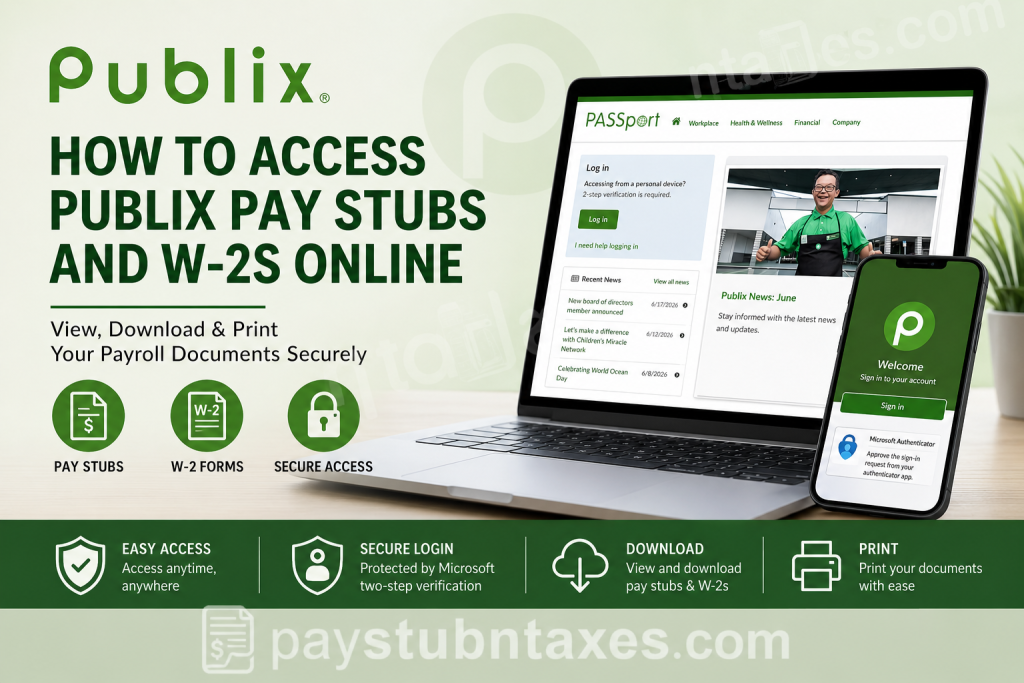
Founded in 1930, Publix Super Markets has grown into the largest employee-owned grocery chain in the United States, employing more than 200,000 associates across the Southeast. As part of its commitment to creating a great place to work, Publix offers associates secure online access to payroll documents, including pay stubs and annual tax forms, through its employee self-service portal known as Publix Passport. Whether you are a current associate looking for your latest paycheck information or a former employee searching for your W-2, this guide explains everything you need to know.
What Is Publix Passport?
Publix Passport is the company’s online employee portal that enables associates to manage employment-related information, including:
- Pay stubs and earnings statements
- W-2 tax forms
- Personal information updates
- Benefits and payroll preferences
- Company news and announcements
- Work schedules and employment resources
- Secure two-step verification settings
The portal can be accessed at:
Publix Passport: https://www.publix.org/passport
How to Access Publix Pay Stubs Online
Current associates can view and download their pay statements directly through Passport.
Step 1: Visit the Publix Passport Website
Open your web browser and go to: https://www.publix.org/passport
Click the Log In button.
Step 2: Sign In Using Your Credentials
Enter:
- Your Publix email address, or
- Your user ID followed by @publix.com
Example: p1234567@publix.com
You will then proceed to the Microsoft sign-in page.
Step 3: Complete Two-Step Verification
Publix requires two-step verification when accessing Passport from a personal device.
You may verify your identity by:
- Microsoft Authenticator app (recommended)
- Security code generated by the app
- Text message verification
- Voice call verification
The Microsoft Authenticator app is considered the most secure option and supports passwordless sign-in.
Step 4: Access Your Pay Stubs
After signing in:
- Navigate to your employee profile.
- Select the Payroll or Pay Statements section.
- Choose the desired pay period.
- View, print, or download your pay stub.
Information Available on a Publix Pay Stub
Your earnings statement typically contains:
- Employee information
- Pay period dates
- Hours worked
- Gross earnings
- Overtime pay
- Bonuses and incentives
- Federal and state tax withholdings
- Benefits deductions
- Retirement contributions
- Net pay amount
- Year-to-date earnings and taxes
Review your pay statement regularly to ensure the accuracy of payroll deductions and tax withholdings.
How to Access Your Publix W-2 Online
The W-2 form summarizes your annual wages and taxes withheld during the previous calendar year.
For Current Employees
Associates who elected electronic delivery receive their W-2 digitally through Passport.
To access your W-2:
- Log in to Passport.
- Open My Profile.
- Select Preferences.
- Navigate to Tax Forms.
- Download or print your W-2.
If you did not enroll in electronic delivery, your W-2 will be mailed to the address listed in Passport.
For Former Employees
Former associates generally receive their W-2 by mail at the last address on file.
If you have moved:
- Contact Publix Corporate Office.
- Update your mailing address.
- Request a replacement W-2 if the original form was sent to an outdated address.
How to Set Up Microsoft Authenticator for Passport Access
Publix strongly recommends using Microsoft Authenticator to protect your account.
Setup Process
1. Download Microsoft Authenticator
Available for:
- Android devices
- Apple iPhones
2. Add Your Publix Account
Open the app and select: Add Account
3. Register Your Device
From a Publix device:
- Visit the security information page.
- Select Add Method.
- Choose Microsoft Authenticator.
- Scan the QR code displayed on the screen.
- Approve the sign-in request.
After setup, you can use passwordless authentication for faster and safer access.
Forgot Your Password?
If you cannot log in:
- Visit the Passport Login Help page.
- Select Reset My Password.
- Complete identity verification using your registered device.
You must have access to your two-step verification method to reset your password.
What If Your Passport Login Is Not Working?
Several issues can prevent access:
Incorrect Login Format
Use:
- Publix email address, or
- UserID@publix.com
Two-Step Verification Failure
Ensure your Microsoft Authenticator app is functioning properly.
New Device
If you changed phones, update your authentication settings.
New Employee
Access may not be immediately available during your first day of employment.
Publix Payroll and Technical Support
If you need assistance with Passport access, password resets, or payroll documents, contact Publix Technology Support.
From Lakeland:
(863) 688-7407 ext. 42563
From all other locations:
1-800-323-2563
For training-related issues:
Education and Training Development:
(863) 688-1188 ext. 53344.
Tips to Keep Your Payroll Information Secure
To safeguard your personal information:
- Enable Microsoft Authenticator.
- Never share your password.
- Use a private internet connection.
- Sign out after each session.
- Update your mailing address promptly.
- Monitor your pay statements regularly.
- Store downloaded tax forms securely.
Final Thoughts
Publix has built a robust and secure employee self-service platform that allows associates to manage payroll records conveniently online. Through Passport, current employees can access pay stubs, retrieve W-2 forms, update personal information, and manage account security from virtually anywhere. By enrolling in electronic tax delivery and setting up Microsoft Authenticator, associates can enjoy quick, secure, and hassle-free access to their payroll information throughout the year.
Frequently Asked Questions
1. How do I log in to Publix Passport?
Go to www.publix.org/passport, click Log In, and sign in using your Publix credentials and two-step verification.
2. Where can I find my Publix pay stubs?
After logging into Passport, open the Payroll or Pay Statements section to view and download your pay stubs.
3. Can I print my Publix pay stubs?
Yes. Pay stubs can be downloaded as PDF files and printed directly from Passport.
4. How do I get my Publix W-2 online?
Log into Passport, go to My Profile > Preferences > Tax Forms, and download your W-2 if you elected electronic delivery.
5. When does Publix release W-2 forms?
W-2 forms are generally available in January each year before the IRS filing deadline.
6. What if I did not enroll in electronic W-2 delivery?
Publix will mail your W-2 to the address listed in your employee profile.
7. How do former employees get their W-2?
Former associates receive their W-2 by mail at the last address on file with Publix.
8. What should I do if I moved and never received my W-2?
Contact Publix Corporate or payroll support to update your address and request a replacement W-2.
9. Is Microsoft Authenticator required for Publix Passport?
Yes. Two-step verification using Microsoft Authenticator or another approved method is required when accessing Passport from a personal device.
10. Can I access Publix Passport from my smartphone?
Yes. Passport works on smartphones and tablets with internet access.
11. I forgot my Publix password. How do I reset it?
Use the Reset My Password option on the Passport login page and complete identity verification.
12. Why can’t I log in to Publix Passport?
Common reasons include incorrect login credentials, authentication issues, or access delays for new employees.
13. Can I use a personal email address to log in?
No. You must use your Publix email address or your User ID in the approved login format.
14. How do I contact Publix technical support?
Call (863) 688-7407 ext. 42563 from Lakeland or 1-800-323-2563 from all other locations.
15. Is my payroll information secure on Publix Passport?
Yes. Publix uses encrypted login procedures and two-step verification to protect employee payroll and tax information.

