
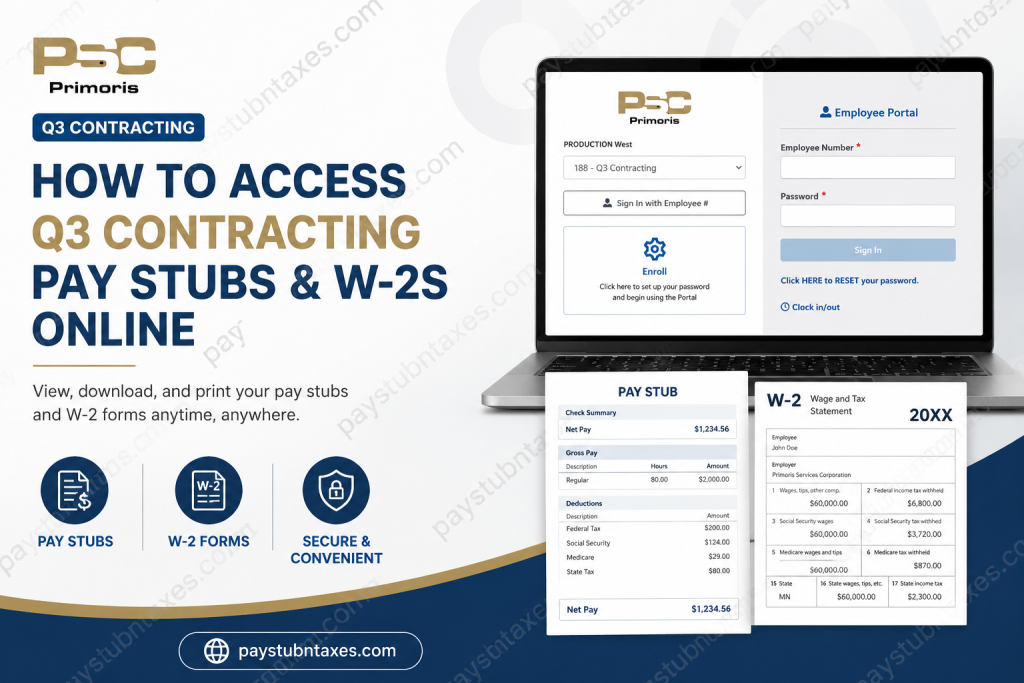
Q3 Contracting, a division of Primoris Services Corporation, stands among the Midwest’s leading specialty contractors, delivering comprehensive solutions across the gas, electric, telecommunications, and energy sectors. Headquartered in Minnesota and operating throughout several states, Q3 Contracting equips its workforce with convenient digital tools to access payroll records, tax documents, and employment information. For current employees, the Primoris Employee Portal serves as the central hub for viewing pay stubs, downloading W-2 forms, and managing payroll-related information. Whether you need a recent paycheck for income verification or last year’s W-2 for tax filing, the portal provides secure, around-the-clock access. In this guide, you’ll learn precisely how to access your Q3 Contracting pay stubs and W-2 forms online.
Q3 Contracting Payroll Portal Overview
Q3 Contracting employees access payroll information through the Primoris Employee Portal, which is available online at:
Portal URL: https://my.prim.com/
Through this portal, employees can:
- View current and historical pay stubs
- Download paycheck PDFs
- Access W-2 tax forms
- Print tax statements
- Manage payroll information securely
How to Log In to the Primoris Employee Portal
Follow these steps to sign in:
Step 1: Visit the Portal
Open your browser and navigate to: https://my.prim.com/
Step 2: Select Your Company
From the dropdown menu, select:
188 – Q3 Contracting
Selecting the correct company code ensures you access the appropriate payroll environment.
Step 3: Enter Your Credentials
Provide:
- Employee Number
- Password
Then click Sign In.
First-Time User Enrollment
If you have never logged into the portal before, you must enroll and create a password.
Enrollment Steps
- Visit the Primoris Employee Portal.
- Click Enroll.
- Select 188 – Q3 Contracting from the dropdown.
- Enter your:
- Employee Number (without leading zeros)
- Last four digits of your Social Security Number (SSN)
- New password
- Confirm the password.
- Click Enroll to activate your account.
Important Employee Number Example
Use:✅ 95867
Do not use: ❌ 000095867
Password Requirements
For security purposes, your password must:
- Be at least 12 characters long
- Include at least three of the following:
✔ Lowercase letters
✔ Uppercase letters
✔ Numbers
✔ Special characters
Example: Q3Contract!2026
Avoid using easily guessed information such as birthdays or sequential numbers.
How to Access Q3 Contracting Pay Stubs
Employees can view payroll records directly through the Earnings section of the portal and mobile application.
The payroll system allows employees to review paycheck details, net pay, deductions, taxes withheld, and downloadable PDF copies of pay statements. The Earnings page contains separate tabs for Pay Stubs and Tax Statements, making navigation intuitive and efficient. The mobile interface also allows filtering by year and reviewing historical pay records.
Step-by-Step Instructions
1. Open the Earnings Page
Access Earnings from:
- The Home page
- The My Info tab
- The bottom navigation menu (if enabled)
2. Select the Pay Stubs Tab
This tab displays:
- Pay dates
- Total hours worked
- Net pay amount
Pay stubs are organized chronologically by pay date.
3. Filter by Year
Use the All Years dropdown to narrow your search to a specific tax year. This feature is particularly helpful when locating older pay statements.
4. View Pay Stub Details
Click View Pay Stub beside the desired paycheck.
You can review detailed sections such as:
- Check Summary
- Gross Pay
- Taxes
- Deductions
- Add-ons
The detailed view allows employees to expand each section for a more granular breakdown of earnings and withholdings.
5. Download or Print
Select the Download icon to save a PDF version of your pay stub, which can then be printed, emailed, or retained for personal records.
How to Access Q3 Contracting W-2 Forms Online
Tax documents, including W-2 forms, are available within the Tax Statements tab of the Earnings page.
Employees residing in the United States can access:
- W-2 forms
- 1095-C forms
These tax documents are grouped by year for easy retrieval.
Step-by-Step Instructions
1. Navigate to Earnings
Open the Earnings section from:
- Home page
- My Info tab
- Bottom navigation
2. Select Tax Statements
The Tax Statements tab displays all available tax forms organized by tax year.
3. Open Your W-2
Locate the appropriate tax year and click View W-2.
You may then:
- View the form
- Download a PDF copy
- Print for tax filing purposes
The system supports both online viewing and downloading of tax statements.
Mobile Experience
- Android users: Tax forms open in an external PDF viewer.
- iPhone/iPad users: Documents display directly inside the application.
Primoris Mobile Access
The Primoris payroll system integrates with mobile functionality, enabling employees to access earnings and tax statements while on the go. Employees can view pay stubs, switch between pay dates, and download PDF versions directly from their devices. Access requires a Trimble ID linked to the employee’s account.
Forgot Your Password?
If you cannot access your account:
- Visit the login page.
- Click RESET your password.
- Follow the prompts to recover access.
If additional assistance is needed, contact payroll support.
Q3 Contracting Payroll Contact Information
For payroll or W-2 inquiries, employees may contact Primoris Payroll Support:
Email: askprimpayroll@prim.com
Phone: 844-886-3798
Employees may also contact their local Q3 Contracting office for payroll-related assistance. Payroll inquiries can be directed to the dedicated Primoris payroll team via email.
Q3 Contracting Headquarters:
53 S. Owasso Blvd W.
Little Canada, MN 55117
Phone: (651) 224-2424
Common Login Issues and Solutions
| Issue | Solution |
| Incorrect employee number | Remove leading zeros before entering your ID |
| Forgot password | Use the password reset option |
| Account not enrolled | Complete first-time enrollment |
| W-2 unavailable | Wait until annual release or contact payroll |
| Locked account | Contact payroll support |
Final Thoughts
The Primoris Employee Portal simplifies payroll management for Q3 Contracting employees by providing secure, self-service access to pay stubs and W-2 forms. Whether you need proof of income, historical payroll data, or tax documents during filing season, the portal ensures that critical information remains accessible anytime and anywhere. By enrolling in the system, maintaining secure credentials, and familiarizing yourself with the Earnings and Tax Statements sections, you can streamline payroll administration and avoid unnecessary delays during tax season.
FAQ: Q3 Contracting Pay Stubs and W-2s
1. How do I access my Q3 Contracting pay stubs online?
Log in to the Primoris Employee Portal at my.prim.com, select 188 – Q3 Contracting, and navigate to Earnings > Pay Stubs.
2. Where can I find my Q3 Contracting W-2 form?
Your W-2 is available under Earnings > Tax Statements in the Primoris Employee Portal.
3. What website does Q3 Contracting use for payroll access?
Q3 Contracting employees use the Primoris Employee Portal at my.prim.com.
4. How do I enroll in the Primoris Employee Portal?
Click Enroll on the login page, select 188 – Q3 Contracting, enter your employee number, last four digits of your SSN, and create a password.
5. Should I include leading zeros in my employee number?
No. Enter your employee number without leading zeros.
Example: Use 95867, not 000095867.
6. What are the password requirements for the portal?
Passwords must:
- Be at least 12 characters long
- Include at least three of the following:
- Uppercase letters
- Lowercase letters
- Numbers
- Special characters
7. Can former employees access their W-2 online?
Former employees should contact Primoris Payroll or their local office if they cannot access the portal.
8. How do I download a PDF copy of my pay stub?
Open a pay stub and click the Download icon to save a PDF version.
9. Can I print my W-2 from the portal?
Yes. After opening your W-2, you can download or print it directly.
10. Is there a mobile app for accessing pay stubs?
Yes. Employees can access pay stubs and tax statements through the mobile Earnings interface linked to their account.
11. Why can’t I log into the Primoris Employee Portal?
Common reasons include:
- Incorrect employee number
- Wrong password
- Account not enrolled
- Locked account
12. How do I reset my Primoris portal password?
Click “RESET your password” on the login screen and follow the prompts.
13. When are W-2 forms available online?
W-2 forms are generally available by the end of January each year, in compliance with IRS deadlines.
14. Who do I contact for payroll or W-2 assistance?
Contact Primoris Payroll at:
- Email: askprimpayroll@prim.com
- Phone: 844-886-3798
15. Can I view historical pay stubs?
Yes. Use the Year Filter under the Pay Stubs tab to view pay statements from previous years.

