
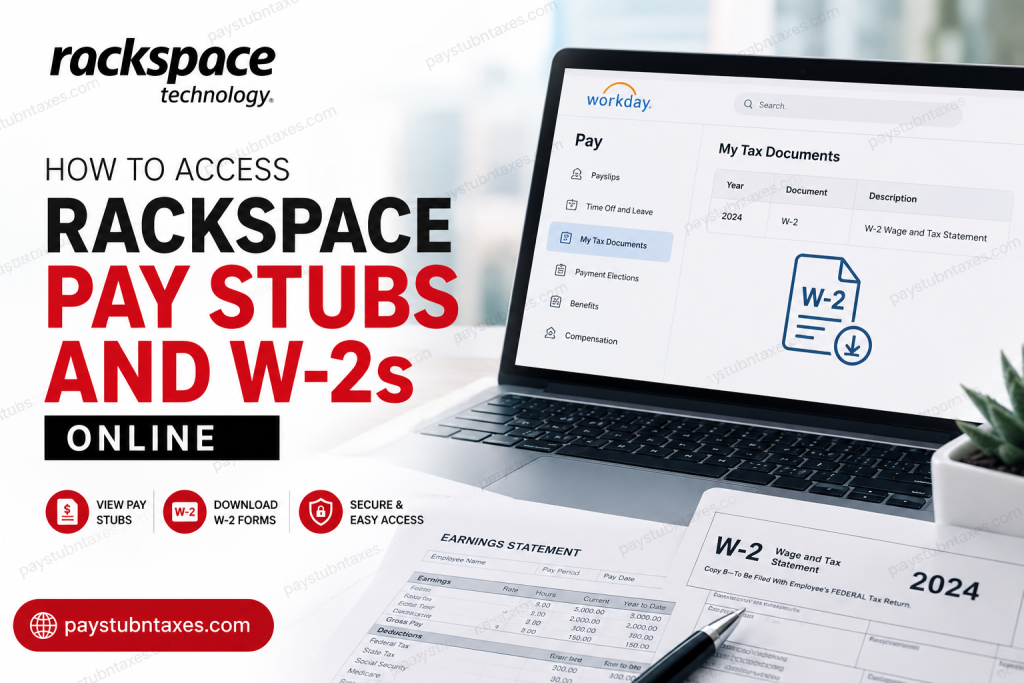
Managing payroll documents efficiently has become an essential part of the modern workplace, particularly for employees working within globally distributed technology enterprises. Rackspace Technology has streamlined this process through its Workday self-service platform, enabling employees to securely access pay stubs, tax forms, and payroll records online from virtually anywhere in the world. As one of the world’s leading multicloud and enterprise AI infrastructure providers, Rackspace Technology empowers organizations across more than 120 countries with secure cloud, AI, cybersecurity, and data solutions. The company’s commitment to operational excellence extends internally as well, ensuring employees can conveniently retrieve payroll and tax information through a secure digital environment. In this comprehensive guide, you will learn how to access your Rackspace pay stubs, download W-2 forms, troubleshoot common login issues, and navigate the Workday payroll portal with ease.
About Rackspace Technology
Rackspace Technology operates the full enterprise AI stack for regulated and mission-critical environments where governance, sovereignty, compliance, and uptime are non-negotiable. The company combines decades of cloud expertise with cutting-edge AI infrastructure to help enterprises scale securely and efficiently.
With more than 5,800 employees and customers in over 120 countries, Rackspace has built a reputation for delivering operational accountability, deep technical expertise, and 24×7 support across complex digital ecosystems.
The company continues to earn recognition from Fortune, Forbes, Glassdoor, and global industry analysts for its innovation, employee satisfaction, and cloud leadership.
How to Access Rackspace Pay Stubs Online
Rackspace employees can access payroll information electronically through the Workday self-service portal. Pay slips are generally available one day before the official payday.
Rackspace Workday Login Portal
Employees can access the Workday portal using the following secure login page:
To sign in successfully:
- Visit the Workday login page.
- Enter your Microsoft SSO username and password.
- If prompted, enter the Organization ID: rackspace
- Complete any required multi-factor authentication.
- Once logged in, you will be redirected to your Workday dashboard.
How to View Your Rackspace Pay Slips in Workday
After signing into Workday, follow these steps to access your pay statements:
Step-by-Step Instructions
Step 1: Open the Pay Application
From the Workday homepage:
- Select View All Apps
- Choose the Pay application
Alternatively, use the left-side navigation menu and select Pay.
Step 2: Access Payslips
Inside the Pay section:
- Click Payslips under the “View” category.
Step 3: Choose a Pay Statement
You can now:
- View individual pay slips
- Download PDF copies
- Print payroll records for personal use
Step 4: Review Payroll Details
Each pay statement typically contains:
- Pay period dates
- Gross earnings
- Net pay
- Tax deductions
- Direct deposit information
- Pre-tax deductions
- Post-tax deductions
- Year-to-date earnings
- Federal and state withholding details
This allows employees to monitor earnings, taxes, benefit deductions, and banking information in one centralized location.
How to Access Rackspace W-2 Forms Online
Rackspace employees can also retrieve annual tax documents electronically through Workday.
Availability of 2026 W-2 Forms
- Electronic W-2 forms will be available by January 31, 2027
- Employees who opted for mailed copies will receive them at the address listed in Workday no later than January 31, 2027
To avoid delays, employees should ensure their mailing address and tax information remain updated within Workday.
Steps to Download Your Rackspace W-2
Step 1: Log Into Workday
Access the Rackspace Workday portal using your Microsoft SSO credentials.
Step 2: Navigate to the Pay Section
From the homepage menu:
- Select Pay
Step 3: Open “My Tax Documents”
Inside the Pay application:
- Click My Tax Documents
This section stores current and previous tax forms electronically.
Step 4: Select Your W-2 Form
Locate the applicable tax year and select:
- View
- Or download the PDF copy
Step 5: Wait for Processing if Necessary
Occasionally, Workday may display a “Notify Me Later” message while generating the document.
Once processing is complete:
- Check the notification bell icon in the top-right corner
- Open the completed PDF version of your W-2
Accessing Workday Through the Mobile App
Rackspace employees may also access payroll records using the Workday mobile application.
Mobile Login Requirements
When logging in through the app, you may be asked to provide:
- Organization ID: rackspace
- Microsoft SSO credentials
The mobile application allows employees to:
- View payslips
- Access W-2 forms
- Review tax elections
- Update payment methods
- Manage payroll preferences securely from mobile devices
Common Rackspace Workday Login Problems
Although Workday is generally reliable, employees may occasionally encounter login difficulties.
Incorrect Organization ID
Ensure the Organization ID entered is: rackspace
Expired Microsoft Password
If your Microsoft password has expired, reset it through your company authentication portal before attempting to sign in again.
Multi-Factor Authentication Issues
If authentication codes are not received:
- Verify internet connectivity
- Check your authenticator application
- Confirm your registered phone number is active
Browser Compatibility Problems
For the best experience:
- Use updated browsers such as Chrome, Edge, Firefox, or Safari
- Clear browser cache and cookies if pages fail to load properly
How to Update Your Mailing Address in Workday
To ensure tax forms are mailed correctly:
- Log into Workday
- Navigate to Personal Information
- Select Contact Information
- Update your address
- Save changes
Keeping your address current helps prevent delays in receiving mailed W-2 forms.
Payroll Support and HR Assistance
If you experience issues accessing pay stubs or W-2 forms, contact Rackspace HR support for assistance.
Rackspace HR Contact
Email: askhr@rackspace.com
Employees should contact HR for:
- W-2 corrections
- Payroll discrepancies
- Tax withholding questions
- Access issues
- Address updates
- Former employee payroll inquiries
Benefits of Electronic Pay Stubs and W-2 Access
Rackspace’s digital payroll system offers several advantages:
Faster Access
Employees can retrieve payroll records instantly without waiting for mailed documents.
Enhanced Security
Workday uses secure authentication protocols and enterprise-grade encryption.
Paperless Convenience
Electronic records reduce paper usage and simplify payroll management.
Anytime Availability
Employees can securely access payroll documents from desktops or mobile devices worldwide.
Final Thoughts
Rackspace Technology continues to modernize the employee experience through secure, cloud-based payroll solutions powered by Workday. Whether you need to download your latest pay stub, retrieve historical payroll information, or access your annual W-2 tax forms, the Workday self-service portal provides a fast, secure, and efficient solution. By maintaining updated personal information and familiarizing yourself with the Workday navigation process, you can manage payroll and tax documents seamlessly throughout the year. Employees are encouraged to access documents electronically whenever possible to ensure faster delivery, improved accessibility, and enhanced security.
Frequently Asked Questions
1. How do I access my Rackspace pay stubs online?
You can access your Rackspace pay stubs through the Workday self-service portal using your Microsoft SSO username and password.
2. What is the Rackspace Workday login URL?
The official Workday login portal is: https://wd1-identity.myworkday.com/wday/authgwy/rackspace/upc/login
3. What Organization ID should Rackspace employees use in Workday?
Employees should use the Organization ID: rackspace
4. When are Rackspace pay stubs available in Workday?
Pay slips are generally available one day before the official payday.
5. How do I download my Rackspace pay statement?
After logging into Workday:
- Open the Pay application
- Select Payslips
- Choose the applicable pay period
- Click View or Print
6. How can I access my Rackspace W-2 online?
Log into Workday, open the Pay section, then select “My Tax Documents” to view and download your W-2 forms.
7. When will the 2026 Rackspace W-2 forms be available?
Electronic W-2 forms for 2026 will be available by January 31, 2027.
8. Will Rackspace mail paper copies of W-2 forms?
Yes. Employees who selected paper delivery will receive mailed W-2 forms at the address listed in Workday.
9. Can former Rackspace employees access Workday payroll documents?
Former employees may still access Workday depending on account availability and company policy. If access issues occur, contact HR support.
10. What should I do if I forgot my Rackspace Workday password?
Reset your Microsoft SSO password through the company authentication system before attempting to log in again.
11. Can I access Rackspace payroll documents from my phone?
Yes. Employees can use the Workday mobile app to access pay stubs, W-2 forms, and payroll information securely.
12. Why can’t I log into the Rackspace Workday portal?
Common causes include:
- Incorrect Organization ID
- Expired Microsoft password
- Multi-factor authentication issues
- Browser compatibility problems
13. How do I update my mailing address for W-2 delivery?
Inside Workday:
- Go to Personal Information
- Select Contact Information
- Update your address
- Save the changes
14. What payroll details are included in Rackspace pay stubs?
Pay slips may include:
- Gross pay
- Net pay
- Tax deductions
- Direct deposit information
- Year-to-date earnings
- Benefit deductions
15. How do I contact Rackspace HR for payroll or W-2 support?
Employees can contact Rackspace HR by email at: askhr@rackspace.com

