
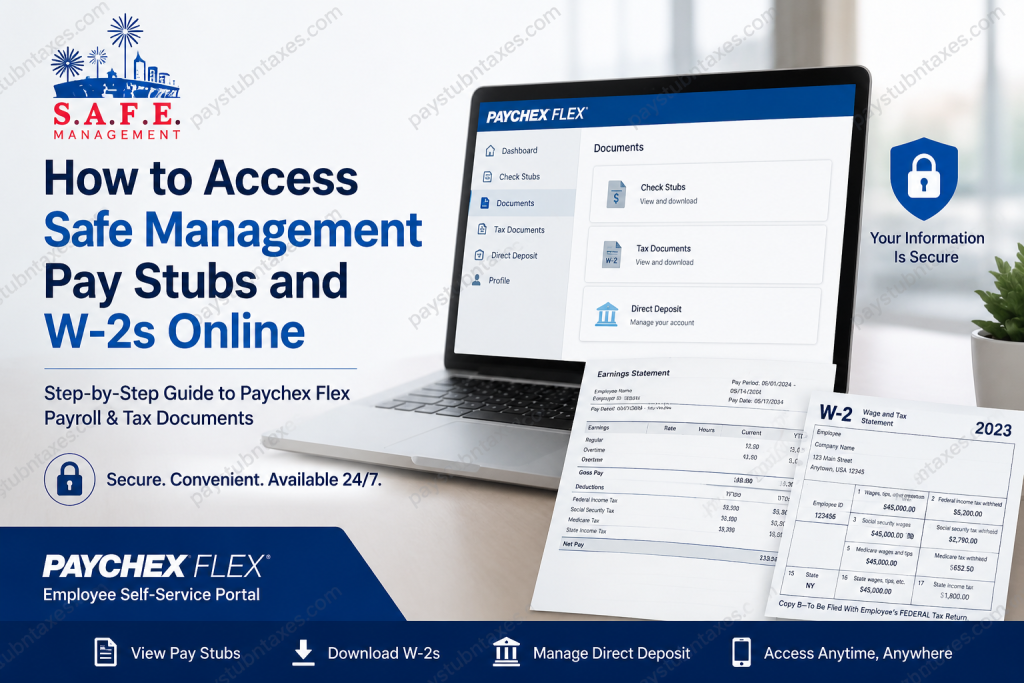
S.A.F.E. (Security, Athletic Facilities & Events) Management is widely recognized for delivering professional guest services, event staffing, crowd management, and security operations for major sporting events, concerts, and entertainment venues across the United States. Employees enjoy flexible schedules, exciting work environments, and opportunities to participate in NFL games, live concerts, Supercross events, Monster Jam shows, and other high-profile experiences. To simplify payroll and tax management, Safe Management employees can conveniently access their pay stubs, W-2 forms, and payroll information online through the Paychex Flex self-service portal. Even former employees may continue accessing their payroll and tax records after separation from the company.
Safe Management Payroll Portal
Safe Management uses the Paychex Flex employee self-service platform for payroll administration.
Official Paychex Flex Login
The portal allows employees to:
- View and download pay stubs
- Access year-end W-2 tax forms
- Update direct deposit information
- Modify tax withholding details
- Update personal information and mailing address
- Access payroll history
- Review deductions and earnings
- Use mobile payroll access through the Paychex Flex app
According to the payroll office, employees can manage direct deposit details, tax information, addresses, pay stubs, and W-2 forms directly from their Paychex Flex account.
How to Access Safe Management Pay Stubs Online
Follow these simple steps to retrieve your pay statements online.
Step 1: Visit the Paychex Flex Website
Open your browser and navigate to: http://www.paychexflex.com
Enter your username and continue to the secure login page.
Step 2: Log in to Your Account
Enter your:
- Username
- Password
If you forgot your login credentials, select:
- “Forgot Username”
- “Forgot Password”
The Paychex Flex system provides recovery options directly from the login page.
Step 3: Open the Documents or Check Stubs Section
After signing in:
- Navigate to the dashboard
- Select Check Stubs or Documents
- Choose the desired pay date
- Open or download the PDF pay statement
Employees can view:
- Gross earnings
- Net pay
- Taxes withheld
- Deductions
- Direct deposit details
- Pay period history
The Paychex Flex platform allows users to view printable PDF pay stubs and historical payroll data online.
How to Access Safe Management W-2 Forms Online
Employees and former employees can retrieve tax forms electronically through Paychex Flex.
Step-by-Step Instructions
Desktop Access
- Sign into Paychex Flex
- Open the Documents or Tax Documents section
- Select W-2
- Choose the desired tax year
- Download or print the form
Paychex confirms that employees may access W-2 forms directly from the Tax Documents dashboard.
W-2 Availability
Typically, W-2 forms become available online by the third Friday of January for the previous tax year.
Employees who consent to electronic delivery may receive online-only W-2 access through Paychex Flex.
Accessing Pay Stubs and W-2s After Termination
One of the biggest advantages of Paychex Flex is continued access after employment ends.
Former Safe Management employees may still:
- Download old pay stubs
- Retrieve W-2 tax forms
- Access payroll history
- Update certain account details
Paychex documentation indicates:
- Check stubs may remain available for up to two years
- W-2 forms may remain accessible for up to four years, depending on employer subscription settings
Registering for Paychex Flex
If you have never used Paychex Flex before:
- Visit the registration page
- Click Sign Up
- Verify your identity
- Create login credentials
- Set security questions
- Complete account activation
The employee registration option appears directly on the Paychex Flex login page.
Safe Management also encourages all employees to register for Paychex Flex, even if they do not use direct deposit.
Paychex Flex Mobile App Access
Employees can also access payroll records through the Paychex Flex mobile application available for Apple and Android devices.
The mobile app provides access to:
- Pay stubs
- W-2 forms
- Time-off balances
- Tax documents
- Direct deposit information
- Employee profile settings
The Paychex Flex app offers secure 24/7 payroll access from smartphones and tablets.
Mobile App Features
According to Paychex Flex app documentation, employees can:
- View check stubs
- Access W-2 forms
- Monitor deductions
- Review direct deposit information
- Access payroll history
How to Update Direct Deposit Information
Safe Management employees can modify banking information directly inside Paychex Flex.
You can:
- Add a new bank account
- Change direct deposit allocations
- Update routing numbers
- Edit tax withholding information
Payroll changes must typically be submitted before the weekly cutoff deadline to apply to the next paycheck.
Troubleshooting Login Problems
Forgot Username or Password
Use the recovery links on the login page to reset account credentials.
You may need:
- Your email address
- Security verification information
- Username confirmation
Safe Management Payroll Support
If you cannot access your account or notice payroll discrepancies:
- Contact your Safe Management supervisor or payroll administrator
- Use the Paychex Flex support tools
- Verify your login credentials
- Confirm your W-2 electronic delivery consent settings
For mobile application assistance, Paychex provides support at:
- 888-246-7500
Final Thoughts
Paychex Flex provides Safe Management employees with a secure and efficient way to manage payroll and tax information online. Whether you need current pay stubs, historical payroll records, direct deposit management, or year-end W-2 tax forms, the platform delivers convenient 24/7 access from both desktop and mobile devices. For current and former Safe Management employees, Paychex Flex simplifies payroll administration while offering secure, self-service access to critical employment documents.
Frequently Asked Questions
1. Can former Safe Management employees access Paychex Flex?
Yes. Former employees may continue accessing pay stubs and W-2 forms after termination, depending on account availability and employer subscription settings.
2. When will my W-2 become available online?
Most W-2 forms become available by the third Friday in January for the previous tax year.
3. Can I access my pay stubs on my phone?
Yes. The Paychex Flex mobile app supports Android and iPhone devices.
4. What if I forgot my Paychex password?
Use the “Forgot Username or Password” option on the Paychex Flex login page to reset your credentials.
5. How long are pay stubs available online?
Pay stubs may remain accessible for up to two years through Paychex Flex.
6. How long are W-2 forms stored online?
W-2 forms may remain available for up to four years, depending on employer settings.
7. Can I download my pay stub as a PDF?
Yes. Employees can view or download printable PDF versions of their payroll documents.
8. Do I still need to contact payroll to update my address?
No. Employees can update their address and tax information directly inside Paychex Flex.

