
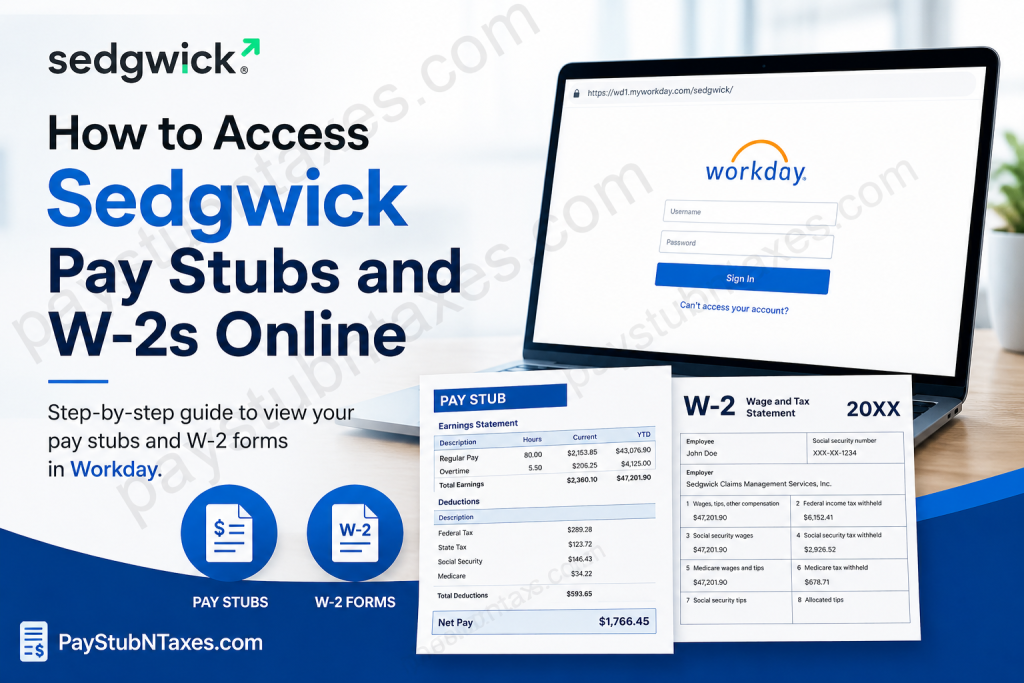
In today’s increasingly digital workplace, employees expect secure, immediate access to payroll and tax documentation without the inconvenience of paper-based systems. Sedgwick, the world’s leading risk and claims administration partner, streamlines this process through Workday — a sophisticated self-service platform that allows associates to retrieve pay stubs, W-2 forms, and other payroll-related information online with ease. With more than 33,000 colleagues serving clients across 80 countries, Sedgwick combines cutting-edge AI-enabled technology with operational excellence to support a modern and efficient workforce. Employees can conveniently manage their payroll records anytime and from virtually anywhere through the Sedgwick Workday portal. This comprehensive guide explains how to access Sedgwick pay stubs and W-2 forms online, how to log in securely, and what employees should know about electronic tax documents.
Sedgwick Workday Login Portal
Current Sedgwick employees can access payroll and tax documentation through the official Workday portal:
Employees should sign in using their Sedgwick credentials, which, in most cases, follow this format: first.last@sedgwick.com
The Workday sign-in interface utilizes Microsoft authentication and enterprise security protocols designed to protect confidential employee data and payroll records.
How to Access Sedgwick Pay Stubs Online
Sedgwick employees can retrieve their electronic payslips during every pay cycle directly from Workday. The platform allows colleagues to securely view, download, and print payroll statements whenever required for financial verification, loan applications, or personal recordkeeping.
Step-by-Step Guide to View Sedgwick Pay Stubs
Step 1: Log Into Workday
Visit the Sedgwick Workday portal and enter your company username and password.
Step 2: Open Your Employee Profile
After signing in successfully, navigate to your employee profile dashboard.
Step 3: Select the “Pay” Section
Within your profile, click on the Pay application or dashboard.
Step 4: Open “Payslips”
Under the View section, select Payslips to access your payroll history.
Step 5: Choose the Desired Pay Period
A list of available pay periods will appear on-screen. Select the appropriate pay date corresponding to the payslip you wish to review.
Step 6: Download or Print the Payslip
Click the PDF link beside the selected pay period to open the payslip. From there, you may:
- Download the document
- Print a hard copy
- Save it for future reference
The Workday interface also allows employees to configure payroll-related applications directly on the homepage for faster future access.
How to Access Sedgwick W-2 Forms Online
Sedgwick provides employees with both electronic and paper delivery options for W-2 tax forms. Physical copies are automatically mailed to the home address currently listed in Workday, while electronic copies are typically available online by the end of January each year.
Employees who prefer digital access may retrieve their W-2 statements directly from the Workday self-service portal.
Step-by-Step Instructions to View Sedgwick W-2 Forms
Step 1: Sign In to Workday
Access the official Sedgwick Workday login page and authenticate using your company credentials.
Step 2: Open the Pay Dashboard
From the Workday homepage, select the Pay application.
Step 3: Select “My Tax Documents”
Under the payroll section, click My Tax Documents to view available tax forms.
Step 4: Locate Your W-2 Form
Your available W-2 forms will appear within the tax documents section, organized by tax year.
Step 5: Click “View/Print”
Select the View/Print button beside the appropriate tax year to open the W-2 form.
Step 6: Download or Print Your W-2
Once opened, you may:
- Print the document using the printer icon
- Download a digital copy using the download icon
- Navigate between pages using the built-in navigation controls
When Are Sedgwick W-2 Forms Available?
Sedgwick W-2 forms are generally published online by the end of January each year. Employees will also receive paper copies mailed to the address currently maintained within their Workday profile.
To avoid delays in receiving tax documents, employees should ensure that:
- Their mailing address is accurate
- Contact information is current
- Electronic access credentials remain active
Common Sedgwick Workday Login Issues
Although Workday is designed for seamless accessibility, employees may occasionally encounter login-related complications. The most common issues include:
Incorrect Username or Password
Verify that your username follows the correct corporate format:
first.last@sedgwick.com
Expired Password
If your password has expired, follow the password reset prompts available through Microsoft authentication.
Browser Compatibility Problems
Clear browser cache and cookies or attempt access using another supported browser such as:
- Google Chrome
- Microsoft Edge
- Mozilla Firefox
Multi-Factor Authentication Delays
Some employees may be required to complete additional identity verification steps before accessing payroll data.
Security and Confidentiality Notice
Sedgwick maintains strict data protection policies regarding the use of company information systems. Employee access to payroll resources must comply fully with Sedgwick workplace policies and acceptable use standards.
All transactional records, reports, software, emails, and payroll-related data generated through company systems remain the property of Sedgwick and may be monitored for administrative and security purposes.
Employees are therefore strongly advised to:
- Avoid sharing login credentials
- Log out after each session
- Access payroll systems only through secure networks
- Maintain updated authentication methods
Why Sedgwick Uses Workday for Payroll Access
Workday has become one of the most trusted enterprise human capital management systems globally, offering centralized payroll administration, tax document delivery, and employee self-service functionality.
By utilizing Workday, Sedgwick enables employees to:
- Access payroll records 24/7
- Retrieve tax documents instantly
- Reduce paperwork delays
- Improve payroll transparency
- Strengthen cybersecurity protections
This digital infrastructure aligns with Sedgwick’s broader commitment to innovation, operational excellence, and technology-driven employee support systems.
Final Thoughts
Sedgwick employees can conveniently manage payroll records, pay stubs, and annual W-2 forms through the secure Workday self-service portal. Whether you need a recent payslip for income verification or a prior-year W-2 for tax filing purposes, the system provides fast, secure, and reliable digital access. By ensuring your Workday profile information remains accurate and by maintaining secure login practices, you can access your payroll documentation efficiently throughout the year without unnecessary administrative delays.
Frequently Asked Questions (FAQs)
1. How do I access my Sedgwick pay stubs online?
You can access your Sedgwick pay stubs by logging into the Workday portal, opening the Pay dashboard, and selecting Payslips.
2. What is the official Sedgwick Workday login website?
The official Sedgwick Workday portal is:
https://wd1.myworkday.com/sedgwick/
3. What username should I use for Sedgwick Workday?
Most employees use their company email address in the format:
first.last@sedgwick.com
4. When are Sedgwick W-2 forms available online?
Sedgwick W-2 forms are usually available electronically by the end of January each year.
5. Does Sedgwick mail paper W-2 forms?
Yes. Sedgwick automatically mails paper W-2 forms to the employee address listed in Workday.
6. How can I download my Sedgwick W-2?
After logging into Workday, go to Pay → My Tax Documents → View/Print, then use the download icon to save the W-2.
7. Can I print my Sedgwick pay stubs?
Yes. Workday allows employees to print pay stubs directly from the PDF view.
8. What should I do if I forget my Sedgwick Workday password?
Use the password recovery or “Can’t access your account?” option available on the login page.
9. Can former Sedgwick employees still access Workday?
Former employees may retain limited Workday access for payroll and tax documentation depending on company policy and account status.
10. Why can’t I log into Sedgwick Workday?
Common reasons include incorrect credentials, expired passwords, browser issues, or multi-factor authentication delays.
11. Is Sedgwick Workday secure?
Yes. Sedgwick uses enterprise-level Microsoft authentication and security monitoring to protect payroll information.
12. Where are W-2 forms located in Workday?
W-2 forms are stored under the My Tax Documents section within the Pay dashboard.
13. Can I access Sedgwick payroll documents from my phone?
Yes. Workday is accessible through supported mobile browsers and the Workday mobile application.
14. How do I update my mailing address for W-2 delivery?
Employees can update their address information directly within their Workday employee profile.
15. What browser works best for Sedgwick Workday?
Google Chrome, Microsoft Edge, and Mozilla Firefox are generally recommended for optimal compatibility.

