
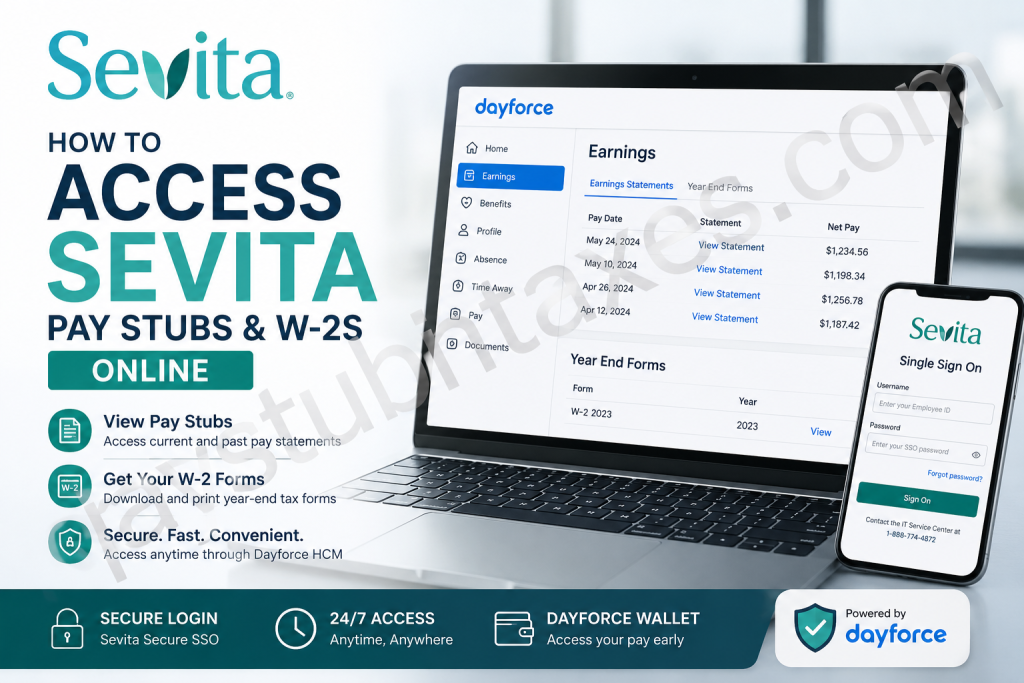
Employees at Sevita can conveniently access payroll records, electronic pay stubs, and annual W-2 tax forms online through the Dayforce HCM self-service portal. Whether you are reviewing your earnings, downloading tax documents for filing season, or printing copies for financial verification, Sevita’s digital payroll system provides a secure and streamlined experience designed to give employees immediate access to essential employment records. As one of the nation’s leading providers of home and community-based specialty healthcare services, Sevita employs more than 40,000 professionals who support over 50,000 individuals across the United States. The organization’s investment in secure HR technology allows team members to manage payroll information efficiently while also benefiting from features such as Dayforce Wallet, which enables eligible employees to access earned wages before payday.
What Is the Sevita Payroll Portal?
Sevita employees use the Dayforce HCM platform to manage payroll and employment-related information online. Through the portal, employees can:
- View current and previous pay stubs
- Access and download W-2 tax forms
- Print earnings statements
- Review payroll deductions and direct deposit details
- Manage employment-related information securely
- Access Dayforce Wallet features for earned wage access
Employees may sign in directly through the Dayforce portal or via Sevita’s Secure Single Sign-On (SSO) system.
Sevita Dayforce Login Information
Direct Dayforce Login
Employees may access the payroll portal directly through:
Sevita Secure SSO Login
Alternatively, employees can use Sevita’s secure single sign-on system:
Once signed in through SSO, employees should select the DayforceHCM application from the available app list.
The SSO system requires employees to enter their Employee ID and SSO password, with multi-factor authentication enabled for additional account security.
How to Access Sevita Pay Stubs Online
Accessing pay stubs through Dayforce takes only a few minutes. Employees can review both current and historical earnings statements directly from their dashboard.
Step-by-Step Instructions
Step 1: Sign In to Dayforce
Visit the Dayforce login page and enter your credentials.
Employees using SSO should:
- Go to the Sevita SSO portal
- Enter Employee ID and password
- Complete MFA verification if prompted
- Open the DayforceHCM application
Step 2: Open the Earnings Section
After logging in:
- Navigate to the Dayforce dashboard
- Click the Home icon
- Select Earnings from the menu or dashboard shortcuts
The Earnings page will display payroll history and tax document options.
Step 3: View Earnings Statements
Within the Earnings page, employees will see two primary tabs:
- Earnings Statements — used for pay stubs
- Year End Forms — used for W-2 forms and tax documents
Select Earnings Statements to review pay records by pay date.
Step 4: Open Your Pay Stub
Click on the desired pay date to open the electronic earnings statement.
The pay stub typically includes:
- Gross earnings
- Taxes withheld
- Benefit deductions
- Direct deposit information
- Paid time off balances
- Year-to-date totals
Step 5: Print or Save Your Pay Stub
Once the pay statement opens:
- Click the Print icon located in the upper-right corner
- Choose either:
- Save as PDF
- Print to a network printer
- Adjust print scaling if necessary for readability
Employees may store PDF copies securely for loan applications, tax preparation, or employment verification purposes.
How to Access Sevita W-2 Forms Online
Annual W-2 tax forms are generally available through Dayforce during tax season, often before mailed copies arrive.
Steps to Retrieve Your W-2
- Log in to Dayforce
- Open the Earnings section
- Select the Year End Forms tab
- Double-click the available W-2 form
- Download or print the document for tax filing purposes
Employees who consented to electronic delivery may receive access earlier than those waiting for mailed paper copies.
Understanding Dayforce Wallet at Sevita
Sevita employees may also benefit from Dayforce Wallet, an earned wage access feature that allows workers to receive a portion of their earned pay before the official payday.
Key Features of Dayforce Wallet
- Access earned wages before payday
- Transfer available funds to a prepaid Mastercard
- Use funds for bills, emergencies, or daily purchases
- Monitor balances and transaction history within the mobile app
- Avoid payday loans and high-interest borrowing options
This feature provides greater financial flexibility while helping employees maintain control over short-term cash flow needs.
Troubleshooting Sevita Dayforce Login Problems
Employees occasionally encounter issues accessing the payroll portal. Common solutions include:
Forgotten Password
Use the Forgot Password option available on the Sevita SSO sign-in page.
Multi-Factor Authentication Problems
If MFA verification fails:
- Confirm your registered mobile device is active
- Retry the authentication request
- Clear browser cache and cookies
- Attempt login using another browser
Account Locked or Access Denied
Employees who are locked out of their accounts may need assistance from Sevita IT or HR support teams.
Sevita Payroll and HR Support Contact Information
Employees needing assistance with Dayforce login credentials, payroll corrections, W-2 access, or technical issues may contact:
- HR Shared Services Center: 1-888-774-4872
- Email: HRSSC@SevitaHealth.com
Additional employee resources are also available through Sevita’s employee resource center.
Benefits of Electronic Pay Stub and W-2 Access
Using Dayforce electronically offers several advantages:
- Faster access to payroll records
- Secure document storage
- Reduced paper clutter
- Immediate tax form availability
- Convenient printing and downloading
- Mobile-friendly accessibility
- Improved payroll transparency
For employees managing taxes, applying for housing, or verifying employment income, digital payroll access provides substantial convenience and efficiency.
Final Thoughts
Sevita’s Dayforce payroll system offers employees a secure, efficient, and highly accessible method for managing pay stubs and W-2 tax forms online. Through either the direct Dayforce portal or Sevita’s secure SSO platform, employees can quickly retrieve payroll documents, print earnings statements, and manage tax records from virtually anywhere. Combined with advanced payroll features such as Dayforce Wallet and multi-factor authentication security, Sevita’s payroll infrastructure reflects the organization’s broader commitment to supporting employees both professionally and financially.
Frequently Asked Questions
1. How do I log in to the Sevita Dayforce portal?
Visit Dayforce Login and enter your username and password. Alternatively, log in through Sevita’s Secure SSO portal and select the DayforceHCM application.
2. Where can I find my Sevita pay stubs?
After signing in to Dayforce, go to the Earnings section and select Earnings Statements to view and download your pay stubs.
3. How do I download my Sevita W-2 online?
Open the Year End Forms tab in Dayforce, select the appropriate tax year, and download or print your W-2 form.
4. Can former Sevita employees still access Dayforce?
Former employees may retain temporary access to payroll records depending on company policy. If access has expired, contact HR Shared Services for assistance.
5. What is the Sevita Secure Single Sign-On portal?
The Sevita SSO portal provides secure employee access to company applications, including Dayforce HCM, using one centralized login system.
6. What should I do if I forgot my Sevita password?
Use the “Forgot Password” option on the Sevita SSO login page or contact the IT Service Center for password reset assistance.
7. Why is multi-factor authentication required?
Multi-factor authentication (MFA) enhances account security by requiring employees to verify their identity using an additional authentication method.
8. What information appears on a Sevita pay stub?
A Sevita pay stub generally includes:
- Gross earnings
- Net pay
- Tax deductions
- Benefits deductions
- PTO balances
- Direct deposit details
- Year-to-date earnings
9. Can I print my Sevita pay stubs?
Yes. Employees can open an earnings statement in Dayforce and use the Print icon to print or save the document as a PDF.
10. When are Sevita W-2 forms available online?
W-2 forms are typically available in Dayforce during January before the IRS mailing deadline.
11. What is Dayforce Wallet?
Dayforce Wallet is an earned wage access feature that allows eligible Sevita employees to access earned pay before payday.
12. Is there a fee to use Dayforce Wallet?
No. Sevita states that Dayforce Wallet allows employees to access already-earned wages without traditional payday loan fees.
13. How do I contact Sevita HR support?
Employees may contact the HR Shared Services Center at:
- Phone: 1-888-774-4872
- Email: HRSSC@SevitaHealth.com
14. Can I access Dayforce from my mobile phone?
Yes. Employees can use the Dayforce mobile app to access payroll information, pay stubs, and Dayforce Wallet features.
15. What should I do if my Dayforce account is locked?
If your account becomes locked, contact Sevita HR or the IT Service Center to restore access and verify your account credentials.

