
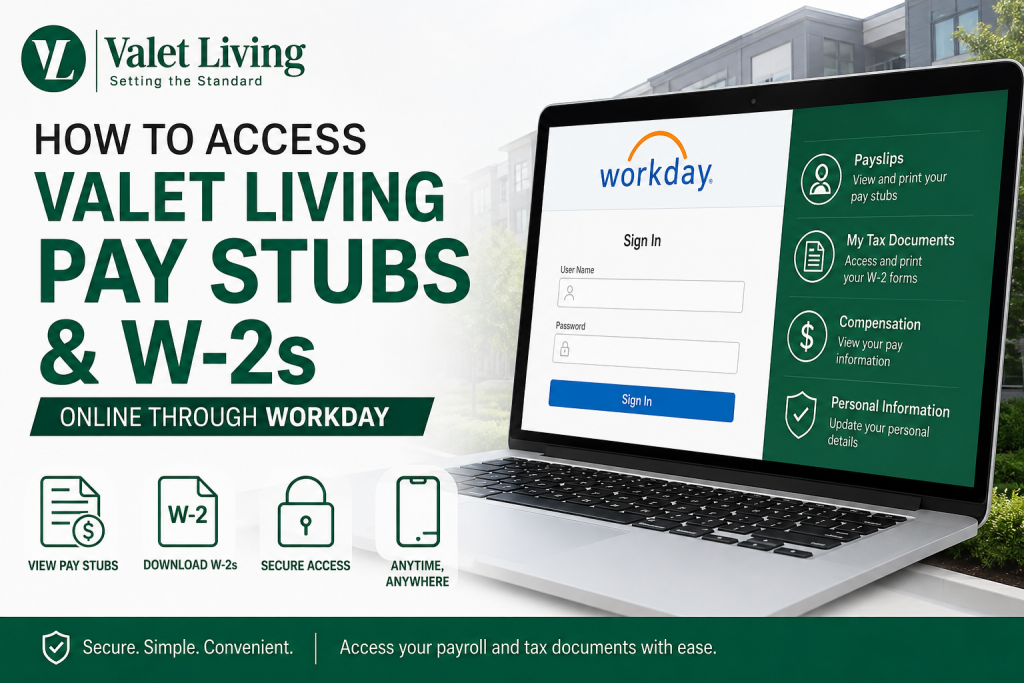
Employees of Valet Living can conveniently access their pay stubs, payroll information, and W-2 tax forms online through the Workday self-service portal. Whether you need to review your latest earnings, print multiple payslips, update tax elections, or download your year-end tax documents, Workday provides secure 24/7 access from any device. Valet Living, headquartered in Tampa, Florida, is the nation’s leading full-service amenities provider to the multifamily housing industry, serving more than 1.8 million apartment homes across 40 states. The company combines doorstep waste and recycling collection with premium resident services, maintenance support, sustainability solutions, and home-related amenities.
Valet Living Workday Login Portal
Current employees can access payroll and tax documents using the official Workday portal:
Workday Login:
Employees can also use the Workday mobile app with the organization ID:
- Organization ID:
valet
The Workday portal allows associates to:
- View and print pay stubs
- Access W-2 tax forms
- Update direct deposit information
- Change tax withholding elections
- Review payroll history
- Update personal information
- Access HR documents and company resources
Valet Living confirms that Workday serves as its official Human Resources portal for associates.
How to Access Valet Living Pay Stubs Online
Follow these simple steps to view or print your Valet Living payslips through Workday.
Step 1: Log in to Workday
Visit the Valet Living Workday login page and sign in using your employee credentials.
Step 2: Open Your Profile
After signing in:
- Click your profile icon in the upper-right corner
- Select View Profile
Step 3: Navigate to the Pay Section
Inside your profile:
- Click More if the Pay option is not visible
- Select Pay from the menu
Step 4: Open Payslips
Click the Payslips tab to access your payroll records.
Step 5: View or Print Your Pay Stub
Scroll down to the payslip section.
You will see available pay periods with options to:
- Select View to open a detailed payslip
- Select Print to generate a printable PDF version
The generated PDF can also be accessed through your Workday notifications.
How to Print Multiple Pay Stubs in Workday
Workday also allows employees to print several payslips simultaneously.
Steps to Print Multiple Payslips
- Open your Workday profile
- Click Pay
- Select the Payslips tab
- Click Print Multiple Payslips
- Choose the desired date range
- Select the payslips you want to print
- Click OK to generate a combined PDF file
Once the document is ready, Workday will notify you through the notification center.
How to Access Valet Living W-2 Forms Online
Employees can retrieve year-end tax documents directly from Workday without using a company VPN or office network.
Step-by-Step Guide to Download Your W-2
Step 1: Sign In to Workday
Access your employee account using the Workday portal.
Step 2: Open the Pay Application
From the Workday home screen:
- Locate Applications
- Select the Pay icon
Step 3: Select “My Tax Documents”
Inside the Pay section, click:
My Tax Documents
Step 4: Choose Your W-2 Form
You will see available tax years listed in a table.
- Select the desired tax year
- Click View/Print beside the form
Step 5: Open the PDF Copy
If processing takes time, choose Notify Me Later.
Once ready:
- Open the notification bell
- Click the PDF version of your W-2
- Print or download the document for your records
Access Valet Living Payroll Information on Mobile
Valet Living employees can also access payroll information through the Workday mobile application.
Mobile Access Features
- Check recent paychecks
- Download payslips
- Access W-2 forms
- Update tax information
- Review benefits information
- Manage direct deposits
The mobile app is available for both Android and iPhone devices.
Common Workday Login Issues and Solutions
Forgot Your Password
Use the password reset option on the Workday login page or contact your manager for assistance.
Account Locked
Too many failed login attempts may temporarily lock your account. Wait several minutes before trying again or contact HR support.
Payslip Not Available
New pay statements may take time to appear after payroll processing. Check back later or review your Workday notifications.
Browser Compatibility Problems
For the best experience:
- Use Chrome, Edge, Firefox, or Safari
- Clear browser cache regularly
- Enable pop-ups for PDF downloads
Valet Living Payroll and HR Contact Information
If you experience issues accessing Workday, contact the appropriate department below.
Payroll Support
- Phone: 877-574-2587 (Option 7)
- Email: payroll@valetliving.com
Human Resources
- Phone: 877-574-2587 (Option 6)
- Email: HR@valetliving.com
iValet Support
- Phone: 813-549-7484
- Email: ivaletsupport@valetliving.com
Benefits of Using Workday for Payroll Access
Using Workday gives Valet Living associates fast and secure access to important payroll information.
Key Advantages
- 24/7 online access
- Secure document storage
- Instant PDF downloads
- Mobile-friendly access
- Paperless payroll management
- Easy access to historical tax forms
- Self-service payroll updates
Frequently Asked Questions (FAQs)
How do I log in to Valet Living Workday?
Visit the official Workday portal and sign in using your employee credentials.
Can I access my pay stubs from my phone?
Yes. You can use the Workday mobile app with the organization ID “valet.”
Where can I find my W-2 form?
Your W-2 is located under Pay > My Tax Documents in Workday.
Do I need a VPN to access Workday?
No. Employees can access W-2 forms without being connected to a company VPN.
How do I print multiple pay stubs?
Open the Payslips section and select Print Multiple Payslips.
What should I do if my W-2 is missing?
Contact Valet Living Payroll Support for assistance.
Can former employees access Workday?
Access availability depends on company policy and account status. Contact HR if you cannot sign in.
What is the Workday organization ID?
The organization ID is valet.
How often are pay stubs updated?
Payslips are typically available immediately after payroll is processed.
Can I download my payslips as PDFs?
Yes. Workday generates printable PDF versions of payslips.
What browser works best with Workday?
Google Chrome and Microsoft Edge generally provide the best experience.
How do I update my tax withholding?
Go to the Pay section in Workday and update your tax elections.
Is Workday secure?
Yes. Workday uses encrypted authentication and secure employee access controls.
Can I access previous years’ tax documents?
Yes. Historical W-2 forms are stored under My Tax Documents.
Who do I contact for payroll issues?
Contact Payroll Support at payroll@valetliving.com or call 877-574-2587 Option 7.

