
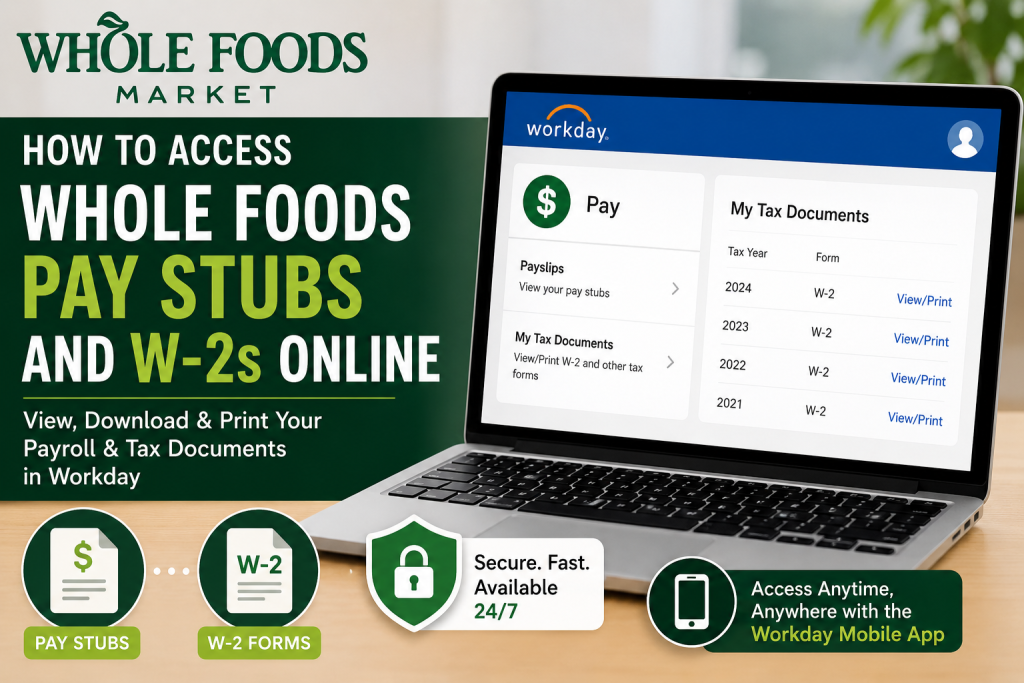
Founded in 1980, Whole Foods Market has grown into one of the most recognized natural and organic grocery retailers in the world. With more than 500 stores and thousands of team members across the United States, Canada, and the United Kingdom, Whole Foods continues to provide high-quality products while maintaining a strong commitment to sustainability, wellness, and community impact. If you are a current Whole Foods employee, you can conveniently access your pay stubs, payroll information, and W-2 tax forms online through the secure Workday employee self-service portal.
Whole Foods Workday Login Portal
Whole Foods employees can access payroll and tax information through the official Workday login portal:
Workday Login:
Whole Foods Workday Portal
Because this is a secure private system, employees must sign in using their authorized Single Sign-On (SSO) credentials provided by Whole Foods Market.
How to Access Whole Foods Pay Stubs Online
Whole Foods uses Workday Payroll to provide employees with secure online access to payroll information, including current and historical payslips. Workday supports both desktop and mobile access, allowing employees to review compensation details anytime.
Follow these steps to view your pay stubs online:
Step 1: Log In to Workday
Visit the Whole Foods Workday portal and sign in using your employee SSO credentials.
Step 2: Open the Pay Dashboard
Once logged in, navigate to the Pay application from your Workday home screen.
Step 3: Select Payslips
Inside the Pay section, click Payslips to view your payroll history and available pay statements.
Step 4: Choose the Pay Period
A list of available pay periods will appear. Select the specific pay date you want to review.
Step 5: Download or Print Your Pay Stub
Click the PDF link beside the selected pay period to open your payslip. You can then:
- Download the payslip
- Save it as a PDF
- Print a physical copy for records or loan verification
How to Access Whole Foods W-2 Forms Online
Whole Foods employees can also retrieve W-2 tax documents directly through Workday.
Step 1: Log In to Workday
Access the portal using your authorized employee credentials.
Step 2: Go to the Pay Section
From the Workday dashboard, select Pay.
Step 3: Open “My Tax Documents”
Inside the Pay dashboard, click My Tax Documents.
Step 4: Select Your W-2 Form
Your available W-2 forms will appear in a list organized by tax year.
Step 5: View, Download, or Print
Click View/Print beside the desired tax year to:
- View your W-2 online
- Download a PDF copy
- Print your tax document for filing purposes
Workday securely stores W-2 forms digitally, making tax season significantly more convenient for employees.
Access Whole Foods Payroll Information on Mobile
Whole Foods employees may also access payroll information using the Workday mobile app.
The Workday mobile application allows employees to:
- View pay stubs
- Access tax documents
- Review direct deposit details
- Download PDF payslips
- Monitor payroll history
How to Use the Workday Mobile App
- Download the Workday app from the Apple App Store or Google Play Store
- Open the app
- Enter your organization credentials
- Sign in using your Whole Foods employee login
- Navigate to the Pay section to access payroll information
The mobile application also supports PDF downloads for payslips and payroll records.
Troubleshooting Workday Login Issues
If you cannot access your payroll information, try the following:
- Verify your SSO username and password
- Ensure multi-factor authentication is completed if prompted
- Clear browser cache and cookies
- Use an updated browser such as Chrome, Edge, or Safari
- Try accessing Workday from a company-approved device
If you continue experiencing issues, submit an AskTMS support case through Whole Foods’ internal support channels.
Important Security Notice
Whole Foods Workday is a private employee information system intended only for authorized users. Unauthorized access or misuse of the system may result in disciplinary action, including termination or legal penalties.
Employees should only use the system in accordance with Whole Foods Market policies and employment guidelines.
Benefits of Using Workday for Payroll Access
Using Workday provides several advantages for Whole Foods employees:
- 24/7 online payroll access
- Secure digital tax document storage
- Instant PDF downloads
- Mobile payroll access
- Easy access to historical pay records
- Faster W-2 retrieval during tax season
Workday’s unified payroll system also enables employees to manage payment elections, tax documents, and payroll preferences in one secure location.
Final Thoughts
Whole Foods Market employees can easily access their pay stubs and W-2 forms online through the Workday self-service portal. Whether you need a recent payslip for income verification or your W-2 form for tax filing, Workday provides a secure and convenient solution accessible from both desktop and mobile devices.
By following the steps outlined above, you can quickly retrieve, download, and print your payroll records anytime you need them.
Frequently Asked Questions (FAQ)
1. How do I access my Whole Foods pay stubs online?
You can access your Whole Foods pay stubs by logging into the Workday portal using your employee SSO credentials. After signing in, go to Pay and select Payslips.
2. What is the official Whole Foods Workday login link?
The official Whole Foods Workday portal is: https://wd5.myworkday.com/wholefoods/login.flex.
3. Where can I find my Whole Foods W-2 form?
After logging into Workday, navigate to:
Pay > My Tax Documents > View/Print
Your available W-2 forms will appear by tax year.
4. Can I print my Whole Foods W-2 online?
Yes. Workday allows employees to download and print W-2 forms directly as PDF documents.
5. Does Whole Foods use Workday for payroll?
Yes. Whole Foods uses the Workday payroll and employee self-service system for pay stubs, tax forms, payroll elections, and other HR services.
6. Can I access Whole Foods payroll information on my phone?
Yes. Employees can use the Workday mobile app on iPhone or Android devices to access payslips, W-2 forms, and payroll details.
7. What should I do if I forgot my Whole Foods Workday password?
Use your company SSO password recovery options or contact your Team Leader (TL) or AskTMS support for assistance.
8. Why can’t I log into Whole Foods Workday?
Common login issues include:
- Incorrect SSO credentials
- Expired password
- Browser cache problems
- Multi-factor authentication failures
- Network or device restrictions
9. How do I download my Whole Foods pay stub as a PDF?
Inside Workday, open the desired payslip and select the PDF or download icon to save a copy to your device.
10. When are Whole Foods W-2 forms available online?
W-2 forms are generally available in Workday before the IRS January 31 deadline each year.
11. Can former Whole Foods employees access Workday?
Access policies may vary after termination. Former employees often transition to alternative payroll access systems, such as ADP, for tax document retrieval.
12. Is the Whole Foods Workday portal secure?
Yes. Workday is a secure employee information system protected by authentication and company security policies.
13. Can I access historical pay stubs in Workday?
Yes. Current employees can typically access previous pay statements through the Payslips section in Workday.
14. Who should I contact for Whole Foods payroll support?
If you experience payroll or tax document issues, open an AskTMS support case or contact your internal HR/payroll team.
15. Can I view direct deposit information in Workday?
Yes. Workday allows employees to review and update direct deposit and payment election information securely online.

