
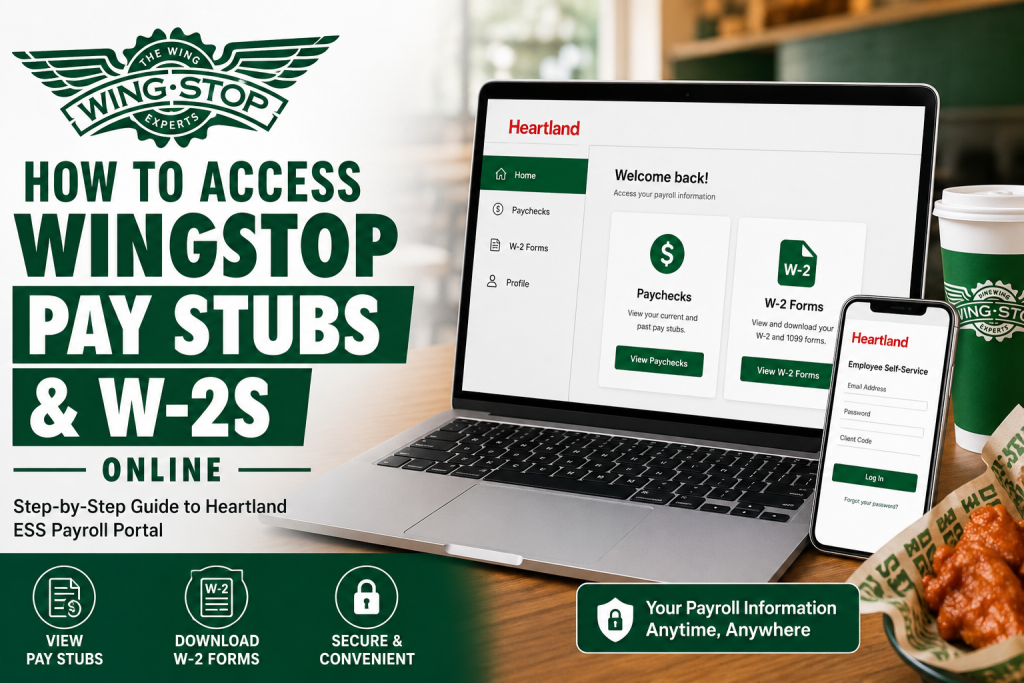
Wingstop is one of the fastest-growing restaurant brands in the world, operating thousands of locations across multiple global markets. Because most Wingstop restaurants are franchise-owned and independently operated, payroll systems can vary from one location to another. Some Wingstop franchise owners use the Heartland Payroll Employee Self-Service (ESS) portal to manage payroll, pay stubs, and year-end tax forms for employees. If your Wingstop franchise uses Heartland Payroll, you can conveniently access your pay stubs and W-2 forms online through the Heartland CheckView portal. This guide explains everything you need to know, from account activation to downloading your payroll documents.
What Is the Heartland Payroll Portal?
Heartland Payroll’s Employee Self-Service (ESS) platform allows employees to securely access payroll records online anytime. Through the portal, employees can:
- View current and previous pay stubs
- Download and print W-2 forms
- Access 1099 tax forms (if applicable)
- Reset passwords and manage login credentials
- Review payroll history
The official Heartland ESS login portal is:
According to the Heartland ESS documentation, pay stubs become available on each payroll check date, while W-2 forms are generally issued by the end of January following the tax year.
Why Wingstop Employees Use Different Payroll Systems
Wingstop primarily operates through a franchise business model. This means individual franchise owners manage their own payroll operations independently. As a result, one Wingstop location may use ADP, another may use Paylocity, while others rely on Heartland Payroll.
Therefore, the process for accessing pay stubs and W-2s depends entirely on the payroll provider used by your specific Wingstop franchise.
Some Wingstop franchises use Heartland Payroll to distribute employee wages and tax forms electronically.
How to Log In to the Heartland ESS Portal
If your Wingstop franchise uses Heartland Payroll, follow these steps to access your payroll records:
Step 1: Visit the Heartland ESS Website
Go to:
You may also be redirected to the mobile-friendly ESS portal.
Step 2: Enter Your Login Credentials
You will need:
- Your registered email address
- Your password
- Your Client Code (provided by your employer)
The Client Code is usually an 8-character alphanumeric code included in your Heartland welcome email.
Step 3: Access Your Payroll Dashboard
Once logged in, you can navigate to:
- Paychecks — to view pay stubs
- W-2 Forms — to access tax documents
- Employee Landing Page — for account overview
How to Activate Your Heartland Employee Account
If this is your first time using the portal, you must activate your account before logging in.
Activation Process
- Open the Heartland welcome email sent by your employer
- Click the activation link
- Enter:
- Client Code
- Last 4 digits of your Social Security Number
- New password
- Set up two security challenge questions
- Complete the registration process
Heartland requires passwords to contain:
- At least 8 characters
- One letter
- One number
- One special character
If you do not receive the activation email, check your spam or junk folder first. If it still cannot be found, contact your Wingstop payroll administrator.
How to View Wingstop Pay Stubs Online
After logging in successfully:
- Select Check History or Paychecks
- Choose the payroll date you want to review
- Preview your pay stub
- Click View/Print Pay Stub
- Download or print the document
The Heartland ESS guide states that all recorded payroll checks will appear in your check history once processed.
How to Access Wingstop W-2 Forms
To download your W-2:
- Log into the Heartland ESS portal
- Select W-2 Forms from the menu
- Choose the appropriate tax year
- Click View PDF
- Download or print the W-2 form
Heartland notes that W-2 forms become available only after the employer completes final year-end payroll processing and tax filing.
Forgot Your Password?
If you forget your password:
- Go to the login page
- Click Forgot your password?
- Follow the reset instructions
- Answer your security questions if prompted
After multiple failed login attempts, your account may become temporarily locked. Heartland recommends waiting at least 30 minutes before attempting again or resetting your password.
Multi-Factor Authentication (MFA)
Heartland ESS uses Multi-Factor Authentication (MFA) for account security.
Users generally need to re-authenticate every 45 days unless browser cookies are cleared or a new device is used.
If you change your phone number or authentication method, contact your employer to reset your MFA settings.
Common Login Problems and Solutions
Invalid Login Credentials
Double-check:
- Email address
- Password capitalization
- Client Code
Missing Client Code
Contact your Wingstop payroll department or manager.
No W-2 Available
W-2 forms may not appear until the employer finalizes year-end payroll processing.
Account Locked
Wait 30 minutes or use the password reset option.
Registration Email Missing
Check your spam folder or ask your employer to resend the invitation.
Contacting Payroll Support
Heartland Payroll representatives generally cannot discuss employee payroll directly with workers. Employees should contact their Wingstop franchise payroll administrator or HR department for assistance.
For general technical support, Heartland documentation lists the support number:
800-285-0005
Final Thoughts
Because Wingstop operates through independently managed franchises, payroll access methods vary by location. If your franchise uses Heartland Payroll, the Heartland Employee Self-Service portal offers a convenient and secure way to access pay stubs, W-2 forms, and payroll history online. By keeping your login credentials secure and regularly checking the ESS portal, you can quickly retrieve important payroll and tax documents whenever needed.
Frequently Asked Questions (FAQ)
1. How do I access my Wingstop pay stubs online?
If your Wingstop franchise uses Heartland Payroll, visit the Heartland ESS portal and log in with your registered email address, password, and Client Code to access your pay stubs.
2. What is the Heartland ESS login website?
The official Heartland Employee Self-Service portal is:
www.heartlandcheckview.com
3. Why do Wingstop payroll systems vary by location?
Wingstop operates primarily through independently owned franchises. Each franchise owner may choose a different payroll provider such as Heartland, ADP, Paylocity, or Workday.
4. How can I view my Wingstop W-2 form online?
Log into the Heartland ESS portal, select W-2 Forms, choose the tax year, and click View PDF to download or print your W-2.
5. When are Wingstop W-2 forms available?
W-2 forms are typically available by the end of January after the employer completes year-end payroll processing and tax filing.
6. What information do I need to log in to Heartland ESS?
You usually need:
- Registered email address
- Password
- Client Code provided by your employer
7. What is a Client Code in Heartland Payroll?
The Client Code is an 8-character alphanumeric code assigned by your employer. It is required every time you log into the Heartland ESS portal.
8. How do I activate my Heartland ESS account?
You must use the activation email sent by your employer, create a password, verify your identity using the last four digits of your SSN, and set security questions.
9. What should I do if I forgot my Heartland ESS password?
Click the Forgot your password? option on the login page and follow the instructions to reset your password.
10. Why is my Heartland account locked?
Multiple failed login attempts may temporarily lock your account for security purposes. Wait approximately 30 minutes or reset your password.
11. Can former Wingstop employees access old pay stubs?
In many cases, former employees can still access pay records online for a limited period. If access has expired, contact the franchise payroll or HR department.
12. How do I print my Wingstop pay stubs?
After opening the pay stub preview, select View/Print Pay Stub to download or print the document.
13. Is Multi-Factor Authentication required for Heartland ESS?
Yes. Heartland ESS uses Multi-Factor Authentication (MFA) to help secure employee payroll information.
14. Who should I contact if I cannot access my payroll account?
You should contact your Wingstop franchise payroll administrator, HR department, or manager for account assistance.
15. Can I access Heartland ESS on my phone?
Yes. Heartland ESS supports desktop and mobile access, allowing employees to view payroll documents from smartphones and tablets.

