
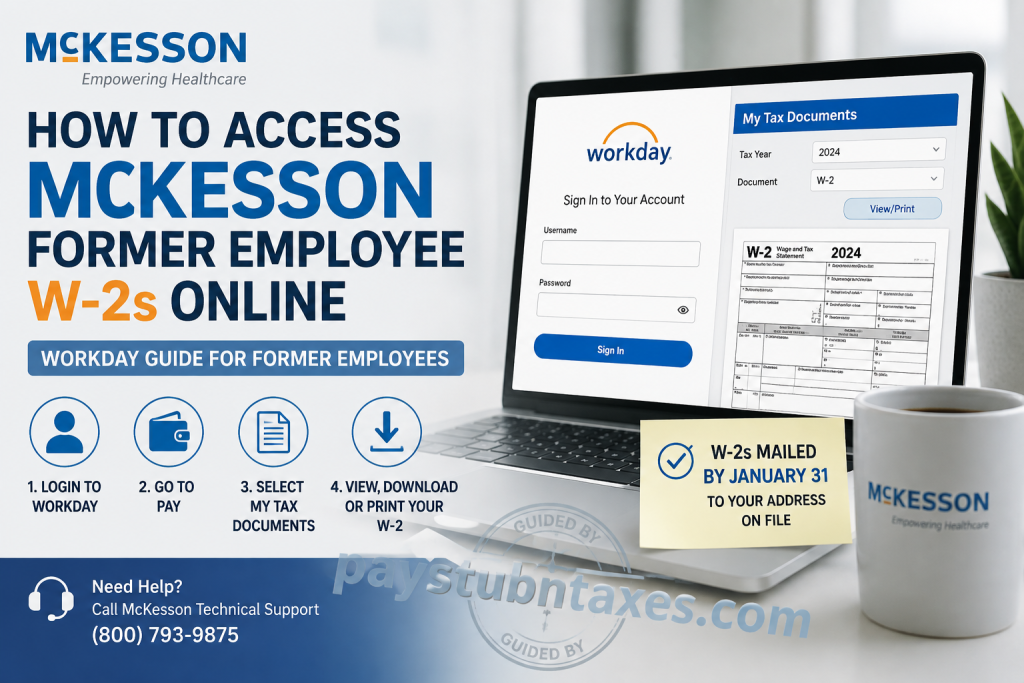
If you are a former McKesson employee searching for your W-2 tax form, you may still be able to retrieve it online through the company’s Workday Self-Service portal, provided your Workday account remains active after your employment ends. During the offboarding process, your Single Sign-On (SSO) access is typically revoked, but McKesson generally provides separate Workday credentials that allow eligible former employees to continue accessing certain employment records, including year-end tax documents. This guide explains how to access your McKesson W-2 online, what to do if you can no longer sign in, and where to seek assistance if you encounter difficulties.
About McKesson
McKesson Corporation is one of the largest healthcare services and pharmaceutical distribution companies in North America. Headquartered in Irving, Texas, the Fortune 10 organization supports healthcare providers, pharmacies, manufacturers, and government agencies by delivering pharmaceuticals, medical supplies, healthcare technology, and logistics solutions. Every day, McKesson helps improve patient access to healthcare while employing tens of thousands of professionals across the United States and internationally.
Can Former McKesson Employees Access Their W-2 Online?
Yes—but only for a limited period.
Following separation from the company, former employees generally retain access to their Workday account for a specified timeframe. If your W-2 has already been published while your Workday access remains active, you can download and print it directly from the Workday portal.
Once your Workday access expires, electronic access is typically removed, and you must obtain your tax documents through McKesson Payroll or Human Resources.
Additionally, McKesson generally mails paper W-2 forms to former employees’ last recorded home address no later than January 31, in accordance with IRS requirements.
McKesson Former Employee Workday Login
Workday Portal: https://wd3.myworkday.com/mckesson/login.htmld?redirect=n
Unlike active employees, former employees do not use McKesson Single Sign-On (SSO) after leaving the company.
Instead, during the offboarding process:
- Your corporate SSO credentials are deactivated.
- You receive dedicated Workday login credentials by email.
- Sign in using your Workday username and password.
- Multi-factor authentication may be required if previously configured.
How to Access Your McKesson W-2 Online
After signing into Workday, follow these steps:
Step 1: Sign in to Workday
Open the McKesson Workday Former Employee portal and log in using your Workday username and password.
Step 2: Open the Pay Dashboard
From your Workday homepage, select the Pay application.
Step 3: Navigate to My Tax Documents
Within the Pay dashboard, choose: My Tax Documents
This section stores available year-end tax forms.
Step 4: Locate Your W-2
Find the appropriate tax year.
If your W-2 has been issued, it will appear in your list of available tax documents.
Step 5: Open the W-2
Select View/Print to open your tax statement.
The document may require a few moments to load.
Step 6: Download or Print
Once the W-2 opens, you can:
- Print using the printer icon.
- Download a PDF copy using the download button.
- Review every page before saving your copy.
What If You Cannot Log In?
Several factors may prevent access:
- Your temporary Workday account has expired.
- Your password has expired.
- You did not receive your former employee credentials.
- Your account has been locked after multiple unsuccessful login attempts.
- Your W-2 has not yet been published.
If your Workday access has already been removed, online retrieval is no longer available, and you should contact McKesson for assistance.
Didn’t Receive Your W-2 by Mail?
Before requesting another copy:
- Confirm your mailing address was current when your employment ended.
- Allow sufficient mailing time after January 31.
- Check whether your W-2 is available in Workday.
- Contact McKesson if neither the mailed copy nor online version is available.
McKesson Payroll Support
If you experience login issues or need another copy of your W-2, contact McKesson support.
Technical Support Phone: (800) 793-9875
When calling, be prepared to verify your identity using information such as:
- Employee ID (if available)
- Full legal name
- Date of birth
- Last department or work location
- Dates of employment
Conclusion
Obtaining your McKesson W-2 after leaving the company is typically straightforward, provided your former employee Workday account remains active. By signing in with the dedicated Workday credentials issued during the offboarding process, you can navigate to Pay → My Tax Documents, where eligible W-2 forms can be viewed, downloaded, or printed. If online access is no longer available, remember that McKesson generally mails W-2 forms to former employees by the IRS deadline of January 31. Should you encounter login issues or fail to receive your tax statement, contacting McKesson Technical Support promptly will help ensure you receive the documentation needed to complete your tax filing accurately and on time.
Frequently Asked Questions
1. How do I access my McKesson W-2 after leaving the company?
Sign in to the McKesson Former Employee Workday portal using your Workday username and password, then go to Pay → My Tax Documents to view your W-2.
2. Can former McKesson employees still log into Workday?
Yes. Former employees usually retain Workday access for a limited period after termination, allowing them to retrieve payroll and tax documents.
3. Can I use my McKesson Single Sign-On (SSO) account after termination?
No. Your corporate SSO is revoked during the offboarding process. Former employees receive separate Workday login credentials.
4. Where can I find my W-2 in Workday?
Navigate to Pay → My Tax Documents, where your available W-2 forms are listed by tax year.
5. When does McKesson issue W-2 forms?
McKesson generally issues W-2 forms in January and mails paper copies by January 31, in compliance with IRS deadlines.
6. Can I download a PDF copy of my McKesson W-2?
Yes. After opening your W-2 in Workday, click the Download icon to save a PDF copy or the Print icon to print it.
7. What if I forgot my Workday password?
Use the password recovery option if available, or contact McKesson Technical Support for assistance with your former employee account.
8. What happens if my Workday access expires?
Once your former employee Workday account is deactivated, you’ll need to request your W-2 directly from McKesson Payroll or Human Resources.
9. Will McKesson mail my W-2 automatically?
Yes. If you no longer have online access, McKesson generally mails your W-2 to your last recorded home address.
10. How long can former employees access Workday?
Access duration varies depending on McKesson’s offboarding policies. Former employees should download important tax documents before access expires.
11. What should I do if I never received my W-2?
First, verify your mailing address and check Workday. If your W-2 is still unavailable, contact McKesson Technical Support.
12. Can I access previous years’ W-2 forms?
If your Workday account remains active and historical tax documents are available, you can download previous years’ W-2 forms.
13. What information do I need when contacting McKesson Support?
Be prepared to provide your full name, employee ID (if known), date of birth, work location, and employment dates to verify your identity.
14. Who do I contact for McKesson W-2 or Workday issues?
Call McKesson Technical Support at (800) 793-9875 for login assistance or questions regarding your W-2.
15. Can I access my W-2 without logging into Workday?
If your Workday access is no longer available, you must wait for the mailed copy or request a replacement W-2 through McKesson Payroll or Technical Support.

