
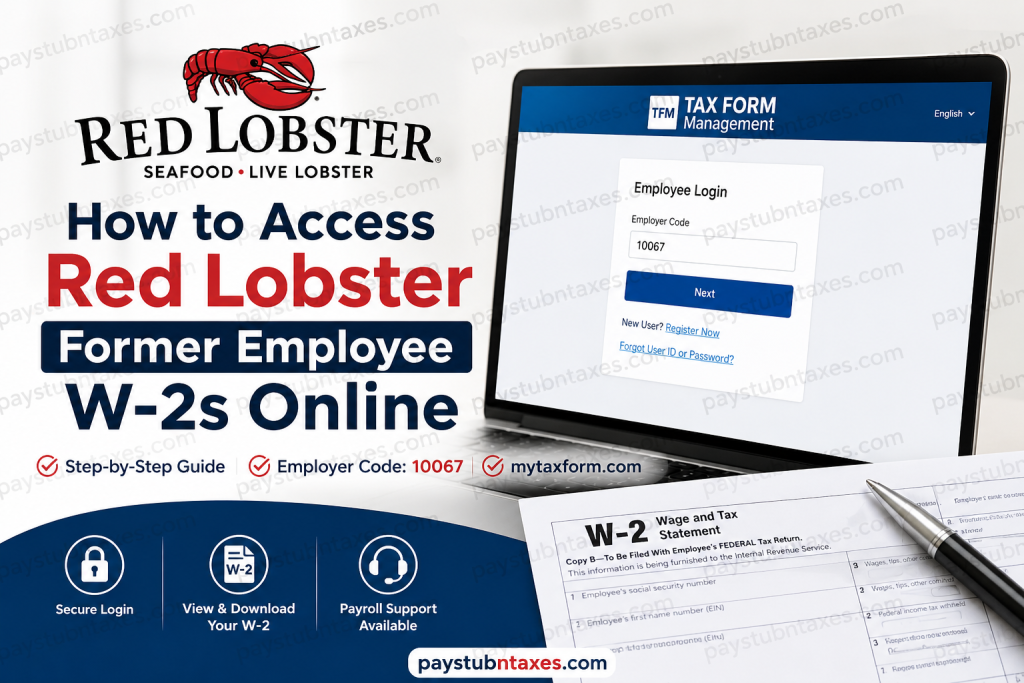
Former employees of Red Lobster often need access to their W-2 forms for tax filing, loan applications, or maintaining personal financial records. Fortunately, Red Lobster provides an efficient online system that enables eligible former employees to retrieve their tax documents electronically through the Tax Form Management portal. This comprehensive guide explains how to access your Red Lobster W-2 online, recover your account, and request assistance if you encounter difficulties.
About Red Lobster
Red Lobster Hospitality LLC is one of the world’s largest seafood restaurant companies, operating more than 500 restaurants across the United States and Canada. Headquartered in Orlando, Florida, the company has built its reputation on delivering exceptional seafood experiences, from its iconic Cheddar Bay Biscuits to premium lobster, shrimp, and crab dishes.
With tens of thousands of employees nationwide, Red Lobster remains committed to its vision of being “where the world goes for seafood now and for generations.”
Can Former Red Lobster Employees Access W-2 Forms Online?
Yes. Former Red Lobster employees can access their W-2 forms electronically through the Tax Form Management portal hosted at mytaxform.com.
If you previously consented to electronic delivery, your W-2 form is typically available online as soon as it is released. Employees who opted for paper delivery should receive their W-2 by mail on or before January 31 of each year.
Red Lobster W-2 Portal Information
Website: https://mytaxform.com
Employer Code: 10067
You will need:
- Employer Code: 10067
- Social Security Number (SSN)
- Personal information for identity verification
- Access to your registered email address or phone number for authentication
How to Access Your Red Lobster Former Employee W-2 Online
Follow these steps to retrieve your W-2 form:
Step 1: Visit the Tax Form Portal
Open your web browser and navigate to: https://mytaxform.com
Step 2: Enter the Employer Code
Input Red Lobster’s employer code:
10067
This code directs you to Red Lobster’s tax document system.
Step 3: Log In or Register
- Returning users can sign in using their User ID and password.
- First-time users should select “Register Now” and complete identity verification.
During registration, you may be asked to provide:
- First and last name
- Social Security Number
- Date of birth
- Home address
- Phone number
- Email address
Step 4: Complete Identity Verification
For security purposes, the portal may send a One-Time Passcode (OTP) to your registered phone number, email address, or mailing address.
In certain cases, additional verification may be required to confirm your identity.
Step 5: Access Your W-2 Form
After logging in:
- Locate your available tax forms on the home page.
- Select the appropriate tax year.
- Click View to open the document.
- Download, save, or print your W-2 for your records.
How to Recover Your Account
If you forgot your User ID or password:
- Select “Forgot User ID or Password” on the login page.
- Complete identity verification.
- Reset your credentials.
- Sign back into your account.
Please note that account recovery may trigger additional authentication checks.
How to Consent to Electronic W-2 Delivery
Electronic delivery offers faster access and reduces the risk of postal delays.
To enroll:
- Log into your account.
- Navigate to Online Delivery Consent.
- Select the W-2 form option.
- Choose Receive Forms Online.
- Accept the disclosure agreement.
- Confirm your email and mailing address.
Once enrolled, future tax forms may be delivered electronically instead of by mail.
How to Update Personal Information
To update your contact information:
- Log into your account.
- Click My Account.
- Select the pencil icon beside the information you wish to edit.
- Update and save your changes.
Keeping your information current helps ensure uninterrupted access to tax documents and authentication services.
What If You Cannot Access Your W-2?
If you’re unable to retrieve your W-2 online, contact Red Lobster Payroll Support directly.
Payroll Assistance
Phone: 1-800-762-5637
Follow the prompts to reach the appropriate department.
Email: PAYROLLPROCESSING@REDLOBSTER.COM
When contacting support, be prepared to provide:
- Full legal name
- Employee ID (if available)
- Last known work location
- Dates of employment
- Updated mailing address
When Are Red Lobster W-2 Forms Available?
Federal law requires employers to issue W-2 forms by January 31 each year.
If you selected paper delivery, your form should be mailed on or before this date. Electronic copies generally become available around the same timeframe.
Common Issues and Solutions
W-2 Not Available Online
Wait until late January or contact Payroll Support if the form remains unavailable.
Unable to Receive OTP
Ensure your phone number and email address are current. If necessary, contact payroll for assistance.
Locked Account
Use the password recovery feature or contact customer support.
Moved to a New Address
Update your mailing information immediately through the portal or notify payroll.
Final Thoughts
Retrieving your Red Lobster W-2 online is a relatively straightforward process thanks to the Tax Form Management portal. By using employer code 10067, maintaining updated contact information, and enabling electronic delivery, former employees can access their tax documents quickly and securely. Should complications arise, Red Lobster’s payroll support team remains available to help ensure that you receive the documentation necessary to meet your tax obligations without unnecessary delay.
FAQs: Red Lobster Former Employee W-2 Access
1. How do I access my Red Lobster W-2 online?
Visit mytaxform.com, enter employer code 10067, log in, and select your tax year to view or download your W-2.
2. What is Red Lobster’s employer code for W-2 access?
Red Lobster’s employer code is 10067.
3. Can former Red Lobster employees access W-2 forms online?
Yes. Former employees can retrieve their W-2 forms through the Tax Form Management portal at mytaxform.com.
4. When are Red Lobster W-2 forms available?
W-2 forms are generally available by January 31 each year, in compliance with IRS regulations.
5. What if I forgot my mytaxform.com password?
Use the “Forgot User ID or Password” option on the login page to reset your credentials.
6. What information do I need to register on mytaxform.com?
You may need your Social Security Number, date of birth, address, email address, and phone number for identity verification.
7. How do I receive my W-2 electronically instead of by mail?
Log into your account, navigate to Online Delivery Consent, and opt to receive forms electronically.
8. Can I print my Red Lobster W-2?
Yes. After opening your W-2 online, you can download, save, or print the document.
9. What should I do if I cannot receive the one-time passcode (OTP)?
Ensure your contact information is current. If you still cannot receive the OTP, contact payroll support.
10. How do I update my mailing address for tax forms?
Log into your account, select My Account, and update your personal information.
11. Who do I contact for Red Lobster payroll assistance?
Call 1-800-762-5637 or email PAYROLLPROCESSING@REDLOBSTER.COM for assistance.
12. What if my W-2 is missing or unavailable online?
Wait until after January 31. If the form remains unavailable, contact Red Lobster payroll support.
13. Can I access older W-2 forms through mytaxform.com?
Availability varies by employer retention policies. Log in to check whether prior-year forms are accessible.
14. What happens if I selected paper delivery?
Your W-2 will be mailed to your address of record on or before January 31.
15. Is my W-2 information secure on mytaxform.com?
Yes. The portal uses authentication measures such as identity verification and one-time passcodes to protect your tax information.

