
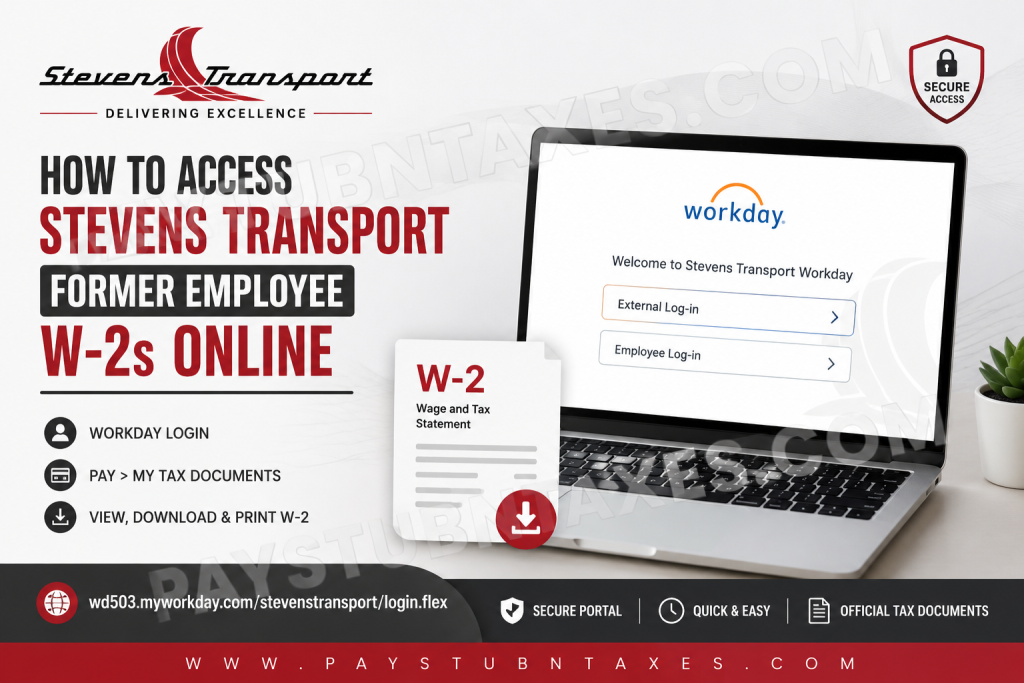
Former employees of Stevens Transport can conveniently access their W-2 tax forms online through the company’s Workday self-service portal, a secure cloud-based platform designed for payroll, human resources, and employee data management. Whether you need your W-2 for tax filing, income verification, or personal recordkeeping, the process is straightforward and can typically be completed within minutes. As one of North America’s premier refrigerated transportation and logistics companies, Stevens Transport has established itself as a long-standing industry leader, providing innovative temperature-controlled transportation solutions throughout the United States, Canada, and Mexico. Headquartered in Dallas, Texas, the company continues to leverage advanced technology platforms such as Workday to streamline employee and payroll services.
Stevens Transport Former Employee W-2 Portal
Former employees may retrieve electronic tax documents through the Stevens Transport Workday portal using their external login credentials.
Workday Login Portal
https://wd503.myworkday.com/stevenstransport/login.flex
The Workday sign-in page provides separate login options for active employees and former employees. Individuals accessing the system after separation from employment should select the External Log-in option before entering their credentials.
Steps to Access Stevens Transport W-2 Forms Online
Follow the instructions below to securely download and print your W-2 tax statement online.
Step 1: Visit the Workday Login Page
Open the Stevens Transport Workday portal in your preferred web browser.
On the login screen, select:
External Log-in
Former employees should avoid using the Employee Log-in option unless specifically instructed by the company.
Step 2: Enter Your Login Credentials
Use the username and temporary password provided during the offboarding process.
If this is your first login after leaving Stevens Transport, Workday may require you to:
- Change your temporary password
- Set up security verification methods
- Confirm account recovery information
For security purposes, choose a strong password that includes uppercase letters, lowercase letters, numbers, and special characters.
Step 3: Access the Pay Section
After successfully signing into Workday, navigate to the employee dashboard and select:
Pay
The Workday Pay module contains payroll-related records, including:
- Pay statements
- Tax elections
- Direct deposit information
- W-2 tax documents
- Payroll history
Workday’s payroll tools allow employees and former employees to securely manage and review compensation-related information online.
Step 4: Open My Tax Documents
Within the Pay section, locate and select:
My Tax Documents
This section stores available year-end tax forms, including W-2 statements for prior tax years.
Step 5: Download or Print Your W-2
Select the appropriate tax year and click:
View/Print
Your W-2 will open as a PDF document, allowing you to:
- Download a digital copy
- Print a physical copy
- Save the document for future reference
Ensure that pop-up blockers are disabled in your browser if the PDF does not open immediately.
What If You Did Not Consent to Electronic Delivery?
Former employees who did not authorize electronic tax document delivery through Workday will generally receive a paper copy of their W-2 by mail at the home address on file.
To avoid delays in receiving important tax documents, ensure your mailing address remains accurate and updated.
Troubleshooting Workday Login Issues
If you experience difficulty accessing your Stevens Transport Workday account, consider the following troubleshooting steps:
Reset Your Password
Use the password recovery or account assistance options available on the Workday login page.
Verify Browser Compatibility
For optimal performance, use updated browsers such as:
- Google Chrome
- Microsoft Edge
- Mozilla Firefox
- Safari
Clear Browser Cache
Clearing cached files and cookies may resolve loading or authentication problems.
Disable VPN or Security Extensions
Certain browser extensions or VPN services may interfere with secure authentication systems.
Stevens Transport Support Contacts
If you require additional assistance regarding your W-2, payroll records, or Workday access, contact the appropriate Stevens Transport support department below.
Corporate Employees: Helpdesk@stevenstransport.com
Drivers: driverservices@stevenstransport.com
The support contacts are also displayed directly on the Stevens Transport Workday login interface for employee assistance.
About Stevens Transport
Stevens Transport is widely recognized as one of the largest refrigerated transportation carriers in the United States, providing multi-modal logistics and supply-chain solutions for Fortune 500 companies across North America. Established in 1980 and headquartered in Dallas, Texas, the company has built its reputation on innovation, operational excellence, customer satisfaction, and long-term stability.
The company’s extensive transportation network includes:
- Refrigerated transportation
- Dedicated fleet services
- Expedited logistics
- Intermodal transportation
- Specialized freight solutions
- Third-party logistics (3PL)
Stevens Transport continues to emphasize advanced technology, employee development, and customer-focused service across its operations.
Final Thoughts
Accessing your Stevens Transport former employee W-2 online is a relatively seamless process through the Workday self-service platform. By utilizing the External Log-in feature and navigating to the Pay and Tax Documents section, former employees can quickly retrieve digital copies of their tax statements whenever needed. Maintaining access to your Workday account and keeping your personal information current can significantly simplify future payroll and tax-related requests.
Frequently Asked Questions
1. How do former employees access Stevens Transport W-2 forms online?
Former employees can log into the Stevens Transport Workday portal using the External Log-in option and navigate to Pay > My Tax Documents to access their W-2 forms.
2. What is the Stevens Transport Workday login link?
The official Workday portal is: https://wd503.myworkday.com/stevenstransport/login.flex
3. Should former employees use Employee Log-in or External Log-in?
Former employees should select the External Log-in option when signing into Workday after offboarding.
4. Where can I find my W-2 in Workday?
After logging in, go to: Pay > My Tax Documents
Then select the desired tax year and click View/Print.
5. Can I download and print my Stevens Transport W-2 online?
Yes. Workday allows users to download a PDF copy and print their W-2 directly from the portal.
6. What if I forgot my Workday password?
Use the password recovery or account assistance feature on the Workday login page to reset your credentials.
7. Will Stevens Transport mail my W-2 form?
Yes. If you did not consent to electronic delivery, your W-2 will generally be mailed to your home address on file.
8. What should I do if my mailing address changed?
You should contact Stevens Transport support immediately to update your address and avoid delays in receiving tax documents.
9. Can former drivers access W-2 forms through Workday?
Yes. Former drivers can access their tax statements through the same Workday portal using their assigned credentials.
10. Who do corporate employees contact for Workday support?
Corporate employees may contact: Helpdesk@stevenstransport.com
11. Who should drivers contact for payroll or W-2 assistance?
Drivers may contact: driverservices@stevenstransport.com
12. What browsers work best with Workday?
Workday performs best on updated versions of Google Chrome, Microsoft Edge, Mozilla Firefox, and Safari.
13. Why is my W-2 PDF not opening?
Your browser’s pop-up blocker may be preventing the PDF from opening. Disable pop-up blocking and try again.
14. Can I access previous years’ W-2 forms in Workday?
Yes. If available in your account, previous tax years can usually be accessed under My Tax Documents.
15. What is Workday used for at Stevens Transport?
Workday is used for payroll, tax documents, employee self-service, benefits, direct deposit management, and HR-related functions.

