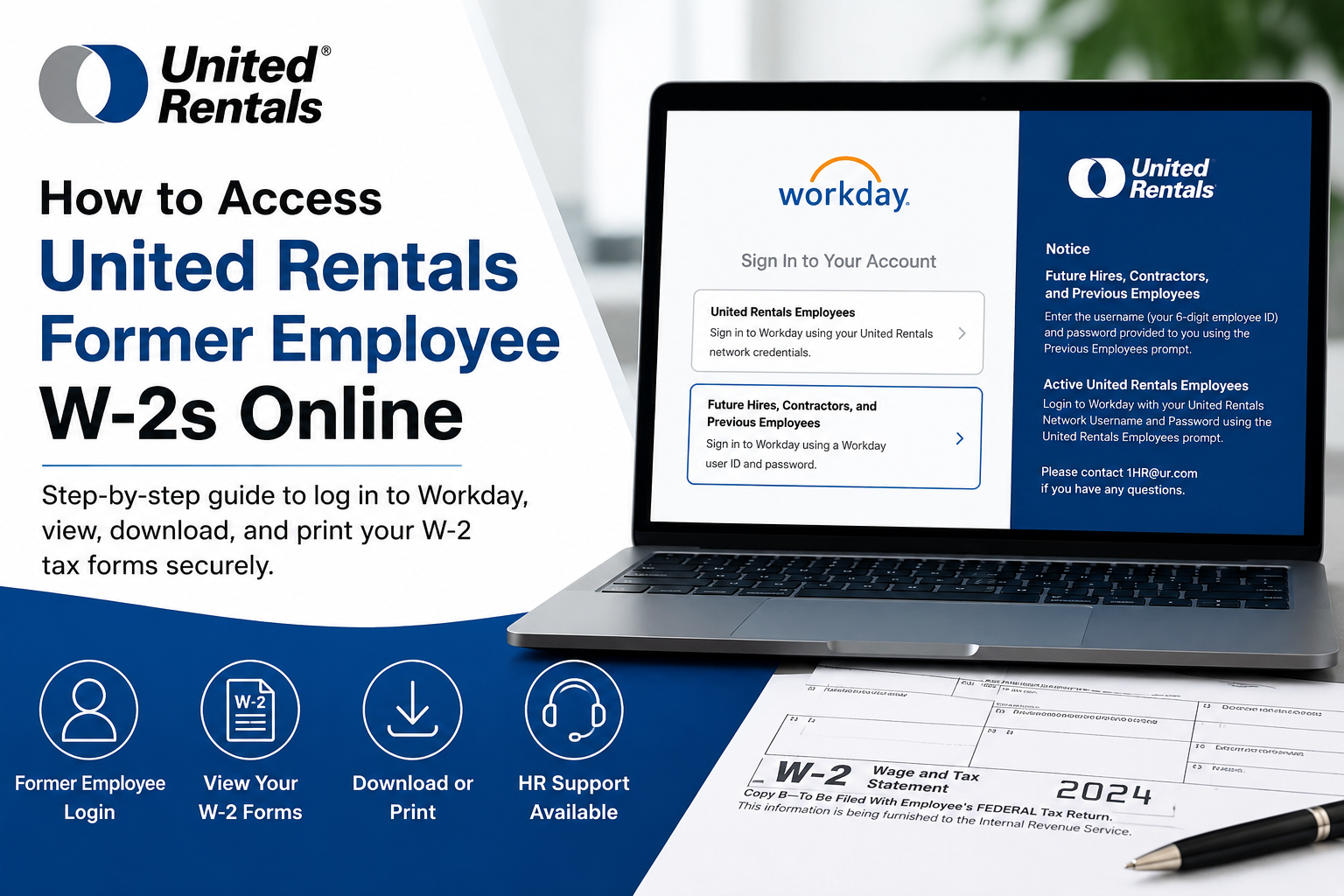
Former employees of United Rentals can conveniently access and download their W-2 tax forms online through the company’s Workday self-service portal. While current employees use Single Sign-On (SSO) credentials, former employees must follow a different login process using their employee ID and password. This comprehensive guide explains how to log in, retrieve your W-2 forms, troubleshoot access issues, and securely download or print your tax documents from Workday.
United Rentals Former Employee Workday Login
United Rentals provides a dedicated Workday access option specifically for former workers, contractors, and future hires.
Official Former Employee Login Portal
Workday Portal: United Rentals Former Employee Workday Login at https://www.myworkday.com/ur/d/home.htmld
Login Requirements for Former Employees
To access your W-2 online, you will need:
- Your 6-digit United Rentals Employee ID
- Your Workday password
- Access to your personal email address linked to Workday
- A secure internet connection and browser
Former employees cannot use the active employee SSO option. Instead, select the “Future Hires, Contractors, and Previous Employees” prompt on the Workday sign-in page.
Step-by-Step Guide to Access United Rentals Former Employee W-2s
Step 1: Open the Workday Portal
Visit the official Workday login page:
You will see two login options:
- United Rentals Employees (for active workers)
- Future Hires, Contractors, and Previous Employees (for former employees)
Select the second option.
Step 2: Enter Your Employee Credentials
Log in using:
- Username: Your 6-digit employee ID
- Password: Your Workday password
If you recently separated from the company, you may have received a temporary password through your personal email account after termination. Be sure to check:
- Inbox
- Spam folder
- Junk mail folder
If you cannot locate your credentials, contact HR support immediately.
Step 3: Access the Pay Section in Workday
After logging in successfully:
- Navigate to the Pay dashboard
- Open My Tax Documents
- Locate your available W-2 forms
- Select View/Print
The W-2 document will load as a downloadable PDF.
Step 4: Download or Print Your W-2
Once the W-2 opens:
- Click the Download icon to save the file
- Click the Printer icon to print a hard copy
- Use navigation arrows to move between pages if necessary
Workday stores tax documents electronically under the My Tax Documents section, allowing easy access whenever needed.
How to Reset Your United Rentals Workday Password
If you forgot your password or never received one after termination:
Contact United Rentals HR Support
Email: 1HR@ur.com
Provide:
- Your full legal name
- Former employee ID
- Last known work location
- Personal email address associated with Workday
The HR team can assist with:
- Password resets
- Account recovery
- W-2 access issues
- Personal email verification
Important Notes for Former Employees
Personal Email Must Be Active
Former employees must have a valid personal email address registered in Workday in order to access their account successfully.
If your email was never updated before separation, HR assistance may be required.
Electronic W-2 Access Is Faster
Using Workday provides several advantages:
- Instant online access
- Faster tax filing preparation
- Secure digital storage
- Ability to download previous tax forms
- Convenient mobile accessibility
Workday also supports mobile access for viewing tax documents securely.
Common Problems and Solutions
| Problem | Solution |
| Forgot password | Contact 1HR@ur.com |
| Cannot access personal email | Request account verification from HR |
| Employee ID not working | Confirm your 6-digit ID with HR |
| W-2 not visible | Wait until forms are released or contact payroll |
| Account locked | Request password reset assistance |
| Browser issues | Clear cache or try another browser |
Security Tips When Accessing Your W-2 Online
To protect your sensitive tax information:
- Use only the official Workday portal
- Avoid public Wi-Fi networks
- Log out after each session
- Download documents to secure devices only
- Never share your employee ID or password
Why Former Employees Use Workday for W-2 Access
United Rentals uses Workday because it offers:
- Secure cloud-based payroll access
- Centralized tax document management
- Convenient self-service functionality
- Mobile-friendly access
- Enhanced data protection
The platform allows former employees to retrieve tax records quickly without waiting for mailed paper copies.
Frequently Asked Questions (FAQs)
Can former United Rentals employees still access Workday?
Yes. Former employees can log in using the “Future Hires, Contractors, and Previous Employees” option on the Workday portal.
What username should I use for Workday?
Use your 6-digit United Rentals employee ID as your username.
How do I get my temporary password?
Temporary passwords are usually sent to your personal email address after termination. Check your spam and junk folders if you cannot find the email.
Where can I find my W-2 in Workday?
Go to: Pay → My Tax Documents → View/Print
Can I print my W-2 from Workday?
Yes. Workday allows you to both download and print your W-2 forms as PDF documents.
What if I no longer have access to my personal email?
Contact United Rentals HR support at 1HR@ur.com for account recovery assistance.
Is Workday available on mobile devices?
Yes. Workday supports mobile access for viewing payroll and tax documents.
When are W-2 forms usually available?
W-2 forms are typically published by the end of January each year.
Can I access older W-2 forms?
Yes, if those forms remain available in your Workday tax document history.
Who should I contact for payroll or W-2 support?
You should contact United Rentals HR support at 1HR@ur.com.
