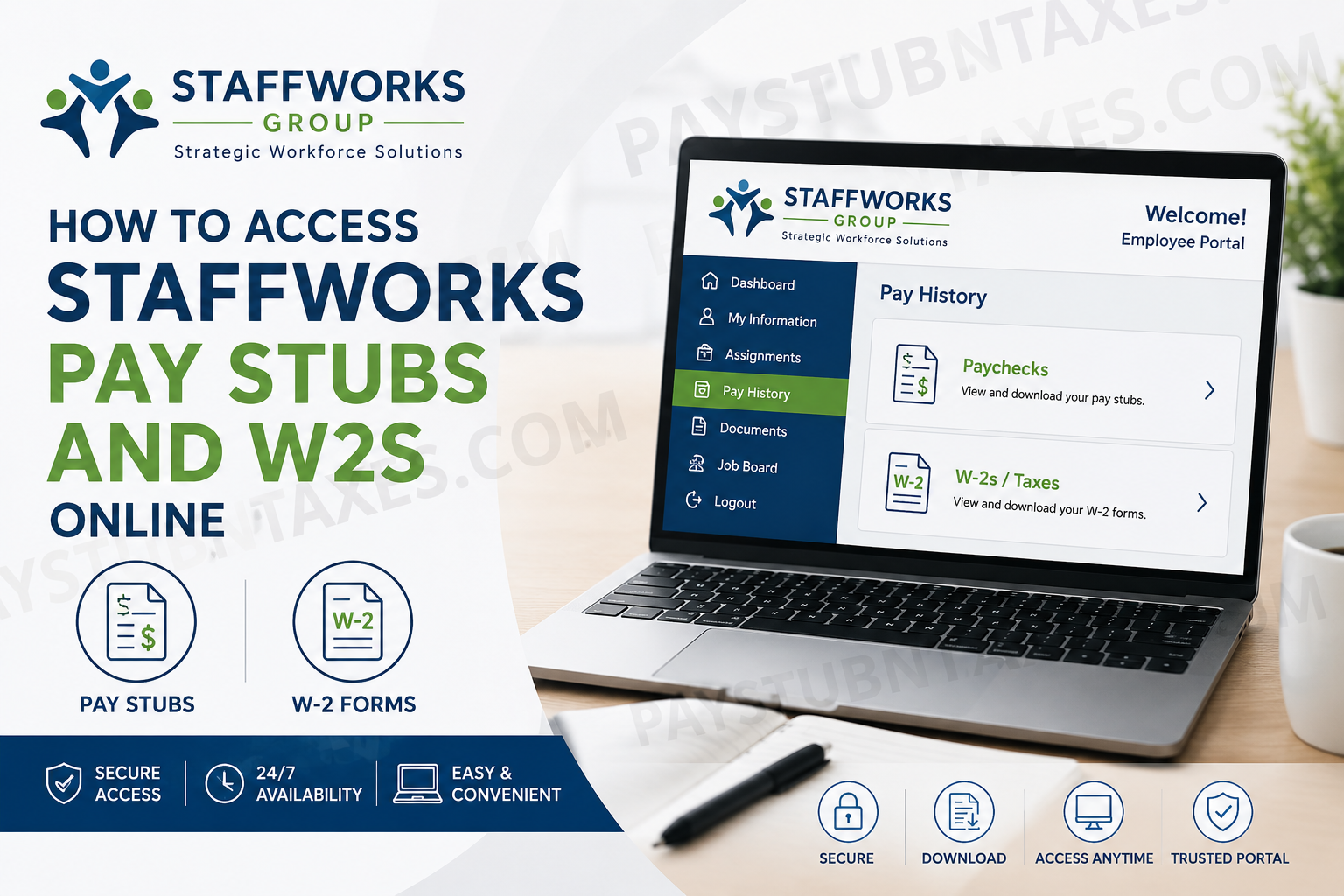
In today’s increasingly digital workplace, convenient access to payroll and tax documents has become an essential component of effective workforce management. Staffworks Group, a nationally recognized staffing and employment organization headquartered in Clinton Township, Michigan, offers employees a streamlined online portal where they can securely access pay stubs, W-2 forms, earnings history, assignment details, and employment resources at any time. With more than two decades of staffing expertise, Staffworks Group has established itself as a trusted partner for businesses and employees alike, providing temporary staffing, temp-to-hire solutions, direct placement services, payroll administration, and vendor-on-premise programs across multiple industries. Through its employee self-service platform powered by Avionté, Staffworks Group enables associates to manage important payroll information efficiently without needing to visit a branch office. This comprehensive guide explains how to access Staffworks pay stubs and W-2 forms online, reset login credentials, troubleshoot common login issues, and navigate the employee portal successfully.
Staffworks Employee Portal Login
Staffworks Group employees can access payroll and tax information through the official employee portal:
Employee Portal: https://staffworksgroup.myavionte.com/staff/login.aspx
The same login credentials used for the Satellite Job Portal are required to access the employee dashboard.
Once signed in, employees can review:
- Current and previous pay stubs
- W-2 tax statements
- Earnings reports
- Assignment information
- Employment documents
- Available job opportunities
- Payroll history
The online system is available 24 hours a day, allowing employees to retrieve financial documents whenever needed.
How to Access Staffworks Pay Stubs Online
Employees can conveniently view and download their electronic pay statements through the Pay History section of the portal.
Step-by-Step Instructions
Step 1: Visit the Staffworks Employee Portal
Open your preferred web browser and go to: https://staffworksgroup.myavionte.com/staff/login.aspx
Step 2: Enter Your Login Credentials
Use:
- Your registered email address or username
- Your password associated with the Satellite portal
After entering your credentials, click the Login button.
Step 3: Navigate to Pay History
Once logged into the dashboard:
- Locate the Pay History tab in the main navigation menu
- Click Paychecks
This section displays both current and previous pay statements.
Step 4: View or Download Your Pay Stub
Select the desired paycheck to:
- Review earnings
- Check taxes and deductions
- Verify direct deposit details
- Download or print the pay stub for personal records
Electronic pay statements are typically available shortly after payroll processing is completed.
How to Access Staffworks W-2 Forms Online
Staffworks Group also provides online access to annual W-2 tax statements through the employee portal.
Steps to Retrieve Your W-2
Step 1: Log Into the Employee Portal
Access the Staffworks employee dashboard using your credentials.
Step 2: Open Pay History
From the top navigation menu, click:
Pay History
Step 3: Select W-2s or Taxes
Choose:
- W-2s
or - Taxes
Depending on the portal layout displayed on your account.
Step 4: Download Your Tax Form
Select the applicable tax year to:
- View your W-2
- Download a PDF copy
- Print the form for tax filing purposes
W-2 forms are generally released electronically before the IRS filing deadline each year.
Forgot Your Staffworks Portal Password?
If you cannot remember your password, the portal offers a simple password recovery process.
How to Reset Your Password
- Visit the login page
- Click Forgot your password?
- Enter your registered email address
- Check your email inbox for a password reset link
- Create a new password
- Click Save and Login
For security purposes, password reset links typically expire after a limited period of time.
Common Staffworks Login Problems and Solutions
Although the portal is generally reliable, employees may occasionally encounter login difficulties. Below are some common issues and solutions.
Incorrect Username or Password
Double-check:
- Spelling errors
- Uppercase and lowercase letters
- Extra spaces
Remember that your login credentials must match the information stored in the Staffworks system.
Password Reset Email Not Received
If you do not receive the reset email:
- Check your spam or junk folder
- Verify that your email address is correct
- Wait several minutes before trying again
Locked or Disabled Account
Multiple failed login attempts may temporarily lock your account for security reasons. In such situations, contact Staffworks support for assistance.
Browser Compatibility Issues
If the portal does not load correctly:
- Clear your browser cache
- Enable cookies
- Try another browser such as Chrome, Edge, or Firefox.
Benefits of the Staffworks Online Employee Portal
The Staffworks employee self-service platform offers several advantages that significantly improve convenience and accessibility for employees.
1. Instant Access to Payroll Information
Employees can review earnings and deductions without waiting for paper paychecks.
2. Secure Digital Document Storage
Payroll and tax documents remain safely stored online for easy future reference.
3. Faster Tax Preparation
Electronic W-2 delivery helps employees prepare tax returns more quickly and efficiently.
4. Convenient Mobile Accessibility
The portal can be accessed from desktops, tablets, and smartphones, making payroll information available virtually anywhere.
5. Employment and Assignment Tracking
Employees can review current and past assignment details directly through the platform.
About Staffworks Group
Staffworks Group is a privately held staffing and employment organization with more than 20 years of industry experience. Headquartered in Clinton Township, Michigan, the company provides workforce solutions including temporary staffing, direct placement, payroll services, and vendor-on-premise programs. The organization partners with businesses of all sizes and serves a broad range of industries across the Midwest, Northeast, and Southeast regions of the United States. Staffworks Group is widely recognized for its employee-centered approach, commitment to safety, and dedication to building long-term professional relationships. The company’s mission focuses on creating safe, positive work environments while delivering exceptional staffing services and meaningful career opportunities.
Staffworks Group Contact Information
If you experience technical issues or need assistance accessing your payroll documents, contact Staffworks Group directly.
Phone: 248-416-1090
Email: info@staffworksgroup.com
Employees may also contact their local Staffworks branch office for personalized support.
Final Thoughts
The Staffworks Group employee portal provides a secure and efficient way for employees to access pay stubs, W-2 forms, payroll records, and assignment information online. By leveraging the Avionté-powered platform, employees can conveniently manage essential employment documents without unnecessary delays or administrative complications. Whether you need to review your latest paycheck, retrieve tax documents during filing season, or update login credentials, the Staffworks online portal offers a reliable self-service solution designed to simplify workforce management and improve accessibility for every employee.
Frequently Asked Questions (FAQ)
1. How do I access my Staffworks pay stubs online?
You can access your Staffworks pay stubs by logging into the employee portal and navigating to Pay History > Paychecks.
2. What is the official Staffworks employee portal link?
The official Staffworks employee login portal is: https://staffworksgroup.myavionte.com/staff/login.aspx.
3. How do I get my Staffworks W-2 online?
After logging into the portal, go to Pay History > W-2s or Taxes to download your annual tax statement.
4. Can former Staffworks employees access W-2 forms online?
Yes. Former employees may still access W-2 forms if their portal account remains active. If access issues occur, contact Staffworks support.
5. What username should I use for the Staffworks portal?
Employees generally use their registered email address or Satellite portal username.
6. How do I reset my Staffworks portal password?
Click the Forgot your password? link on the login page, enter your email address, and follow the password reset instructions sent to your inbox.
7. Why can’t I log into my Staffworks account?
Common reasons include:
- Incorrect password
- Expired credentials
- Locked account
- Browser cache issues
Try resetting your password or contacting support.
8. When are Staffworks’ pay stubs available online?
Electronic pay stubs are typically available shortly after payroll processing is completed.
9. When will Staffworks release W-2 forms?
W-2 forms are generally available electronically before the IRS filing deadline in January.
10. Can I print my Staffworks pay stubs?
Yes. Employees can download and print pay stubs directly from the employee portal.
11. Does Staffworks offer mobile access to payroll information?
Yes. The employee portal can be accessed from smartphones, tablets, and desktop devices.
12. What information is included on a Staffworks pay stub?
A Staffworks pay stub typically includes:
- Gross earnings
- Taxes withheld
- Deductions
- Net pay
- Direct deposit information
- Hours worked
13. Who do I contact for Staffworks payroll support?
You can contact Staffworks Group by:
- Phone: 248-416-1090
- Email: info@staffworksgroup.com
14. Is the Staffworks employee portal secure?
Yes. The portal uses secure login authentication to protect employee payroll and tax information.
15. Can I access previous pay stubs through the Staffworks portal?
Yes. The portal stores historical paycheck information, allowing employees to review previous pay periods anytime.
