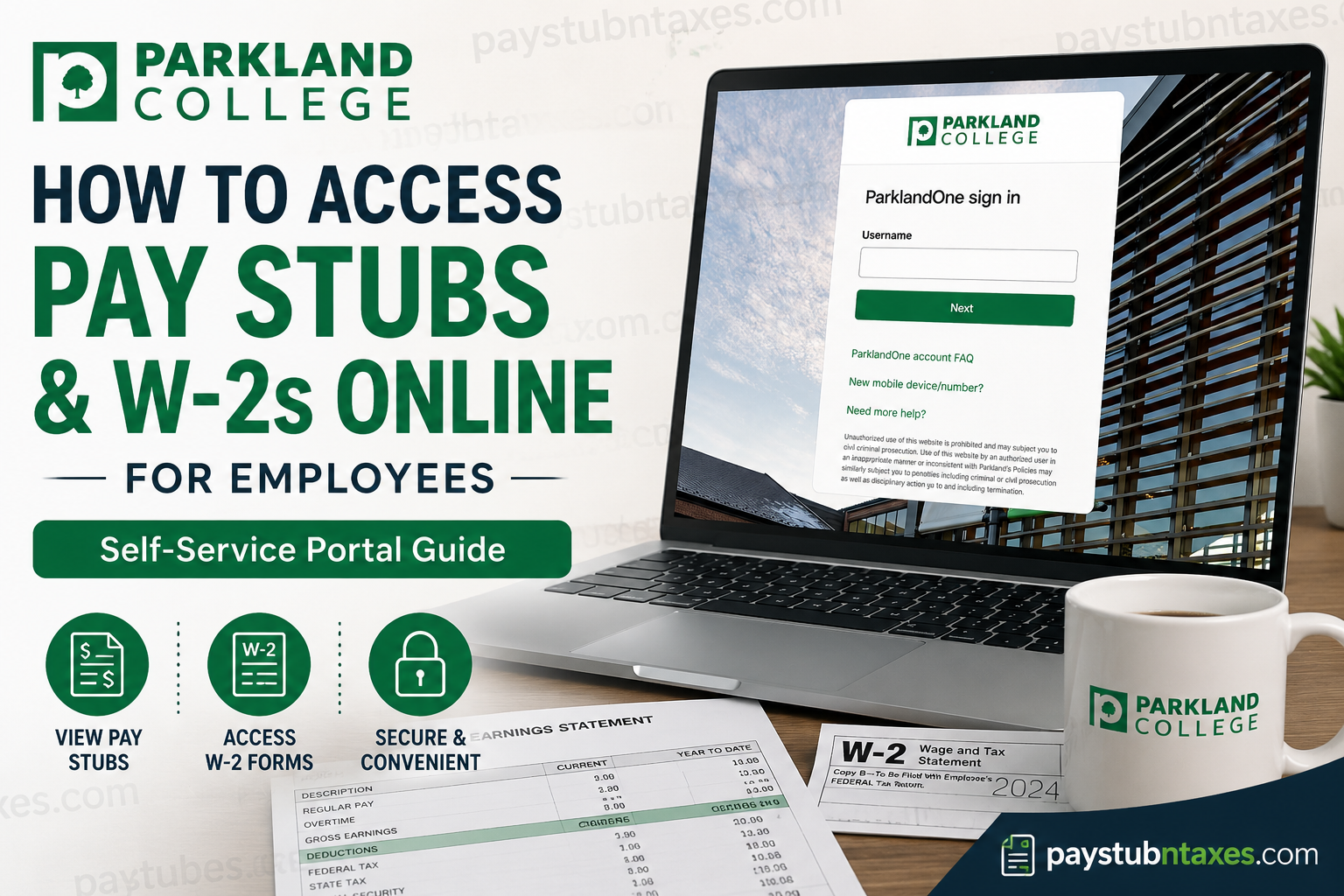
For employees of Parkland College, accessing payroll records should be straightforward rather than an administrative labyrinth. Fortunately, Parkland provides a secure digital ecosystem through its Self-Service and ParklandOne platforms, enabling employees to retrieve pay stubs, W-2 forms, and tax documents at their convenience. Whether you are a current employee reviewing recent earnings or preparing for tax season, this guide walks you through every step of the process with clarity and precision.
About Parkland College
Located in Champaign, Illinois, Parkland College is a distinguished public community college offering more than 100 associate degree and certificate programs. Renowned for its strong transfer pathways—particularly to the University of Illinois Urbana-Champaign—the institution serves thousands of students annually while fostering innovation, workforce development, and academic excellence.
Beyond its academic credentials, Parkland is also recognized as an employer committed to technological accessibility. Through modern digital platforms, employees can securely manage payroll information, tax forms, and account settings from virtually anywhere.
Parkland Payroll Portal Overview
Parkland College uses the Self-Service portal for payroll and tax administration. Employees can conveniently access:
- Pay stubs (Earnings Statements)
- W-2 tax forms
- Banking information
- Timecards and leave balances
- Tax preferences and consent settings
Self-Service Portal
Employee Portal: https://go.parkland.edu/selfservice
Direct Login: https://selfserv.parkland.edu/
Employees authenticate using their ParklandOne credentials, which are managed through Okta-powered single sign-on and multifactor authentication (MFA).
What Is ParklandOne?
ParklandOne serves as the college’s digital identity system, encompassing:
- Username
- Password
- Multifactor authentication (MFA)
All employees utilize ParklandOne to access college systems, including Self-Service and campus computers. The system is powered by Okta and requires secure authentication methods. Employees are encouraged to set up their accounts from a personal device before logging into a campus computer for the first time. Employees also configure MFA during account setup, with Okta Verify push notifications recommended for enhanced security.
How to Access Parkland College Pay Stubs Online
Retrieving your pay stub is a remarkably simple process once your account has been configured.
Step-by-Step Guide
- Visit the Self-Service portal:
- Log in using your ParklandOne username and password.
- On the home page, select Employee.
- Click Earning Statements.
- A list of paychecks will appear.
- Select the desired check date or check number.
- View, download, or print your pay stub for your records.
Your earning statements contain detailed payroll information, including:
- Gross earnings
- Net pay
- Taxes withheld
- Deductions
- Employer contributions
- Year-to-date totals
Keeping digital copies of your pay stubs is prudent, especially when applying for loans, leases, or employment verification.
How to Access Your Parkland College W-2 Online
Parkland employees may access W-2 forms directly through Self-Service.
Step 1: Log In
Navigate to: https://selfserv.parkland.edu/
If you have forgotten your password, you must reset your ParklandOne credentials before proceeding. Employees can reset passwords through ParklandOne’s login system.
Step 2: Open Tax Information
From the Self-Service home page:
- Select Tax Information
Step 3: Choose Electronic Delivery
Employees may elect to receive their W-2:
- Electronically, or
- By paper mail
To access W-2s online, you must provide consent for electronic delivery and save your preferences.
Step 4: View Your W-2
- Select the desired tax year.
- Open, download, or print your W-2.
For optimal viewing, ensure that the latest version of Adobe Acrobat Reader is installed.
How to Set Up a ParklandOne Account
New employees receive an email containing:
- Their ParklandOne username
- Instructions for requesting an account setup link
The account setup process includes creating a password and configuring multifactor authentication. Employees who do not receive setup instructions should contact the Tech Service Desk for assistance.
Password Requirements
Parkland passwords must satisfy multiple security standards, including:
- Minimum of 12 characters
- Uppercase letter
- Lowercase letter
- Symbol
- No portions of the username
- Exclusion of first and last names
Longer passwords are strongly encouraged, and password reuse across websites should be avoided.
Understanding Multifactor Authentication (MFA)
Parkland employs multifactor authentication to safeguard employee accounts.
The institution recommends using:
- Okta Verify
- Push notifications
Authentication sessions generally last 24 hours, although systems containing sensitive data may require more frequent verification. Authentication is session-based, meaning different browsers or devices may trigger additional prompts.
Troubleshooting Login Problems
Forgotten Password
Employees who forget their password can initiate a password reset through ParklandOne. Note that some authentication methods may not be permitted during password recovery.
Locked Account
For security reasons, accounts automatically lock after ten incorrect login attempts within twenty minutes. Employees may wait for automatic unlock or contact the Tech Service Desk immediately.
Username Lookup
Employees who cannot remember their username may retrieve it using Parkland’s username lookup service, provided an alternative email address is on file.
Payroll and Technical Support
If you encounter difficulties accessing pay stubs or W-2 forms, assistance is readily available.
Payroll Office
Email: Payroll@Parkland.edu
Location: Room A108
Hours:
- Fall/Spring: Monday–Friday, 8:00 a.m.–5:00 p.m.
- Summer: Monday–Thursday, 7:30 a.m.–5:00 p.m.
Tech Service Desk
Phone: 217-353-3333
Location: Room A184
Employees may also submit help tickets or access technology resources through Parkland’s support systems. The Tech Service Desk provides emergency assistance during business hours and supports employees with account access and technical issues.
Final Thoughts
In an era where efficiency and accessibility reign supreme, Parkland College’s Self-Service ecosystem ensures that employees can manage payroll records with minimal friction. By integrating ParklandOne authentication, multifactor security, and digital tax delivery, the institution has crafted a robust framework that balances convenience with cybersecurity. Whether you need to retrieve a recent pay stub, download your W-2 before tax season, or reset a forgotten password, Parkland’s digital infrastructure ensures that these tasks remain only a few clicks away. As the old adage goes, forewarned is forearmed—and understanding how to navigate your payroll systems today can save considerable time tomorrow.
Frequently Asked Questions
1. How do I access my Parkland College pay stubs online?
Log in to the Self-Service portal using your ParklandOne credentials, select Employee, then click Earning Statements to view your pay stubs.
2. Where can I find my W-2 form at Parkland College?
After logging into Self-Service, navigate to Employee > Tax Information and select the applicable tax year to access your W-2.
3. What website does Parkland College use for payroll access?
Parkland College uses the Self-Service portal at https://selfserv.parkland.edu/ for payroll and tax document access.
4. What is ParklandOne?
ParklandOne is Parkland College’s secure authentication system that includes your username, password, and multifactor authentication (MFA).
5. How do I reset my ParklandOne password?
Visit the ParklandOne login page and follow the password reset instructions or contact the Tech Service Desk for assistance.
6. Do I need consent to view my W-2 online?
Yes. Employees must opt into electronic W-2 delivery in the Tax Information section before accessing W-2 forms online.
7. Can former employees access Parkland W-2 forms online?
Former employees may retain access depending on account status. If access is unavailable, contact Payroll for assistance.
8. What should I do if my ParklandOne account is locked?
Accounts automatically lock after multiple failed login attempts. Wait for the lockout period to expire or contact the Tech Service Desk.
9. How do I find my Parkland username?
Employees can retrieve their username using Parkland’s username lookup tool or by checking the email sent during onboarding.
10. What information appears on my pay stub?
Your pay stub includes gross pay, net pay, tax withholdings, deductions, employer contributions, and year-to-date earnings.
11. Can I print my Parkland College pay stubs?
Yes. Employees can download or print pay stubs directly from Self-Service for recordkeeping or verification purposes.
12. When are W-2 forms available online?
W-2 forms are generally made available by the IRS deadline, typically no later than January 31 each year.
13. What is multifactor authentication (MFA)?
MFA adds an extra layer of security by requiring a second verification step, such as an Okta Verify push notification.
14. Who do I contact for payroll questions?
For payroll inquiries, email Payroll@Parkland.edu or contact the Payroll Office.
15. How do I get technical support for login issues?
Contact the Tech Service Desk at 217-353-3333 or submit a support ticket through Parkland’s technology services portal.
