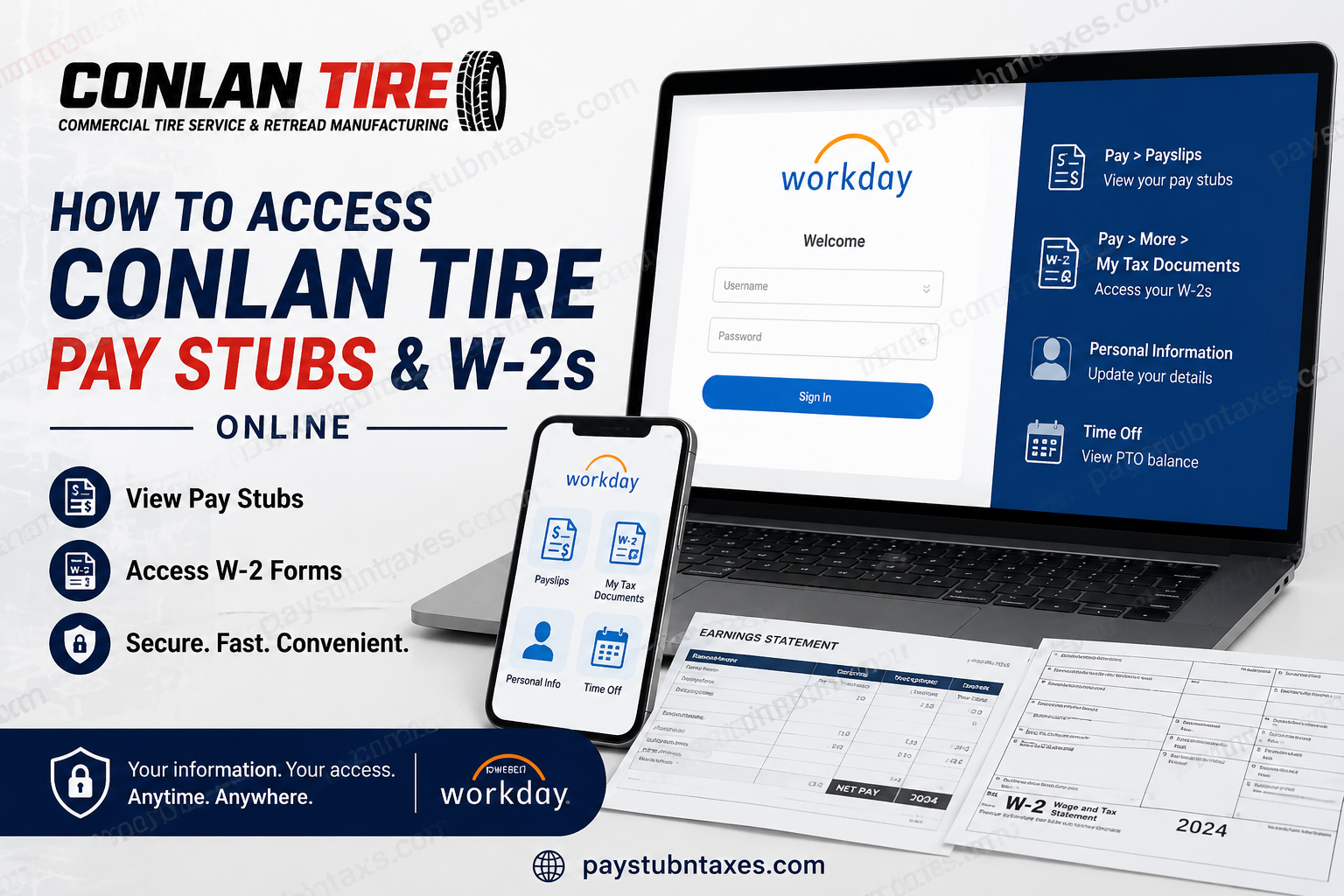
In today’s increasingly digital workplace, seamless access to payroll records has become not merely a convenience but an indispensable necessity. Whether you need to review earnings, verify deductions, file taxes, or retrieve employment documents, Conlan Tire employees can conveniently access their payroll information online through Workday, the human capital management platform implemented by HR-1 Corp. As a premier Continental Life Cycle dealer and a recognized leader in commercial tire service and retread manufacturing, Conlan Tire remains steadfast in its commitment to quality, innovation, and operational excellence. To further enhance employee experience, the company transitioned its HR and payroll operations to Workday in June 2024, enabling employees to manage pay-related information efficiently from virtually anywhere. This comprehensive guide explains how active employees can access pay stubs, W-2 forms, tax documents, and essential payroll services online.
Conlan Tire Payroll Portal Overview
Conlan Tire partners with HR-1 Corp. to administer payroll and human resources functions. Since June 2024, employees have been able to access payroll services through the Workday platform.
Workday Login Portal
Portal URL: https://wd1.myworkday.com/hrone/
Employees may also access their accounts using the Workday mobile app, available for both Android and iOS devices.
Through Workday, employees can:
- View and download pay stubs
- Access annual W-2 tax forms
- Manage tax documents
- Update personal information
- View PTO balances and schedules
- Verify national identification details
- Access payroll history and records
How to Log Into Conlan Tire Workday
Before signing in, ensure that you have:
- Your Workday username and password
- A registered Multi-Factor Authentication (MFA) application
- A stable internet connection
Step-by-Step Login Process
- Visit the Workday portal: https://wd1.myworkday.com/hrone/
- Enter your username and password.
- Complete Multi-Factor Authentication (MFA).
- Once authenticated, you will arrive at your Workday homepage.
Important: Conlan Tire strongly encourages all employees to enable MFA to safeguard sensitive payroll and tax information.
Setting Up Multi-Factor Authentication (MFA)
To enhance account security, employees should configure MFA before regularly accessing Workday.
Recommended Authenticator Apps
Employees may use any of the following applications:
- Okta Verify
- Microsoft Authenticator
- Duo Mobile
- Other compatible authenticator apps
How to Configure MFA
- Download an authenticator app from Google Play or the Apple App Store.
- Log into Workday.
- Select Set Up Now when prompted.
- Open your authenticator application.
- Scan the QR code displayed in Workday or manually enter the provided secret key.
- Enter the six-digit verification code generated by the app.
- Click Done to complete setup.
Once MFA has been configured, employees will need their phone and authenticator app whenever logging into Workday in the future.
How to Access Conlan Tire Pay Stubs Online
Retrieving pay stubs in Workday is straightforward and can be completed in just a few clicks.
Desktop Instructions
- Log into Workday.
- Navigate to the Pay application.
- Select Payslips.
- Click the desired check date or check number.
- View, print, or download your pay stub.
Workday stores all payslips generated after its launch, while older pay records may remain accessible through legacy employee portals.
What Information Appears on a Pay Stub?
Your pay statement typically includes:
- Gross earnings
- Net pay
- Tax withholdings
- Benefits deductions
- Retirement contributions
- PTO balances
- Employer contributions
Keeping digital copies of your pay stubs can prove invaluable when applying for loans, verifying income, or preparing tax returns.
How to Access Conlan Tire W-2 Forms Online
W-2 forms are available electronically through Workday’s tax document center.
Steps to Retrieve Your W-2
- Log into Workday.
- Select Pay.
- Click More.
- Open My Tax Documents.
- Choose the tax year you wish to view.
- Select View/Print.
- Download or print your W-2 as needed.
Employees typically receive notifications when new W-2 forms become available.
Verify Your National ID to Avoid W-2 Errors
Accurate tax reporting begins with accurate identification information. Employees are strongly encouraged to verify their National ID—such as a Social Security Number (SSN) or Social Insurance Number (SIN)—to prevent errors on W-2 forms.
How to Verify National ID
- Open your Workday profile.
- Select View Profile.
- Click Personal.
- Open the IDs tab.
- Choose Verify National ID.
- Enter and confirm your SSN or SIN.
- Submit the information.
If your identification number is incorrect:
- Navigate back to IDs.
- Select Edit.
- Choose Change My Government IDs.
- Update the information and submit the changes.
Tip: Avoid adding duplicate IDs. Simply edit the existing record.
Download the Workday Mobile App
Employees who prefer mobile access can use the Workday app to manage payroll anytime and anywhere.
Android Users
- Open Google Play Store.
- Search for Workday.
- Install the application.
- Log in using your company credentials.
iPhone Users
- Open the Apple App Store.
- Search for Workday.
- Download and install the app.
- Sign in to access payroll information.
The mobile app offers convenient access to pay stubs, tax documents, PTO balances, and personal information from the palm of your hand.
Troubleshooting Login Issues
If you encounter difficulties accessing Workday:
Contact HR or Payroll Support
Corporate Office:
Phone: (586) 939-7000
Workday Help Desk
Phone: (586) 467-0140 Ext. 3606
Email: tac@datasystemservicesllc.com
Your local office may also provide additional assistance with account recovery or payroll inquiries.
Final Thoughts
At Conlan Tire, operational excellence extends beyond tire manufacturing and retreading—it encompasses the employee experience as well. By leveraging Workday’s robust capabilities, employees can effortlessly access pay stubs, W-2 forms, tax records, and personal information from virtually anywhere. In an era where efficiency and security are paramount, Workday serves as a centralized digital gateway that empowers employees to manage their payroll information with confidence, convenience, and peace of mind.
FAQs: Conlan Tire Pay Stubs and W-2s Online
1. How do I access my Conlan Tire pay stubs online?
Employees can log into Workday and navigate to Pay > Payslips to view and download pay stubs.
2. What is the Conlan Tire Workday login URL?
The Workday portal URL is https://wd1.myworkday.com/hrone/.
3. Can I access my W-2 online through Workday?
Yes. W-2 forms are available under Pay > More > My Tax Documents.
4. Does Conlan Tire use Workday for payroll?
Yes. Conlan Tire transitioned to Workday through HR-1 Corp. beginning in June 2024.
5. Is Multi-Factor Authentication (MFA) required?
Employees are strongly encouraged to enable MFA for enhanced account security.
6. Which authenticator apps can I use for MFA?
Compatible apps include Okta Verify, Microsoft Authenticator, and Duo Mobile.
7. Can I access Workday from my phone?
Yes. The Workday mobile app is available for Android and iOS devices.
8. How do I print my pay stubs?
Open the desired payslip in Workday and use the print icon to generate a paper copy.
9. When are W-2 forms available?
W-2 forms are generally published annually before the IRS deadline of January 31.
10. Why should I verify my National ID in Workday?
Verifying your SSN or SIN helps ensure your W-2 is issued accurately and prevents tax filing errors.
11. How do I verify my National ID?
Navigate to View Profile > Personal > IDs > Verify National ID and confirm your information.
12. What should I do if my SSN or SIN is incorrect?
Use Change My Government IDs under the IDs section to update your information.
13. Can former employees access their payroll documents?
Former employee access policies vary. Contact HR or the Workday Help Desk for assistance.
14. Who do I contact for payroll support?
Employees may contact corporate at (586) 939-7000 or the Workday Help Desk at (586) 467-0140 Ext. 3606.
15. What if I cannot log into Workday?
If you experience login issues, contact the Help Desk at tac@datasystemservicesllc.com for support.
