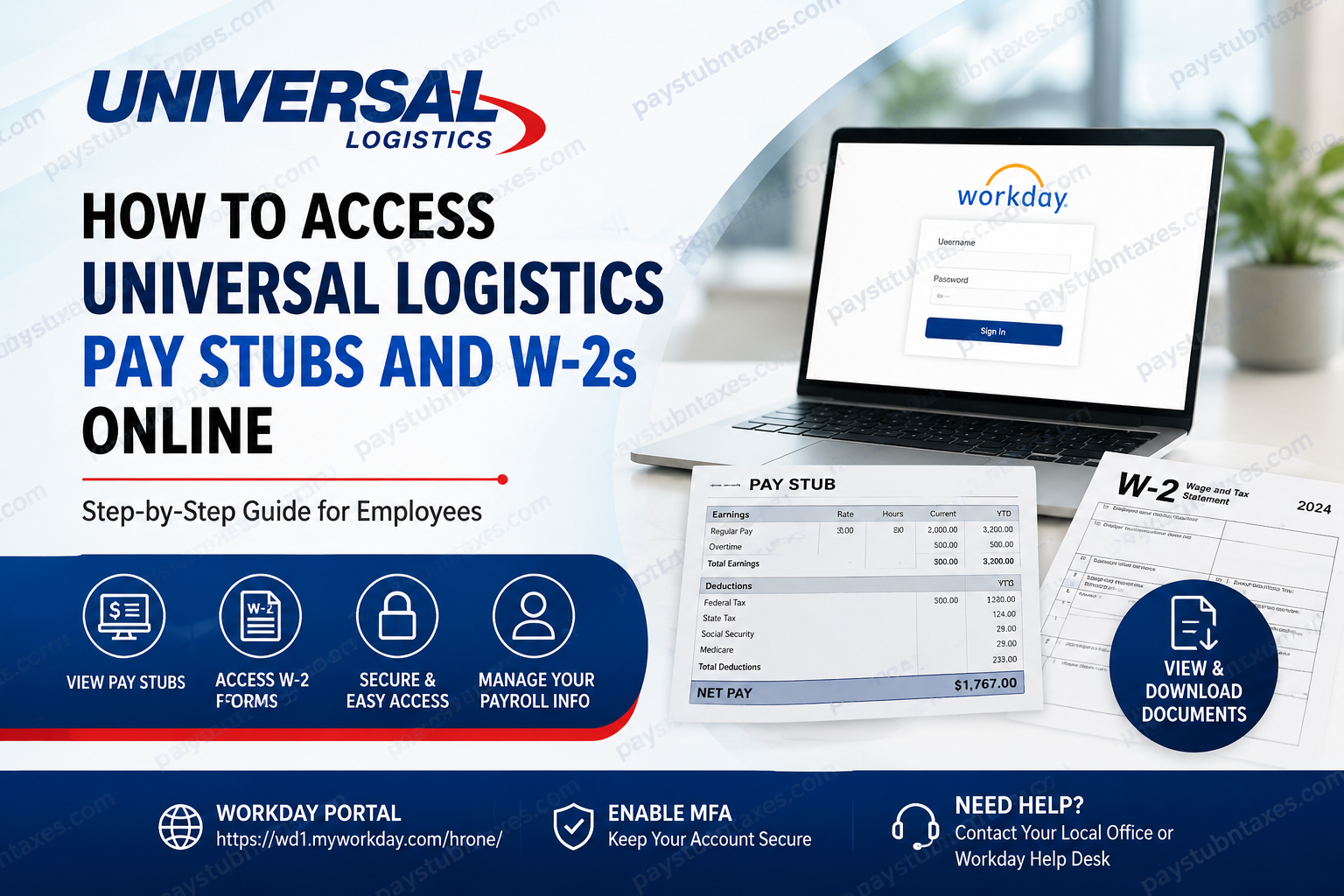
Managing payroll records efficiently has become increasingly important in today’s digital workplace. Whether you need proof of income for a loan application, wish to review deductions, or require your annual tax documents for filing purposes, Universal Logistics employees can conveniently access their pay stubs and W-2 forms online through Workday. Since June 2024, Universal Logistics Holdings, Inc., in partnership with HR-1 Corp., has transitioned its payroll and human resources operations to Workday, creating a centralized platform for employees to manage payroll, benefits, tax documents, and personal information. This comprehensive guide explains how active employees can access their pay stubs and W-2 forms online, verify their National ID information, set up Multi-Factor Authentication (MFA), and troubleshoot common issues.
About Universal Logistics Holdings
Universal Logistics Holdings, Inc. is a leading asset-light provider of customized transportation and logistics solutions across the United States, Canada, and Mexico. The company delivers scalable supply chain services, including transportation, intermodal operations, contract logistics, and global trade management.
With an expansive North American footprint comprising more than 280 locations, over 13 million square feet of facility space, thousands of tractors and trailers, and a people-driven approach, Universal continues to provide seamless logistics solutions to customers across diverse industries.
Universal Logistics Workday Login Portal
Employees of Universal Logistics and HR-1 Corp. can access payroll services through the Workday portal:
Workday Login: https://wd1.myworkday.com/hrone/
The Workday platform allows employees to:
- View and download pay stubs
- Access W-2 tax forms
- Update personal information
- Manage direct deposit details
- View and schedule PTO
- Verify tax and National ID information
- Access payroll-related documents
How to Access Universal Logistics Pay Stubs Online
Retrieving your pay stubs in Workday is straightforward and can be completed in just a few steps.
Step-by-Step Guide
- Visit the Workday login portal.
- Sign in using your credentials.
- Open the Pay application from the menu.
- Select Payslips under the View section.
- Click the desired check date or check number to open the pay stub.
- Download or print your pay statement as needed.
Workday stores all payslips generated after the platform’s launch, while historical pay statements issued before Workday remain accessible through the legacy employee portal. Employees may also print individual or multiple payslips directly from Workday.
How to Access Universal Logistics W-2 Forms Online
Your annual W-2 forms are stored securely in Workday and can be viewed or downloaded whenever needed.
Steps to View W-2 Forms
- Log into Workday.
- Navigate to Pay.
- Click More.
- Select My Tax Documents.
- Choose the desired tax year.
- Open the W-2 using View/Print.
- Download or print the form for your records.
Employees typically receive notification once W-2 forms become available, and tax documents are stored within the My Tax Documents section of Workday.
Verify Your National ID to Ensure Accurate W-2 Forms
One often-overlooked yet critically important step is verifying your National ID information—such as your Social Security Number (SSN) or Social Insurance Number (SIN).
An incorrect National ID may result in inaccurate W-2 or T-4 forms, potentially complicating tax filing. Employees are therefore strongly encouraged to verify their information regularly.
How to Verify National ID in Workday
- Open your profile and select View Profile.
- Navigate to Personal.
- Click the IDs tab.
- Select Verify National ID.
- Enter your SSN or SIN.
- Submit and confirm the success message.
If your information is incorrect:
- Return to the IDs tab.
- Choose Edit → Change My Government IDs.
- Update your SSN or SIN.
- Save and submit the changes.
Employees should avoid adding a second SSN or SIN using the “+” button; instead, edit the existing record.
Set Up Multi-Factor Authentication (MFA)
For enhanced security, Universal Logistics strongly encourages all employees to enable Multi-Factor Authentication (MFA).
MFA adds an additional layer of protection by requiring verification through an authenticator app such as:
- Okta Verify
- Duo Mobile
- Microsoft Authenticator
How to Configure MFA
- Install an authenticator app on your smartphone.
- Sign in to Workday using a browser such as Chrome or Safari.
- Change your temporary password.
- Click Set Up Now when prompted.
- Open your authenticator app and add a new organization account.
- Scan the QR code or manually enter the secret key.
- Enter the six-digit verification code to complete setup.
Passwords must contain:
- At least 8 characters
- One uppercase letter
- One lowercase letter
- One number
- One special character
The MFA setup process significantly strengthens account security and helps protect sensitive payroll information.
Access Workday on Mobile Devices
Employees can also manage payroll information on the go using the Workday mobile app, available for both Android and iPhone devices.
Download Workday Mobile
- Android: Google Play Store
- iPhone/iPad: Apple App Store
After installing the app:
- Search for Workday.
- Download and install the application.
- Open the app.
- Enter your company information and login credentials.
Mobile access provides the convenience of checking pay stubs, tax documents, PTO balances, and personal information anytime, anywhere.
Troubleshooting Workday Access Issues
If you experience login or payroll-related problems:
HR-1 Workday Help Desk
- Phone: (586) 467-0140 Ext. 3606
- Email: tac@datasystemservicesllc.com
Universal Logistics Corporate Office
- Phone: 586-920-0100
Employees may also contact their local office for assistance.
Final Thoughts
Universal Logistics’ migration to Workday has streamlined payroll administration, providing employees with a secure and user-friendly platform for managing pay stubs, W-2 forms, and personal information. By enabling MFA, verifying National ID information, and utilizing the Workday mobile app, employees can ensure seamless access to essential payroll records while safeguarding sensitive data. In an era where efficiency and security go hand in hand, Workday serves as a one-stop digital gateway for all payroll and HR-related needs at Universal Logistics.
Universal Logistics Pay Stubs and W-2 FAQs
1. How do I access my Universal Logistics pay stubs online?
Log in to the HR-1 Workday portal, select Pay, and click Payslips to view, download, or print your pay statements.
2. What is the Universal Logistics Workday login URL?
The official Workday login portal is: https://wd1.myworkday.com/hrone/.
3. Where can I find my W-2 form in Workday?
Navigate to Pay → More → My Tax Documents, then select the tax year to view or download your W-2.
4. When are Universal Logistics W-2 forms available?
W-2 forms are generally issued annually by January 31, in accordance with IRS regulations.
5. Can former employees access their W-2 online?
Access availability may vary after separation. Former employees should contact HR or the Workday Help Desk for assistance.
6. How do I download or print my pay stubs?
Open the desired payslip and use the print or download options available within Workday.
7. Why should I verify my Social Security Number in Workday?
An incorrect SSN or SIN may result in inaccurate W-2 or T-4 tax forms and could delay tax filing.
8. How do I verify my National ID in Workday?
Go to View Profile → Personal → IDs → Verify National ID and confirm your SSN or SIN.
9. What should I do if my SSN is incorrect?
Select Edit → Change My Government IDs, update your information, and submit the changes.
10. Is Multi-Factor Authentication (MFA) required?
While policies may differ, employees are strongly encouraged to enable MFA to protect payroll and personal data.
11. Which authenticator apps work with Workday?
Popular supported apps include Okta Verify, Microsoft Authenticator, and Duo Mobile.
12. Can I access Workday from my mobile device?
Yes. The Workday mobile app is available for both Android and iOS devices.
13. Are old pay stubs available in Workday?
Pay stubs generated after the Workday launch are stored in Workday, while older records may remain in the legacy employee portal.
14. Who do I contact if I cannot log in to Workday?
Contact the HR-1 Workday Help Desk at (586) 467-0140 Ext. 3606 or email tac@datasystemservicesllc.com.
15. What payroll information can I manage in Workday?
Employees can access pay stubs, W-2 forms, PTO balances, direct deposit information, tax documents, and personal details through Workday.
