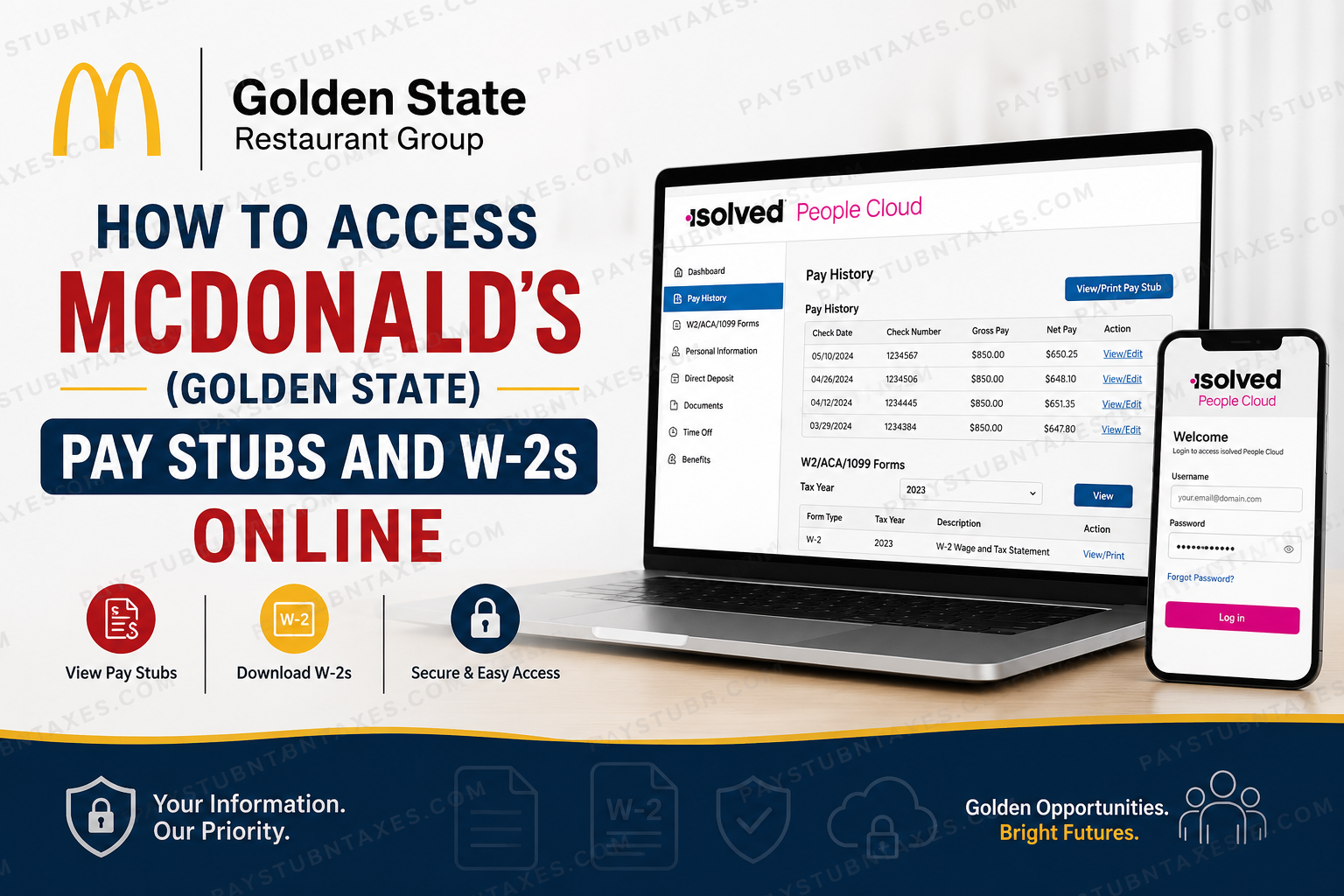
For employees of Golden State Restaurant Group, managing payroll records has never been more convenient. Whether you need a recent pay stub to verify your income, download your annual W-2 for tax filing, or retrieve payroll documents for financial applications, the iSolved People Cloud Employee Self-Service (ESS) Portal provides secure, round-the-clock access from any internet-connected device. Golden State Restaurant Group, a long-standing McDonald’s franchise organization founded in 1966, has built its reputation on investing in people as much as serving customers. Across its California restaurant network, the company continues to create employment opportunities while equipping team members with valuable workplace skills, leadership training, and educational opportunities through programs such as Archways to Opportunity. This guide explains everything current employees need to know about accessing pay stubs and W-2 forms through iSolved, creating an Employee Self-Service account, troubleshooting login issues, and obtaining payroll assistance when needed.
What Is the Golden State Restaurant Group Employee Portal?
Golden State Restaurant Group uses iSolved People Cloud, a cloud-based Human Capital Management (HCM) platform that allows employees to manage many employment-related tasks independently.
Through the Employee Self-Service portal, employees can:
- View current and previous pay stubs
- Download and print W-2 tax forms
- Access ACA and other tax documents (when applicable)
- Review payroll history
- Update selected personal information
- Manage login credentials
- Access payroll information securely from desktop or mobile devices
The portal is designed to provide convenient, self-service access while protecting employee data through secure authentication.
How to Create Your iSolved Employee Account
If this is your first time accessing the Employee Self-Service portal, you’ll first need to activate your account.
Step 1: Provide a Valid Email Address
When you’re hired, provide a valid personal email address during onboarding.
This email becomes your login username and will be used for account activation, password recovery, and payroll notifications.
Step 2: Wait for the Activation Email
After your information has been entered into the payroll system, you’ll receive an email from iSolved inviting you to activate your account.
If you don’t receive the email:
- Check your Spam or Junk folder.
- Verify that your email address is correct.
- Ask your restaurant manager to resend the invitation.
Step 3: Activate Your Account
Visit: https://identity.myisolved.com/
Follow the activation instructions by:
- Creating a secure password
- Selecting security questions
- Completing identity verification
- Setting up multifactor authentication if prompted
How to Log Into iSolved People Cloud
Once your account has been activated:
- Visit the iSolved login page.
- Enter your email address.
- Enter your password.
- Complete any required security verification.
- Sign in to access your Employee Self-Service dashboard.
For enhanced account security, iSolved may require two-factor authentication during login.
How to View Your McDonald’s Pay Stubs
After signing into iSolved:
Step 1: From the left navigation menu, click: Pay History
Step 2: Choose:
- Payroll year
- Check date
Step 3: Click: View/Edit
to open the selected payroll record.
Step 4: To print or save your paycheck:
Click: View/Print Pay Stub
A PDF version will open that can be:
- Downloaded
- Printed
- Saved for future reference
The newest paycheck appears first, while older payroll records can be viewed by selecting another year or scrolling through available pay periods.
Understanding Your Pay Stub
Your pay stub generally includes:
- Employee information
- Pay period dates
- Gross earnings
- Net pay
- Federal tax withholding
- State tax withholding
- Social Security deductions
- Medicare deductions
- Retirement contributions (if applicable)
- Direct deposit information
- Year-to-date totals
Review each paycheck carefully and report any discrepancies promptly.
How to Access Your W-2 Online
Golden State Restaurant Group makes annual W-2 forms available through iSolved before the IRS deadline.
To access your W-2:
- Log into iSolved.
- Select:
W2/ACA/1099 Forms
- Choose the appropriate tax year.
- Open the PDF copy.
- Download or print the form.
Employees typically receive an email notification once the W-2 has been uploaded and is ready for viewing.
When Will My W-2 Become Available?
Golden State Restaurant Group states that electronic W-2 forms are uploaded to iSolved before the January 31 IRS deadline.
Once available, you’ll receive an email notification sent to the email address associated with your Employee Self-Service account.
Using the iSolved Mobile App
Employees who prefer managing payroll on their smartphones can use the iSolved People Cloud Mobile App.
The mobile application allows you to:
- Log in securely
- Complete multifactor authentication
- View payroll information
- Access employment records
- Manage account settings
The app supports both Android and iPhone devices and uses the same login credentials as the desktop portal.
Forgot Your Password?
If you cannot access your account:
- Visit the iSolved login page.
- Click Forgot Password.
- Enter your registered email address.
- Complete the security verification.
- Create a new password.
If your account becomes locked or you continue experiencing login problems, contact your restaurant manager for assistance.
Payroll Assistance
If you have questions regarding:
- Missing paychecks
- Incorrect payroll information
- W-2 forms
- Direct deposit
- Payroll deductions
Speak with your restaurant manager first.
If additional assistance is required, contact the Golden State Restaurant Group corporate office:
Phone: (209) 478-0234
Security Tips
To protect your payroll information:
- Never share your password.
- Enable multifactor authentication whenever available.
- Log out after using shared or public computers.
- Keep your email address current.
- Update your password periodically.
- Download W-2s only on trusted devices.
Conclusion
Golden State Restaurant Group simplifies payroll management by providing employees with secure online access to pay stubs, W-2 forms, and payroll history through the iSolved People Cloud Employee Self-Service portal. Whether you’re reviewing weekly earnings, printing tax documents, or updating your account credentials, the platform offers a reliable and convenient solution that eliminates the need for paper records. By keeping your account information current and regularly monitoring your payroll records, you can ensure quick, uninterrupted access whenever employment or tax documentation is required.
Frequently Asked Questions
1. How do I access my Golden State Restaurant Group pay stubs?
Log into the iSolved People Cloud Employee Self-Service portal, select Pay History from the left-hand menu, choose the desired pay period, and click View/Print Pay Stub to download or print your paycheck.
2. Where can I download my Golden State Restaurant Group W-2?
After logging into iSolved, click W2/ACA/1099 Forms, select the appropriate tax year, and open the PDF version of your W-2.
3. What is the iSolved login website?
Employees can access the Employee Self-Service portal by visiting:
https://identity.myisolved.com/
4. How do I create my iSolved Employee Self-Service account?
Provide a valid email address during hiring. You’ll receive an activation email from iSolved to create your password, verify your identity, and activate your account.
5. What should I do if I never received my activation email?
Check your Spam or Junk folder first. If the email is still missing, ask your restaurant manager to resend the account activation invitation.
6. When will my W-2 become available?
Electronic W-2 forms are generally uploaded to the iSolved portal before the IRS deadline of January 31, and you’ll receive an email notification once they’re available.
7. Can I print my pay stubs?
Yes. Every pay stub can be opened as a PDF and either downloaded or printed directly from the iSolved portal.
8. Can I access previous pay stubs?
Yes. The Pay History section allows employees to view current and past paycheck records, depending on the company’s retention policy.
9. Can I use my smartphone to access payroll information?
Yes. Employees can use the iSolved People Cloud Mobile App or access the web portal from a mobile browser.
10. What if I forgot my iSolved password?
Click Forgot Password on the login page, verify your identity, and create a new password using your registered email address.
11. Is my payroll information secure?
Yes. iSolved uses secure login procedures, including multifactor authentication, to help protect employee payroll and tax information.
12. Can I update my direct deposit information in iSolved?
If your employer enables this feature, you can update direct deposit through the Employee Self-Service portal. Otherwise, contact your restaurant manager for assistance.
13. Can former employees access their W-2 online?
Access for former employees varies. If your account has been deactivated, contact Golden State Restaurant Group’s payroll department or your former manager to request your tax documents.
14. Who should I contact if my pay stub or W-2 is incorrect?
Report payroll issues to your restaurant manager first. If additional help is needed, contact the Golden State Restaurant Group office at (209) 478-0234.
15. Is the iSolved Employee Self-Service portal available 24/7?
Yes. Employees can securely access their pay stubs, W-2s, and payroll records online anytime, provided they have an internet connection and valid login credentials.
