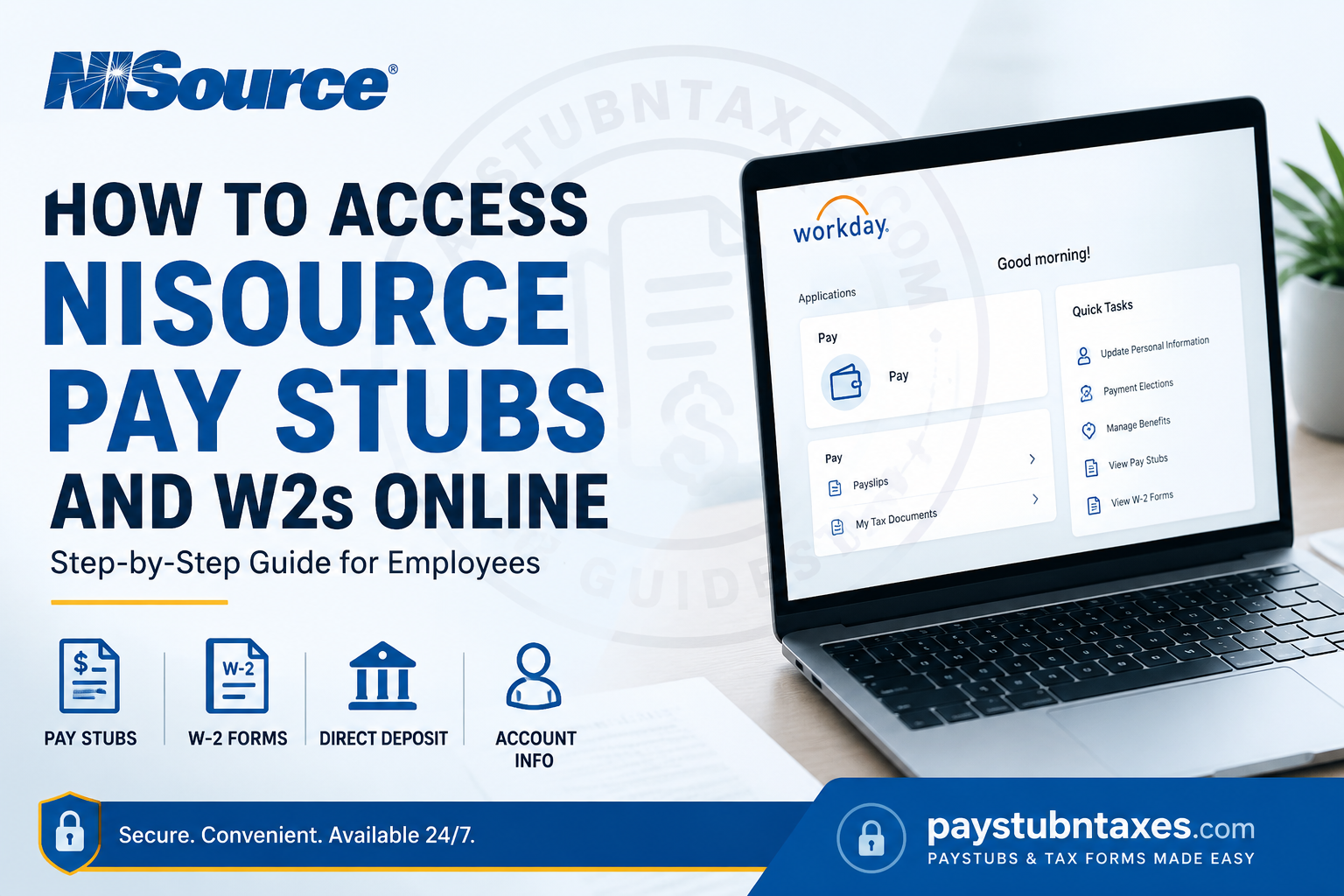
Managing your payroll records should never be complicated, especially when you need quick access to a recent pay stub for a loan application or a W-2 form for tax filing. Fortunately, NiSource provides employees with a secure self-service platform powered by Workday, allowing them to view payroll information, update tax elections, manage direct deposit, and maintain personal records from virtually anywhere. Whether you work for NiSource, NIPSCO, Columbia Gas of Ohio, Columbia Gas of Pennsylvania, Columbia Gas of Kentucky, Columbia Gas of Maryland, or Columbia Gas of Virginia, this comprehensive guide explains exactly how to access your NiSource pay stubs and W-2 forms online.
About NiSource
NiSource Inc. is one of America’s largest fully regulated energy companies, providing natural gas and electric services to approximately four million customers throughout the Midwest and Mid-Atlantic regions. Headquartered in Merrillville, Indiana, the company operates through its trusted utility brands, including Columbia Gas and NIPSCO, employing more than 8,000 professionals across multiple states.
Recognized among Forbes’ America’s Best Large Employers, NiSource has cultivated a workplace that emphasizes innovation, inclusion, employee development, and operational excellence. Whether employees work in customer service, engineering, field operations, finance, information technology, or corporate administration, they rely on Workday’s employee self-service platform to manage payroll and HR information efficiently.
NiSource Employee Payroll Portal
NiSource employees use Workday Self Service for payroll and human resources management.
Workday Portal
https://wd1.myworkday.com/nisource
Current employees authenticate through the company’s Ping Identity Single Sign-On (SSO) system before accessing Workday. The login portal presents a secure company sign-on page where employees enter their corporate credentials to authenticate their identity.
What Can You Do in Workday?
The NiSource Workday portal enables employees to manage nearly every aspect of their employment records, including:
- View and download pay stubs
- Access annual W-2 tax forms
- Print payroll statements
- Update direct deposit information
- Modify federal and state W-4 tax withholding
- Update home address and emergency contacts
- Manage personal information
- Review employment details
- Complete benefits enrollment during eligible periods
Having these resources available through a single secure platform eliminates the need to contact Human Resources for routine payroll requests.
How to Access NiSource Pay Stubs Online
Follow these steps to retrieve your latest paycheck.
Step 1: Visit the Workday Portal
Open your browser and navigate to: https://wd1.myworkday.com/nisource/
Step 2: Sign In
Current employees should log in using their NiSource credentials through Ping Identity SSO.
Enter:
- Username
- Password
After successful authentication, Workday opens your employee dashboard.
Step 3: Open the Pay Application
From the Workday homepage:
- Select Pay
- Choose Payslips
The Payslips section displays every available payroll statement associated with your employee account. The uploaded Workday instructions illustrate that employees access payroll statements through the Pay application and then select Payslips to view available pay periods.
Step 4: Select the Desired Pay Period
A chronological list of payroll dates appears.
Choose the paycheck you want to review.
Step 5: View, Download, or Print
Open the PDF version of your pay stub.
From there you can:
- View earnings
- Review deductions
- Check taxes withheld
- Download the PDF
- Print a physical copy for your records
How to Access Your NiSource W-2 Forms
When annual tax forms become available, employees can retrieve them directly inside Workday.
Step 1: Sign in to Workday
Log in using your Ping Identity credentials.
Step 2: Open the Pay Dashboard
From the Workday homepage: Select: Pay
Step 3: Navigate to My Tax Documents
Within the Pay application, choose: My Tax Documents
The Workday payroll documentation shows that W-2 forms are stored under My Tax Documents, where employees can access available tax years.
Step 4: Locate Your W-2
Available tax years will appear in a list. Find the desired year.
Step 5: Open the Form
Click: View/Print. The W-2 will load in PDF format.
Step 6: Print or Download
Use the toolbar to:
- Print your W-2
- Save a PDF copy
- Review all tax information before filing
The uploaded instructions also indicate that employees can download or print the form directly from the preview window.
How to Update Direct Deposit
Employees can update their banking information inside Workday whenever necessary.
Generally, the process involves:
- Sign into Workday.
- Open the Pay application.
- Select Payment Elections or Direct Deposit.
- Add or modify bank account information.
- Save the changes.
Always verify your banking information carefully before submitting updates to avoid payment delays.
How to Update Your W-4 Tax Withholding
If your filing status changes because of marriage, divorce, or other qualifying life events, Workday allows you to update your tax withholding electronically.
Within the Pay application, you can:
- Update Federal W-4
- Update State withholding
- Adjust exemptions where applicable
Changes are generally reflected in future payroll processing after approval.
Updating Personal Information
Employees can also maintain their personal records inside Workday.
Common updates include:
- Home address
- Mailing address
- Phone number
- Emergency contacts
- Personal email
- Demographic information
Keeping this information current helps ensure tax documents, payroll communications, and benefits information are delivered accurately.
Benefits Enrollment
During open enrollment or following qualifying life events, Workday allows eligible employees to:
- Review medical plans
- Enroll in dental coverage
- Update vision insurance
- Choose retirement contributions
- Review life insurance elections
- Manage dependent information
Troubleshooting Workday Login Problems
If you’re unable to access your account, try the following:
Verify Your Credentials
Confirm you’re using your current NiSource username and password.
Use the Correct Portal
Always access Workday through the official company login page.
Clear Browser Cache
Browser cookies or cached data may interfere with authentication.
Try Another Browser
Switching browsers can sometimes resolve login issues.
Check Network Connection
A stable internet connection is required for secure authentication.
Need Help?
If you experience login difficulties or technical problems with Workday, contact:
NiSource Help Desk
Phone: 1-800-457-2814
The company’s secure sign-on environment is designed to protect employee information, so authentication issues should be resolved through the Help Desk rather than by sharing credentials with coworkers. The sign-on notice also reminds users not to share usernames or passwords and notes that company systems are intended solely for authorized business use.
Conclusion
NiSource has streamlined payroll administration through its Workday Self Service platform, enabling employees to manage pay stubs, W-2 forms, tax withholding, direct deposit, benefits, and personal information from a single secure portal. By combining Workday with Ping Identity Single Sign-On, the company provides a secure, user-friendly experience that gives employees immediate access to essential payroll documents whenever they need them. Whether you are preparing your annual tax return, verifying income, or updating your banking information, Workday makes these tasks straightforward, efficient, and accessible from virtually anywhere.
Frequently Asked Questions
1. How do I log into the NiSource Workday portal?
Visit https://wd1.myworkday.com/nisource/ and sign in using your NiSource username and password through Ping Identity Single Sign-On (SSO).
2. Where can I find my NiSource pay stubs?
After logging into Workday, go to Pay and select Payslips to view, download, or print your pay statements.
3. How can I download my NiSource W-2 form?
Log into Workday, open the Pay application, select My Tax Documents, and choose the appropriate tax year to view or download your W-2.
4. Can I print my pay stubs from Workday?
Yes. Every available pay stub can be opened as a PDF and printed directly from Workday.
5. Can I save my W-2 as a PDF?
Yes. Workday allows you to download your W-2 form as a PDF for your personal records or tax filing.
6. Can I update my direct deposit information online?
Yes. Employees can update bank account information through the Payment Elections or Direct Deposit section in Workday.
7. How do I change my W-4 tax withholding?
Open the Pay application in Workday and update your Federal and State W-4 withholding information.
8. Can I update my home address in Workday?
Yes. Workday lets employees update their mailing address, emergency contacts, phone number, and other personal information.
9. What should I do if I forget my Workday password?
Use your company’s password recovery process or contact the NiSource Help Desk for assistance.
10. Who can access the NiSource Workday portal?
The portal is available to authorized current NiSource employees with valid company login credentials.
11. Is the NiSource Workday portal secure?
Yes. Access is protected by Ping Identity Single Sign-On (SSO) and secure authentication protocols.
12. Can I access Workday from home?
Yes. Employees can securely access the Workday portal from any internet-connected device using their company credentials.
13. What payroll information is available in Workday?
Employees can view pay stubs, W-2 forms, tax withholding details, direct deposit information, benefit elections, and personal employment records.
14. What if my W-2 is missing from Workday?
If your W-2 is unavailable after the annual release period, contact the NiSource Payroll department or the Help Desk for assistance.
15. How do I contact NiSource for Workday login support?
For technical support, contact the NiSource Help Desk at 1-800-457-2814.
