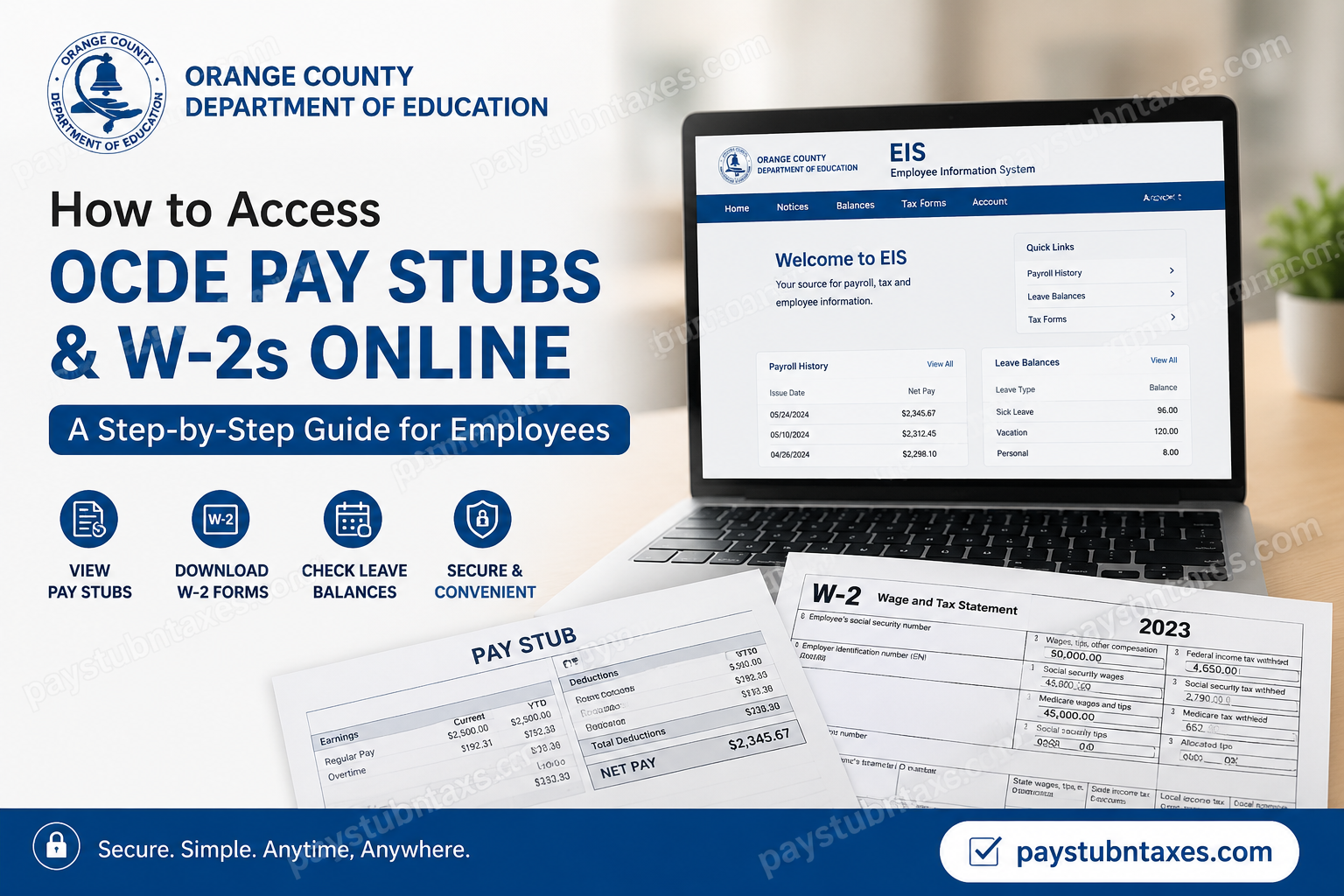
The Orange County Department of Education (OCDE) is one of California’s leading educational service agencies, supporting 28 school districts, more than 600 schools, and approximately 450,000 students across Orange County. Beyond delivering alternative and special education programs, OCDE provides critical administrative services, including payroll processing, fiscal oversight, professional development, and technology support for thousands of education professionals. To make payroll information readily accessible, OCDE offers employees a secure online platform called the Employee Information System (EIS), enabling staff to access pay stubs, W-2 tax forms, leave balances, and personal account information from anywhere and at any time.
What Is the Employee Information System (EIS)?
The Employee Information System (EIS) is OCDE’s self-service payroll and employee portal designed specifically for school district employees throughout Orange County. The platform provides convenient access to:
- Electronic pay stubs
- Annual W-2 forms
- Sick leave and vacation balances
- Payroll history
- Tax documents
- Personal profile and contact information
- Multi-factor authentication settings
More than 11,000 school district employees have already registered and use the system regularly for their payroll needs.
OCDE Employee Portal Login
Official Login Websites
Employees can access the Employee Information System through either of the following portals:
- EIS Portal: https://employee.ocde.us/
- OCDE Apps Portal: https://my.ocdeapps.us/
The system is also available through the OCDE EIS mobile application, which can be downloaded from your device’s app store.
Information Required Before Registering
Before creating your EIS account, make sure you have the following information readily available:
✅ 10-digit Employee ID beginning with 64
✅ Last four digits of your Social Security Number
✅ Date of Birth
✅ Valid Email Address
OCDE recommends using a personal, non-work email address to ensure uninterrupted access to your account.
How to Register for the OCDE EIS Portal
Follow these steps to create your account:
Step 1: Visit the EIS Website
Go to: https://my.ocdeapps.us/
Step 2: Click “Register”
On the login page, select the Register option.
Step 3: Enter Your Information
Provide:
- Employee ID
- Last four digits of SSN
- Date of Birth
- Email address
Step 4: Create a Password
Your password must meet these requirements:
- Minimum of 14 characters
- No spaces, commas, or apostrophes
- Must include at least three of the following:
- Uppercase letters
- Lowercase letters
- Numbers
- Special characters
Step 5: Submit Registration
After reviewing the Terms of Service, click Submit to complete registration.
Set Up Two-Factor Authentication (2FA)
To protect employees’ sensitive payroll information, OCDE requires Two-Factor Authentication (2FA).
During setup:
- Choose your authentication method.
- Verify your device using a security code.
- Save the eight recovery codes displayed on the screen.
You can receive verification codes via:
- Text message
- Phone call
These recovery codes can help you regain access if you lose your authentication device.
How to View OCDE Pay Stubs Online
After logging into EIS:
Step 1: Select Balances from the top navigation menu.
Step 2: Choose Payroll History.
Step 3: A list of available pay periods will appear.
Step 4: Click on the Issue Date to:
- View your paycheck information
- Download a PDF copy
- Print your pay stub
The Payroll History page automatically displays the current calendar year, but previous years can be accessed by selecting a different year from the dropdown menu.
How to Access Your OCDE W-2 Form
To view your tax documents:
Step 1: Log in to EIS.
Step 2: Select Tax Forms.
Step 3: Click on the desired tax year.
Step 4: Download or print your W-2 Wage and Tax Statement.
The Tax Forms section may also include:
- Form 1095-C (Affordable Care Act)
- Total Compensation Statements (if applicable).
How to Check Sick Leave and Vacation Balances
The EIS system allows employees to monitor their leave balances in real time.
Navigate to: Balances → Leave Balances
The page displays:
- Beginning balance
- Hours earned
- Hours taken
- Ending balance
Employees can also review leave events using the interactive calendar.
How to Reset Your Password
If you forget your password:
- Click Forgot Password?
- Confirm your registered email address.
- Select Reset Password.
- Follow the instructions sent to your email.
How to Recover Your Email Address
If you forget your login email:
- Click Forgot Email Address?
- Enter:
- Employee ID
- Last four digits of SSN
- Date of Birth
The system will display the email address associated with your account.
What Happens If Your Account Gets Locked?
After four unsuccessful login attempts, your account will automatically lock for 30 minutes.
After the waiting period:
- Verify your email address.
- Reset your password if necessary.
- Attempt to log in again.
How to Reset Your Entire EIS Account
A complete account reset may be required if:
- You no longer have access to your two-factor authentication device.
- Your recovery codes have been lost or used.
To request an account reset:
- Click Account Reset on the login page.
- Complete the EIS Account Reset Form.
- Upload a government-issued ID.
- Submit the form.
Your district will generally contact you within 5 to 10 business days to verify your identity and restore access.
Need Help Finding Your Employee ID?
If you cannot locate your Employee ID, contact the AUHSD Payroll Department:
📞 (714) 999-3594
OCDE Contact Information
Orange County Department of Education
200 Kalmus Drive
Costa Mesa, CA 92626
Phone: (714) 966-4000
Final Thoughts
The Orange County Department of Education’s Employee Information System has transformed payroll management into a streamlined, paperless experience. Whether you need to download a recent pay stub, retrieve an old W-2, review your leave balances, or update your account information, EIS places everything at your fingertips through a secure and user-friendly platform. By registering for EIS and keeping your account information up to date, you can manage your payroll records efficiently and avoid the hassle of requesting paper copies—an indispensable convenience in today’s increasingly digital workplace.
Frequently Asked Questions
1. What is the OCDE Employee Information System (EIS)?
The Employee Information System (EIS) is an online self-service portal that allows Orange County school district employees to access pay stubs, W-2 forms, leave balances, and payroll information.
2. Where can I log in to the OCDE EIS portal?
You can log in at:
- https://employee.ocde.us
- https://my.ocdeapps.us
3. Who can use the EIS portal?
Current employees of Orange County school districts and participating educational agencies can use the EIS portal.
4. What information do I need to register for EIS?
You need:
- A 10-digit Employee ID beginning with 64
- Last four digits of your Social Security Number
- Date of Birth
- A valid email address
5. How do I view my pay stubs online?
Log in to EIS, click Balances, select Payroll History, and click the issue date to view or download your pay stub.
6. How do I download my W-2 form?
After logging in, select Tax Forms, choose the applicable tax year, and download your W-2 form as a PDF.
7. Can I print my pay stubs and W-2 forms?
Yes. Both pay stubs and W-2 forms can be downloaded and printed directly from the portal.
8. Is there a mobile app for OCDE EIS?
Yes. Employees can access EIS through the OCDE EIS mobile application, available in mobile app stores.
9. How do I reset my EIS password?
Click Forgot Password? on the login page and follow the instructions sent to your registered email address.
10. What should I do if I forgot my email address?
Select Forgot Email Address? and provide your Employee ID, date of birth, and last four digits of your Social Security Number.
11. Why is my EIS account locked?
Your account becomes locked after four unsuccessful login attempts and remains locked for 30 minutes.
12. What is Two-Factor Authentication (2FA)?
Two-Factor Authentication is an additional security feature that requires a verification code sent to your phone or authentication device when you sign in.
13. Can I access old pay stubs?
Yes. Payroll History allows employees to select previous calendar years and download older pay stubs.
14. How do I check my sick leave and vacation balances?
Log in to EIS and click Balances → Leave Balances to view available leave information.
15. Who should I contact if I cannot find my Employee ID?
Contact the AUHSD Payroll Department at (714) 999-3594 for assistance locating your Employee ID.
