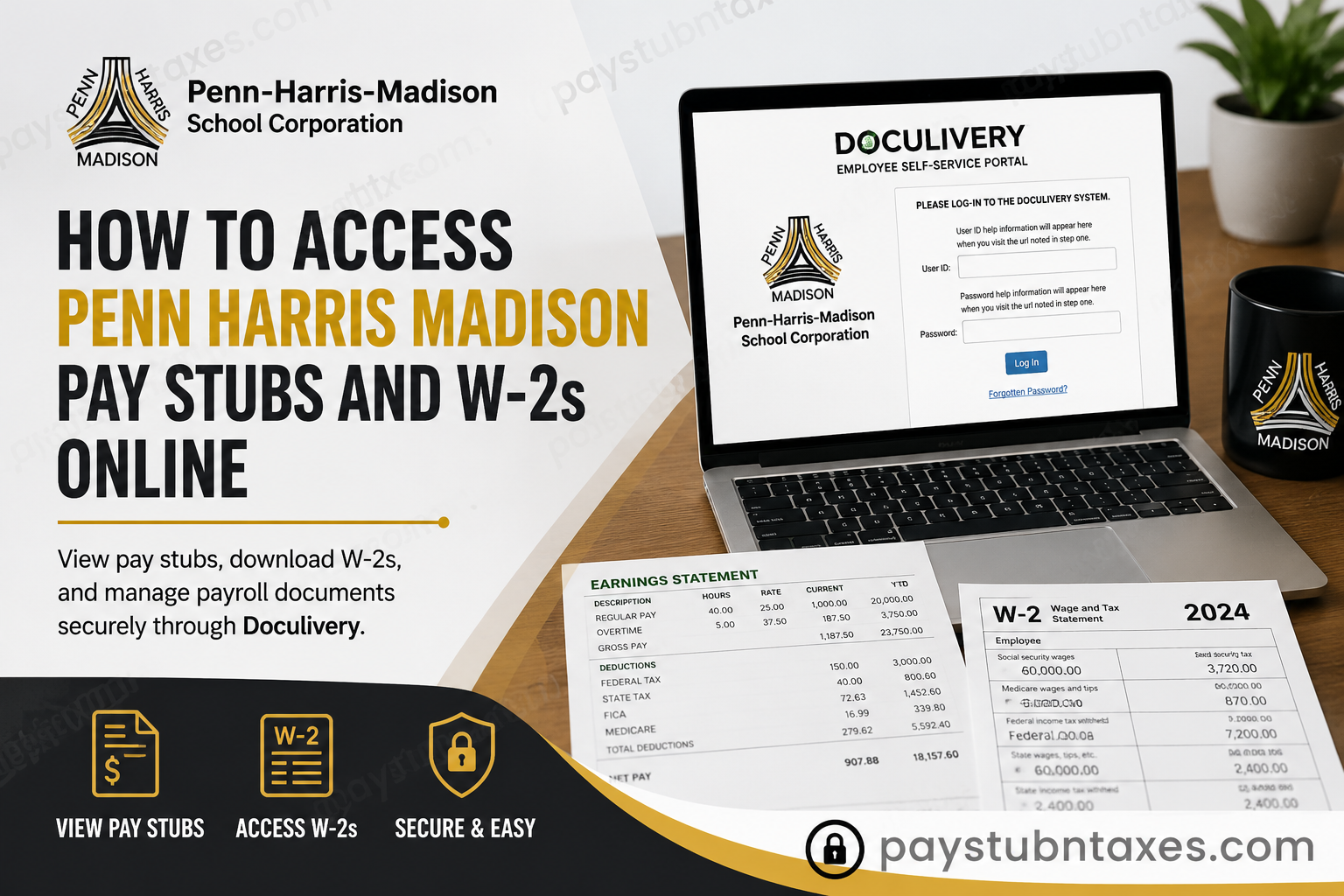
Managing your payroll and tax records should never be a complicated process. Fortunately, Penn-Harris-Madison (P-H-M) School Corporation provides employees with secure, round-the-clock access to electronic pay statements and tax documents through the Doculivery Self-Service Portal. Whether you need to review your latest paycheck, download a previous pay stub, or retrieve your annual W-2 form for tax filing, the portal makes the entire process straightforward and efficient. This comprehensive guide explains everything current employees need to know about accessing their Penn Harris Madison pay stubs and W-2 forms online, including first-time login instructions, password setup, electronic W-2 enrollment, troubleshooting tips, and answers to frequently asked questions.
About Penn-Harris-Madison School Corporation
Penn-Harris-Madison School Corporation (P-H-M) is one of Indiana’s most respected public school districts, serving communities throughout Mishawaka, Granger, Osceola, South Bend, and surrounding areas in St. Joseph County. Renowned for its exceptional academic standards and long-standing tradition of excellence, the district consistently ranks among Indiana’s highest-performing public school corporations and serves more than 11,000 students across numerous elementary, middle, and high schools.
Beyond educational excellence, P-H-M also invests in modern technology for its workforce, enabling employees to securely manage payroll documents electronically through Doculivery.
What is the Penn Harris Madison Doculivery Portal?
The Doculivery Employee Self-Service Portal is the official online payroll system used by Penn-Harris-Madison School Corporation for distributing employee payroll and tax documents.
Through Doculivery, employees can:
- View current and previous pay stubs
- Download and print payroll statements
- Receive electronic W-2 forms
- Save tax documents as PDF files
- Email payroll documents securely
- Configure email and text message notifications
- Update certain payroll preferences and account settings
Because the portal is cloud-based, employees can access their payroll records anytime from virtually any internet-connected device.
Penn Harris Madison Doculivery Login
Official Employee Portal
https://my.doculivery.com/External/PHMSchools/Login.aspx
Login Credentials
Your initial login information is straightforward:
User ID: Your LAST NAME (entered in ALL CAPITAL LETTERS) followed immediately by the last four digits of your Social Security Number.
Example: SMITH1234
Initial Password: PHMSchools
After signing in for the first time, you’ll be required to create a new password and establish security questions before accessing payroll documents.
First-Time Login Instructions
If you’re a newly hired employee, follow these steps:
- Open the Penn Harris Madison Doculivery login page.
- Enter your User ID.
- Enter the temporary password PHMSchools.
- Select Log In.
- Answer the required security questions.
- Create a strong permanent password.
- Add a valid personal email address.
- Save your new account settings.
Your employee profile is generally available approximately one week after your new hire paperwork has been processed.
How to View Penn Harris Madison Pay Stubs
After successfully logging into Doculivery:
Step 1: Click the Pay Stubs tab.
Step 2: Locate the paycheck you wish to view.
Step 3: Click the blue Click to View icon beside the desired pay date.
Your complete earnings statement will immediately appear.
The pay stub typically includes:
- Gross earnings
- Net pay
- Federal and state tax withholdings
- Retirement deductions
- Insurance deductions
- Direct deposit information
- Year-to-date earnings
- Paid leave balances (when applicable)
How to Download or Print Pay Stubs
Once your pay stub opens, several options become available.
Select Print HTML Statement to print the earnings statement directly.
Download PDF
Choose View as PDF to generate a downloadable PDF version.
You may then:
- Save it to your computer
- Store it on a USB drive
- Upload it to secure cloud storage
- Print additional copies whenever necessary
Email Your Pay Stub
Doculivery also allows employees to email their pay stubs securely using available delivery options.
How to Access Your Penn Harris Madison W-2 Online
Electronic W-2 access requires employees to opt in before the tax form becomes available electronically.
After opting in:
Step 1: Select the W-2 tab.
Step 2: Click the Click to View icon.
Step 3: A security prompt will request verification.
Step 4: Enter your Social Security Number without dashes.
Step 5: Enter your password if prompted.
Step 6: Open or download your W-2 PDF.
You can then:
- Print the W-2
- Save it electronically
- Email it securely
- Use it while preparing your tax return
The guide also explains that employees may later update their W-2 delivery email or opt out of electronic delivery if they prefer receiving a paper copy.
Set Up Payroll Notifications
Doculivery provides convenient notification options whenever a new paycheck becomes available.
Employees can configure:
- Email alerts
- Email delivery of pay stubs
- SMS notifications
- Detailed text message alerts
These settings can be managed directly from the Pay Stubs page.
Forgot Your Password?
If you cannot remember your password:
- Select Forgotten Password on the login page.
- Complete the identity verification process.
- Reset your password.
- Sign in using your new credentials.
If additional assistance is required, contact the Payroll Department.
Tips for Protecting Your Payroll Account
To keep your payroll information secure:
- Create a unique, complex password.
- Never share your login credentials.
- Update your password periodically.
- Log out after every session, particularly on shared devices.
- Keep your email address current to receive important payroll notifications.
Troubleshooting Login Problems
If you’re unable to access Doculivery:
- Verify your User ID uses your last name in all capital letters followed by the last four digits of your Social Security Number.
- Confirm that you’re entering the correct password.
- Complete the first-time registration if you are a new employee.
- Ensure your account has been activated after onboarding.
- Use the password recovery feature if necessary.
- Clear your browser cache or try a different browser if login issues persist.
Payroll Support
For payroll assistance or account access issues, employees may contact:
Traci Thomas
Phone: (574) 367-3400
Ashley Smith
Phone: (574) 258-9560
Conclusion
Penn-Harris-Madison School Corporation has simplified payroll management by providing employees with secure online access through the Doculivery Employee Self-Service Portal. From downloading the latest pay stub to retrieving historical earnings statements and electronically accessing annual W-2 forms, the platform offers a reliable and user-friendly solution that eliminates unnecessary paperwork while ensuring employees have immediate access to essential payroll records whenever they need them. By completing the initial account setup, enabling electronic W-2 delivery, and configuring payroll notifications, employees can enjoy a seamless, efficient, and secure payroll experience throughout the year.
Frequently Asked Questions
1. How do I access my Penn Harris Madison pay stubs online?
Visit the Penn Harris Madison Doculivery portal, log in with your User ID and password, and click the Pay Stubs tab to view or download your earnings statements.
2. What is the official Penn Harris Madison Doculivery login website?
The official employee payroll portal is: https://my.doculivery.com/External/PHMSchools/Login.aspx
3. What is my Doculivery User ID?
Your User ID is your last name in ALL CAPITAL LETTERS followed by the last four digits of your Social Security Number.
Example: SMITH1234
4. What is the default password for first-time users?
First-time users should use: PHMSchools
After logging in, you’ll be prompted to create a new secure password.
5. How do I download my Penn Harris Madison pay stub?
Open the Pay Stubs tab, select the desired pay date, click Click to View, and choose View as PDF or Print HTML Statement.
6. Can I print my pay stubs?
Yes. After opening your pay stub, select Print HTML Statement or print the PDF version.
7. How do I view my W-2 online?
Log into Doculivery, open the W-2 tab, click the Click to View icon, verify your identity by entering your Social Security Number, and download your W-2.
8. Do I need to opt in for electronic W-2 delivery?
Yes. Employees must consent to electronic W-2 delivery before W-2 forms become available online.
9. Can I save my W-2 as a PDF?
Yes. Your electronic W-2 can be opened, downloaded, printed, or saved as a PDF for tax filing.
10. When will my Doculivery account become available?
Your employee account is generally activated approximately one week after completing new hire paperwork.
11. Can I receive email notifications when new pay stubs are available?
Yes. Doculivery allows employees to enable email notifications and optional text message alerts for new payroll documents.
12. What should I do if I forget my password?
Click Forgotten Password on the Doculivery login page and follow the password recovery instructions.
13. Can former employees access Doculivery?
Former employees may have limited access depending on district policy. If access is unavailable, contact the Payroll Department for assistance with obtaining payroll or tax documents.
14. Is Doculivery secure?
Yes. Doculivery uses password-protected authentication and secure encryption to help protect employee payroll and tax information.
15. Who should I contact if I have problems accessing my pay stubs or W-2?
For payroll assistance, contact:
- Traci Thomas: (574) 367-3400
- Ashley Smith: (574) 258-9560
