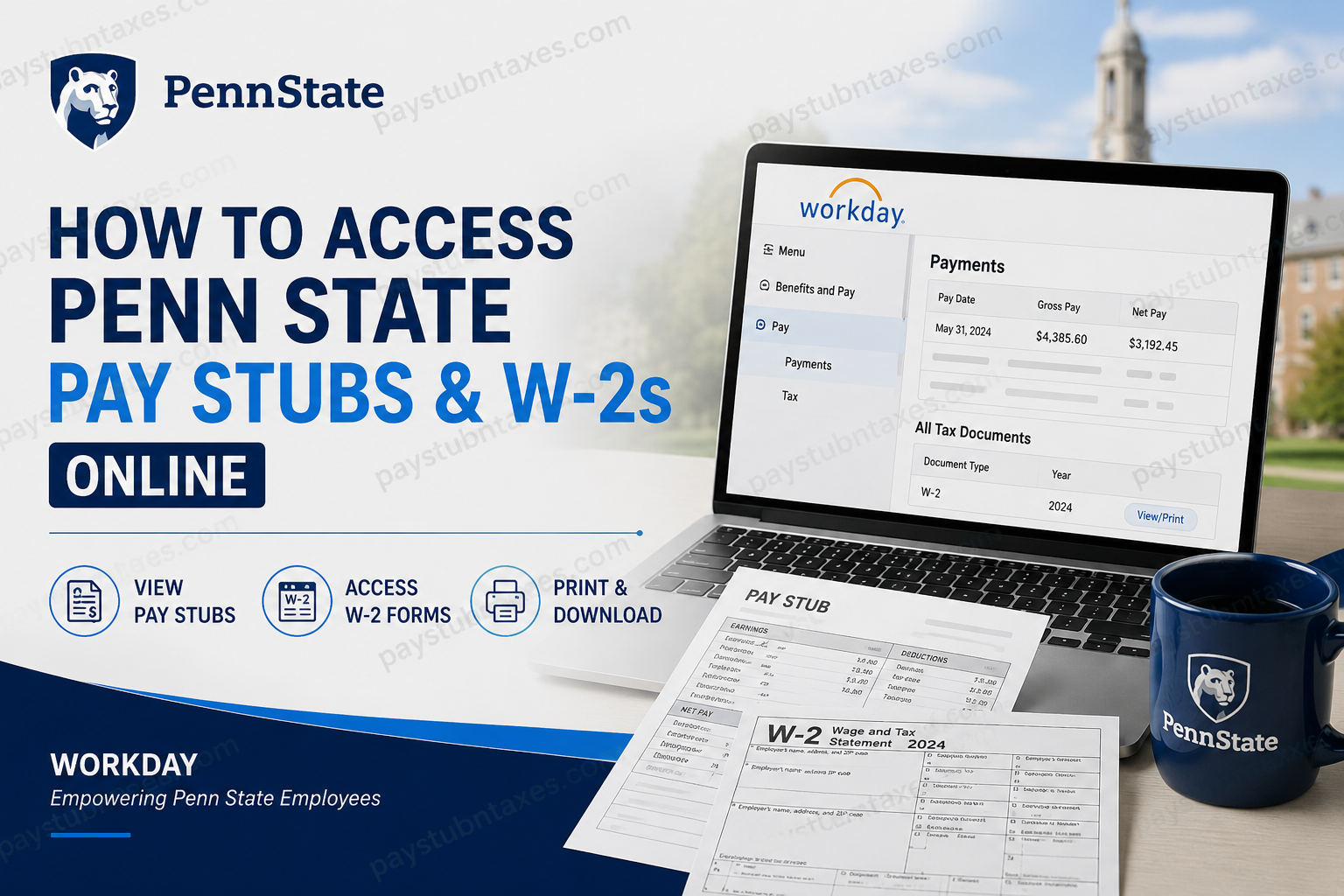
For nearly nine decades, Penn State University has stood as a beacon of academic excellence, innovation, and public service. With more than 88,000 students and 17,000 faculty and staff spread across 24 campuses, the University has cultivated a global reputation for preparing leaders who shape communities and industries alike. Behind this world-class institution lies an equally robust administrative infrastructure, including a modern payroll system that enables employees to access their compensation and tax information conveniently and securely. If you are a faculty member, staff employee, technical service worker, or student employee, this guide explains everything you need to know about accessing your Penn State pay stubs and W-2 forms online through Workday.
What Is Penn State Workday?
Workday is Penn State’s centralized Human Resources and Payroll platform. Through Workday, employees can:
- View and print pay stubs
- Access W-2 tax forms
- Update direct deposit information
- Manage tax elections
- Review leave balances
- Access timesheets and payroll history
- Update personal information and benefits elections
Penn State Workday Login Information
- Workday Portal: https://www.myworkday.com/psu/d/home.htmld
- Workday Mobile App Organization Code: psu
- Login Method: Microsoft Single Sign-On (SSO)
How to Access Penn State Pay Stubs Online
Current employees can view and print their pay slips directly through Workday.
Step 1: Sign In to Workday
Visit the Penn State Workday portal and sign in using your Penn State credentials through Microsoft Single Sign-On.
Step 2: Open Benefits and Pay
After logging in:
- Click Menu in the upper-left corner.
- Select Benefits and Pay.
Step 3: Navigate to Payments
- Select Pay from the left navigation menu.
- Click Payments.
You will now see:
- Pay date
- Gross earnings
- Net pay
- Taxes withheld
- Deductions
- Historical pay statements
The Workday payment screen also allows employees to print individual or multiple pay slips for a selected date range.
How to Print Your Pay Stubs
To print a single pay stub:
- Open the desired pay statement.
- Click Print.
To print multiple pay slips:
- Select View All Payslips.
- Click Print Multiple Payslips.
- Choose the desired date range.
- Generate a PDF containing the selected pay statements.
How to Access Penn State W-2 Forms Online
Every employee who receives wages through the Penn State payroll system and has taxes withheld receives a Form W-2 annually.
The W-2 reports:
- Annual earnings
- Federal taxes withheld
- State taxes withheld
- Local taxes withheld
Penn State typically makes electronic W-2 forms available in Workday before paper copies are mailed. Employees who request paper delivery generally receive their forms by January 31 each year.
Steps to View Your W-2 in Workday
Step 1: Log into Workday
Access your account using Microsoft SSO.
Step 2: Navigate to Tax Information
- Click Menu.
- Select Benefits and Pay.
- Choose Pay.
- Click Tax.
Step 3: Access Tax Documents
Under All Tax Documents, you will see:
- Current-year W-2
- Previous-year W-2 forms
- Tax document history
Click View/Print next to the desired tax year to open your W-2. From there, you can download or print the document.
How to Enroll in Electronic W-2 Delivery
Receiving your W-2 electronically is often faster than waiting for a paper copy in the mail.
To enable electronic delivery:
- Navigate to Benefits and Pay → Pay → Tax.
- Locate Tax Forms Printing Elections.
- Select Edit.
- Choose:
Receive electronic copy of my Year-End Tax Documents
- Click OK.
- Click Done to save your preference.
Leaving Penn State? Here’s How You’ll Receive Your W-2
Former employees generally receive their W-2 by mail using the address that was on file when the forms were created.
To avoid delays:
- Update your mailing address before leaving employment.
- Verify that your personal information is accurate.
If you cannot update your address online, contact HR Shared Services for assistance.
How to Update Direct Deposit Information
Penn State employees can manage banking information through Workday.
To update your direct deposit:
- Sign into Workday.
- Open your payment elections.
- Add or modify bank account information.
- Save your changes.
Employees should notify Payroll immediately if banking information changes after payroll processing has begun.
How to Update Tax Elections
Workday also allows employees to update:
- Federal withholding elections (Form W-4)
- State withholding elections
- Additional withholding amounts
- Marital status
- Dependent information
Navigate to: Benefits and Pay → Pay → Tax → Tax Elections
Select Update to make any necessary changes.
What If You Cannot Access Your Pay Stub?
If you cannot retrieve your pay statement through Workday, Penn State permits employees to request a duplicate pay stub by contacting the Payroll Office directly.
Penn State Payroll and HR Contact Information
WorkLion Portal
Submit an inquiry through the WorkLion Portal.
HR Shared Services
Phone: 814-865-1473
Payroll Office
Email: payroll@psu.edu
These offices can assist with:
- Login problems
- W-2 requests
- Address updates
- Payroll discrepancies
- Direct deposit issues
- Tax questions
Final Thoughts
Penn State’s Workday platform has transformed payroll administration into a streamlined, user-friendly experience. Whether you need to download a recent pay stub, retrieve a prior-year W-2, update direct deposit information, or modify tax elections, the system places these essential payroll functions at your fingertips. By taking advantage of Workday’s self-service features, Penn State employees can manage their financial records efficiently, securely, and without unnecessary paperwork—allowing them to devote more of their energy to the University’s enduring mission of teaching, research, and public service.
FAQ
1. How do I log in to Penn State Workday?
Visit the Penn State Workday portal and sign in using your Penn State username and password through Microsoft SSO.
2. What is the Penn State Workday website?
The official Workday login page is: https://www.myworkday.com/psu/d/home.htmld
3. How do I view my Penn State pay stubs?
Go to Menu → Benefits and Pay → Pay → Payments to view all available pay statements.
4. Can I print my pay stubs from Workday?
Yes. Open the desired payslip and click the Print button.
5. Can I print multiple pay stubs at once?
Yes. Select View All Payslips, then choose Print Multiple Payslips and specify a date range.
6. How do I access my Penn State W-2 online?
Navigate to Menu → Benefits and Pay → Pay → Tax → All Tax Documents and select View/Print.
7. When are Penn State W-2 forms available?
Electronic W-2 forms are generally available in January, and paper copies are mailed by January 31.
8. Can former employees access their W-2 forms?
Yes. Former employees generally receive their W-2 by mail at the address on file.
9. How do I enroll in electronic W-2 delivery?
Go to Pay → Tax → Tax Forms Printing Elections, select Edit, and choose electronic delivery.
10. What is the Workday mobile app organization code for Penn State?
The organization code is psu.
11. Can I update my direct deposit information in Workday?
Yes. Employees can update banking and payment elections directly within Workday.
12. How do I change my tax withholding information?
Navigate to Benefits and Pay → Pay → Tax → Tax Elections and update your federal or state withholding information.
13. What should I do if I cannot access Workday?
Contact HR Shared Services or submit an inquiry through the WorkLion Portal.
14. Who do I contact about payroll questions?
You can call 814-865-1473 or email payroll@psu.edu.
15. What information is included on my W-2 form?
A W-2 includes your annual wages, federal tax withheld, state taxes, local taxes, and other payroll deductions.
