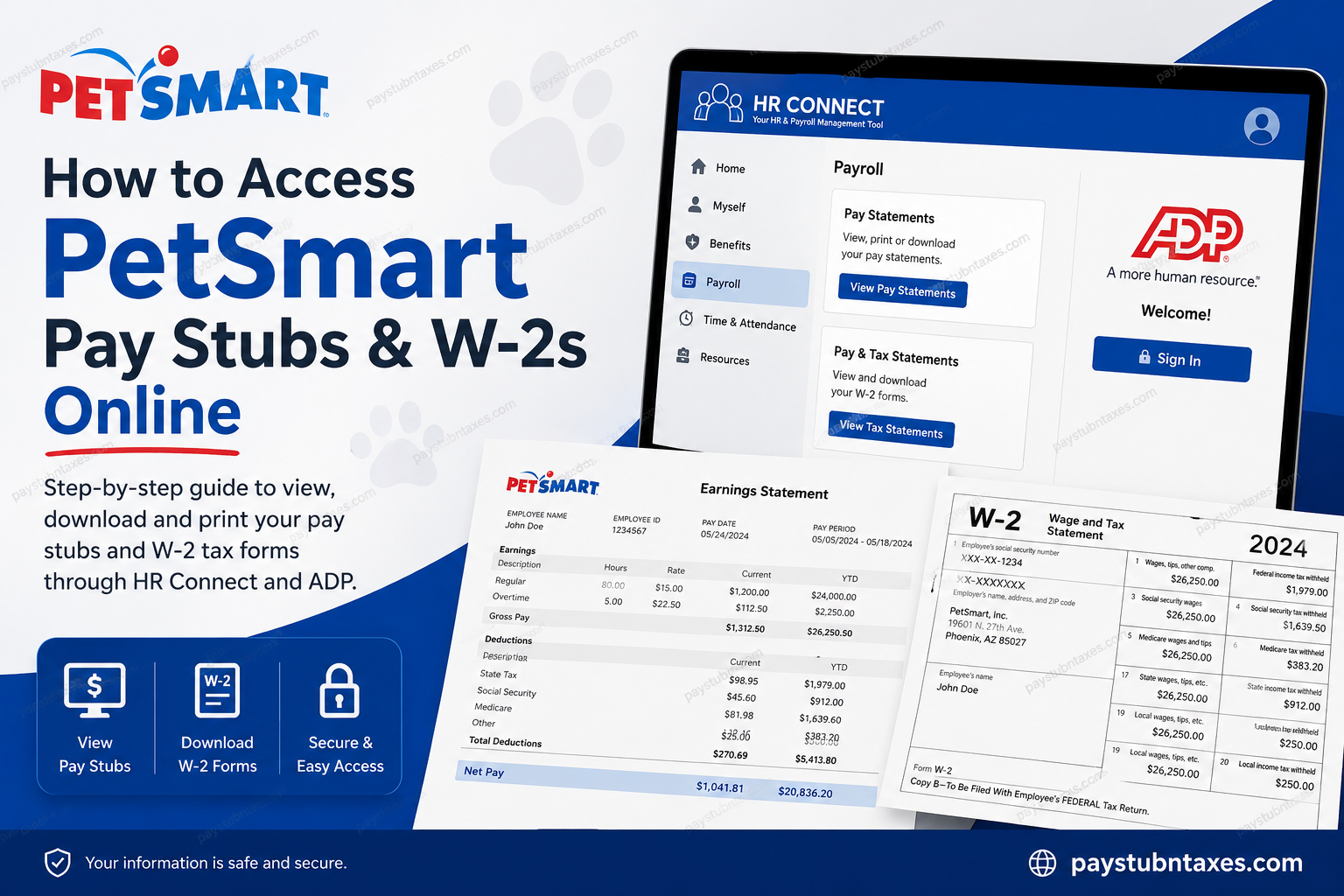
PetSmart has built its reputation on one simple philosophy: Anything for Pets. With more than 1,660 stores, distribution centers, and home offices across North America, the company employs approximately 50,000 associates dedicated to improving the lives of pets and the people who love them. Just as PetSmart invests in the well-being of pets, it also prioritizes providing its associates with convenient and secure access to payroll information. Whether you need a recent paycheck, year-to-date earnings, or your annual W-2 tax form, PetSmart offers a streamlined digital solution through HR Connect and ADP Self Service. This comprehensive guide explains exactly how current and former PetSmart employees can access, download, and print their pay stubs and W-2 forms online.
About PetSmart
Founded in 1986 in Phoenix, Arizona, PetSmart has grown into North America’s largest specialty pet retailer, operating thousands of locations across the United States and Canada and offering services including grooming, training, veterinary care, boarding, and pet adoption.
Today, PetSmart continues to foster a workplace culture that values compassion, innovation, and community involvement through initiatives such as PetSmart Charities, which has helped millions of pets find permanent homes.
How Current Employees Access Pay Stubs
PetSmart associates can view pay statements through the company’s HR Connect portal.
Step 1: Sign in to HR Connect
Visit:https://hrconnect.petsmart.com
Click: Log on to HR Connect
Step 2: Enter Your User ID
You may use either:
- Your PetSmart username (example: ASmith)
- Your associate/discount number if you do not have a named user ID.
Step 3: Enter Your Password
- Employees with a named user ID should use their Windows/Active Directory password.
- Other associates should use their EPIN.
Step 4: Navigate to Payroll
After signing in: HR Connect → Payroll → Pay Statements
The system redirects you into ADP, where your pay records are securely stored.
How to View and Download Pay Stubs in ADP
Inside ADP:
- Select Myself.
- Click Pay.
- Choose Pay Statements.
- Select the paycheck you want to review.
- Click View Statement to open the pay stub.
- Download or print the PDF for your records.
ADP typically retains up to three years of available pay statements, depending on company settings.
Accessing Pay Stubs Using the ADP Mobile App
Employees who prefer managing payroll information on their phones can use the ADP Mobile Solutions App.
Steps:
- Download the ADP Mobile app.
- Sign in using your ADP credentials.
- Tap Pay.
- Select View All Statements.
- Open the desired paycheck.
- Download, share, or print the PDF directly from your device.
The mobile app also allows you to:
- Compare paychecks
- View year-to-date earnings
- Download multiple statements simultaneously.
How to Access PetSmart W-2 Forms Online
PetSmart distributes W-2 tax forms electronically through ADP.
Method 1: Through HR Connect
Log into: HR Connect → Payroll → ADP
Then: Myself → Pay → Pay & Tax Statements
Under the Tax Statements section:
- Select your tax year.
- Open your W-2.
- Download or print your form.
Method 2: Directly Through ADP
Visit: https://my.adp.com
Sign in using your ADP credentials and access: Pay → Pay & Tax Statements → View All Statements.
A security verification may be required before viewing your tax document.
First-Time ADP Registration
If you have never accessed ADP before, registration is straightforward.
Step 1: Go to: https://my.adp.com
Click: Get Started
Step 2: Choose: I Have a Registration Code
Step 3: Enter the PetSmart registration code: PETM-PETS
Step 4: Verify your identity by providing:
- Name
- Employee information
- Contact information
- Security verification details
Step 5: Create:
- Username
- Password
- Security settings
Your account will then be activated for immediate access.
Setting Up Your PetSmart Single Sign-On Account
Before using HR Connect for the first time, employees may need to activate their Single Sign-On account.
The setup process includes:
- Creating a new password
- Setting security questions
- Adding a mobile number
- Adding a personal email address for password recovery.
Password Requirements
Your password must:
- Contain at least eight characters
- Include one uppercase letter
- Include one lowercase letter
- Include one number
- Not contain your username
- Not contain three consecutive identical characters.
Go Paperless for Faster Access
PetSmart employees can opt to receive payroll documents electronically.
Benefits include:
- Instant access to documents
- Reduced paper clutter
- Email notifications
- Secure online storage.
To enroll: Myself → Pay → Pay Statements → Go Paperless
Accept the agreement and confirm your email address.
Former Employees: How to Get Pay Stubs and W-2s
Former PetSmart associates generally retain access through: https://my.adp.com
If your account is inactive:
- Select Forgot User ID or Forgot Password.
- Verify your identity.
- Regain access to your payroll records.
If you are unable to log in, contact HR Shared Services for assistance.
PetSmart Payroll Contact Information
HR Shared Services Team
Phone: 1-866-263-8411
Email: hrsharedservices@petsmart.com
Support representatives can assist with:
- Login issues
- Password resets
- W-2 corrections
- Missing pay statements
- ADP registration problems.
Final Thoughts
PetSmart has simplified payroll management by integrating HR Connect with ADP Self Service, giving associates round-the-clock access to pay stubs, tax forms, and payroll records. Whether you’re a current employee checking your latest earnings or a former associate retrieving a W-2 for tax season, the process is secure, efficient, and accessible from virtually anywhere. By registering your ADP account, enabling paperless delivery, and keeping your contact information up to date, you can ensure that your payroll information is always just a few clicks away.
Frequently Asked Questions
1. How do I access my PetSmart pay stubs online?
Log into HR Connect at hrconnect.petsmart.com, select Payroll, and access your pay statements through ADP.
2. What website does PetSmart use for payroll?
PetSmart uses ADP Self Service and HR Connect for payroll management and tax documents.
3. What is the PetSmart ADP registration code?
The registration code for PetSmart employees is PETM-PETS.
4. Can former PetSmart employees access their W-2 online?
Yes. Former employees can sign in directly at my.adp.com to access W-2s and pay statements.
5. How do I download my PetSmart W-2?
Go to Pay → Pay & Tax Statements in ADP, select the tax year, and click Download.
6. Can I print my pay stubs from ADP?
Yes. ADP allows employees to download and print pay statements in PDF format.
7. Does PetSmart have a payroll mobile app?
Yes. Employees can use the ADP Mobile Solutions app to access payroll documents on their smartphones.
8. What if I forgot my ADP username or password?
Use the Forgot User ID or Forgot Password links on the ADP login page to recover your account.
9. How long are pay stubs available in ADP?
Available pay statements are generally accessible for several years, depending on company retention policies.
10. How do I register for an ADP account?
Visit my.adp.com, select Get Started, choose I Have a Registration Code, and enter PETM-PETS.
11. Can I receive my W-2 electronically?
Yes. Employees can enroll in paperless tax statements and receive electronic W-2 forms through ADP.
12. What should I do if my W-2 is incorrect?
Contact the PetSmart HR Shared Services Team immediately to request a correction.
13. Who do I contact for payroll assistance at PetSmart?
Call 1-866-263-8411 or email hrsharedservices@petsmart.com.
14. Can I access pay stubs after leaving PetSmart?
Yes. Former associates typically retain access to ADP Self Service to retrieve payroll documents.
15. Is HR Connect available 24/7?
HR Connect is generally available online, although periodic maintenance windows may temporarily limit access.
