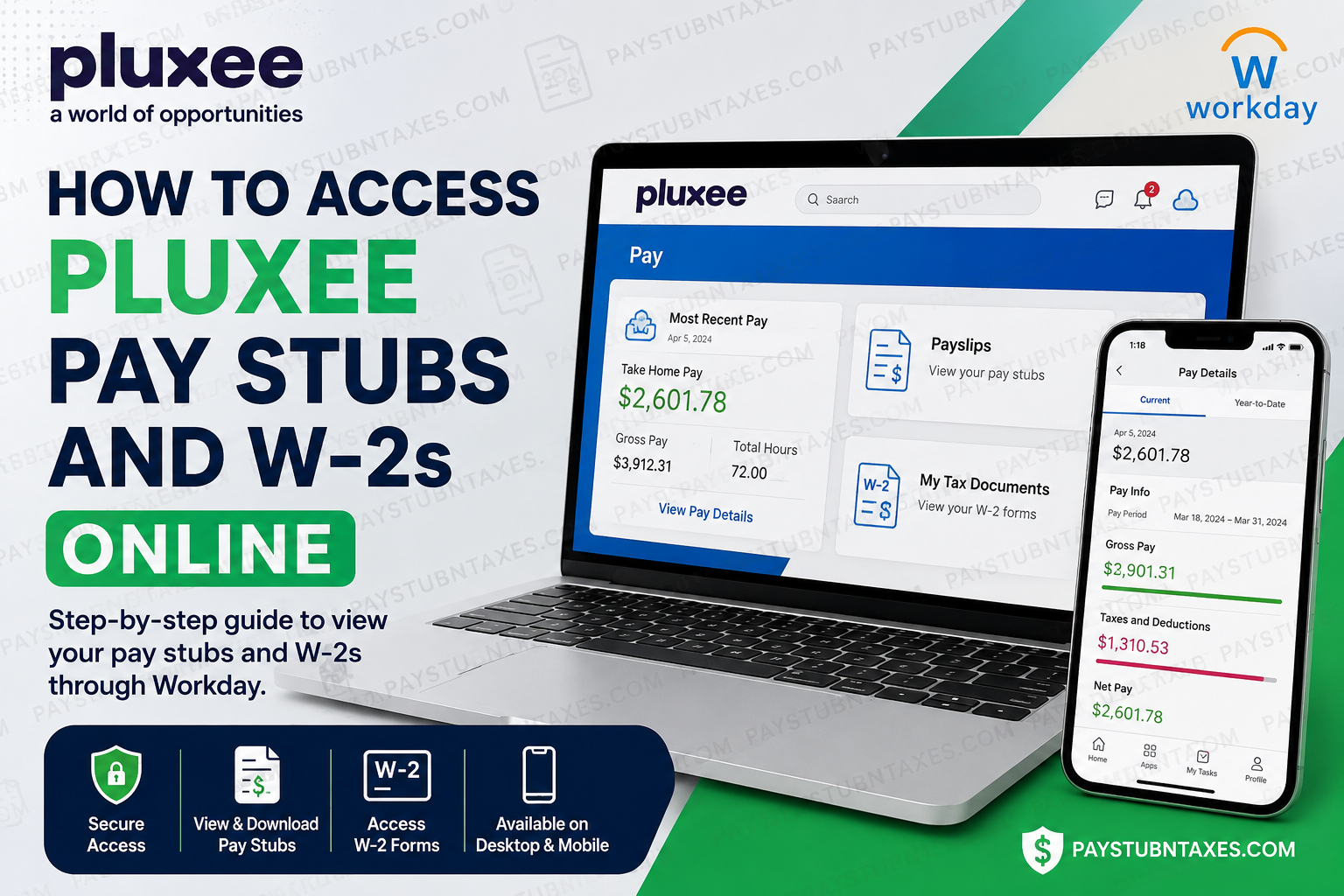
Pluxee, formerly known as Sodexo Benefits and Rewards, has emerged as one of the world’s leading employee benefits and engagement companies, helping millions of people enjoy more of what truly matters in life. With more than 45 years of expertise, operations spanning 28 countries, and a portfolio of over 250 products and services, Pluxee continues to redefine employee experiences through innovative digital solutions. To simplify payroll administration and provide employees with secure, round-the-clock access to their financial records, Pluxee utilizes the Workday Employee Portal for payroll-related services, including pay statements and electronic W-2 forms. Whether you are a current employee looking for your latest paycheck details or preparing your tax return and need a copy of your W-2, this guide walks you through every step of the process.
Pluxee Workday Employee Portal
Portal URL: https://wd3.myworkday.com/pluxee/login.flex
Through Workday, employees can:
- View and download current and historical pay stubs
- Access electronic W-2 forms
- Update tax and payment elections
- Manage personal information
- Review payroll and compensation records
- Access payroll information from both desktop and mobile devices
The platform is integrated with secure authentication systems, ensuring that employee data remains protected and accessible only to authorized users.
How to Access Pluxee Pay Stubs Online
Obtaining your pay statements through Workday is remarkably straightforward.
Method 1: Access Pay Stubs on a Computer
Step 1: Visit the Pluxee Workday portal: https://wd3.myworkday.com/pluxee/login.flex
Step 2: Sign in using your company credentials.
Step 3: From your Workday homepage, select the Pay application.
Step 4: Choose Payslips under the “View” section.
Step 5: A list of available pay periods will appear.
Step 6: Select the pay period you wish to review.
Step 7: Click the PDF link to:
- View your payslip
- Download a copy
- Print the document for your records
Employees can access detailed information such as:
- Gross pay
- Net pay
- Federal and state tax withholdings
- Deductions and benefits
- Retirement contributions
- Year-to-date earnings
How to Access Pluxee Pay Stubs Using the Workday Mobile App
Workday’s mobile application provides employees with a convenient way to retrieve payroll information from anywhere.
Step 1: Open the Workday Mobile App and sign in.
Step 2: From the home screen, tap Pay. If you do not see the Pay application, select View All.
Step 3: Under Pay History, choose the payslip you want to review.
Step 4: On the Pay Details page, review your earnings and deductions.
Step 5: Tap Get PDF. The system will generate your payslip file.
Step 6: Select Open PDF.
Step 7: Save the file to your mobile device or share it securely as needed.
How to Access Your Pluxee W-2 Forms Online
Pluxee employees can also retrieve their annual W-2 forms directly from Workday.
Step 1: Log into the Workday Employee Portal.
Step 2: Select the Pay dashboard.
Step 3: Click My Tax Documents.
Step 4: Locate the desired tax year.
Step 5: Select View/Print.
Step 6: You may then:
- View the W-2 form
- Download the document
- Print a physical copy
- Access an accessible version if needed
Workday stores W-2 forms electronically, allowing employees to retrieve their tax records conveniently whenever necessary.
Forgot Your Workday Password?
If you cannot sign in:
- Click Forgot Password on the login page.
- Follow the verification instructions.
- Reset your password and log in again.
If the self-service reset option does not work, contact your local HR or payroll department for assistance.
Who Can Access Pluxee Pay Stubs and W-2s?
Generally, access is available to:
- Current employees
- Eligible former employees, depending on local payroll retention policies
- Employees who elected electronic tax documents
If you have left the company and can no longer access Workday, contact your local office to request copies of your payroll documents.
Payroll Security and Privacy
Pluxee places significant emphasis on protecting employee data. Workday is used to manage payroll, compensation, and employment records under strict security controls, with access limited to authorized personnel on a need-to-know basis. Employee information is processed in accordance with applicable data protection regulations and internal privacy standards.
Common Issues and Solutions
| Problem | Solution |
| Forgot password | Use the password reset option or contact HR |
| Pay application missing | Select “View All” in Workday |
| W-2 not available | Wait for payroll publication or contact payroll support |
| PDF won’t open | Update your browser or PDF reader |
| Former employee access issue | Contact your local HR office |
Contact Pluxee
For payroll-related inquiries, employees should contact their local HR or payroll office.
For career opportunities: Email: careers@pluxeegroup.com
Final Thoughts
Pluxee’s adoption of Workday has made payroll management significantly more efficient, enabling employees to access their pay stubs and W-2 forms securely from virtually anywhere. Whether you prefer using a desktop computer or the Workday mobile app, the process is intuitive, fast, and available twenty-four hours a day. By following the steps outlined above, you can effortlessly view, download, and print your payroll documents whenever the need arises, ensuring that your financial records are always at your fingertips.
Frequently Asked Questions
1. How do I access my Pluxee pay stubs online?
Log in to the Pluxee Workday portal, click Pay, then select Payslips to view and download your pay statements.
2. What is the Pluxee Workday login URL?
The official employee portal is: https://wd3.myworkday.com/pluxee/login.flex
3. Can I view my pay stubs on my phone?
Yes. Download the Workday mobile app and sign in to access your pay history and payroll documents.
4. Where can I find my W-2 form in Workday?
Navigate to Pay > My Tax Documents and select the applicable tax year.
5. Can I download and print my W-2?
Yes. Workday allows employees to download, save, and print their W-2 forms.
6. When are Pluxee W-2 forms available?
W-2 forms are generally published annually before the IRS filing deadline, typically by January 31.
7. What should I do if I forgot my Workday password?
Click Forgot Password on the login page or contact your local HR department for assistance.
8. Why can’t I see the Pay application in Workday?
Select View All on the Workday homepage to locate the Pay application.
9. Can former employees access their W-2 forms?
In many cases, yes. Former employees should contact their local HR or payroll office if they cannot log in.
10. How do I download my pay stub as a PDF?
Open the desired payslip and select the PDF or Get PDF option to download the document.
11. Is my payroll information secure in Workday?
Yes. Workday uses secure authentication and restricted access to protect employee payroll and tax information.
12. Can I access historical pay stubs?
Yes, historical pay statements are generally available within Workday, subject to company retention policies.
13. What information appears on a Pluxee pay stub?
Pay stubs typically include:
- Gross pay
- Net pay
- Taxes withheld
- Deductions
- Benefits contributions
- Year-to-date earnings
14. Who should I contact if my W-2 contains incorrect information?
Contact your local HR or payroll department immediately to request corrections.
15. Can I access my payroll documents outside the office?
Yes. The Workday portal and mobile app are available 24/7 from any compatible device with internet access.
