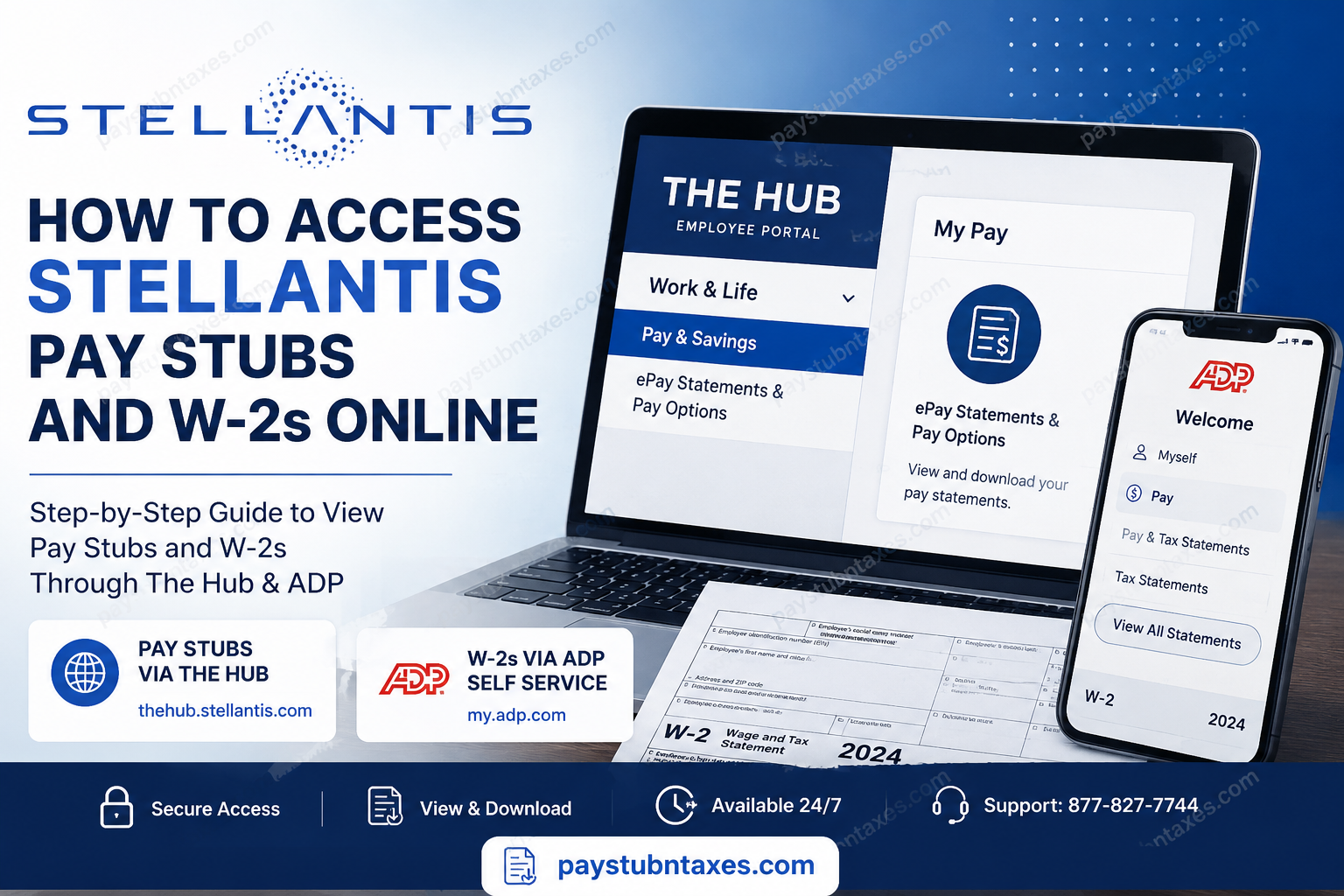
Employees of Stellantis can conveniently access payroll documents, including pay stubs and W-2 tax forms, through the company’s secure digital platforms. Whether you are an active hourly employee checking your earnings or preparing your annual tax return, Stellantis provides streamlined online access through The Hub and ADP self-service systems. As one of the world’s largest automotive manufacturers, Stellantis operates globally through iconic brands such as Jeep®, Chrysler, Dodge, Ram, Fiat, Peugeot, Citroën, Alfa Romeo, Maserati, and Opel, serving customers in more than 130 markets worldwide.
Accessing Stellantis Pay Stubs Online
Current Stellantis employees can retrieve their electronic pay statements through The Hub, the company’s internal employee portal.
Stellantis Pay Stub Portal
- Pay Stub Portal: The Hub
Once logged into The Hub, employees can quickly navigate to the payroll section and review current or previous pay statements.
Step-by-Step Guide to View Stellantis Pay Stubs
Follow these instructions to access your electronic pay statements:
- Visit the Stellantis employee portal at The Hub.
- Enter your company-issued User ID or work email address.
- Complete the secure login process, including password authentication and two-step verification if prompted.
- After logging in successfully, hover over the “Work & Life” menu.
- Select “Pay & Savings.”
- Inside the “My Pay” section, click “ePay Statements & Pay Options.”
- Your current and historical pay stubs will become available for viewing and downloading.
Employees may also locate “My ePay” directly from the HubApps section on the homepage for faster access.
First-Time Login Instructions for The Hub
Employees accessing The Hub for the first time may need to complete several authentication steps before payroll records become available.
Finding Your Google ID
If you do not know your Stellantis Google ID:
- Visit the FCA Group Directory.
- Search using your name, CID, or TID.
- Your company-issued Google email address will appear in the employee profile.
Resetting Your Password
If necessary, reset your password using the Stellantis Password Wizard before attempting to log in.
Important Mobile Device Requirement
Employees using mobile devices must have a screen PIN, password, or security lock enabled. Without device security activated, access to The Hub may be denied.
Setting Up Two-Step Verification
To enhance account protection and safeguard employee payroll information, Stellantis requires two-step verification for employee Google accounts.
During the setup process, employees will:
- Verify their company Google account.
- Enter a mobile phone number.
- Choose a verification method, such as text message or phone call.
- Enter the verification code received.
- Enable two-step authentication permanently.
This security process must generally be completed within the designated activation period to avoid account lockout.
How to Access Stellantis W-2 Forms Online
Stellantis employees can obtain electronic W-2 tax statements through the ADP self-service platform.
Stellantis W-2 Portal
- W-2 Access: ADP Self Service
The ADP portal allows employees to securely view, download, and print federal tax documents for multiple tax years.
Steps to Download Your Stellantis W-2 from ADP
Once logged into ADP, follow these steps:
- Navigate to Myself.
- Select Pay.
- Click Pay & Tax Statements.
- Locate the Tax Statements section.
- Click View All Statements.
- Select the desired tax year.
- Click Open Document.
- Download or print your W-2 for your records.
The ADP platform typically allows employees to access both current and previous tax statements electronically.
Common Stellantis Payroll Login Issues
Employees occasionally encounter access problems while attempting to retrieve payroll records online. The most common issues include:
Incorrect Google Account
Many login problems occur when employees attempt to sign in with a personal Google account rather than their Stellantis-issued work account. Signing out of personal accounts before accessing The Hub usually resolves the issue.
Forgotten Passwords
Password reset tools are available through the Stellantis Password Wizard portal.
Browser Cache or Session Conflicts
Clearing browser cookies or opening The Hub in a private browsing window often resolves persistent login errors.
Two-Step Verification Problems
Employees who change phone numbers without updating verification settings may experience authentication failures when logging into payroll systems.
How Former Employees May Obtain W-2 Forms
Former Stellantis employees who no longer have active Hub access may still retrieve tax documents through ADP, provided their electronic account remains active. If online access is unavailable, contacting payroll support is recommended.
Stellantis Payroll Support Contact Information
Employees needing additional assistance with payroll access, login credentials, or tax statements can contact Stellantis support directly:
- Payroll Assistance Phone Number: 877-827-7744
Support representatives can help employees resolve login difficulties, account verification problems, and electronic payroll access issues.
Final Thoughts
Stellantis has modernized payroll accessibility by offering employees secure digital access to pay stubs and W-2 forms through The Hub and ADP platforms. By integrating advanced authentication systems with user-friendly navigation, the company ensures that employees can conveniently retrieve important payroll records anytime and from virtually anywhere. Whether you need to verify earnings, monitor deductions, or download annual tax documents, the Stellantis payroll system provides an efficient and secure self-service experience for employees across its global workforce.
Frequently Asked Questions
1. How do I access my Stellantis pay stubs online?
You can access your Stellantis pay stubs by logging into The Hub employee portal and selecting Work & Life → Pay & Savings → ePay Statements & Pay Options.
2. What is the official Stellantis pay stub website?
The official pay stub portal for Stellantis employees is: https://thehub.stellantis.com
3. Where can I download my Stellantis W-2 online?
Stellantis W-2 forms can be downloaded through the ADP self-service portal at: my.adp.com
4. How do I view my W-2 on ADP?
After logging into ADP:
- Click Myself
- Select Pay
- Open Pay & Tax Statements
- Choose View All Statements
- Select your tax year and download the W-2
5. Can former Stellantis employees access W-2 forms online?
Yes. Former employees may still access electronic W-2s through ADP if their account remains active.
6. What should I do if I forgot my Stellantis password?
You can reset your password using the Stellantis Password Wizard before logging into The Hub.
7. Why can’t I log into The Hub?
Login issues often occur when employees use a personal Google account instead of their Stellantis-issued work account.
8. Does Stellantis require two-step verification?
Yes. Stellantis requires two-step verification to secure employee accounts and payroll information.
9. Can I access The Hub from my phone?
Yes, but your mobile device must have a PIN, password, or screen lock enabled before access is granted.
10. How do I find my Stellantis Google ID?
Employees can locate their Google ID using the FCA Group Directory by searching their name, CID, or TID.
11. Can I print my Stellantis pay stubs?
Yes. Both The Hub and ADP allow employees to download and print payroll documents.
12. What payroll system does Stellantis use for W-2s?
Stellantis uses ADP self-service for electronic W-2 and tax statement access.
13. Is The Hub available 24/7?
Yes. Employees can generally access The Hub anytime using an internet-connected device.
14. What should I do if my W-2 is missing?
If your W-2 is unavailable online, contact Stellantis payroll support for assistance.
15. How do I contact Stellantis payroll support?
Employees can contact payroll assistance at: 877-827-7744
