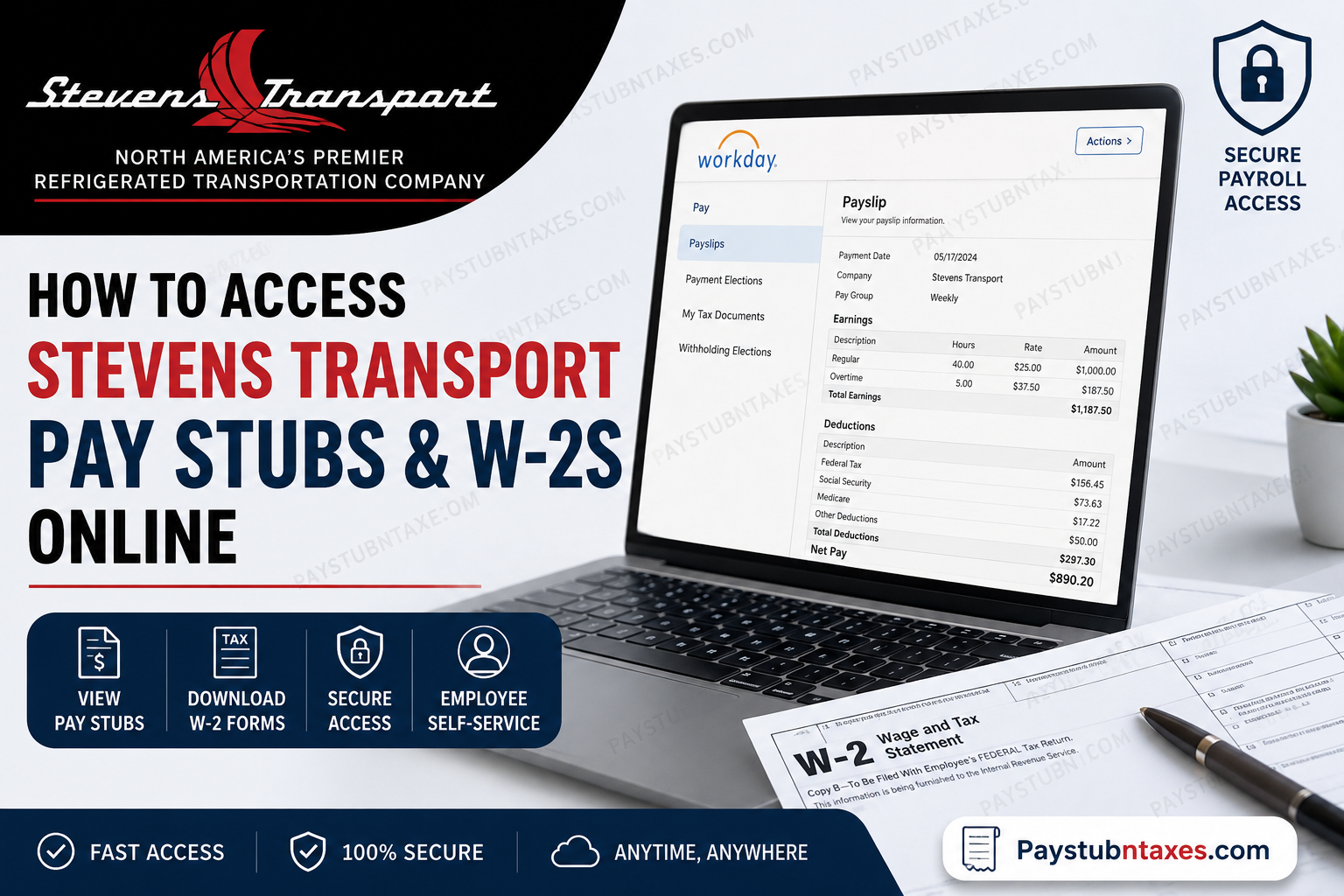
As one of North America’s most respected refrigerated transportation and logistics providers, Stevens Transport has established an enduring reputation for operational excellence, innovation, and employee support. Headquartered in Dallas, Texas, the company delivers temperature-controlled, dry-expedited, intermodal, and dedicated transportation services throughout the United States, Canada, and Mexico, serving an impressive portfolio of Fortune 500 clients. To simplify payroll and tax document management for employees, Stevens Transport utilizes the Workday self-service platform, a sophisticated cloud-based Human Capital Management (HCM) system that enables employees to securely access pay stubs, payroll history, tax forms, direct deposit information, and other employment records online. This comprehensive guide explains how active Stevens Transport employees can log into Workday and conveniently view, download, or print their pay stubs and W-2 forms.
Stevens Transport Workday Login Portal
Employees can access the Stevens Transport Workday portal using the following official login page:
Workday Login:
https://wd503.myworkday.com/stevenstransport/login-saml2.htmld
After opening the portal, employees will generally see two login options:
- External Log-in
- Employee Log-in
Most active employees should select Employee Log-in and authenticate using their Stevens Transport Single Sign-On (SSO) credentials.
How to View Stevens Transport Pay Stubs Online
Workday provides employees with convenient access to current and historical payroll records. Once signed into the system, employees can review detailed earnings statements, deductions, taxes withheld, reimbursements, and direct deposit information.
Step-by-Step Instructions to Access Pay Stubs
Step 1: Log Into Workday
Visit the Stevens Transport Workday portal and sign in using your company credentials.
Step 2: Open Your Employee Profile
After logging in, click your profile icon located in the upper-right section of the Workday homepage.
Select: View Profile
This section contains your personal employment information, payroll settings, compensation details, and tax documents.
Step 3: Navigate to the Pay Section
Inside your profile dashboard, click: Pay
The Pay dashboard provides access to:
- Payslips
- Payment Elections
- Tax Documents
- Withholding Elections
- Payroll History
Step 4: Open the Payslips Tab
Select the Payslips tab to view your payroll history.
You may:
- View current and previous pay statements
- Download payslips as PDF files
- Print payroll records for personal use
- Export information when available
Step 5: Print Multiple Pay Stubs (Optional)
Workday may also allow employees to print multiple payslips simultaneously.
To do this:
- Select Print Multiple Payslips
- Enter the desired payment date range
- Choose the pay statements you wish to print
- Download or print the generated PDF
This functionality can vary depending on company-specific Workday configurations.
How to Access Stevens Transport W-2 Forms Online
Stevens Transport employees can also retrieve year-end tax documents directly through Workday, eliminating the need to wait for paper copies in many cases.
Steps to View and Download W-2 Forms
Step 1: Sign Into Workday
Access the Stevens Transport Workday portal using your employee credentials.
Step 2: Open the Pay Dashboard
From the Workday homepage, click: Pay
Step 3: Select “My Tax Documents”
Inside the Pay dashboard, choose: My Tax Documents
This section stores electronic tax forms and payroll tax records.
Step 4: Locate Your W-2 Form
Your available W-2 forms will appear within the document list.
Select: View/Print
Step 5: Download or Print the Form
After opening the form, employees can:
- Print the W-2 directly
- Download the form as a PDF
- Navigate through multiple pages
- Access an accessible version when available
Because Workday stores tax documents electronically, employees can often retrieve prior-year W-2 forms without contacting payroll administrators.
Benefits of Using Workday at Stevens Transport
Workday provides a secure and highly efficient self-service environment that empowers employees to manage payroll and HR-related tasks independently.
Key advantages include:
- 24/7 access to payroll information
- Secure electronic W-2 delivery
- Fast access to historical payslips
- Mobile-friendly accessibility
- Direct deposit management
- Tax withholding updates
- Reduced paperwork and administrative delays
Additionally, Workday’s intuitive interface allows employees to customize shortcuts, organize frequently used applications, and access payroll information quickly through the centralized dashboard.
Common Workday Login Issues
Although Workday is generally reliable, employees may occasionally encounter login difficulties.
Forgotten Password or SSO Issues
If you cannot access your account, first verify:
- Correct company username
- Updated password
- Internet browser compatibility
- Multi-factor authentication prompts
If problems persist, contact Stevens Transport’s support teams.
Stevens Transport Payroll and Workday Support
For additional assistance regarding payroll access, login issues, or tax documents, employees may contact the appropriate department below.
Corporate Employees
Email: Helpdesk@stevenstransport.com
Drivers
Email: driverservices@stevenstransport.com
Final Thoughts
Stevens Transport continues to demonstrate its commitment to operational efficiency and employee convenience by utilizing the Workday self-service platform for payroll and tax document management. Through Workday, employees can securely access payslips, W-2 forms, payroll history, and tax records from virtually anywhere, significantly streamlining what was once a time-consuming administrative process. By following the steps outlined above, Stevens Transport employees can efficiently manage their payroll information, download important tax documents, and maintain organized financial records throughout the year.
Frequently Asked Questions
1. How do I access my Stevens Transport pay stubs online?
Log into the Stevens Transport Workday portal using your employee credentials, open your profile, select Pay, and then click Payslips to view or download your payroll statements.
2. What website does Stevens Transport use for payroll access?
Stevens Transport uses the Workday self-service platform for payroll, tax documents, and employee account management.
3. Can Stevens Transport drivers access Workday remotely?
Yes. Drivers can securely access Workday remotely using an internet-connected computer, tablet, or smartphone.
4. How do I download my Stevens Transport W-2 form?
After logging into Workday, navigate to Pay > My Tax Documents, select your W-2 form, and click View/Print to download the PDF.
5. What login credentials are required for Workday?
Employees typically use their Stevens Transport Single Sign-On (SSO) username and password.
6. Can I print multiple Stevens Transport pay stubs at once?
Yes. Workday may allow employees to use the Print Multiple Payslips feature to generate several pay statements simultaneously.
7. What should I do if I forgot my Workday password?
Contact the Stevens Transport Help Desk or use your company’s password recovery process to reset your credentials.
8. How do corporate employees contact payroll support?
Corporate employees can email: Helpdesk@stevenstransport.com
9. How can Stevens Transport drivers get Workday assistance?
Drivers may contact: driverservices@stevenstransport.com
10. Are old pay stubs available in Workday?
Yes. Workday generally stores historical payroll records that employees can access anytime.
11. Can I access Stevens Transport Workday on my phone?
Yes. Workday is mobile-friendly and can also be accessed through the Workday mobile application.
12. Where are W-2 forms located in Workday?
W-2 forms are stored in the My Tax Documents section within the Pay dashboard.
13. Is Workday secure for payroll information?
Yes. Workday uses enterprise-level security and encrypted authentication protocols to protect employee payroll and tax records.
14. Can employees update direct deposit information in Workday?
Yes. Employees can manage payment elections and direct deposit accounts directly within the Workday Pay section.
15. Why is my Stevens Transport Workday account locked?
Accounts may become locked due to multiple failed login attempts, password expiration, or security verification issues. Contact support for assistance.
