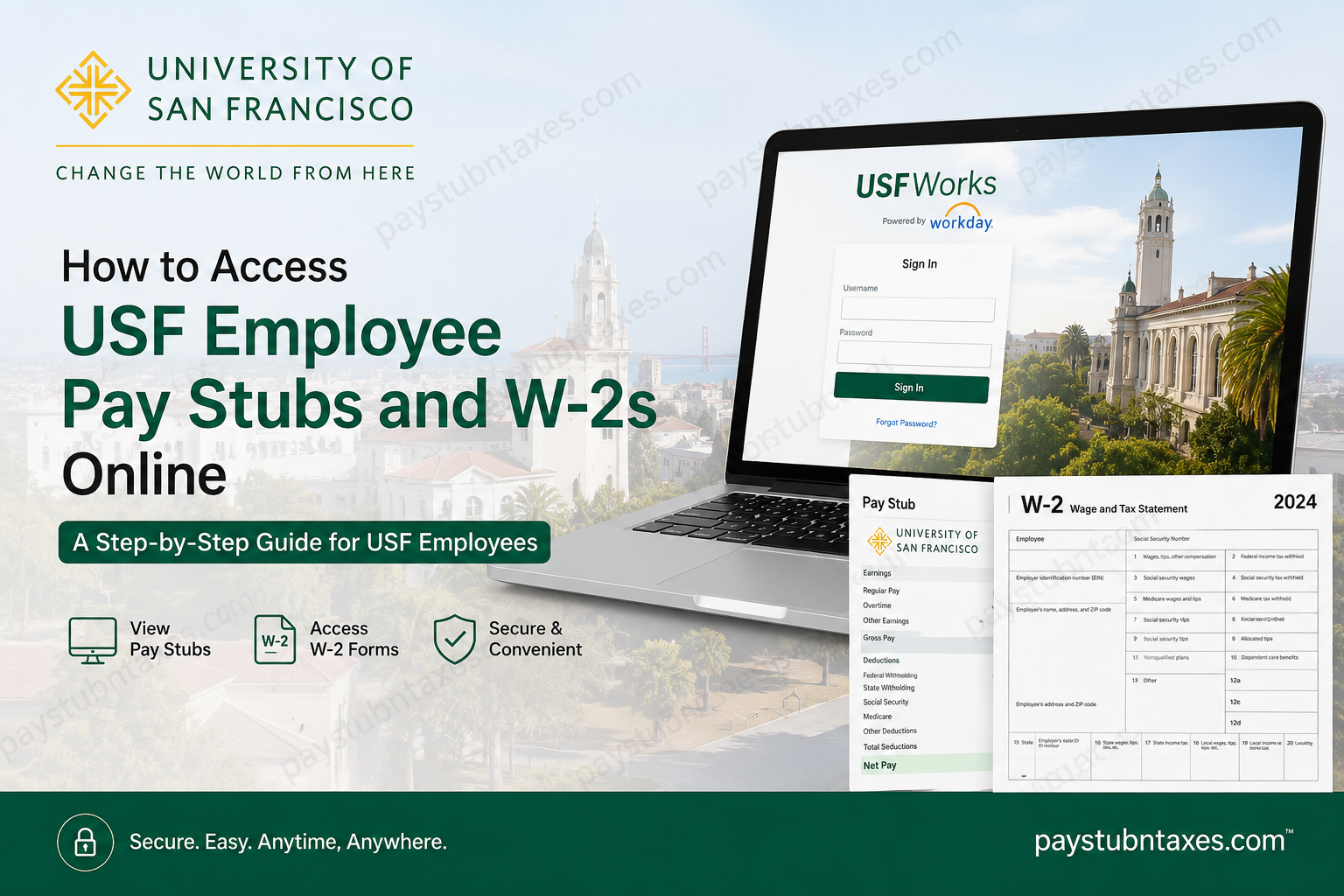
The University of San Francisco is a prestigious private Jesuit university founded in 1855 and located in San Francisco, California. With nearly 9,000 students enrolled across undergraduate and graduate programs, USF operates multiple campuses throughout California and is widely recognized for its academic excellence and student-centered learning environment. For employees, the university provides a modern digital payroll and tax management system through USFWorks, a cloud-based Workday self-service portal. Through this platform, employees can securely access pay stubs, W-2 forms, tax elections, direct deposit information, and payroll records online.
USF Employee Payroll Portal
Current employees can access payroll and tax documents through the USFWorks Workday portal.
USFWorks Login Portal
Employees must sign in using their CAS username and password.
How to Log In to USFWorks
Follow these steps to access your payroll information online:
- Visit the USFWorks Workday portal.
- Enter your CAS username.
- Type your password.
- Click Sign In.
- Once logged in, navigate to the payroll dashboard.
The portal allows employees to manage payroll details securely from any device with internet access.
How to View USF Pay Stubs Online
Employees can access current and historical payslips directly within Workday.
Steps to Access Pay Stubs
- Log in to USFWorks.
- Click the Menu from the upper-left corner.
- Select Benefits and Pay.
- In the left-side navigation menu, click Pay.
- Select Payments.
- Scroll to the All Payslips section.
- Click View next to the desired payslip.
- Use the Print option if you need a physical copy.
Employees may also print multiple payslips simultaneously by selecting a specific date range within the payroll section.
How to Access USF W-2 Forms Online
USF employees can conveniently access electronic W-2 statements through the Workday payroll portal.
Steps to View and Print W-2 Forms
- Log in to USFWorks.
- Click Menu.
- Select Benefits and Pay.
- Choose Pay from the left navigation.
- Click Tax.
- Navigate to the All Tax Documents section.
- Locate the required tax year.
- Click View/Print beside the W-2 form.
The W-2 document can be downloaded or printed instantly for tax filing purposes.
How to Enroll in Electronic W-2 Delivery
USF employees can receive electronic W-2 statements earlier than mailed paper copies.
Steps to Enable Paperless W-2 Delivery
- Go to the Tax section in Workday.
- Under Tax Forms Printing Elections, click Edit.
- Select Receive electronic copy of my Year-End Tax Documents.
- Click OK.
- Select Done to save your preference.
Electronic delivery helps employees receive tax documents faster while supporting environmentally friendly payroll practices.
How to Change W-4 Withholding Elections
Employees may update federal or state tax withholding elections directly through Workday.
Steps to Update Tax Elections
- Open the Pay worklet from the home page.
- Click Withholding Elections.
- Choose the appropriate tax tab:
- Federal
- State
- Local
- Click Update.
- Modify the required withholding information.
- Check the I Agree box.
- Click OK to finalize changes.
Additional Payroll Features Available in USFWorks
The USF payroll hub offers several useful self-service features, including:
- Viewing recent pay summaries
- Comparing pay periods
- Reviewing earnings and deduction history
- Managing direct deposit accounts
- Printing multiple payslips
- Viewing tax documents
- Updating tax elections
- Managing payment elections
These tools allow employees to monitor and manage payroll information efficiently from a centralized dashboard.
Updating Your Mailing Address for W-2 Delivery
To ensure the timely delivery of tax documents, employees should keep their mailing addresses updated.
Active Employees
- Log in to MyUSF.
- Open USFWorks.
- Navigate to:
- Menu
- Personal Information
- Home Contact Information
- Update the address and click Submit.
Former Employees
Former employees should email payroll support with:
- Full name
- CWID
- Last four digits of SSN
- New mailing address
What If You Cannot Access Your W-2?
If your W-2 is missing, misplaced, or unavailable online, you may request a duplicate copy from Payroll Services.
Duplicate W-2 copies are generally available after February 15 and may be securely emailed or mailed to your residence.
USF Payroll Support Contact Information
Payroll Services
University of San Francisco
2130 Fulton St
Lone Mountain North, 3rd Floor
San Francisco, CA 94117-1080
Payroll Support Email
payroll@usfca.edu
Benefits of Using USFWorks
Using the USFWorks payroll portal provides employees with several advantages:
- 24/7 online access to payroll records
- Secure electronic W-2 delivery
- Faster tax document availability
- Easy pay stub printing
- Direct deposit management
- Convenient tax withholding updates
- Environmentally friendly paperless payroll access
Frequently Asked Questions
1. Can I access old USF pay stubs online?
Yes. Employees can access historical payslips through the All Payslips section within USFWorks.
2. When are USF W-2 forms available?
W-2 forms are generally issued annually by the end of January.
3. Can I receive my W-2 electronically?
Yes. Employees may opt into paperless W-2 delivery through the Workday tax settings.
4. What login credentials do I need for USFWorks?
You must use your USF CAS username and password.
5. Can I print multiple payslips at once?
Yes. Workday allows employees to print multiple payslips by selecting a date range.
6. How do I update my direct deposit information?
Employees can manage payment elections and direct deposit settings within the payroll section of Workday.
7. What should I do if I forget my password?
Use the CAS login recovery tools or contact the USF IT Help Desk for assistance.
8. Can former employees access W-2 forms online?
Former employees may need assistance from Payroll Services if Workday access has expired.
9. How do I change my W-4 tax withholding?
You can update withholding elections directly through the Pay worklet in Workday.
10. Is USFWorks secure?
Yes. The portal uses secure authentication and encrypted payroll management tools powered by Workday.
