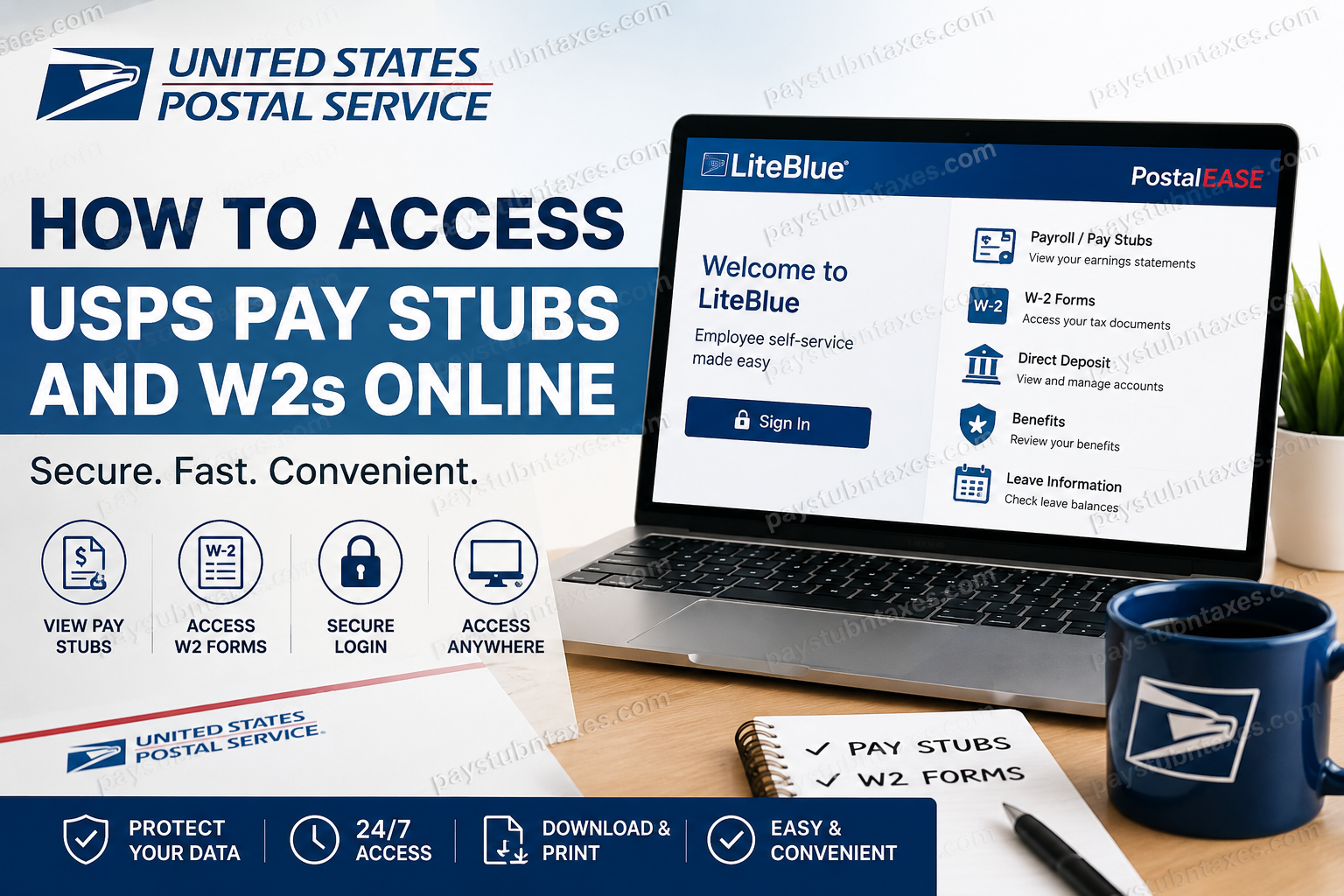
The United States Postal Service remains one of the most recognized and essential institutions in America, connecting millions of households and businesses through reliable mail and package delivery services. With operations spanning every state, city, town, and territory, USPS serves more than 157 million delivery points while employing hundreds of thousands of workers nationwide. To simplify payroll and tax document management for employees, USPS provides secure online access to pay stubs, payroll information, and W-2 forms through the PostalEASE and LiteBlue self-service systems. Employees can conveniently review earnings, print tax forms, manage payroll preferences, and update account security settings from virtually anywhere.
USPS Payroll Portal Overview
USPS employees access payroll services through the PostalEASE application inside the LiteBlue employee portal.
Official USPS Employee Portal
USPS PostalEASE and LiteBlue Login
After clicking Sign In, employees are redirected to the LiteBlue Single Sign-On (SSO) page for secure authentication.
The LiteBlue platform provides access to:
- USPS pay stubs
- W-2 tax forms
- Direct deposit management
- Payroll deductions
- Leave balances
- Employee benefits
- Self-Service Profile (SSP)
- Multifactor Authentication (MFA) settings
How to Log In to USPS LiteBlue
Step-by-Step Login Process
- Visit the official USPS employee portal.
- Click Sign In.
- Enter your Employee Identification Number (EIN).
- Select Next.
- Enter your USPS password.
- Complete Multifactor Authentication (MFA).
- Access the LiteBlue dashboard and open PostalEASE.
USPS now requires Multifactor Authentication to strengthen employee account security. Employees can authenticate using:
- Okta Verify
- Google Authenticator
- SMS verification
- Voice call verification
- Security key or biometric authentication
How to Access USPS Pay Stubs Online
Once logged into LiteBlue and PostalEASE, employees can review current and historical payroll statements online.
USPS Pay Stub Navigation
- Sign in to LiteBlue.
- Open the PostalEASE application.
- Select Payroll or Earnings Statement.
- Choose the desired pay period.
- View, download, or print your pay stub.
Your USPS pay statement typically includes:
- Gross earnings
- Net pay
- Taxes withheld
- Retirement deductions
- Leave balances
- Health insurance deductions
- Overtime earnings
- Federal and state withholdings
How to Access USPS W2 Forms Online
USPS employees can also retrieve W-2 tax statements electronically through PostalEASE.
USPS W2 Navigation
- Log in to LiteBlue.
- Access the PostalEASE system.
- Navigate to W-2 Forms or Tax Statements.
- Select the applicable tax year.
- Download or print the W-2 form.
Electronic W-2 access allows employees to:
- File taxes faster
- Avoid mailed document delays
- Retrieve prior-year forms
- Print replacement copies anytime
How to Set Up USPS Multifactor Authentication (MFA)
USPS implemented MFA to protect employee accounts from unauthorized access and cyber threats.
MFA Setup Process
- Go to LiteBlue.
- Sign in using your EIN and temporary or existing password.
- Create a new password if prompted.
- Verify the last four digits of your Social Security Number.
- Choose your preferred MFA security method.
- Configure a security question.
- Complete setup and sign in successfully.
USPS recommends using:
- Okta Verify
- Google Authenticator
for enhanced security and easier account recovery.
USPS LiteBlue Password Recovery
If you cannot access your account, LiteBlue provides password recovery and MFA reset tools.
Password Reset Steps
- Open the LiteBlue sign-in page.
- Click Password Recovery.
- Follow the verification prompts.
- Reset your password securely.
If MFA settings need to be reset, employees may use the Self-Service MFA Reset option or contact the USPS IT Service Desk.
Troubleshooting USPS PostalEASE Access
Some employees may occasionally encounter browser or authentication issues when accessing PostalEASE.
Recommended Fix
USPS advises using:
- Google Chrome Incognito Mode
- Microsoft Edge InPrivate Mode
when PostalEASE fails to load correctly.
Employees logging in from unfamiliar devices or locations may also receive additional verification prompts for security purposes.
How to Get a Duplicate USPS W2
If you misplaced your W-2, USPS allows employees to obtain replacement copies online through PostalEASE or by contacting USPS HR support. USPS employee resources also provide guidance regarding duplicate W-2 requests.
Benefits of Electronic USPS Payroll Access
Using the LiteBlue and PostalEASE systems offers several advantages:
- 24/7 payroll access
- Faster W-2 retrieval
- Improved document security
- Reduced paper clutter
- Convenient mobile access
- Faster tax preparation
- Easier payroll record management
USPS Employee Security Tips
To protect your payroll and tax information:
- Never share your LiteBlue login credentials
- Enable multiple MFA methods
- Use secure personal devices
- Avoid public Wi-Fi when accessing payroll data
- Regularly update passwords
- Monitor account activity frequently
USPS specifically warns employees never to share MFA codes or passwords through calls, texts, or emails.
Final Thoughts
The USPS LiteBlue and PostalEASE systems provide employees with a secure and efficient way to access pay stubs, W-2 forms, payroll records, and tax information online. With robust security protections like Multifactor Authentication and self-service recovery tools, USPS employees can conveniently manage payroll information anytime and from virtually anywhere. Whether you need your latest earnings statement, a prior-year W-2, or account recovery assistance, the LiteBlue platform makes payroll management straightforward, secure, and accessible.
USPS Pay Stubs and W2 FAQs
1. How do USPS employees access pay stubs online?
USPS employees can access pay stubs through the LiteBlue portal and PostalEASE self-service system using their EIN, password, and MFA verification.
2. What is the official USPS employee portal?
The official USPS employee portal is LiteBlue, which provides access to PostalEASE, payroll records, benefits, and W-2 forms.
3. Where can I log in to USPS LiteBlue?
Employees can log in at: USPS LiteBlue Portal
4. What information is needed to log in to LiteBlue?
You need:
- Employee Identification Number (EIN)
- USPS password
- Multifactor Authentication verification
5. How do I view my USPS W2 online?
Log in to LiteBlue, open PostalEASE, navigate to Tax Statements or W-2 Forms, and select the desired tax year.
6. Can former USPS employees access W2 forms online?
Yes. Former USPS employees may still access W-2 forms online if their LiteBlue credentials remain active.
7. What should I do if I forgot my USPS LiteBlue password?
Use the Password Recovery option on the LiteBlue login page to reset your password securely.
8. Why is USPS requiring Multifactor Authentication (MFA)?
USPS uses MFA to improve cybersecurity and protect employee payroll and tax information from unauthorized access.
9. Which MFA methods does USPS support?
USPS supports:
- Okta Verify
- Google Authenticator
- SMS verification
- Voice call verification
- Security keys or biometric authentication
10. What is PostalEASE?
PostalEASE is the USPS employee self-service payroll application used for accessing pay stubs, W-2s, direct deposit settings, and payroll information.
11. Can USPS employees download and print pay stubs?
Yes. Employees can download and print pay stubs directly from PostalEASE after logging in.
12. What should I do if PostalEASE is not loading?
USPS recommends using an Incognito or InPrivate browser window in Chrome or Microsoft Edge to resolve access issues.
13. How can I get a duplicate USPS W2?
Employees can retrieve duplicate W-2 forms online through PostalEASE or contact USPS HR support for assistance.
14. Is the USPS LiteBlue portal secure?
Yes. LiteBlue uses secure login systems, MFA protection, and encrypted authentication processes to protect employee data.
15. Can I access USPS payroll records on my phone?
Yes. USPS LiteBlue and PostalEASE can be accessed from smartphones, tablets, and desktop computers using a supported browser.
