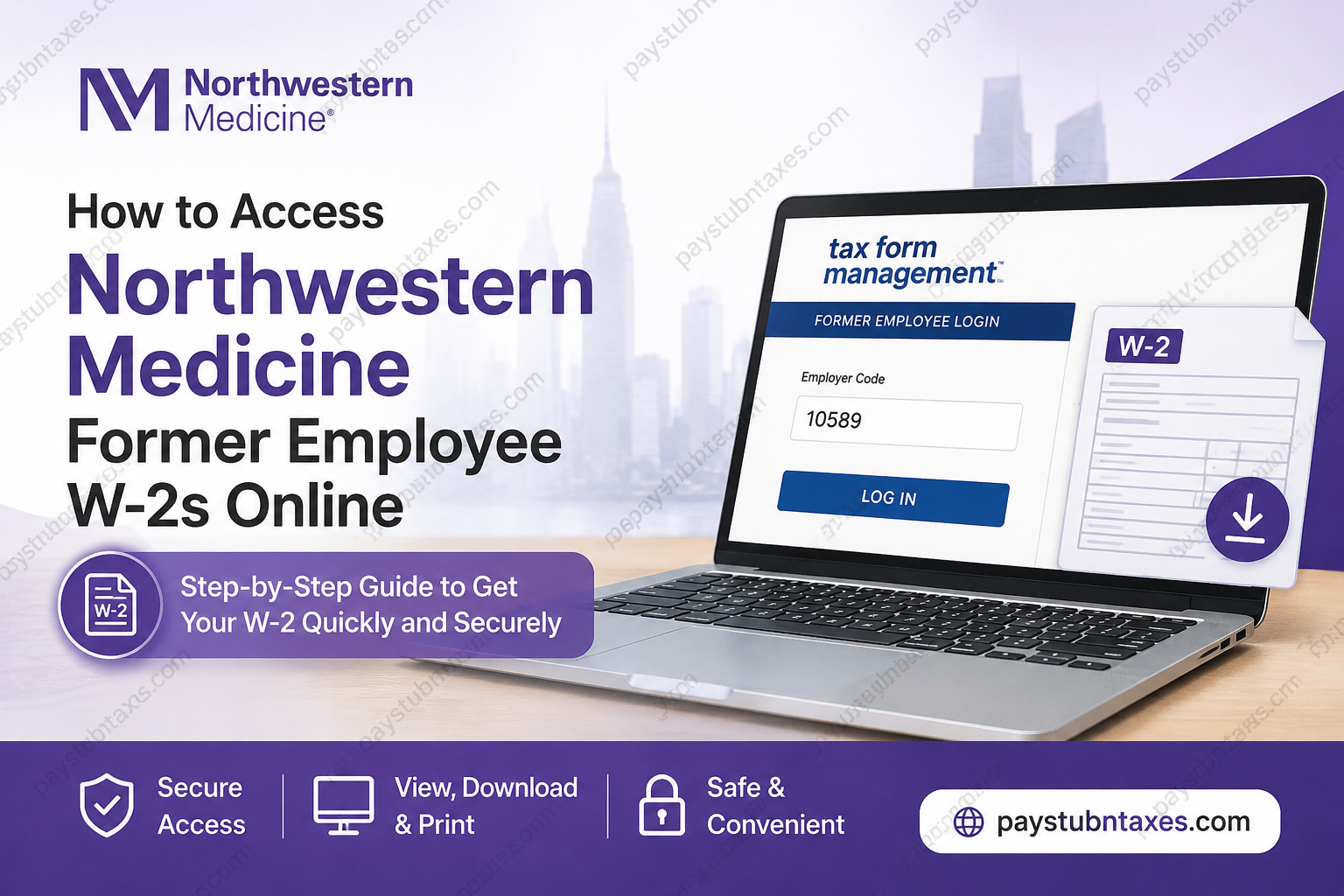
If you are a former Northwestern Medicine employee and need a copy of your W-2 tax form, you can conveniently retrieve it online through the Tax Form Management portal. The platform allows eligible former employees to securely view, download, print, or request delivery of their tax documents without contacting Human Resources. This comprehensive guide explains the entire process—from creating your account and logging in for the first time to downloading your W-2, troubleshooting login problems, and requesting prior-year tax forms.
Who Can Access Northwestern Medicine W-2 Forms Online?
Former Northwestern Medicine employees can obtain their W-2 tax documents electronically through the Tax Form Management portal.
Before you begin, make sure you have:
- A secure personal computer or trusted mobile device
- A stable internet connection
- A supported web browser such as:
- Google Chrome
- Microsoft Edge
- Mozilla Firefox
- Your employer code: 10589
If you are requesting a W-2 from a previous tax year, be aware that an $18 fee per copy may apply.
Northwestern Medicine Tax Form Management Portal
Website: https://mytaxform.com
Employer Code: 10589
The portal enables former employees to:
- Access electronic W-2 forms
- Download PDF copies
- Print tax forms
- Request delivery by mail or fax (where available)
- Update personal account information
- Manage online delivery preferences
How to Access Your Northwestern Medicine Former Employee W-2
Follow these steps carefully.
Step 1: Visit the Tax Form Management Portal
Open your preferred browser and navigate to: https://mytaxform.com
Step 2: Enter Your Employer Code
When prompted, enter:
Employer Code: 10589
This directs you to Northwestern Medicine’s tax document portal.
Step 3: Sign In or Register
If you have previously created an account:
- Enter your User ID
- Enter your Password
- Complete any required identity verification
If this is your first visit:
- Select Register Now
- Enter the requested personal information
- Verify your identity
- Complete the registration process
- Create your personalized User ID and Password
The system may require multi-factor authentication by sending a one-time passcode (OTP) to your verified phone number or email address.
Step 4: Complete Online Consent
To receive your W-2 electronically, you must first consent to online delivery.
Within your account:
- Locate Online Delivery Consent
- Select your W-2 form
- Click Receive Forms Online
- Read the disclosure
- Accept the terms
- Confirm your email and mailing address
- Submit your request
Once completed, future eligible tax forms will be available electronically within your account.
Step 5: View or Download Your W-2
After logging in:
- Your most recent tax forms appear on the home page.
- Select the desired W-2.
- Click View to open the document.
- Choose Download to save a PDF copy.
- Print the form if needed.
- If available, you may also request delivery by postal mail or fax.
First-Time Users
If you have never used Tax Form Management before:
- Click Register Now
- Verify your identity using your personal information
- Complete any authentication challenge
- Create your personalized User ID
- Create a secure password
- Finish account setup
The portal may request verification using:
- One-time passcode (OTP)
- Email verification
- Mobile phone verification
- Additional identity authentication
Returning Users
Returning users simply need to:
- Enter their User ID
- Enter their Password
- Complete any requested authentication
- Access available tax documents
If your account has not been used for an extended period, additional verification may be required.
How to Download Your W-2
Downloading your tax form is straightforward.
After signing in:
- Select the W-2 you need.
- Click Download.
- Save the PDF to your computer.
- Print it whenever necessary.
How to Update Your Personal Information
If your contact information has changed:
- Log in.
- Open My Account.
- Select the pencil icon beside the information you want to update.
- Save your changes.
Keeping your email address and mailing address current helps ensure uninterrupted access to future tax documents.
Troubleshooting Login Problems
If you’re unable to access your account:
Forgot Your User ID?
Select Forgot User ID on the login page.
Forgot Your Password?
Choose Forgot Password and follow the recovery instructions.
Need Additional Assistance?
For login support:
Phone: 877-664-8778
For account unlock assistance:
Phone: 312-926-4357
Tips for a Smooth Login Experience
Before accessing the portal:
- Use a secure personal computer whenever possible.
- Use the latest version of Chrome, Edge, or Firefox.
- Clear your browser’s cache and cookies if you encounter login issues.
- Keep your contact information current for identity verification.
- Have your payment card ready if requesting older W-2 copies that require a fee.
Conclusion
Northwestern Medicine has streamlined W-2 access for former employees through the secure Tax Form Management portal, making it easy to retrieve tax documents whenever needed. By registering your account, completing online delivery consent, and maintaining accurate personal information, you can conveniently view, download, and print your W-2 without unnecessary delays. Should you encounter any login or account issues, the available self-service recovery options and dedicated support teams help ensure you regain access quickly and securely.
Frequently Asked Questions
1. How can former Northwestern Medicine employees get their W-2 online?
Former employees can retrieve their W-2 by logging into the Tax Form Management portal at mytaxform.com using employer code 10589.
2. What is Northwestern Medicine’s employer code for Tax Form Management?
The employer code is 10589.
3. What website should I use to access my Northwestern Medicine W-2?
Visit https://mytaxform.com to access your electronic W-2.
4. Do I need to register before accessing my W-2?
Yes. First-time users must register an account and complete identity verification before accessing tax documents.
5. Can returning users log in with their existing credentials?
Yes. Returning users can sign in using their personalized User ID and password.
6. Is identity verification required?
Yes. The portal may require identity verification using a one-time passcode (OTP) sent to your verified email address or mobile phone.
7. How do I receive my W-2 electronically?
After logging in, complete the online delivery consent process and accept the electronic delivery agreement.
8. Can I download and print my W-2?
Yes. Once your W-2 is available, you can view, download, save as a PDF, and print it directly from the portal.
9. Can I request a previous year’s W-2?
Yes. Prior-year W-2 forms are available, although an $18 fee per copy may apply.
10. What should I do if I forgot my User ID?
Select the Forgot User ID option on the Tax Form Management login page to recover your account.
11. How do I reset my password?
Use the Forgot Password link on the login page and follow the instructions to create a new password.
12. How can I update my contact information?
Log in to your account, navigate to My Account, and update your email address, mailing address, or other personal information.
13. Which web browsers work best with the portal?
The portal works best with the latest versions of Google Chrome, Microsoft Edge, and Mozilla Firefox.
14. Who do I contact if I cannot log in?
For login assistance, call 877-664-8778. If your account is locked, call 312-926-4357 for support.
15. Is the Tax Form Management portal secure?
Yes. The portal uses secure authentication, identity verification, and encrypted connections to help protect your personal tax information.
