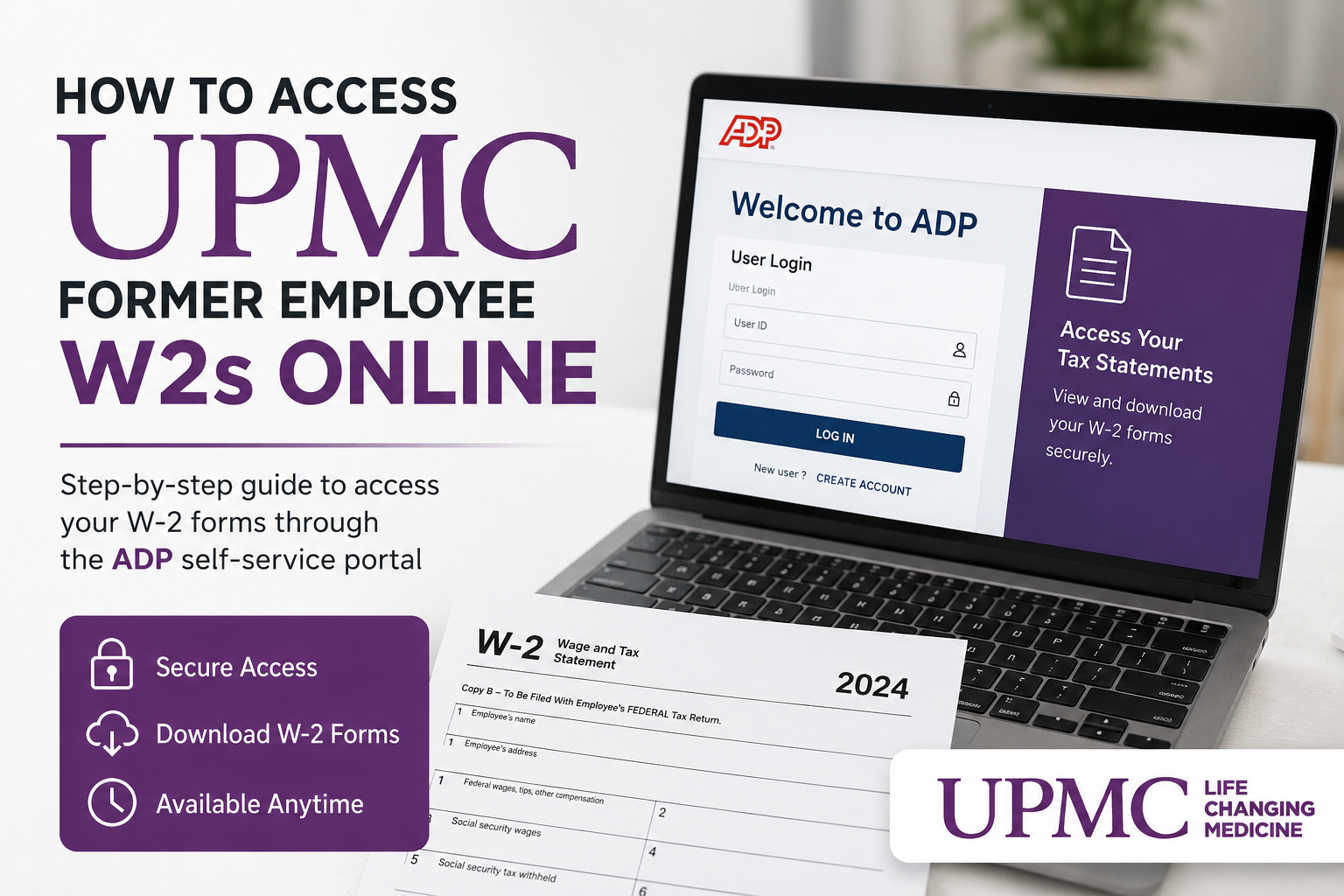
Former employees of UPMC and the University of Pittsburgh Schools of the Health Sciences can conveniently access their W-2 tax statements online through the ADP self-service portal. Whether you need your most recent W-2 for tax filing or a duplicate copy from previous years, ADP provides a secure and efficient way to retrieve your documents anytime. As one of the nation’s leading nonprofit health systems, UPMC employs more than 100,000 professionals across hospitals, outpatient centers, and research facilities worldwide. The organization is affiliated with the University of Pittsburgh Schools of the Health Sciences and is recognized globally for innovation in clinical care, education, and medical research. If you are no longer an active employee and no longer have access to Pitt Worx or internal systems, the ADP portal remains the primary method for obtaining your W-2 electronically.
UPMC Former Employee W2 Portal
Former employees can access their W-2 forms using the ADP self-service website:
Portal: my.adp.com
Registration Code: UPB1-W2
The ADP platform allows users to:
- Access electronic W-2 statements
- Download duplicate W-2 copies
- Manage paperless tax document preferences
- Update personal contact information
- Securely retrieve payroll-related tax records online
According to the payroll instructions, employees must first opt into paperless delivery before viewing W-2 forms electronically.
Step-by-Step Guide to Access UPMC Former Employee W2s
Step 1: Visit the ADP Portal
Go to the official ADP self-service website:
You may also use the ADP Mobile Solutions app available for iPhone and Android devices.
Step 2: Create an ADP Account
If this is your first time accessing ADP after leaving UPMC:
- Click “Create Account” or “New User? Get Started”
- Select “I Have a Registration Code”
- Enter the registration code:
UPB1-W2
This registration code is specifically designated for University of Pittsburgh payroll access.
Step 3: Verify Your Identity
ADP will request personal information to verify your identity, such as:
- Legal name
- Social Security Number
- Date of birth
- Email address or mobile number on file
You may receive:
- A verification code by email or text message
- Identity verification prompts
- Security questions based on public records
The payroll instructions note that users may also add or update a phone number during the verification process for enhanced account security.
Step 4: Create Your Login Credentials
Once verified:
- Create a username
- Set a secure password
- Configure security questions
- Add recovery email and mobile number
ADP recommends using a trusted computer or device when registering to help protect sensitive payroll information.
Step 5: Access Your W2 Forms
After logging in:
- Navigate to the Pay or Tax Statements section
- Select the desired tax year
- Download or print your W-2 form
UPMC payroll guidance states that electronic W-2 forms are generally available no later than January 31 each year.
How to Retrieve a Duplicate UPMC W2
If you misplaced your original W-2:
- Log into ADP
- Open the tax statements section
- Download another electronic copy instantly
This process eliminates the need to wait for mailed duplicates and provides 24/7 access to your tax records.
What If You Forgot Your ADP Login?
If you cannot access your account:
- Click “Forgot User ID”
- Select “Forgot Password”
- Use your registered email or phone number for recovery
If identity verification fails, you may need to contact ADP support or UPMC payroll assistance.
UPMC Payroll Contact Information
For payroll-related questions or W-2 assistance, former employees may contact:
UPMC Payroll Department
Email: payrollinquiries@upmc.edu
This is useful for:
- Missing W-2 forms
- Incorrect tax information
- Mailing address updates
- ADP registration issues
- Payroll verification requests
Benefits of Accessing Your W2 Online Through ADP
Using the ADP self-service system offers several advantages:
- Immediate access to tax documents
- Secure electronic delivery
- Reduced risk of lost mail
- Easy access to prior-year forms
- Mobile-friendly access
- Faster tax filing preparation
The platform also provides enhanced security measures including identity verification and multi-step authentication.
Common Problems and Solutions
| Problem | Solution |
| Registration code not working | Re-enter UPB1-W2 carefully |
| Cannot verify identity | Ensure your personal details match payroll records |
| Forgot password | Use ADP password recovery tools |
| No W2 visible | Confirm paperless enrollment or wait until January 31 |
| Old phone number on file | Update contact information during verification |
| Locked account | Wait for automatic unlock or contact ADP support |
Security Tips for Former Employees
To keep your payroll information safe:
- Use strong passwords
- Enable multi-factor authentication
- Avoid public Wi-Fi when accessing payroll data
- Always log out after using ADP
- Update your contact information regularly
Final Thoughts
Accessing your UPMC former employee W-2 online is a straightforward process through the ADP self-service portal. By registering with the UPB1-W2 code, former employees can securely retrieve tax documents, download duplicate copies, and manage payroll-related records from virtually anywhere. The ADP platform provides a fast, secure, and reliable solution for former UPMC and University of Pittsburgh employees who no longer have access to internal payroll systems.
Frequently Asked Questions (FAQ)
1. How do former employees access UPMC W2 forms online?
Former employees can access their W-2 forms through the ADP self-service portal by visiting my.adp.com and registering with the code UPB1-W2.
2. What is the ADP registration code for UPMC former employees?
The ADP registration code for University of Pittsburgh and UPMC-related payroll access is:
UPB1-W2
3. Where can I download my UPMC W2 online?
You can download your W-2 from the ADP portal after logging into your account and navigating to the Tax Statements section.
4. Can former UPMC employees still access ADP after termination?
Yes. Former employees can continue accessing W-2 forms and tax documents through ADP even after losing internal Pitt Worx access.
5. When are UPMC W2 forms available online?
Electronic W-2 forms are generally available no later than January 31 each year.
6. What website should I use to get my UPMC W2?
Use the official ADP self-service portal:
7. How do I create an ADP account for UPMC payroll access?
Click “Create Account,” choose “I Have a Registration Code,” enter UPB1-W2, and complete identity verification steps.
8. What if I forgot my ADP username or password?
Use the “Forgot User ID” or “Forgot Password” options on the ADP login page to recover account access.
9. Can I access old UPMC W2 forms online?
Yes. ADP typically allows access to prior-year electronic W-2 statements once your account is registered.
10. Do I need Pitt Worx access to view my W2?
No. Former employees without Pitt Worx access can still retrieve W-2 forms directly through ADP.
11. How do I get a duplicate UPMC W2 copy?
Log into ADP and download another copy from the Tax Statements section anytime.
12. What information is needed during ADP registration?
You may need your legal name, Social Security Number, date of birth, email address, and phone number for verification.
13. Is the UPMC W2 portal secure?
Yes. ADP uses identity verification, encrypted access, and security questions to help protect payroll information.
14. Who should I contact for UPMC payroll or W2 issues?
Former employees can contact the UPMC payroll department at:
payrollinquiries@upmc.edu
15. Can I access my UPMC W2 on a mobile device?
Yes. You can use the ADP Mobile Solutions app on iPhone or Android devices to securely access W-2 forms and payroll records.
