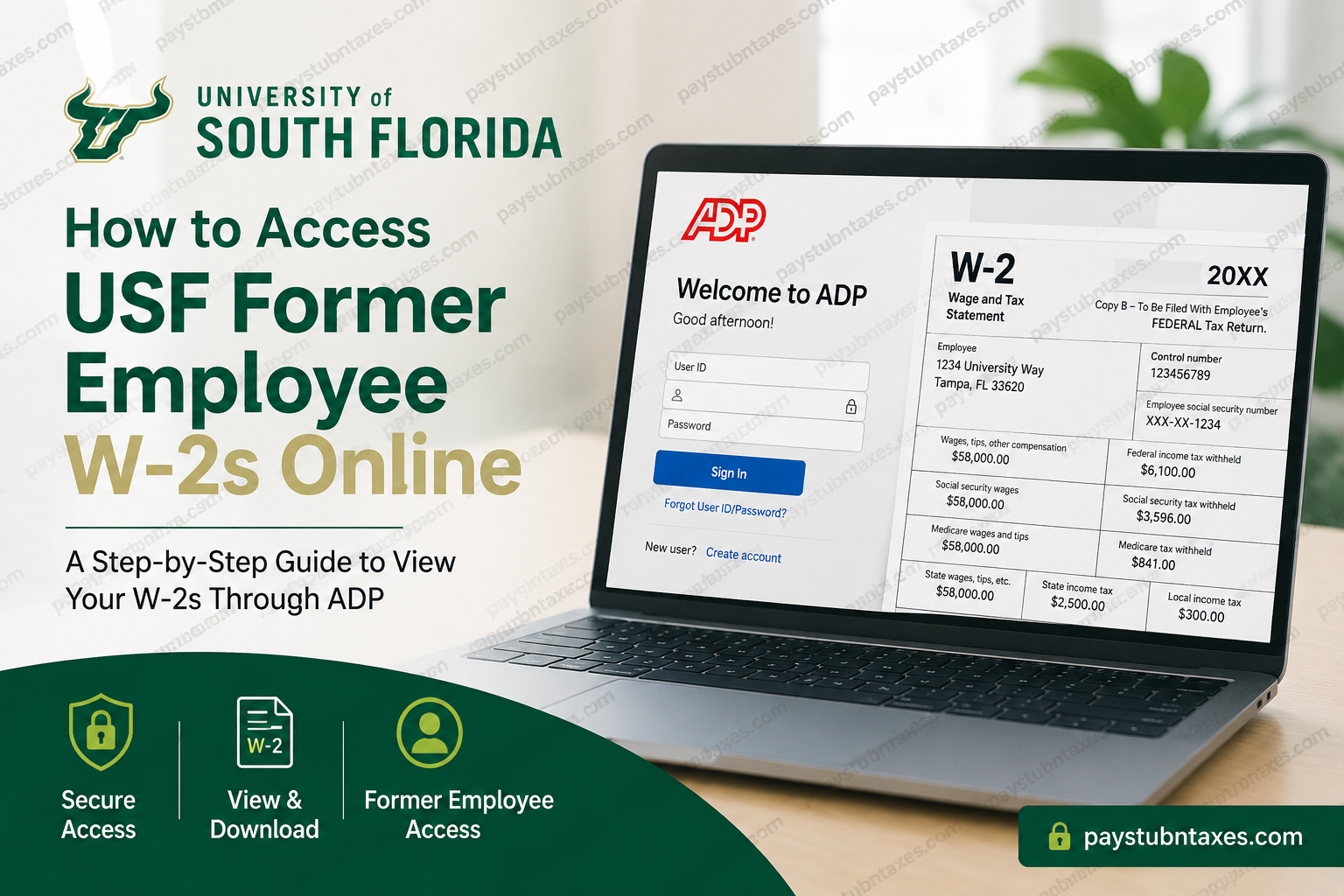
The University of South Florida is one of the leading public research universities in the United States, recognized for academic excellence, innovation, and groundbreaking research. With campuses in Tampa, St. Petersburg, and Sarasota-Manatee, USF serves nearly 50,000 students from around the world and generates billions in annual economic impact. If you are a former employee of USF, you can still access your W-2 tax statements online through the ADP self-service platform. Since terminated employees no longer have direct Oracle HR access, you must create an independent ADP account to retrieve your payroll and tax records.
Where Former USF Employees Access W-2 Forms
USF uses the ADP payroll system to host employee pay statements and W-2 tax forms. Active employees normally access ADP through Oracle HR, but former employees must register directly with ADP after separation from employment.
ADP Portal Link
Website: my.adp.com
Once registered, you can securely view, download, and print your W-2 statements online anytime.
How to Register for ADP as a Former USF Employee
Former employees who never created an ADP login during employment must complete a one-time registration process.
Step 1: Visit the ADP Portal
Go to the ADP self-service website:
my.adp.com
You can use either:
- A desktop browser
- The ADP Mobile Solutions app
Step 2: Select “Create Account” or “Sign Up”
On the login page:
- Click Create Account
- Choose the Find Me option or employee identification method
- Search for University of South Florida as your employer
This step connects your ADP profile with your existing USF payroll records.
Step 3: Verify Your Identity
ADP will ask for information such as:
- Full legal name
- Social Security Number
- Date of birth
- Email address
Your information must exactly match the payroll records stored by USF and ADP.
Step 4: Complete Security Verification
ADP may send:
- A verification code by email
- A phone verification request
- Multi-factor authentication prompts
Enter the verification code and continue the setup process.
Step 5: Create Your Username and Password
After verification:
- Create a secure password
- Select security questions
- Save your login credentials safely
Once completed, your ADP account becomes active immediately.
How to Download Your USF W-2 Online
After signing in to ADP:
- Open the Pay or Tax Statements section
- Select the desired tax year
- Click the W-2 form
- Download or print the document for tax filing
USF stores W-2 forms and paycheck records within the ADP portal for a rolling period of three calendar years.
Can Former Employees Still Access ADP?
Yes. USF confirms that terminated employees retain access to ADP for payroll and tax document retrieval. Former employees can print paycheck stubs and W-2 forms online during the retention period.
If your W-2 is older than the available online retention period, you must request copies directly from USF Payroll Services.
How Long Are W-2 Forms Available Online?
USF states that:
- W-2 forms remain available in ADP for approximately three calendar years
- Older tax records may require a formal reissue request through Payroll Services
Benefits of Accessing W-2s Through ADP
Using ADP provides several advantages for former employees:
- Secure online access
- Instant PDF downloads
- Mobile-friendly access
- Paperless tax delivery
- Faster tax filing preparation
- 24/7 account availability
USF also supports paperless payroll and tax statement delivery through ADP settings.
Troubleshooting ADP Login Problems
If you cannot access your account, try the following:
Forgot Username or Password
Use the Forgot User ID or Forgot Password links on the ADP login page.
Identity Verification Failed
Ensure your:
- Name
- SSN
- Email address
Match the records used during your USF employment.
Locked Account
Wait several minutes and retry, or contact ADP support.
W-2 Not Available
W-2 forms are typically issued by late January each year. If unavailable, contact USF Payroll Services.
Tips for Former USF Employees
To avoid future access problems:
- Keep your ADP email address updated
- Enable paperless tax delivery
- Download copies of W-2s annually
- Store payroll documents securely
Frequently Asked Questions
1. Can former USF employees access ADP after termination?
Yes. Former employees can create or use an ADP account to access W-2s and paycheck records online.
2. What website should I use to access my USF W-2?
Use the ADP employee self-service portal at my.adp.com.
3. Do I need Oracle HR access after leaving USF?
No. Former employees use direct ADP registration instead of Oracle HR.
4. How do I connect my payroll account in ADP?
During registration, select University of South Florida as your employer and complete identity verification.
5. How many years of W-2s are available online?
ADP generally provides access to W-2 forms for up to three rolling calendar years.
6. Can I access my W-2 on my phone?
Yes. You can use the ADP Mobile Solutions app for mobile access.
7. What if I forgot my ADP password?
Use the password recovery options available on the ADP login page.
8. When are W-2 forms available each year?
Most W-2 forms become available in January.
9. Can I print my W-2 from ADP?
Yes. W-2 forms can be downloaded as PDFs and printed anytime.
10. What if my W-2 is older than three years?
You may need to contact USF Payroll Services for archived tax records.
