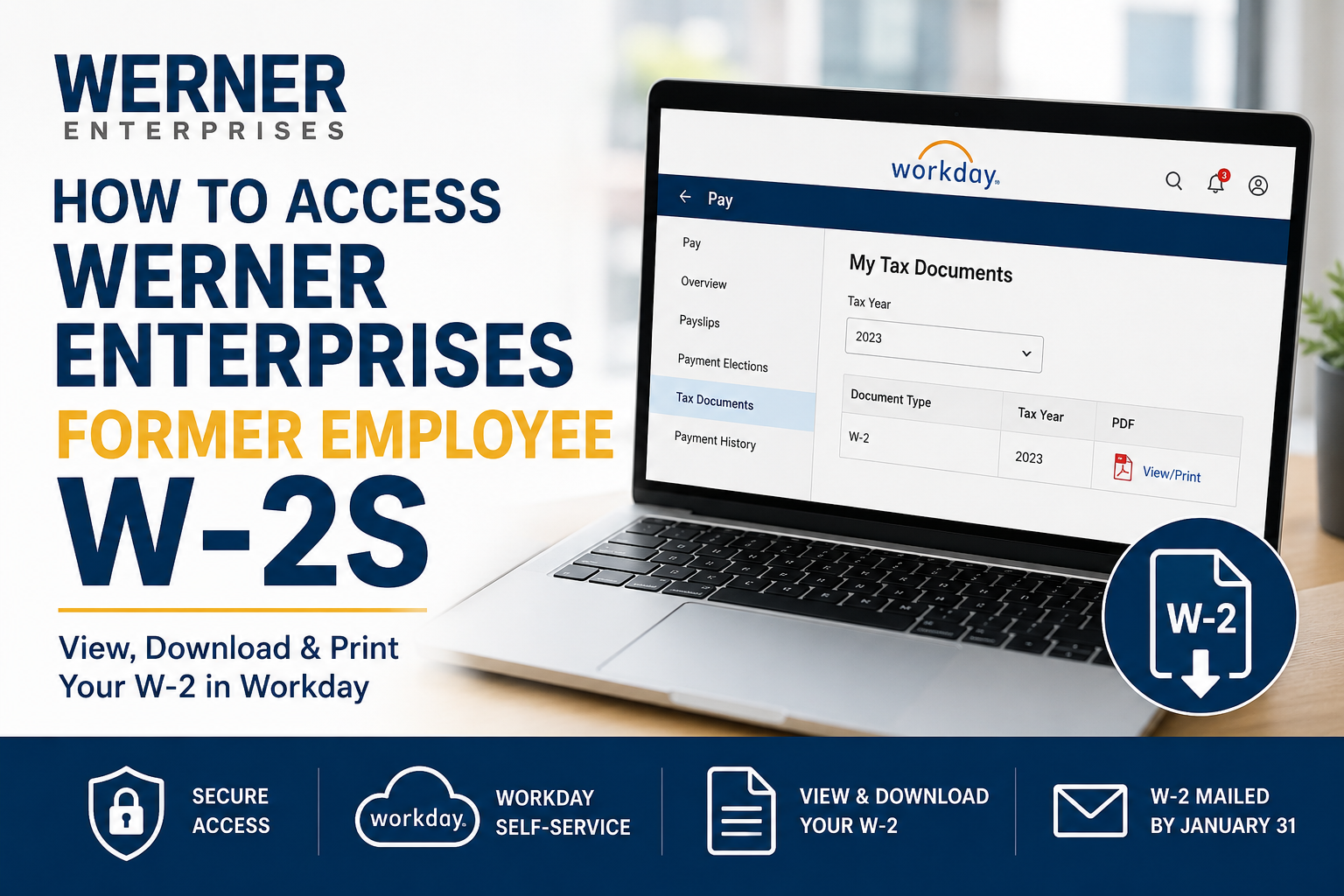
Former employees of Werner Enterprises can still access their W-2 tax documents online through the company’s Workday self-service platform after separation from employment. If you recently left Werner Enterprises, understanding how to retrieve your W-2 quickly can help you file taxes accurately and avoid unnecessary delays during tax season. Werner Enterprises distributes W-2 forms by postal mail on or before January 31 each year. However, many former employees also receive temporary Workday credentials after termination, allowing secure electronic access to tax records and payroll documents.
About Werner Enterprises
Founded in 1956 and headquartered in Omaha, Nebraska, Werner Enterprises is one of the leading transportation and logistics providers in North America. The company operates an extensive freight network across the United States, Canada, and Mexico and employs thousands of drivers, logistics professionals, and support staff. Werner utilizes Workday’s cloud-based payroll and HR system, enabling employees and former employees to securely access payroll records, tax documents, and benefit information online.
Does Werner Enterprises Mail W-2 Forms?
Yes. After termination, Werner Enterprises mails W-2 forms to the employee’s address on file no later than January 31 each year.
If you recently moved or changed your mailing address, it is highly recommended to update your address information before year-end to avoid delivery delays.
Even if you receive a mailed copy, electronic access through Workday provides a faster and more convenient method to download or print additional copies whenever needed.
How to Access Werner Enterprises Former Employee W-2s Online
Step 1: Obtain Your Temporary Workday Login Credentials
After separation from employment, Werner typically provides former employees with a temporary username and password to access Workday as an alumni or former employee user.
You may receive these credentials through:
- Email communication
- Exit documentation
- HR correspondence
- Payroll or benefits notifications
If you did not receive your login information, contact Werner Benefits for assistance.
Werner Benefits Contact Information
- Phone: 877-856-7711
- Fax: 402-894-3029
- Email: benefits@werner.com
Step 2: Access the Werner Workday Portal
Visit the official Werner Drive portal:
Enter your temporary username and password to sign in securely.
Former employees should use a personal computer, laptop, or mobile browser for access.
Step 3: Open the Workday Dashboard
Once logged in, locate and open the Workday tile from the portal dashboard.
Werner employees commonly use the same payroll PIN associated with their Workday access.
After verification, the Workday home screen will appear.
Step 4: Navigate to the Pay Section
Inside Workday:
- Open the Menu located in the upper-left corner
- Select Pay
- Choose My Tax Documents
This section stores electronic tax forms, including current and historical W-2 documents.
Step 5: Download and Print Your W-2
After opening My Tax Documents:
- Locate the applicable tax year
- Select the W-2 form
- Click View/Print PDF
- Save or print the document for your records
In some cases, Workday may briefly process the request before generating the PDF. Once complete, the notification bell icon will display your downloadable file.
Troubleshooting Workday Login Issues
If you cannot access your former employee account, try the following:
- Reset your password if password recovery is available
- Verify your username carefully
- Use a different browser
- Clear browser cache and cookies
- Disable browser extensions temporarily
- Ensure your internet connection is stable
If your temporary access has expired, Werner Benefits or HR may need to reactivate your account.
What If You Never Received Your W-2?
If your W-2 has not arrived by early February:
- Confirm your mailing address on file
- Check whether electronic delivery was enabled
- Access Workday directly
- Contact Werner Benefits immediately
You may also request a duplicate copy if your original form was lost, damaged, or delivered to an outdated address.
Benefits of Accessing Your W-2 Online
Using Workday provides several advantages for former Werner employees:
- Faster access than postal mail
- Ability to download duplicate copies anytime
- Secure digital storage
- Convenient printing options
- Reduced risk of lost documents
- Access from virtually any location
Workday also supports self-service access to payroll and tax information across desktop and mobile platforms.
Final Thoughts
Werner Enterprises makes it relatively straightforward for former employees to retrieve W-2 forms online through Workday. Although paper copies are mailed annually by January 31, electronic access remains the quickest and most reliable option for obtaining tax documents immediately. By using your temporary Workday credentials and navigating to the My Tax Documents section, you can securely view, download, and print your W-2 within minutes. If you experience any login or access issues, Werner Benefits can provide direct assistance and help restore your account access when necessary.
Frequently Asked Questions (FAQ)
1. How do former employees access Werner Enterprises’ W-2 forms online?
Former employees can log in to the Drive Werner Pro portal using temporary Workday credentials received after termination. Inside Workday, navigate to Pay → My Tax Documents to view and print W-2 forms.
2. What is the Werner Enterprises Workday login link?
The official portal is:
3. When does Werner Enterprises mail W-2 forms?
Werner Enterprises distributes W-2 forms by postal mail on or before January 31 each year.
4. Can former employees still access Workday after termination?
Yes. Werner Enterprises typically provides temporary Workday access for former employees so they can retrieve payroll and tax documents online.
5. Where are W-2 forms located in Workday?
Inside Workday, go to:
Menu → Pay → My Tax Documents
You can then select the tax year and download the PDF version of your W-2.
6. What should I do if I forgot my Workday password?
Try using the password recovery option if available. If access problems continue, contact Werner Benefits for account assistance.
7. Who do I contact for Werner W-2 assistance?
You can contact Werner Benefits:
- Phone: 877-856-7711
- Fax: 402-894-3029
- Email: benefits@werner.com
8. Can I download and print my W-2 online?
Yes. Workday allows former employees to securely download, save, and print W-2 forms in PDF format.
9. What if my W-2 never arrives in the mail?
If your W-2 has not arrived by early February, log in to Workday or contact Werner Benefits to request a replacement copy.
10. Can I access old W-2 forms from previous years?
In many cases, Workday stores historical tax documents, allowing former employees to access prior-year W-2 forms electronically.
11. Do I need a payroll PIN to access Workday?
Some Werner systems may require a payroll or verification PIN when opening the Workday dashboard.
12. Is electronic W-2 access secure?
Yes. Workday uses encrypted, secure self-service technology to protect employee payroll and tax information.
13. Can I access Werner Workday from my phone?
Yes. Former employees can typically access Workday from smartphones, tablets, laptops, or desktop browsers with internet access.
14. What happens if my temporary Workday access expires?
If your former employee account expires, Werner Benefits or HR may be able to reactivate access temporarily.
15. Why should I use Workday instead of waiting for mail delivery?
Online access is faster, more convenient, and allows you to download duplicate copies instantly without waiting for postal delivery.
