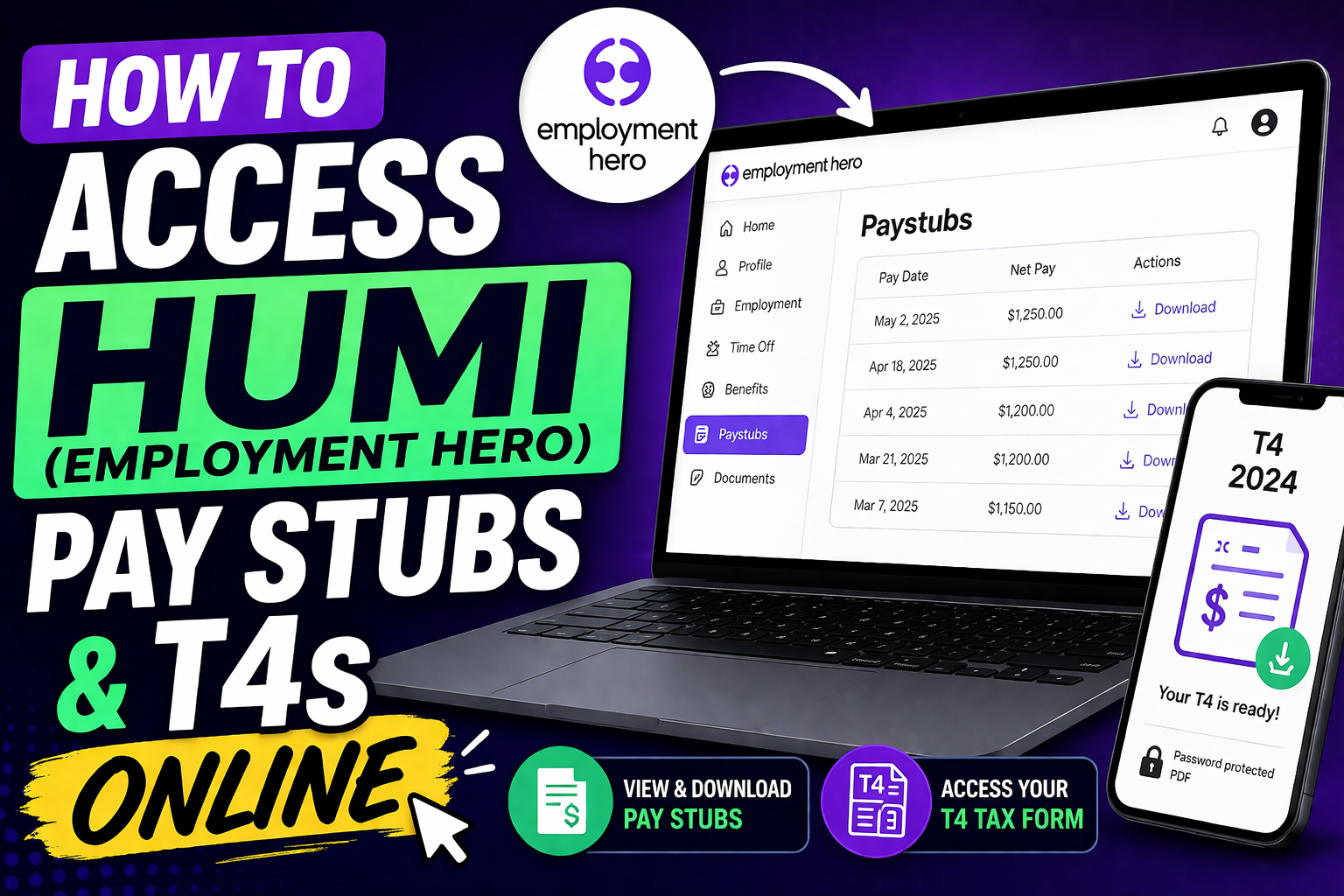
Employment Hero (formerly Humi) is a powerful, all-in-one HR, payroll, and benefits platform designed to simplify workforce management for Canadian businesses. Following its acquisition, Humi has evolved into a robust employment operating system tailored to local compliance and global scalability. For employees, the platform provides seamless access to payroll records, including pay stubs and T4 tax forms, ensuring transparency, compliance, and convenience. This guide will walk you through the exact steps to access your pay stubs and T4s efficiently.
Step 1: Activate Your Employment Hero (Humi) Account
Before accessing payroll documents, you must activate your account.
Activation Process:
- Open your invitation email and click “Join”
- Agree to terms and click Next
- Create a secure password
- Fill in all required personal and legal information
- Complete any assigned documents
- Click “Get Started” to access your dashboard
Once completed, your account is fully activated and ready for use.
Step 2: Log in to Your Account
To access your payroll data:
- Visit the official login page
- Click Log in → Humi by Employment Hero
- Enter your email and password
- Or use Google SSO / Microsoft SSO if enabled
- Click Sign in
After successful login, you will be redirected to your employee dashboard.
Step 3: Access Your Pay Stubs
Method 1: From Dashboard
- Navigate to the Paystubs section (usually on the left menu)
- Select the desired pay period
- Click to view or download your pay stub
Method 2: Through Employee Profile (Admin View)
- Go to People
- Select your profile
- Click More → Paystubs
- View or download any pay stub
Method 3: Email Notification
- Open your Pay Day email
- Click “Get Your Paystub” to access it directly
Step 4: Download Your Pay Stubs
Inside the Paystubs section:
- Click the pay stub you need
- Choose Download to save or print
The system allows access to both current and historical payroll records.
Step 5: Access Your T4 Tax Forms
T4 forms are handled slightly differently:
- Sent to your registered email address as a password-protected attachment
- Includes instructions to unlock the file
If you cannot find your T4:
- Check spam/junk folders
- Log into your CRA (Canada Revenue Agency) account
- Contact your employer or HR administrator
Common Issues and Troubleshooting
1. Pay Stubs Not Visible
Possible reasons:
- You are not linked to payroll
- Employer uses a different payroll system
- Access restricted until payday
- Technical error in the system
2. No Account Access
- You haven’t received an invite
- Contact HR to resend activation email
3. Terminated Employees
- Access to Humi is removed after termination
Key Features of Humi Payroll System
- Easy self-service payroll access
- Secure document storage (Canadian data compliance)
- Automated T4 generation and distribution
- Integrated HR + payroll system
Pro Tips for Employees
- Always download and store your pay stubs for personal records
- Use strong passwords or SSO login for security
- Check your email regularly during tax season for T4 delivery
- Contact HR promptly if any payroll discrepancy occurs
Conclusion
Accessing your pay stubs and T4s through Employment Hero (Humi) is straightforward, secure, and efficient. By following the activation, login, and navigation steps outlined above, you can easily manage your payroll records anytime, anywhere. Whether you need a recent pay stub or your annual tax form, the platform ensures everything is just a few clicks away.
FAQs
1. How do I log in to Humi (Employment Hero)?
Visit the login page, select Humi by Employment Hero, and sign in using your email and password or SSO options like Google or Microsoft.
2. Where can I find my pay stubs in Humi?
After logging in, go to the Paystubs section from your dashboard or left-hand menu to access all available payroll records.
3. Can I download my pay stubs?
Yes, simply open the desired pay stub and click Download to save or print it for your records.
4. How do I activate my Humi account?
Click the “Join” link in your invitation email, create a password, fill in required details, and complete onboarding steps to activate your account.
5. How will I receive my T4 tax form?
Your T4 is sent to your registered email as a password-protected attachment with instructions for access.
6. Can I access my T4 through Humi?
In some cases, yes—but if not available, you can retrieve it through your CRA account or request it from your employer.
7. Why can’t I see my pay stubs?
Common reasons include:
- Not linked to payroll
- Employer uses a different system
- Access restricted until payday
- Technical issues
8. What should I do if I didn’t receive my T4 email?
Check your spam/junk folder first. If still missing, contact your employer or access it via CRA.
9. Can I access pay stubs after leaving my job?
No, access is typically removed after termination. Download your documents before your last working day.
10. Is Humi secure for payroll access?
Yes, Employment Hero provides secure cloud-based storage with Canadian compliance and data protection standards.
11. Can I use mobile devices to access Humi?
Yes, you can log in through any browser on mobile devices to view and download pay stubs and documents.
12. What if I forgot my password?
Use the “Forgot Password” option on the login page to reset your credentials securely.
13. How often are pay stubs updated?
Pay stubs are usually available on or before payday, depending on your employer’s payroll schedule.
14. Can I view past pay stubs?
Yes, the platform allows access to historical payroll records, so you can review previous payments anytime.
15. Who should I contact for payroll issues?
For any discrepancies or access problems, contact your HR or payroll administrator, as they manage your payroll setup.
