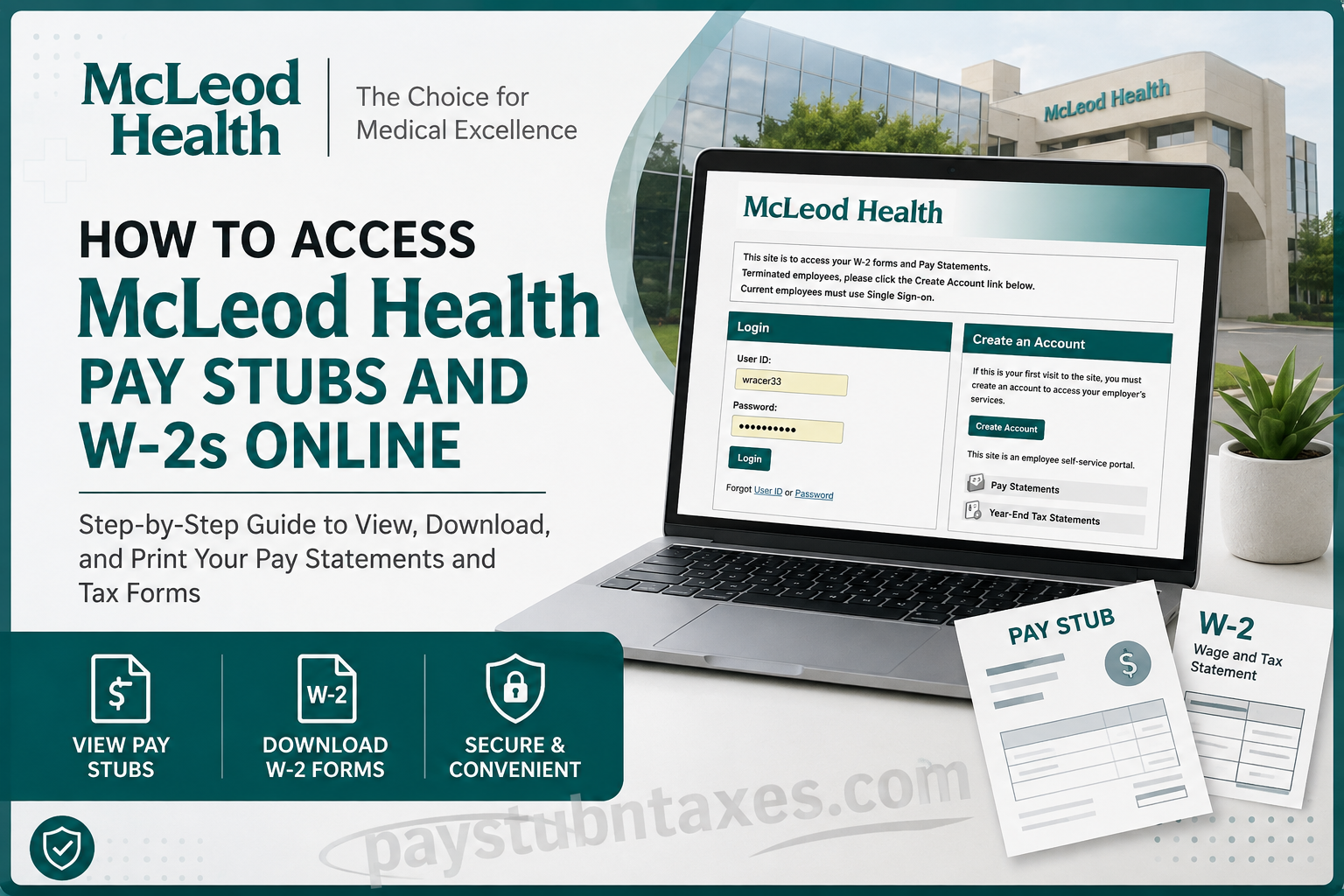
Managing payroll and tax records has become significantly more convenient for McLeod Health employees thanks to the organization’s secure online self-service platform. Whether you need to review your latest earnings, print an old pay statement, or download your annual W-2 for tax filing, the Paperless Employee portal provides round-the-clock access to your employment documents. This comprehensive guide explains how current and former McLeod Health employees can securely access pay stubs and W-2 forms, create an account when necessary, troubleshoot common login issues, and retrieve tax documents with ease.
McLeod Health Employee Payroll Portal Overview
McLeod Health is one of the largest not-for-profit healthcare systems serving northeastern South Carolina, employing approximately 15,000 healthcare professionals across hospitals, physician practices, specialty centers, and outpatient facilities.
To simplify payroll management, McLeod Health provides employees with online access to:
- Current and previous pay statements
- Year-end W-2 tax forms
- Electronic tax statement delivery
- Payroll history
- Secure document downloads
Current employees generally access payroll information through McLeod Health’s Single Sign-On (SSO), while former employees use the Paperless Employee portal by creating their own account. The SSO sign-in page requires employees to authenticate using their organizational credentials.
McLeod Health Payroll Login
Paperless Employee Portal
https://www.paperlessemployee.com/mcleodhealth
Who Uses Which Login?
| Employee Status | Login Method |
| Current McLeod Health employee | Single Sign-On (SSO) |
| Former or terminated employee | Paperless Employee account |
| First-time former employee | Create a Paperless Employee account. |
The login page clearly states that terminated employees should create a Paperless Employee account, while active employees must authenticate through Single Sign-On.
How Current Employees Access Pay Stubs
If you’re currently employed by McLeod Health:
Step 1: Visit the McLeod Health Paperless Employee portal.
Step 2: Choose the Single Sign-On option.
Step 3: Sign in using your McLeod Health organizational credentials.
Step 4: Open the Pay Statements section.
Step 5: Select the desired pay period.
Step 6: Open, download, print, or save the PDF pay statement.
How Former Employees Create a Paperless Employee Account
If this is your first visit after leaving McLeod Health, you’ll need to register before accessing payroll records.
Step 1: Open the McLeod Health Paperless Employee website.
Step 2: Click Create Account.
Step 3: Verify your identity using:
- Employee ID
- Social Security Number
- Date of Birth
Step 4: Create:
- Username
- Password
Step 5: Complete identity verification using the verification code sent to your registered contact information.
Step 6: Create security questions.
Step 7: Add and verify your personal email address.
Step 8: Choose your notification preferences.
Once completed, your Paperless Employee account is ready for use.
How to View McLeod Health Pay Statements
Paperless Employee allows employees to view either complete pay statements or quick summary versions.
Step 1: Sign in to your account.
Step 2: Click: Pay Statements or Access Pay Statements
Step 3: Choose the desired paycheck.
Step 4: Select the checkbox beside the pay statement.
Step 5: Click: View/Print Selected Pay Statements
Step 6: Your pay statement opens as a PDF that can be:
- Downloaded
- Printed
- Saved
A PDF reader is required to open downloaded statements.
How to View Pay Statement Summaries
If you simply need a quick payroll overview instead of downloading the complete statement:
- Open Pay Statements
- Locate the desired paycheck
- Click Show Summary
- View gross pay, deductions, taxes, and net pay directly on the screen without opening a PDF.
How to Receive W-2 Forms Electronically
Before electronic W-2s become available, employees must opt in for electronic tax statement delivery.
Step 1: Open: Manage Electronic Tax Statement Options
Step 2: Select Yes for electronic tax statement delivery.
Step 3: Choose how you want to receive notifications when your W-2 is available.
Step 4: Save your notification settings.
Once enabled, your preference carries forward for future tax years unless you change it.
How to Download Your Current W-2
After electronic delivery has been enabled:
Step 1: Open: Year-End Tax Statements Or Access Current Year-End Statements
Step 2: Select the current tax year.
Step 3: Click: Review & Complete Order
Step 4: Download your W-2.
You may also print or save the document for your records.
How to Access Previous W-2 Forms
Employees can also retrieve prior tax documents.
Step 1: Open: Year-End Tax Statements
Step 2: Select: Access Prior Year-End Statements
Step 3: Choose the tax year needed.
Step 4: Click: Review & Complete Order
Step 5: Download or print your W-2.
What Information Appears on Your Pay Stub?
Your McLeod Health pay statement may include:
- Employee name
- Pay period
- Pay date
- Gross earnings
- Regular and overtime hours
- Shift differentials (if applicable)
- Taxes withheld
- Benefit deductions
- Retirement contributions
- Net pay
- Direct deposit information
- Year-to-date earnings
Common Login Problems and Solutions
Forgot Username
Use the Forgot User ID option on the login page.
Forgot Password
Select Forgot Password and complete identity verification.
Unable to Create an Account
Ensure that:
- Your Employee ID is correct.
- Your Social Security Number matches payroll records.
- Your Date of Birth is entered correctly.
Verification Code Not Received
Check:
- Spam or junk email folders
- Your registered mobile number
- Your personal email address on file
SSO Login Not Working
Current employees should verify that they are using their McLeod Health organizational credentials. If access issues persist, contact the IT Help Desk.
McLeod Health Payroll Contact Information
IT Help Desk
Phone: 843-777-2288
The support team can assist with:
- Login issues
- Password resets
- Paperless Employee registration
- Missing pay statements
- W-2 access problems
- Single Sign-On support
Security Tips
To help protect your payroll information:
- Use a strong, unique password.
- Enable electronic notifications using a personal email address.
- Sign out after each session, especially on shared devices.
- Keep your contact information up to date.
- Download payroll documents only on trusted devices.
- Never share your login credentials.
Conclusion
McLeod Health’s Paperless Employee platform provides a secure, efficient, and user-friendly way to manage payroll and tax records online. Whether you are an active employee accessing pay statements through Single Sign-On or a former employee retrieving W-2 forms via the Paperless Employee portal, the system offers convenient 24/7 access to essential employment documents. By enrolling in electronic W-2 delivery and keeping your account information current, you can streamline tax season, reduce paperwork, and ensure that your payroll records are always available whenever you need them.
Frequently Asked Questions
1. How do I access my McLeod Health pay stubs online?
Current employees should log in using McLeod Health’s Single Sign-On (SSO). After authentication, navigate to Pay Statements to view, download, or print your pay stubs.
2. Where can former McLeod Health employees access their W-2 forms?
Former employees can create an account and sign in through the Paperless Employee portal at paperlessemployee.com/mcleodhealth to access eligible W-2 forms and pay statements.
3. What payroll system does McLeod Health use?
McLeod Health uses the Paperless Employee platform for online access to employee pay statements and year-end tax documents.
4. How do I create a Paperless Employee account?
Click Create Account on the login page, verify your identity using your Employee ID, Social Security Number, and Date of Birth, then create your username, password, and security questions.
5. Can I download my McLeod Health pay stubs as PDF files?
Yes. Select the desired pay statement and click View/Print Selected Pay Statements to open, download, or print the PDF.
6. How can I receive my McLeod Health W-2 electronically?
Enable electronic tax statement delivery by selecting Yes under Manage Electronic Tax Statement Options and saving your notification preferences.
7. Can I access previous years’ W-2 forms?
Yes. After enrolling in electronic delivery, you can access both current and prior-year W-2 forms through the Year-End Tax Statements section.
8. What should I do if I forgot my Paperless Employee password?
Use the Forgot Password link on the login page and follow the verification steps to reset your password securely.
9. How do I recover my User ID?
Select Forgot User ID on the login page and complete the identity verification process to retrieve your account information.
10. Can terminated employees still access their pay statements?
Yes. Terminated employees can create a Paperless Employee account to access available pay statements and tax documents.
11. What information appears on a McLeod Health pay stub?
A pay stub typically includes gross earnings, taxes withheld, benefit deductions, retirement contributions, net pay, pay period, and year-to-date totals.
12. Is the Paperless Employee portal available 24/7?
Yes. The portal is available online around the clock, allowing employees to access payroll documents whenever needed.
13. Why can’t I view my W-2 online?
You may not have enrolled in electronic W-2 delivery, or the form may not yet be available. Ensure electronic delivery is enabled and verify your notification settings.
14. Who should I contact if I have trouble accessing my payroll information?
For login, account, or payroll portal issues, contact the McLeod Health Help Desk at 843-777-2288.
15. Is it safe to access McLeod Health pay stubs online?
Yes. The Paperless Employee portal uses secure authentication and encrypted connections. Employees should use strong passwords, log out after each session, and avoid accessing payroll information on public or shared devices.
