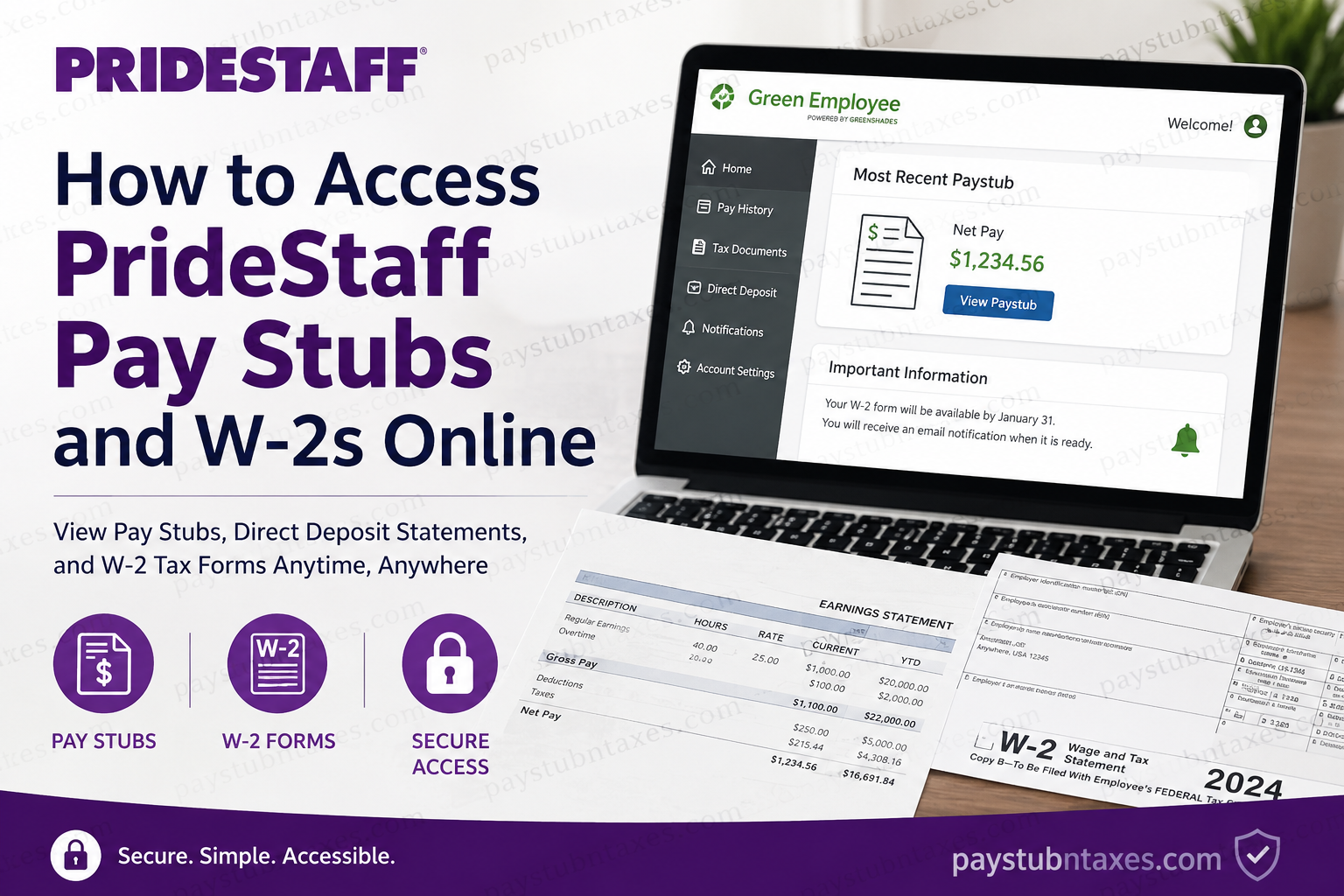
PrideStaff has built its reputation on delivering exceptional staffing solutions through a client-centered approach, high-quality talent placement, and long-standing professional relationships. With a commitment to excellence recognized by numerous industry awards, PrideStaff continues to provide workforce solutions that prioritize both employers and employees. For temporary associates and staff members, convenient access to payroll records is equally important. Fortunately, PrideStaff employees can securely view and download their pay stubs, direct deposit statements, W-2 tax forms, and other payroll documents through the Green Employee Self-Service (Greenshades) portal. This comprehensive guide explains how current and former PrideStaff employees can access their payroll records online, retrieve W-2 forms, troubleshoot login issues, and make the most of the Green Employee platform.
What Is the PrideStaff Green Employee Self-Service Portal?
The Green Employee Self-Service Portal, powered by Greenshades, is PrideStaff’s online payroll platform that enables employees to manage and access important employment records anytime and from virtually anywhere.
Through the portal, employees can:
- View current and historical pay stubs
- Access direct deposit statements
- Download W-2 tax forms
- Review tax-related documents
- Update notification preferences
- Access payroll records from a computer or mobile device
- Receive alerts when new payroll documents become available
Both active and former PrideStaff employees can utilize the system to obtain payroll information and tax documents.
PrideStaff Green Employee Login Information
To access your payroll records, visit:
PrideStaff Green Employee Portal:
http://pridestaff.greenemployee.com/
Enter your registered email address and password to sign in.
If you are logging in for the first time, you must create an account before accessing payroll documents.
How to Create a New Green Employee Account
If you have never used the Green Employee portal before, follow these steps:
Step 1: Visit the Portal
Open your web browser and navigate to: http://pridestaff.greenemployee.com/
Step 2: Select “Create an Account”
On the login page, click the account registration option.
Step 3: Verify Your Identity
You may be asked to provide:
- Social Security Number (SSN)
- Date of Birth
- Email Address
- Phone Number associated with payroll records
Step 4: Create Login Credentials
Choose a secure password and complete the account setup process.
Step 5: Log In
Once registration is complete, sign in using your newly created credentials.
How to Access PrideStaff Pay Stubs Online
After logging into the Green Employee portal, retrieving your pay statements is straightforward.
Method 1: View Your Most Recent Pay Stub
Upon signing in, the homepage displays a “Most Recent Paystub” section containing:
- Gross Pay
- Taxes Withheld
- Deductions
- Net Pay
- Year-to-Date Totals
Simply click View to open the complete pay statement.
Method 2: Use the Pay History Section
To review older payroll records:
- Log in to Green Employee.
- Select Pay History from the navigation menu.
- Locate the desired pay period.
- Choose the corresponding paycheck or direct deposit record.
- Open, review, print, or download the document.
The portal stores historical payroll information, making it easy to locate previous pay periods whenever necessary.
How to Download PrideStaff W-2 Forms
Each year, W-2 tax forms become available through the Green Employee portal before or around the IRS distribution deadline.
To access your W-2:
Step 1: Sign In
Visit the Green Employee portal and log in.
Step 2: Locate W-2 Notifications
When your W-2 becomes available, a notification will appear on your homepage.
Step 3: Open the Tax Form
Navigate to the tax documents section and select the applicable tax year.
Step 4: Review and Download
Open the form, verify your information, and download or print the PDF for your tax records.
Employees generally receive an email notification by January 31 informing them that W-2 forms are available online.
Because PrideStaff strongly encourages electronic access, employees should download and print their W-2 directly from the portal whenever possible.
How Long Are W-2 Forms Available Online?
PrideStaff’s Greenshades system typically keeps W-2 forms available online through December 31 of the current calendar year.
Employees are strongly encouraged to:
- Download a PDF copy
- Print a physical copy
- Save a backup version for future tax and financial purposes
Maintaining your own copy helps prevent delays if you need the document later for mortgage applications, student aid verification, or tax amendments.
How to Enable Pay Stub Notifications
The Green Employee platform allows employees to receive automatic alerts whenever a new payroll document becomes available.
To enable notifications:
- Log in to your account.
- Click Account Settings.
- Select the Notifications tab.
- Choose email notifications, text message notifications, or both.
- Save your preferences.
You can direct notifications to either:
- Personal email address
- Corporate email address
Text notifications can also be configured by selecting your mobile carrier and entering your phone number.
How to Reset Your Green Employee Password
If you forget your password:
- Visit the login page.
- Click Forgot Password or Reset Password.
- Enter the email address associated with your account.
- Check your inbox for a password reset email.
- Follow the instructions provided.
- Create a new secure password.
- Sign in using the updated credentials.
If you no longer have access to the email account used during registration, contact your local PrideStaff branch for assistance.
Mobile Access to Pay Stubs and W-2s
Greenshades offers a mobile-friendly experience and supports access through compatible mobile applications.
Using a smartphone or tablet, employees can:
- View pay stubs
- Download W-2 forms
- Check direct deposit information
- Manage account settings
- Receive payroll notifications
This flexibility allows employees to access payroll records while traveling or working remotely.
Common Login Issues and Solutions
Incorrect Username or Password
Use the password reset feature to restore access.
No W-2 Available
Wait until the annual release date or verify that your payroll information is current.
Verification Problems
Ensure your email address and phone number match the information on file.
Browser Issues
Try:
- Clearing browser cache
- Using Google Chrome, Microsoft Edge, or Firefox
- Disabling pop-up blockers temporarily
Former Employee Access Problems
Former employees should contact their local PrideStaff branch if they experience account access difficulties.
Why Employees Prefer Electronic W-2 Delivery
Electronic tax forms offer several advantages:
- Faster access than postal delivery
- Immediate download capability
- Reduced risk of lost mail
- Environmentally friendly distribution
- Convenient storage and retrieval
For many employees, electronic delivery is the fastest and most reliable way to obtain tax documents during filing season.
PrideStaff Payroll Support Contact Information
If you need assistance with account access, payroll records, or tax forms, contact PrideStaff directly.
Phone: 800-774-3316
Email: info@pridestaff.com
You may also contact your local PrideStaff office for location-specific support.
Final Thoughts
PrideStaff has streamlined payroll management through the Green Employee Self-Service portal, giving both current and former employees secure access to pay stubs, direct deposit statements, W-2 tax forms, and other payroll-related records. Whether you need a recent paycheck, a prior-year pay statement, or your annual tax documentation, the Greenshades platform provides a convenient, secure, and user-friendly solution available 24 hours a day. By registering for the portal, enabling notifications, and downloading tax documents promptly, employees can ensure uninterrupted access to critical payroll information whenever it is needed.
Frequently Asked Questions
1. How do I access my PrideStaff pay stubs online?
You can access your pay stubs through the Green Employee Self-Service portal at pridestaff.greenemployee.com by logging in and selecting the Pay History section.
2. Can former PrideStaff employees access W-2 forms online?
Yes. Both current and former PrideStaff employees can access W-2 forms and payroll records through the Green Employee portal.
3. When will PrideStaff W-2 forms be available?
W-2 forms are generally available online by January 31 each year, often before paper copies are mailed.
4. What website does PrideStaff use for payroll access?
PrideStaff uses the Green Employee Self-Service portal powered by Greenshades.
5. How do I create a Green Employee account?
Visit the login page, select “Create an Account,” verify your identity, and follow the registration instructions.
6. What information do I need to register?
Typically, you will need your Social Security Number, date of birth, email address, and phone number associated with payroll records.
7. How can I reset my Green Employee password?
Click the “Forgot Password” or “Reset Password” link on the login page and follow the instructions sent to your registered email address.
8. Can I download and print my W-2 form?
Yes. Green Employee allows you to download a PDF version of your W-2 and print it for tax filing purposes.
9. How long are W-2 forms available online?
W-2 forms generally remain available online through December 31 of the current year.
10. Can I access payroll records from my phone?
Yes. Greenshades supports mobile access and offers compatibility with most smartphones and tablets.
11. How do I view older pay stubs?
Navigate to the Pay History section and select the desired pay date from the available records.
12. Will I receive notifications when a new pay stub is available?
Yes. Employees can enable email or text notifications through the Account Settings section.
13. What should I do if my W-2 is missing?
Verify that your account information is current and contact your local PrideStaff branch or HR representative for assistance.
14. Can I update my contact information in Green Employee?
Yes. Employees can update eligible personal information through the portal’s profile and account management features.
15. Who do I contact if I cannot access my account?
Contact your local PrideStaff office or call 800-774-3316 for payroll and account assistance.
