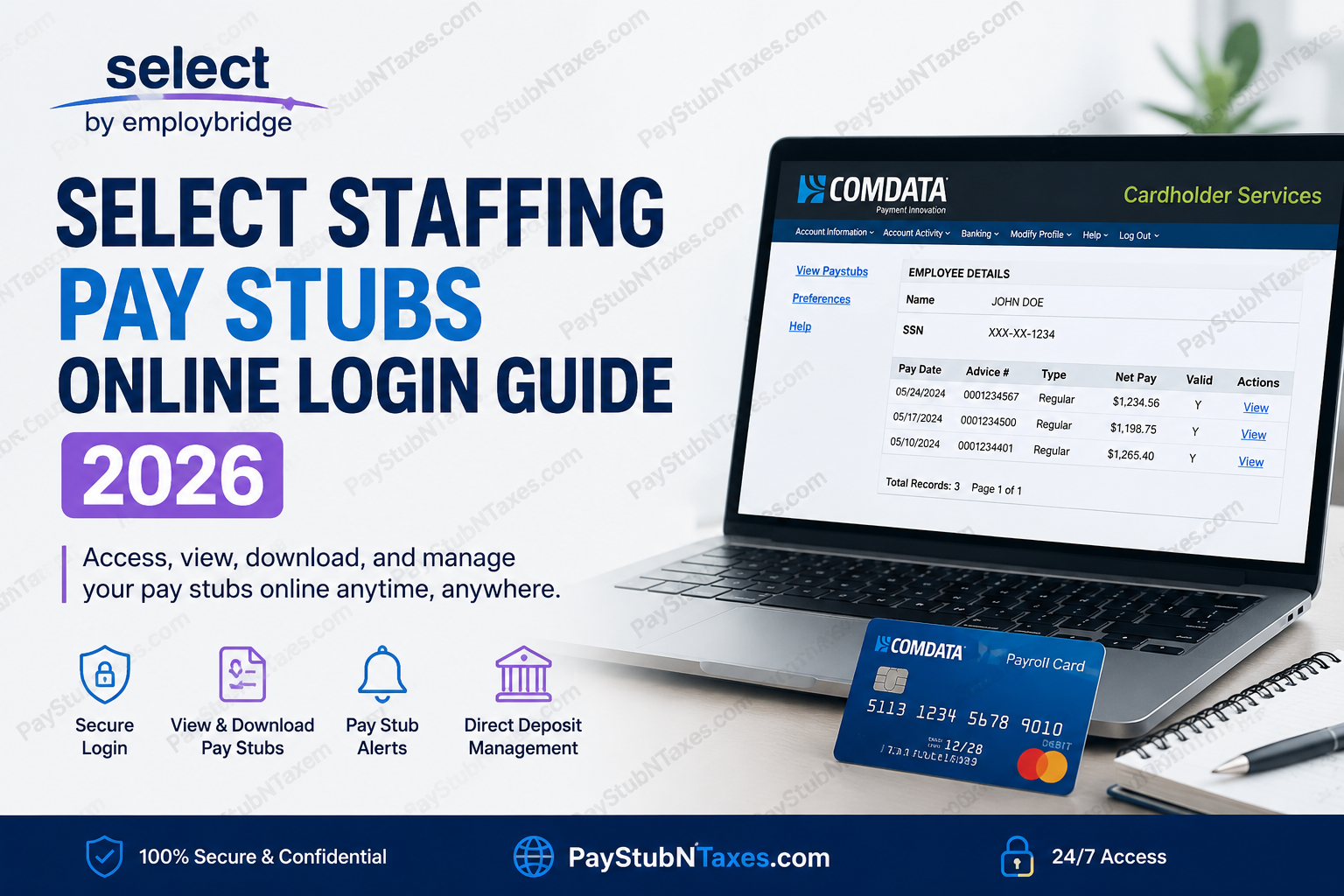
Employees working through Select Staffing can conveniently access their payroll information online through the Comdata Cardholder Services portal. Whether you receive wages through direct deposit or a Comdata pay card, the online paystub system allows you to review your earnings, deductions, taxes, and payment history anytime, from virtually anywhere. As one of the leading staffing and workforce management companies in the United States, Select Staffing provides thousands of associates with secure digital payroll access, ensuring employees can retrieve important compensation records without needing to visit a branch office. This comprehensive 2026 guide explains how to log in, register, view your pay stubs, troubleshoot common login issues, set up direct deposit, and use mobile access features for a smoother payroll experience.
What Is the Select Staffing Pay Stub Portal?
The Select Staffing paystub portal is powered through the Comdata Cardholder Services and USVerify payroll systems, allowing eligible associates to:
- View weekly pay stubs online
- Access payroll details 24/7
- Receive paystub alerts by email or text
- Manage direct deposit preferences
- Monitor pay card transactions
- Transfer payroll funds to a bank account
- Access payment history securely
Associates using direct deposit or Comdata payroll cards are eligible for electronic paystub access.
Select Staffing Pay Stub Login Portal
Official Login Link
Select Staffing Pay Stub Login Portal
Employees can log in using their:
- Username
- Password
First-time users must register before accessing payroll records.
How to Access Select Staffing Pay Stubs Online
Follow these detailed steps to retrieve your payroll information online:
Step 1: Open the Comdata Login Portal
Visit the official Comdata Cardholder Services login page.
Step 2: Enter Your Login Credentials
Provide your:
- Username
- Password
Then click “Log In.”
Step 3: Navigate to the Banking Menu
After signing in, hover over or click the “Banking” tab and select “Paystub.”
Step 4: Allow Pop-Ups
A new USVerify payroll window will open automatically. If nothing appears, disable your browser’s pop-up blocker or allow pop-ups for the site.
Step 5: Open Employee Details
Once validation is complete, the Employee Details screen appears. Click:
- “View”
or - “View Paystubs” link, which is located in the left side menu, to open your payroll details.
Step 6: Review or Download Your Pay Stub
You can:
- View current and previous pay stubs
- Print payroll statements
- Save copies for tax or income verification purposes
How to Register for First-Time Access
New associates must complete account registration before accessing the payroll portal.
Typically, registration requires:
- Birth date
- Social Security Number
- Payroll card or direct deposit enrollment
Employees who are not yet enrolled in electronic payroll services should contact their local Select Staffing branch for activation assistance.
Pay Stub Access Eligibility
Electronic paystub access is available to:
- Associates using direct deposit
- Employees paid through Comdata payroll cards
Employees without internet access may:
- Use a kiosk computer at a local branch
- Access payroll information through the Interactive Voice Response (IVR) phone system
Select Staffing Payroll Schedule
According to Select Staffing associate information:
- Timecards should be submitted by 9:00 A.M. Monday
- Payday is generally every Friday
- If Friday falls on a holiday, payment is usually issued on Thursday instead
How to Receive Pay Stub Notifications
Employees can enable:
- Email notifications
- SMS text alerts
through the Preferences section of the USVerify portal.
This feature helps associates know immediately when a new pay statement becomes available.
Using the Comdata Mobile App
The Comdata Prepaid Mobile App allows employees to manage payroll activity directly from their smartphones.
Features Include:
- Free balance checks
- Transaction history review
- ATM locator access
- Mobile payroll monitoring
The app is available for both:
- iOS
- Android devices
How to Set Up Direct Deposit
Employees can transfer payroll funds from their Comdata payroll card directly into a bank account.
Steps to Configure Direct Deposit
- Log into the Comdata Cardholder website
- Open the Banking menu
- Select Direct Deposit
- Add banking information
- Choose:
- Fixed amount
- Percentage transfer
- Submit your request
Important Note
Direct deposit requests may require a 10-business-day prenote verification period before activation.
Common Select Staffing Pay Stub Login Problems
Incorrect Username or Password
Use the “Forgot Username or Password” option on the login screen.
Pop-Up Blocked
The paystub system opens in a separate browser window, so pop-up blockers must be disabled.
Account Not Activated
If you receive an error stating the service is unavailable, contact your local branch for payroll activation assistance.
Session Timeout
The portal automatically logs users out after 15 minutes of inactivity for security reasons.
Security Tips for Employees
To protect sensitive payroll data:
- Always log out after viewing pay stubs
- Avoid accessing payroll accounts on public computers
- Use strong passwords
- Enable secure browser settings
- Log out from both Comdata and USVerify windows separately
Select Staffing Payroll Support Contact
Employee Assistance
- Phone: 866-395-9200
- Branch Support: Contact your local Select Staffing office
Comdata Customer Service
- Phone: 888-265-8228
Benefits of Online Pay Stub Access
Using the online payroll system offers several advantages:
- 24/7 access to payroll records
- Faster income verification
- Reduced paperwork
- Easy tax preparation
- Secure digital payroll management
- Mobile-friendly payroll access
For temporary and contract workers who frequently change assignments, digital access ensures payroll records remain available regardless of work location.
Final Thoughts
The Select Staffing online payroll system simplifies pay management by giving associates secure and immediate access to their earnings information. Through the Comdata and USVerify platforms, employees can conveniently monitor weekly pay, activate notifications, manage direct deposits, and review payroll history without visiting a staffing office. Whether you are a temporary worker, long-term contractor, or pay card holder, understanding how to navigate the Select Staffing paystub portal can save time and eliminate unnecessary payroll complications throughout 2026.
Frequently Asked Questions (FAQs)
1. How can I view my Select Staffing pay stubs online?
You can view your pay stubs by logging into the Comdata Cardholder Services portal and selecting “Paystub” from the Banking menu.
2. What information do I need to register for the payroll portal?
First-time users typically need:
- Birth date
- Social Security Number
- Payroll enrollment details
3. Can I access pay stubs from my phone?
Yes. Employees can use the Comdata Mobile App on both Android and iPhone devices.
4. Is the Select Staffing payroll portal available 24/7?
Yes. Employees can access their pay information online anytime.
5. What should I do if I forget my password?
Use the “Forgot Username or Password” option available on the login page.
6. Why is the pay stub page not opening?
The system opens in a separate browser window, so your pop-up blocker may be preventing access.
7. Who can access electronic pay stubs?
Only employees receiving pay through direct deposit or Comdata pay cards are eligible for online paystub access.
8. Can I download or print my pay stubs?
Yes. The portal allows employees to print or save copies of payroll statements.
9. How often are employees paid at Select Staffing?
Most associates are paid weekly, typically every Friday.
10. What happens if payday falls on a holiday?
If Friday is a holiday, employees are usually paid on Thursday.
11. How do I receive paystub notifications?
You can enable email or text message alerts through the Preferences section of the USVerify portal.
12. Can I transfer money from my payroll card to my bank account?
Yes. Employees can set up direct deposit transfers through the Direct Deposit section of the Comdata portal.
13. How long does direct deposit setup take?
There is generally a 10-business-day verification period before direct deposit becomes active.
14. What should I do if my account is locked?
Contact your local Select Staffing branch or Comdata customer support for assistance.
15. What is the customer support number for payroll help?
For payroll or paystub assistance, employees can call:
- Select Staffing Support: 866-395-9200
- Comdata Customer Service: 888-265-8228
